
Field data can be merged into Document Templates, Message Templates, instructions in criteria and the body/subject of Message response type criteria.
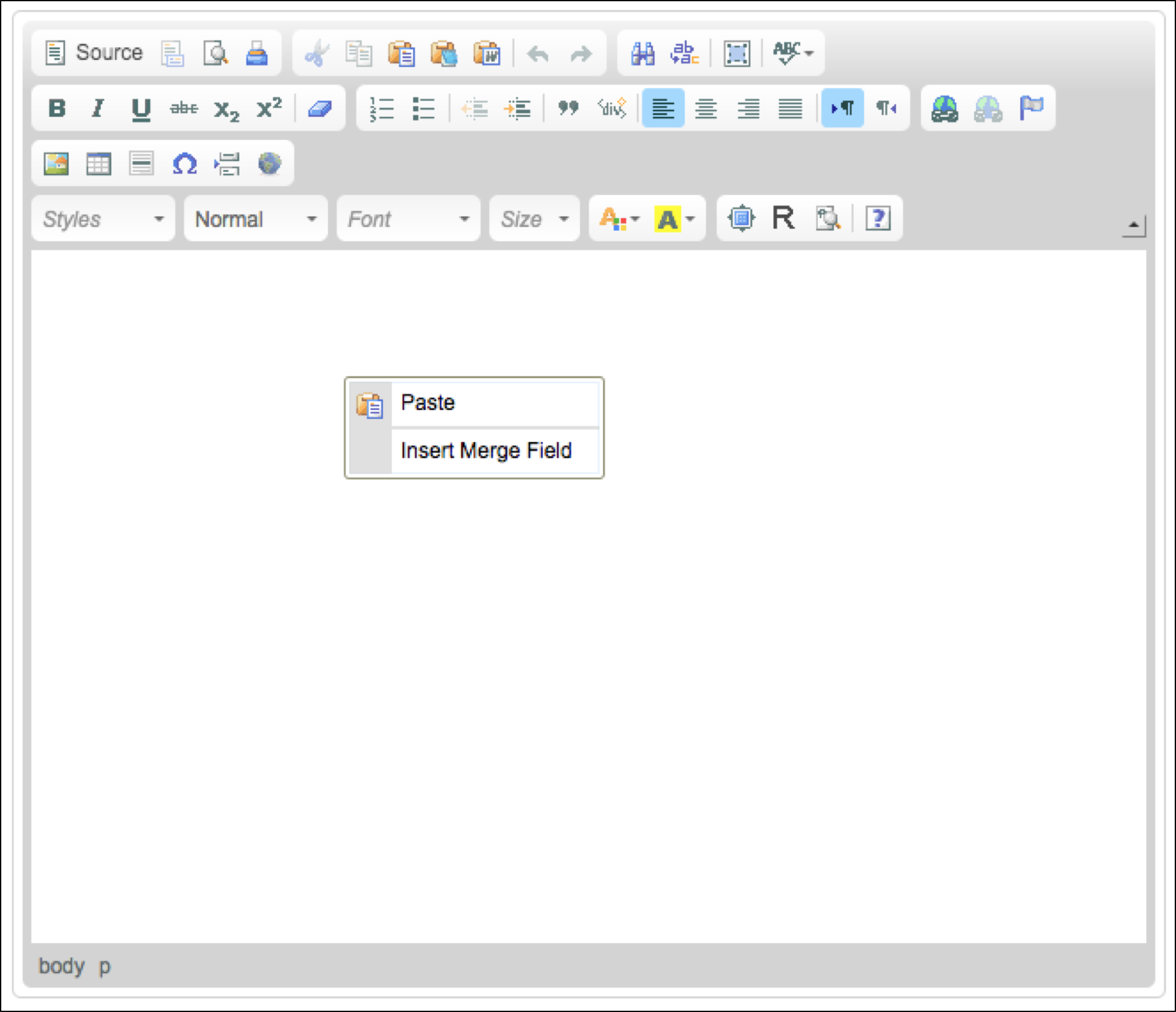
Field data can be accessed by right clicking in the html editor.
- Click 'Insert Merge Field'
- Scroll onto 'Target'
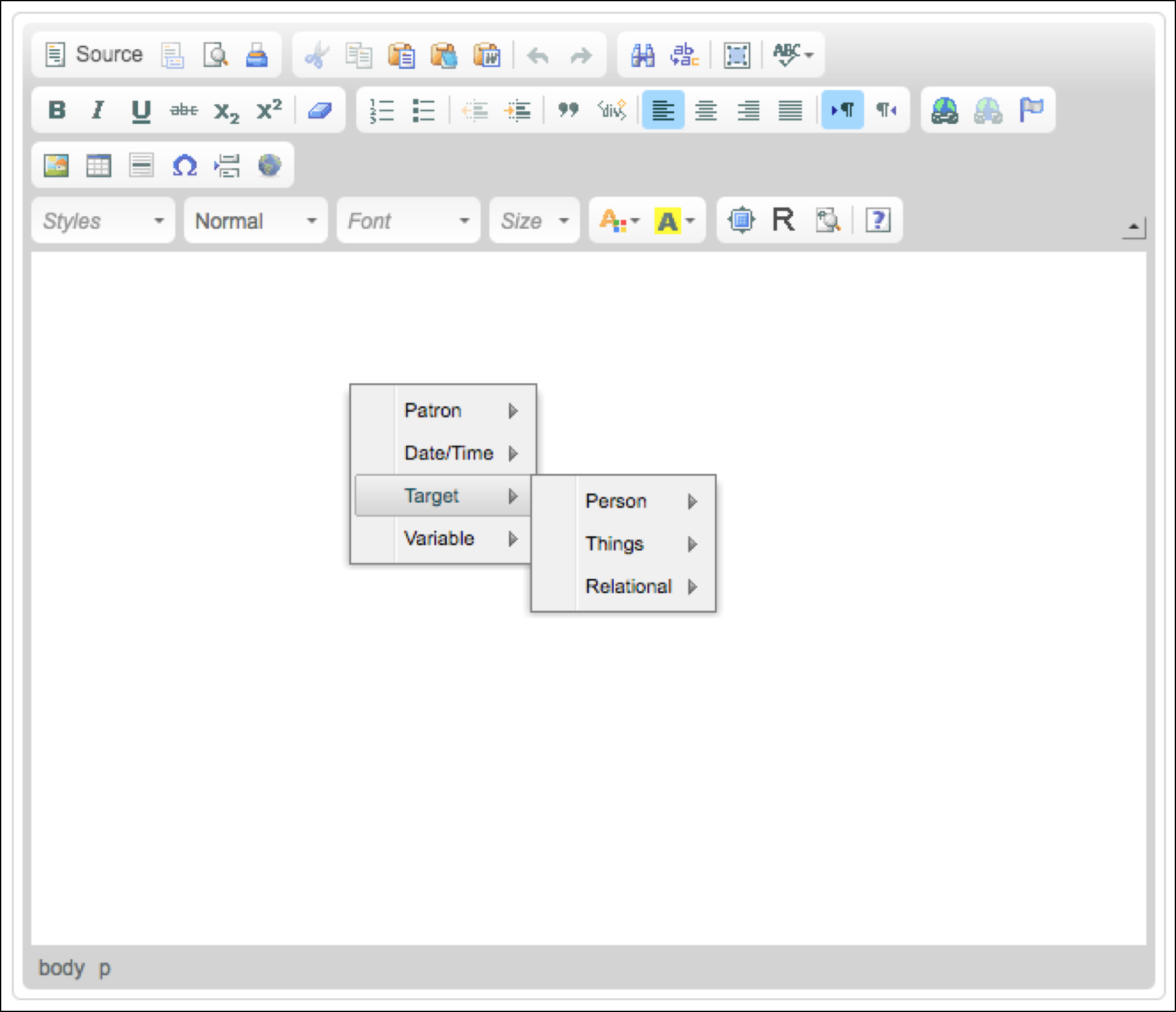
The general rule of thumb is to select the target type of the target group for which you are preparing the template, instructions or message.
So in the case of a Candidate, Client, Customer, Employee, Limited Company, Referee, etc this is usually a Person target type.
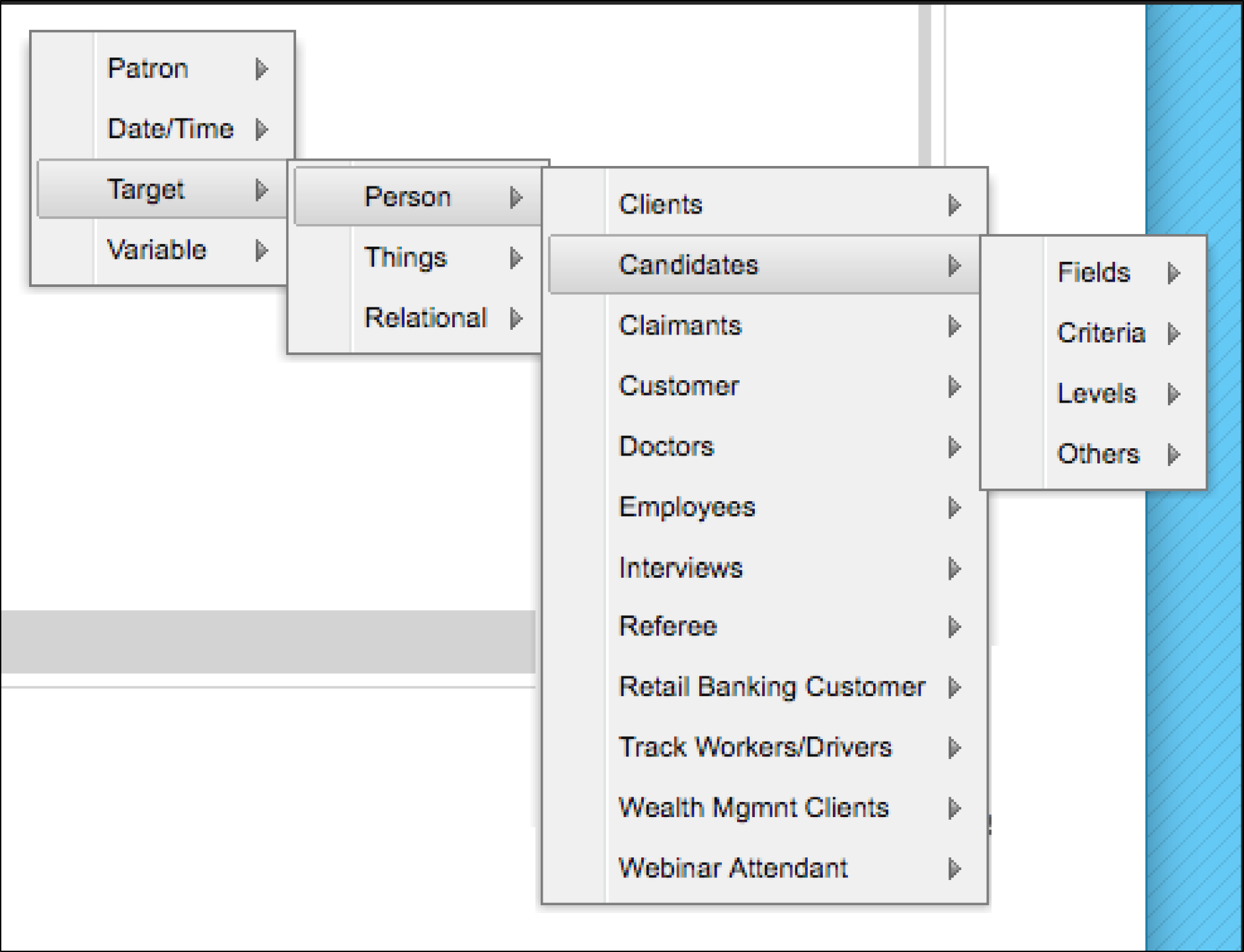
- Scroll over to “Person”
- Scroll over to the required target group
- Scroll over to “Fields”
- Scroll over to the required field and click to select it
You will note that Standard fields are listed first followed by Custom fields.
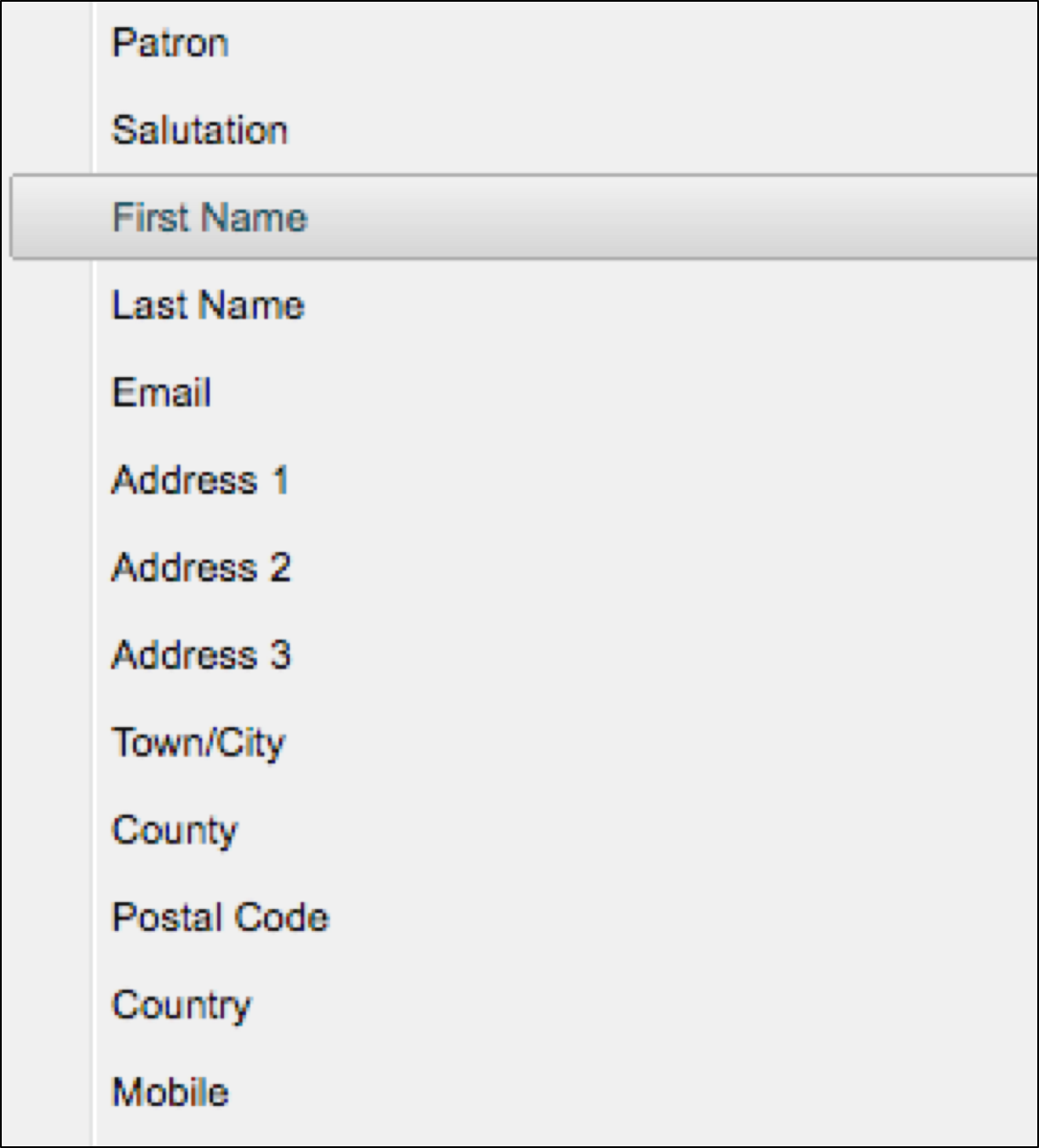
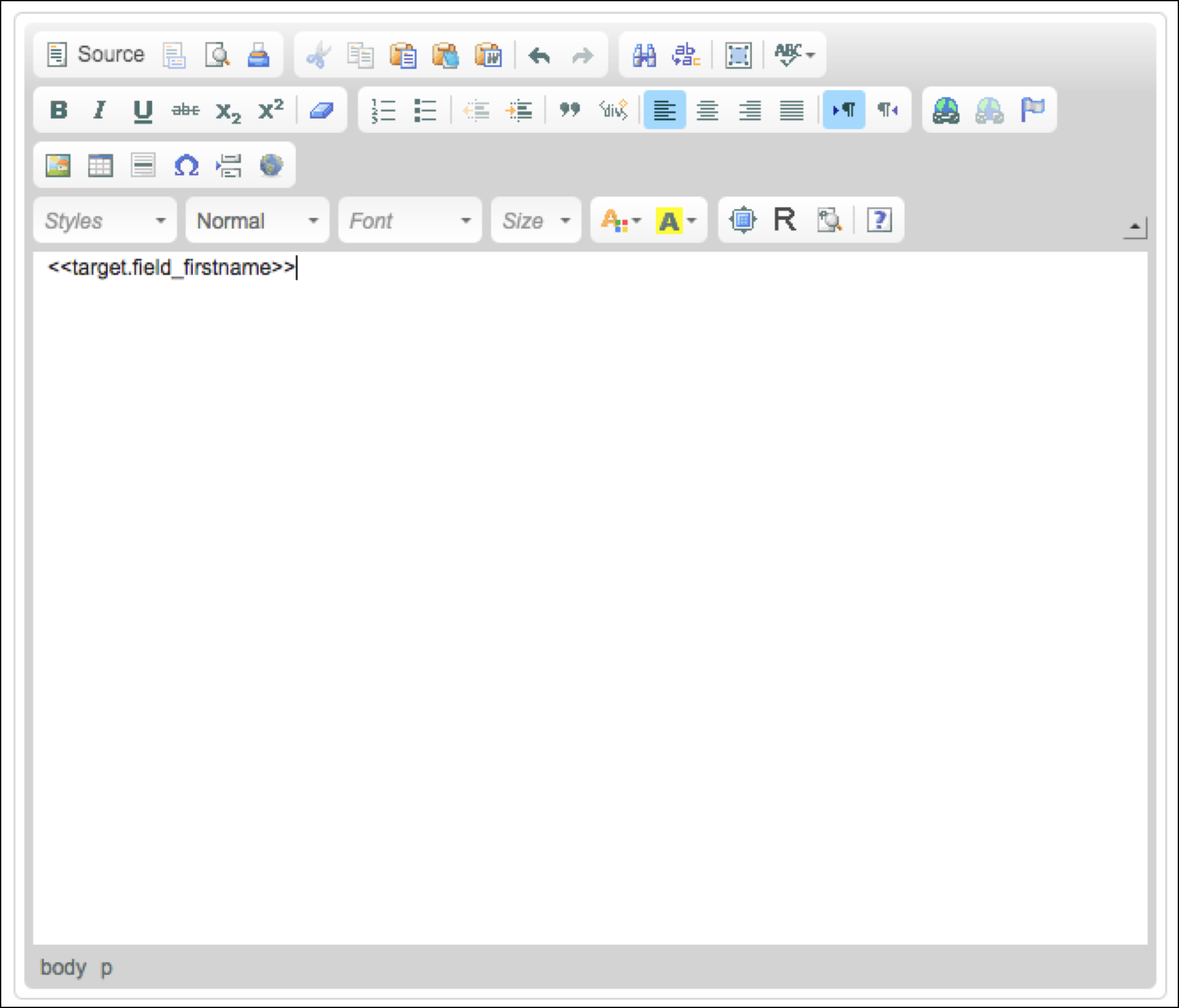
A merge field from a Person or Thing type will be displayed in the editor prefixed with <<target.field_
In some circumstances you will need to insert a field from a Relational target type. This is done in the same way as described above but rather than scroll to “Person” you scroll to “Relational”.
Next scroll to the Relational Target Group (RTG) you require – in the below screenshot “Placement” is the RTG.
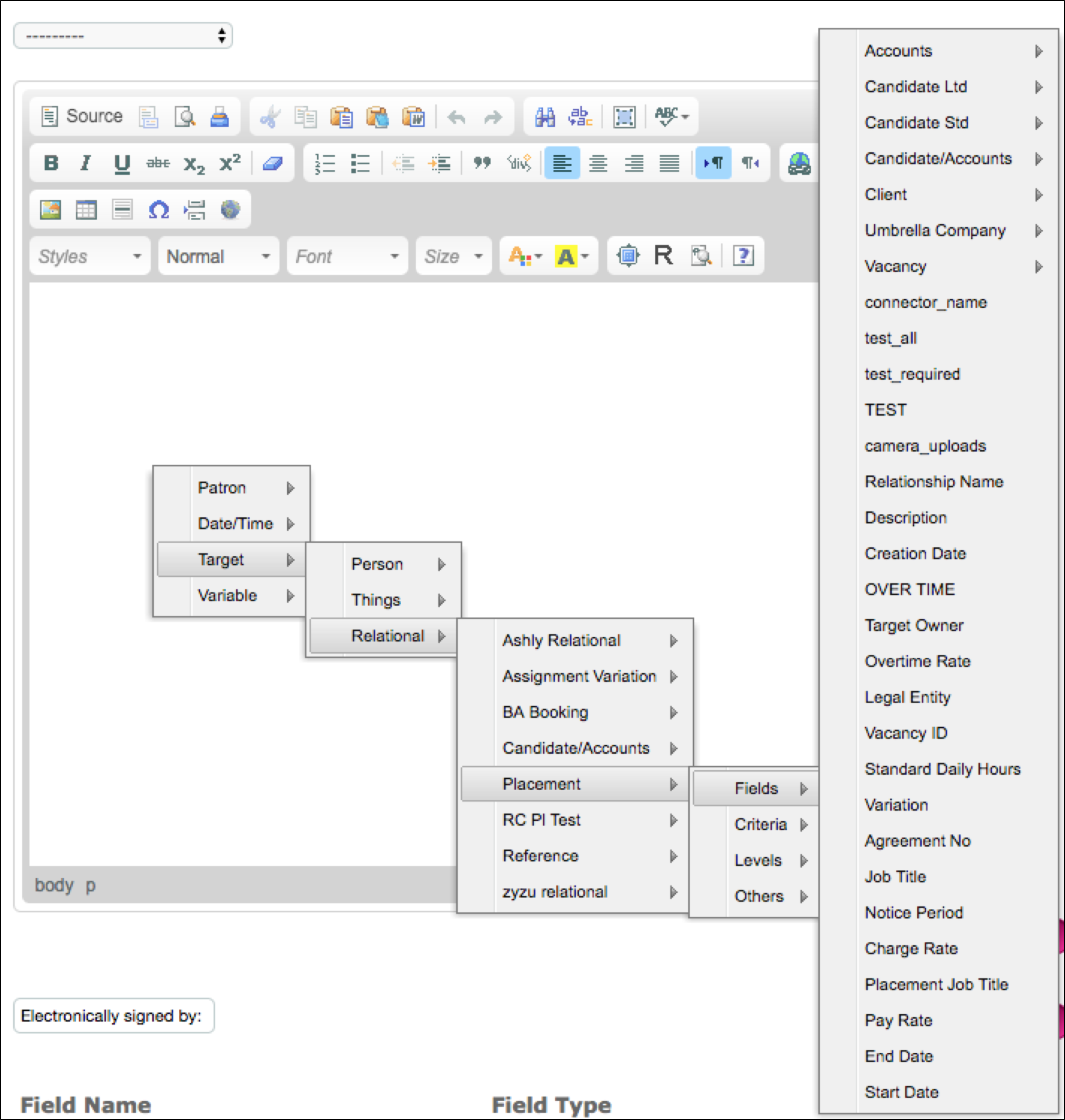
Scroll to Fields.
The child target groups (CTG) within the relationship will be listed in the top of the resulting menu. In the screenshot above, the following are child target groups:
|
Target Group |
Target Type |
|
Accounts |
Person |
|
Candidate Ltd |
Person |
|
Candidate Std |
Person |
|
Candidate/Accounts |
Relational |
|
Client |
Person |
|
Umbrella Company |
Person |
|
Vacancy |
Thing |
Listed next will be the RTG’s standard fields. These are usually:
- Relationship Name
- Description
- Creation Date
However, this example includes some additional fields because it is a test system.
Listed after the standard fields are the RTG’s custom fields eg Pay Rate and Charge Rate.
RTG field merges can be used when criteria are assigned via a sequence where the RTG is the subject of the sequence and the level variant is "For each relationship":
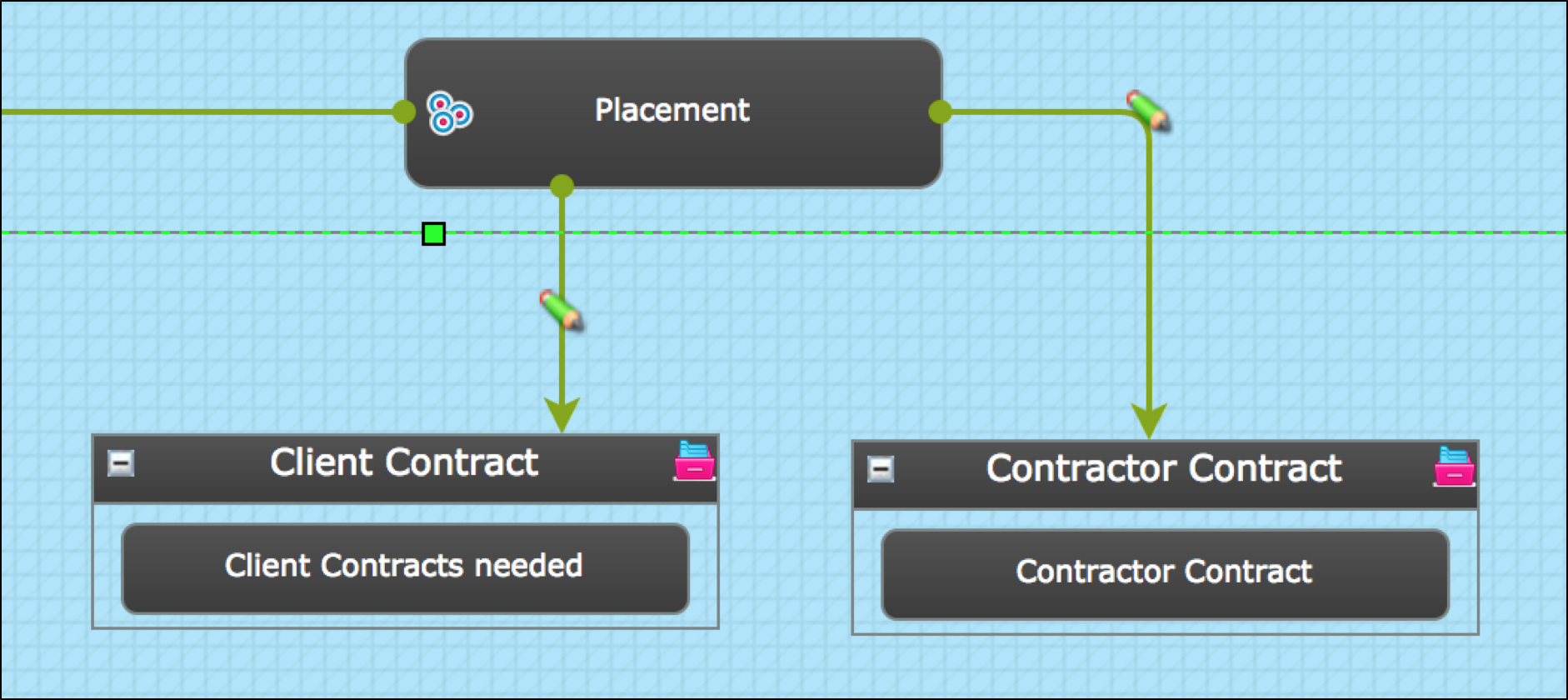
The above screenshot shows a sample of a sequence where the RTG Placement is the subject. There are two levels, one to be assigned to a client, the other to a contractor.
In this sequence a document generation response type criteria is assigned to the client – a contract for their signature which would use the Charge Rate field. Another criteria is assigned to the candidate/contractor, again a contract for their signature but this time the Pay Rate field information would be merged.
When a RTG field is merged it will displayed in the same way as for a person or thing target group eg <<target.field_pay_rate>>
NB:
- When the level variant is "For each relationship" all fields from the relationship and each of the child target groups are available to be merged in documents, criteria instructions, etc.
- RTG fields cannot be merged where the level variant is “Once by completer and shared with relationship” or “Once by completer, not shared with relationship”. And in these circumstances child target group field data cannot be merged for consumption by a different child target group.
For any child target group in the relationship, the route to the correct merge field for their data will be determined by the level set up in which the criteria appears.
If the level Variant is set to be completed “For each relationship” – select the field via the RTG route. For example:
Target/ Relational/ Placement/ Fields/ Candidate Std – then make your selection:
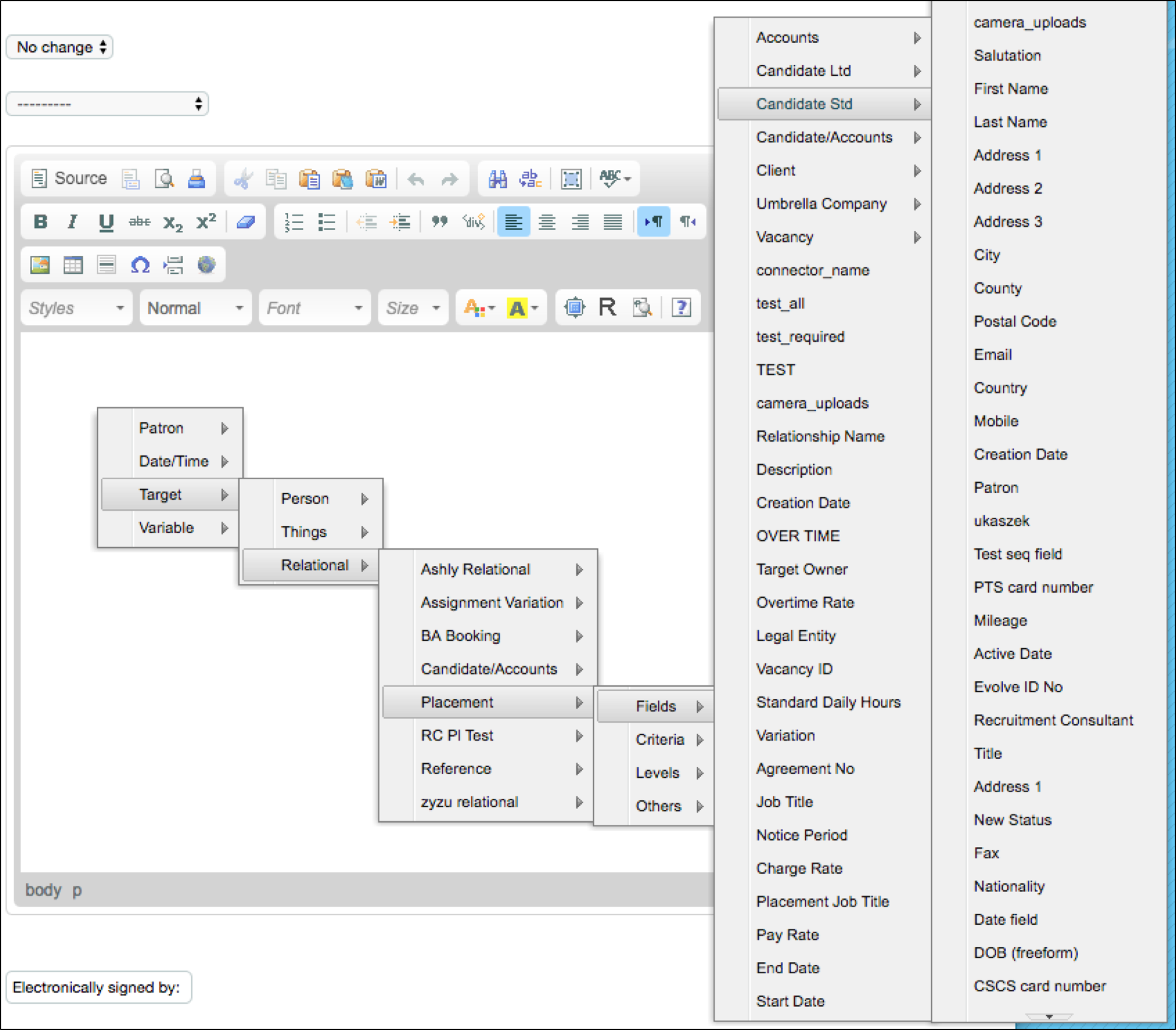
The First Name field will be displayed like this: <<target.target_candidate_std.field_firstname>>
If the level Variant is set as “Once by completer and shared with relationship” or “Once by completer, not shared with relationship” – select the field via the child target group route. For example:
Target/ Person/ Candidate Std/ Fields - then make your selection:
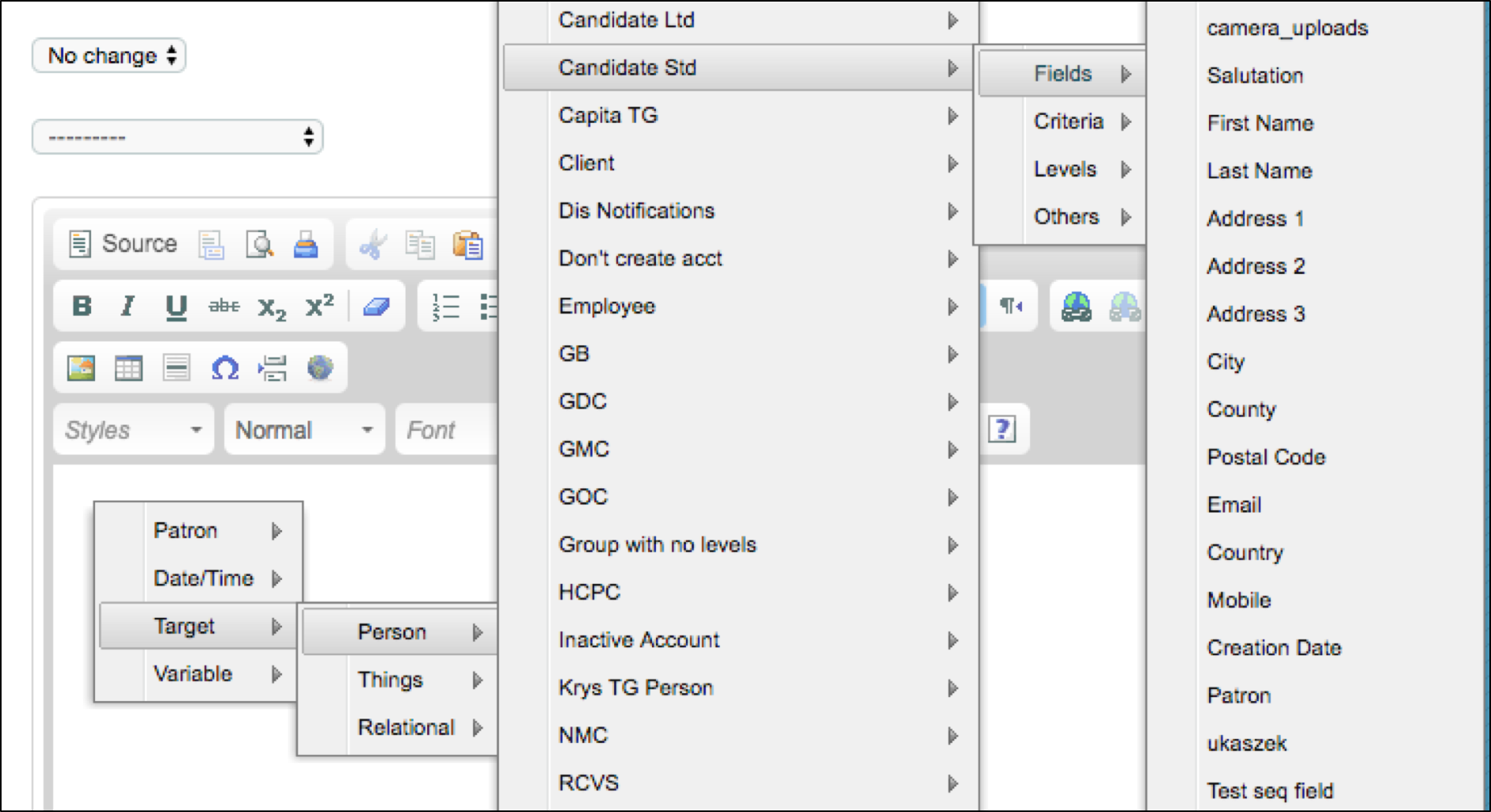
The First Name field will be displayed like this: <<target.field_firstname>>
Merge Fields in DRAAv2
DRAAv2 is an App available via the Store specifically used for Work History and Referencing requirements.
It contains a number of merge fields which can only be used as part of this criteria response type.
See separate article for further information.
Comments
0 comments
Please sign in to leave a comment.