
Introduction
Referrals is a feature of autologyx that can be added from the Store. Referrals enable any criteria that requires approval to be approved by another recipient. An email is sent to the referee who can then respond with their approval/rejection. The system user then approves/rejects the criteria.
Some example use cases are where manager approval, security team validation or HR sign off are required.
Installation and configuration
Admin > Store > Apps and Services
Click Install to begin the installation.
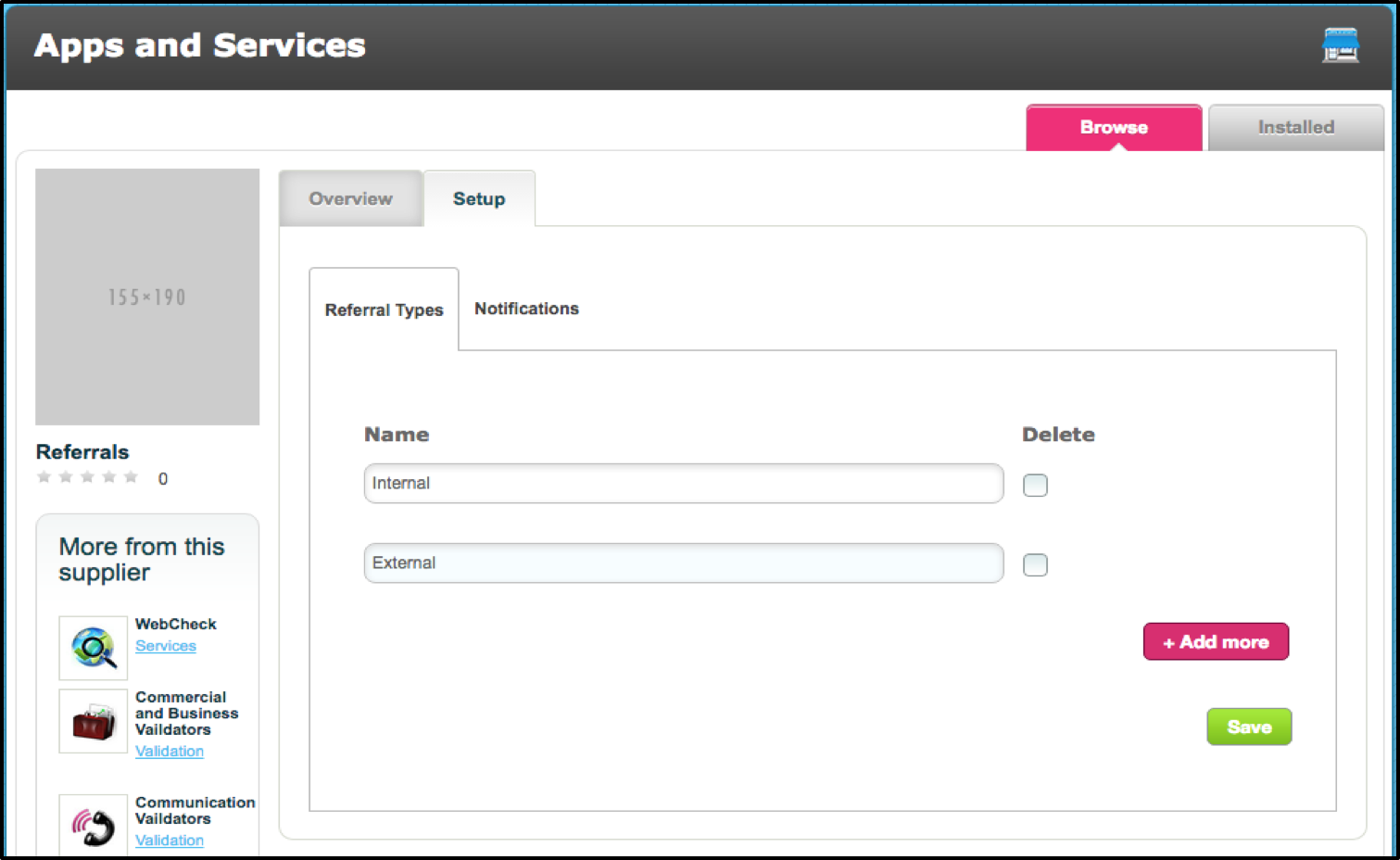
In the Setup tab, in the sub-tab Referral Types enter the names of the types of referral (e.g. manager approval, security team validation, HR sign off) and click Save 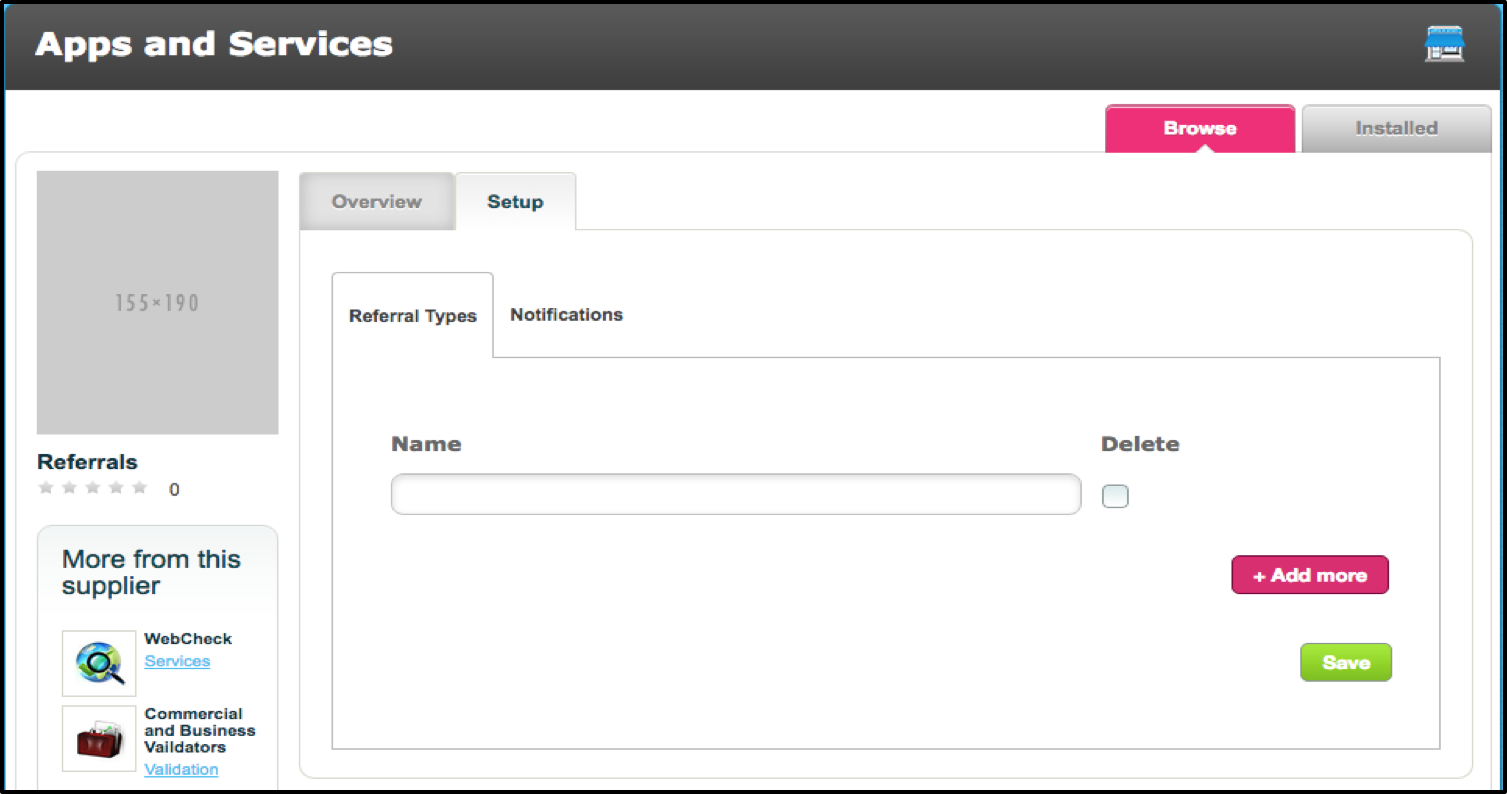
In the Notifications sub-tab select the Collation Type that will be used:
Single email with All Targets: One email containing all target information will be sent to the referee at a specified time. The email will contain information on all targets from the point the last collated email was sent out.
Single email per Target: An email for every target will be sent to the referee at a specified time. Each email will contain confirmation about the individual target it relates to.
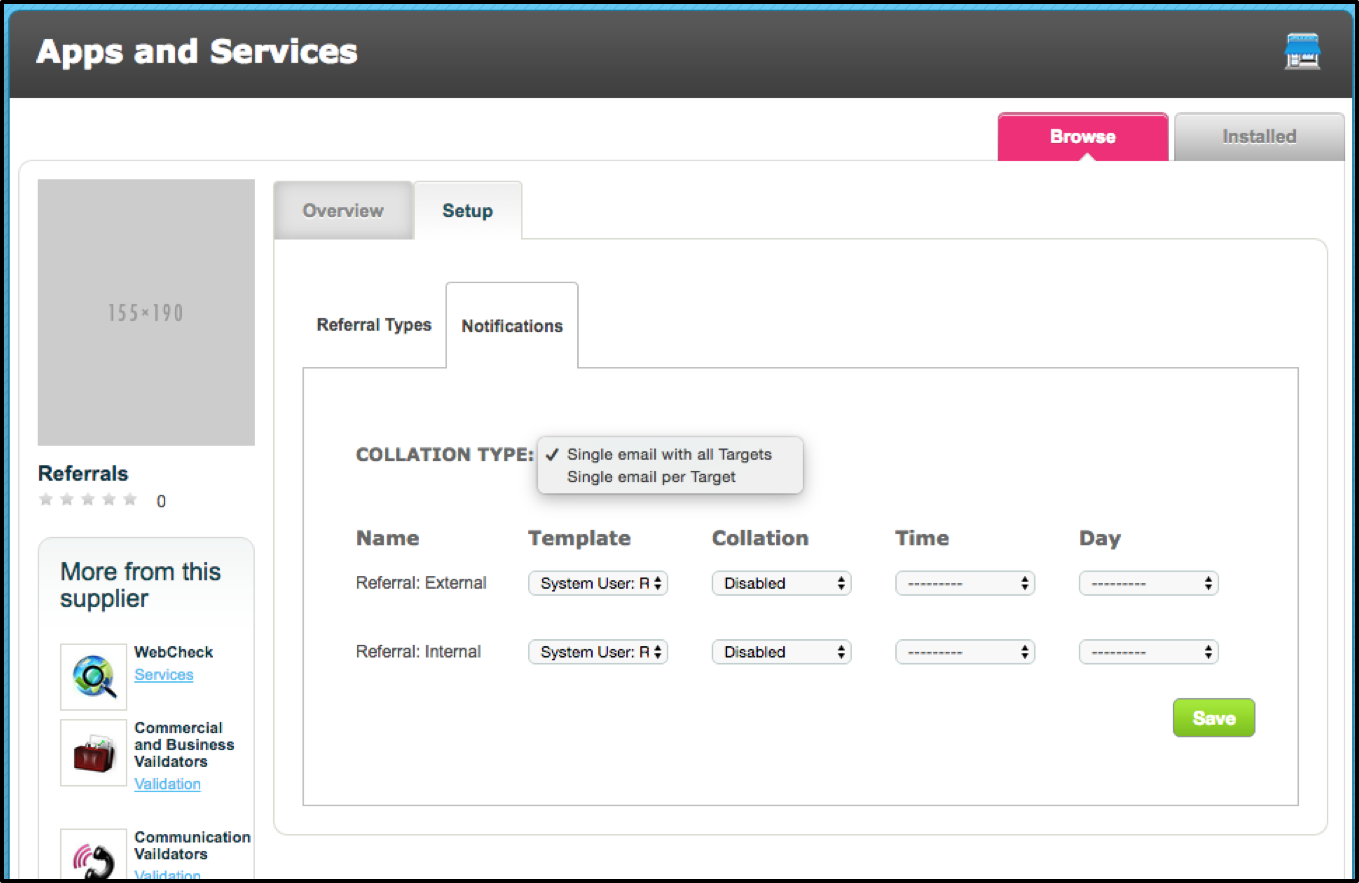
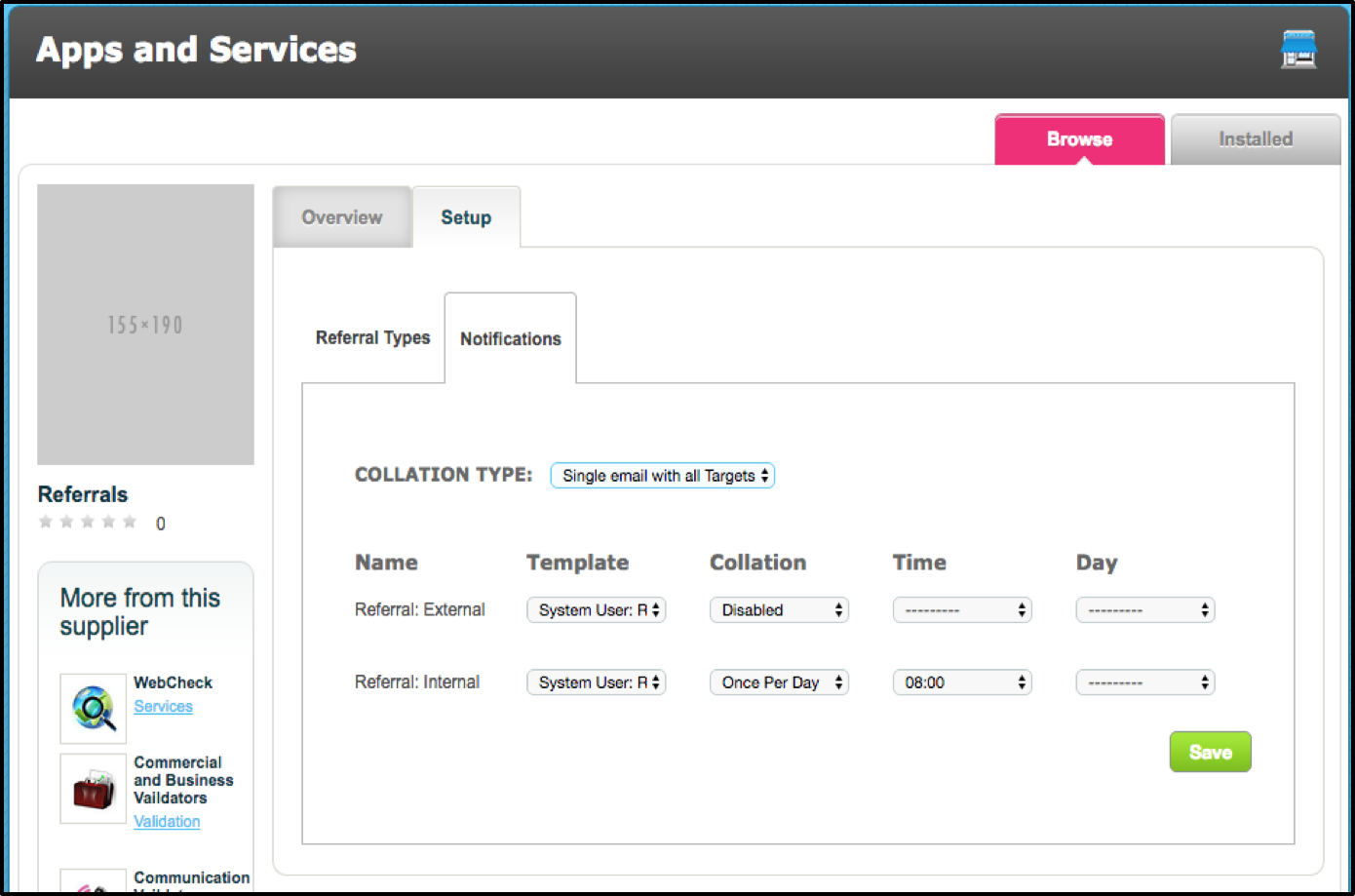
Template: Select a Message Template that will be used for each collation type
Collation: Disabled, Once Per Day or Once Per Week. If messages will be collated and sent at a specified time, how frequently will that be?
Time/Day: Can be specified to schedule the collated messages
Save any changes
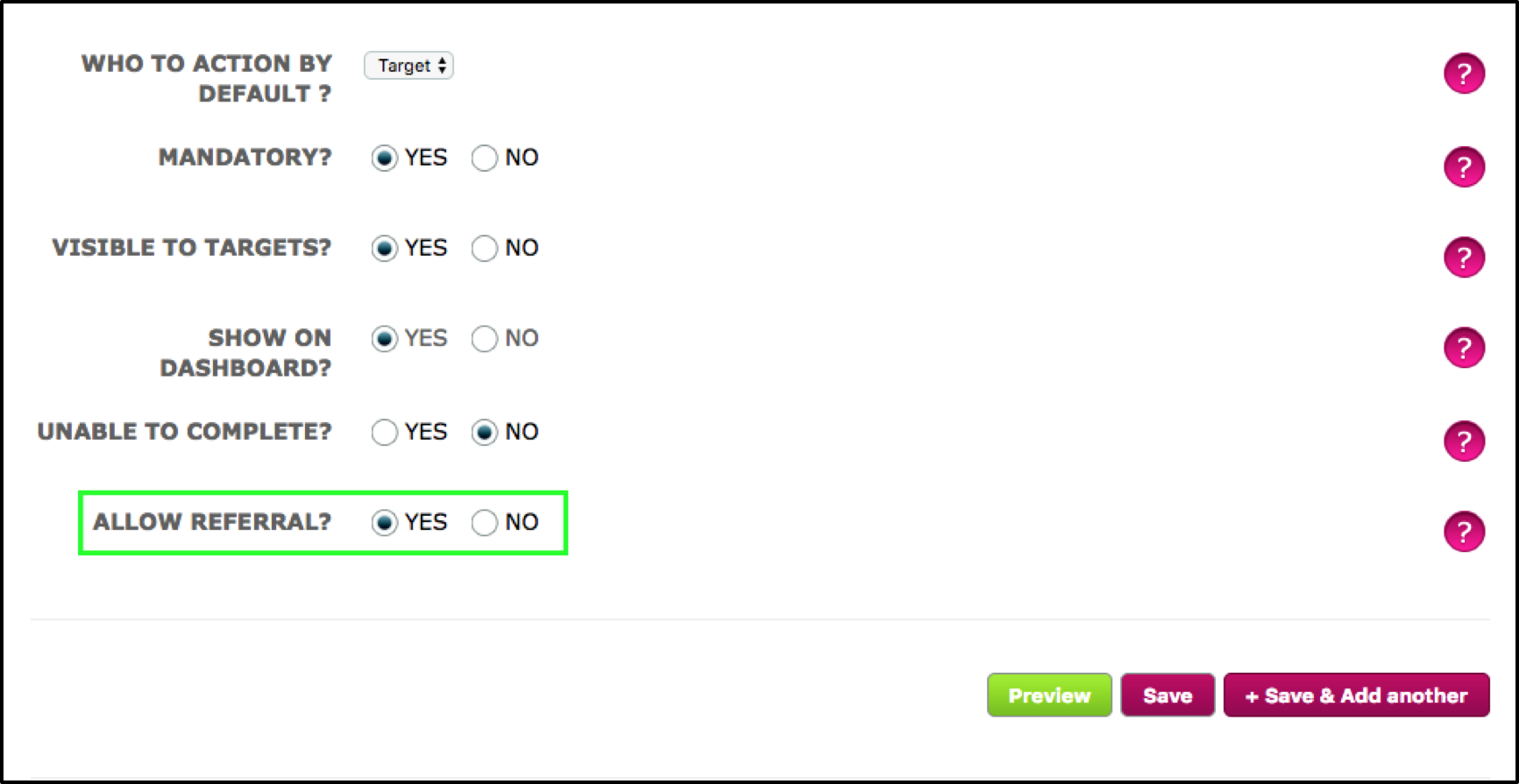
Referrals are only applicable to criteria that require Approval. In the Criteria Edit there will now be an option to Allow Referral
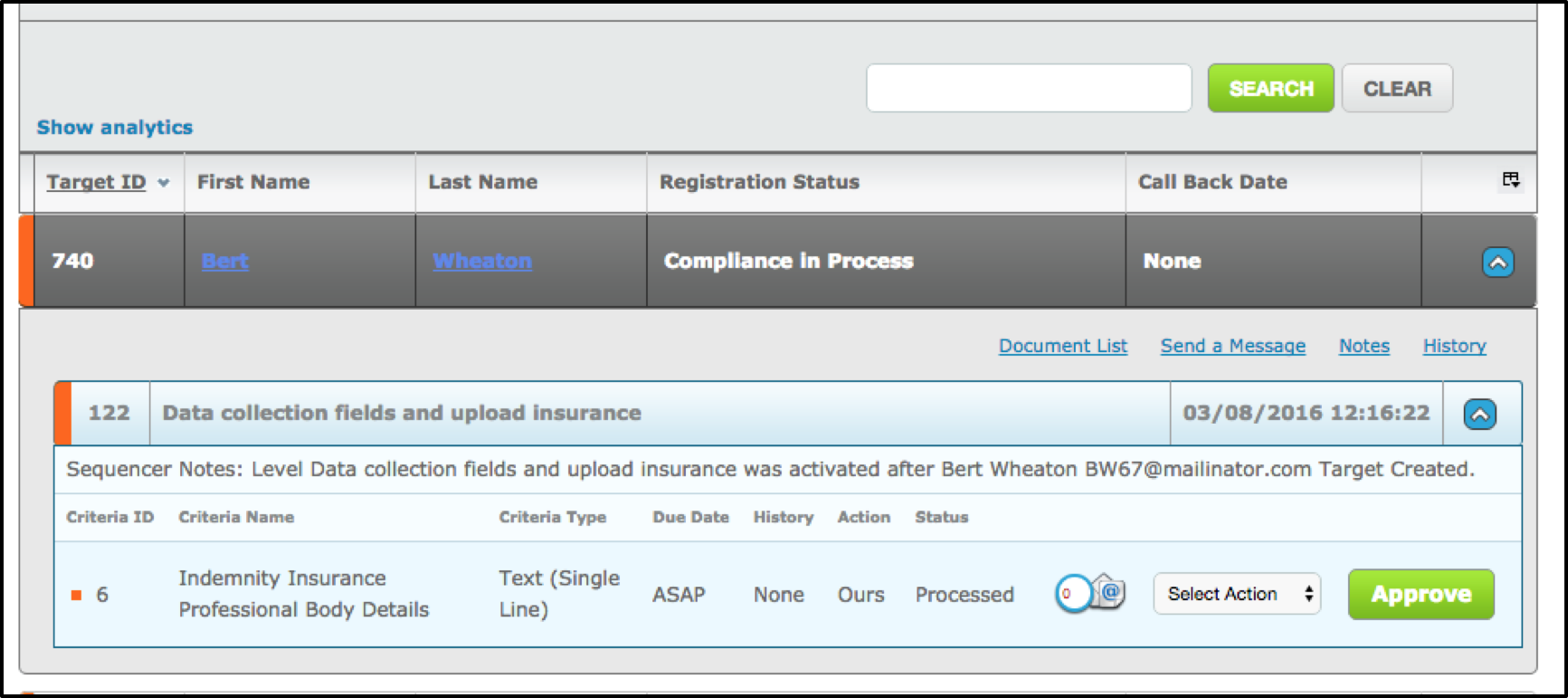
 Once a criteria has been assigned, requires approval and has Allow Referral set to Yes, click Approve
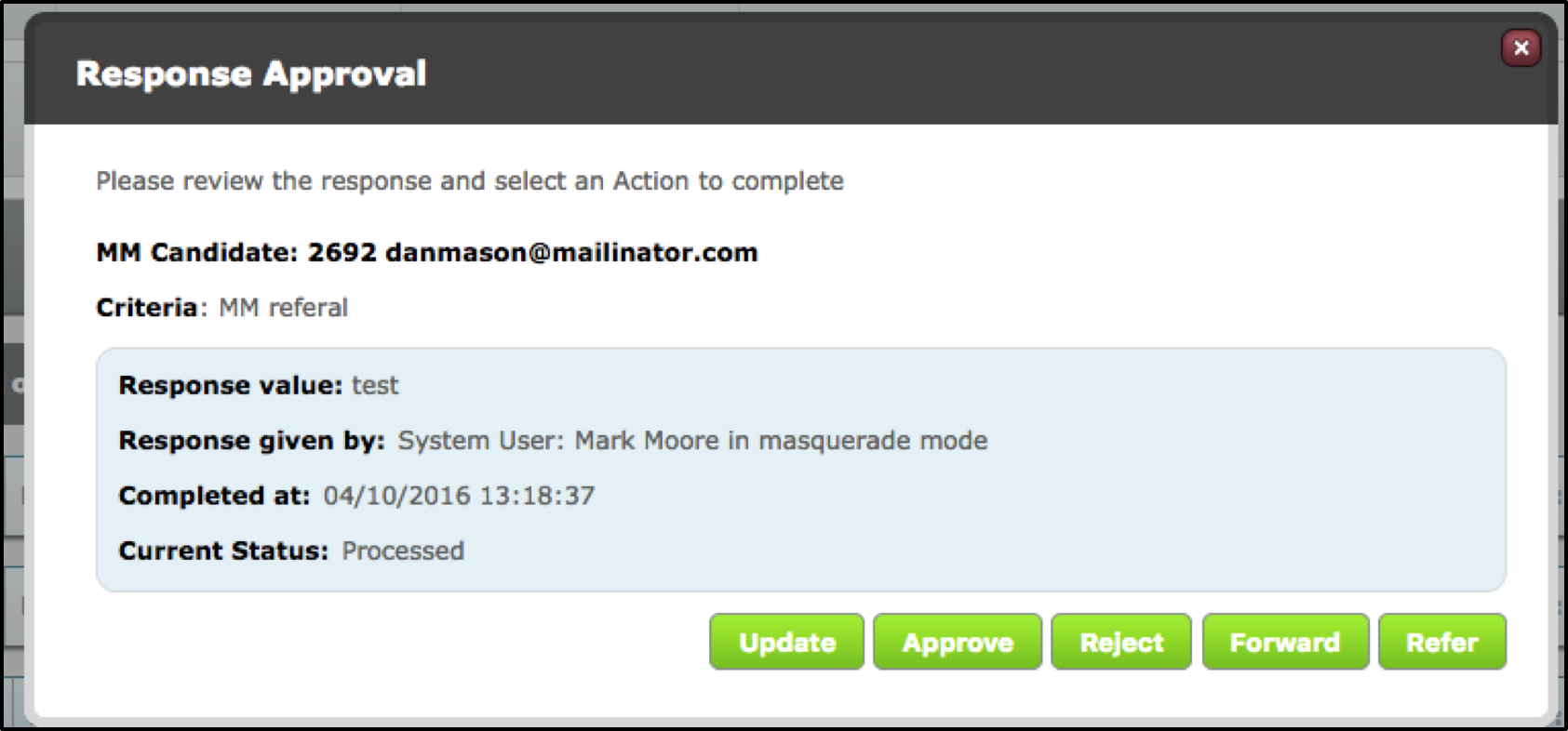
 There will now be an additional button, Refer
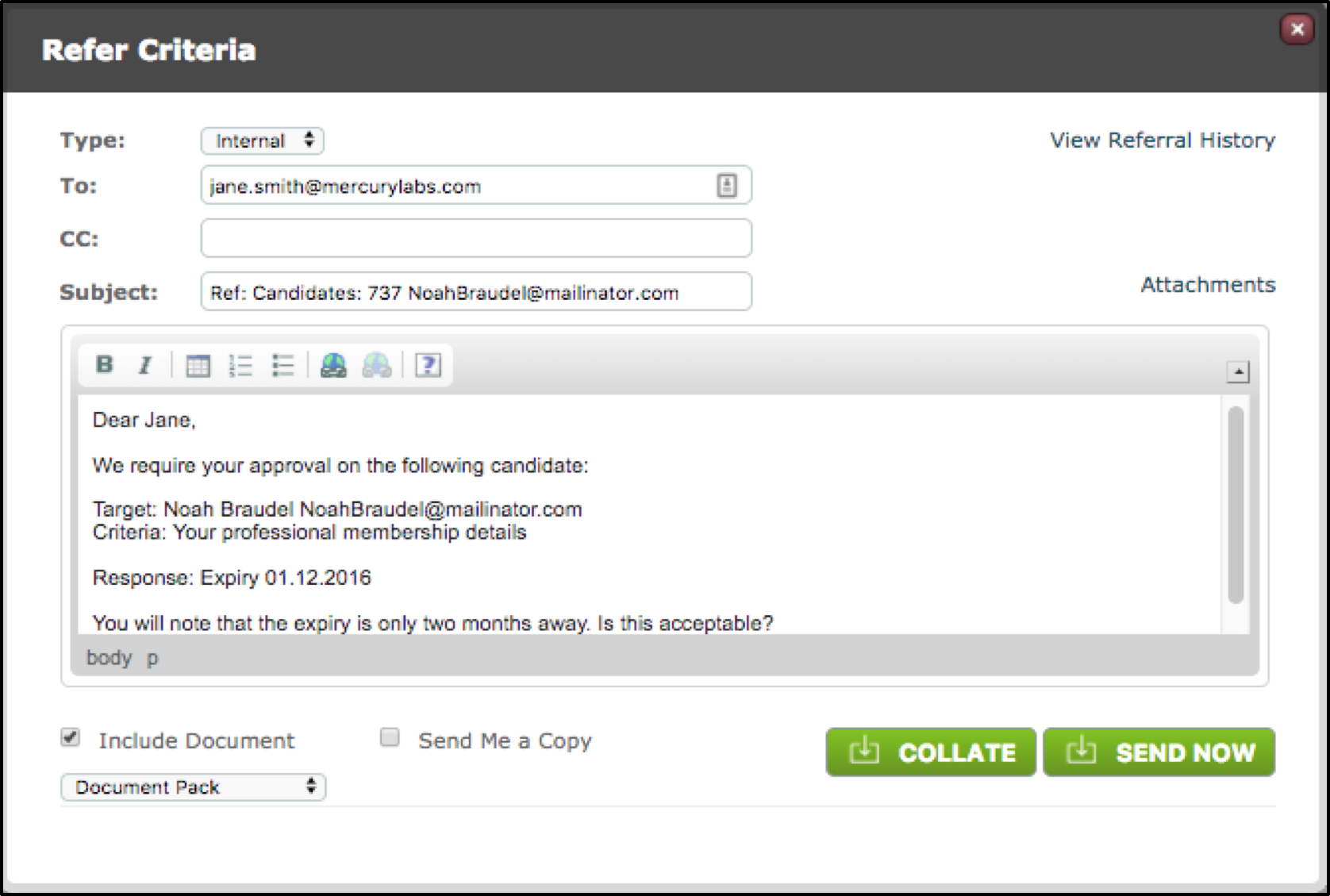
 Clicking Refer opens a Send Message Modal with the heading Refer Criteria. The template determined in the Store configuration will be the default Message Template.
A person who is the recipient cannot be a system user!
 When the message is sent a new modal will appear, this is where the system user can complete the criteria. Evidence of the referral is required before the criteria can be 'Signed off'
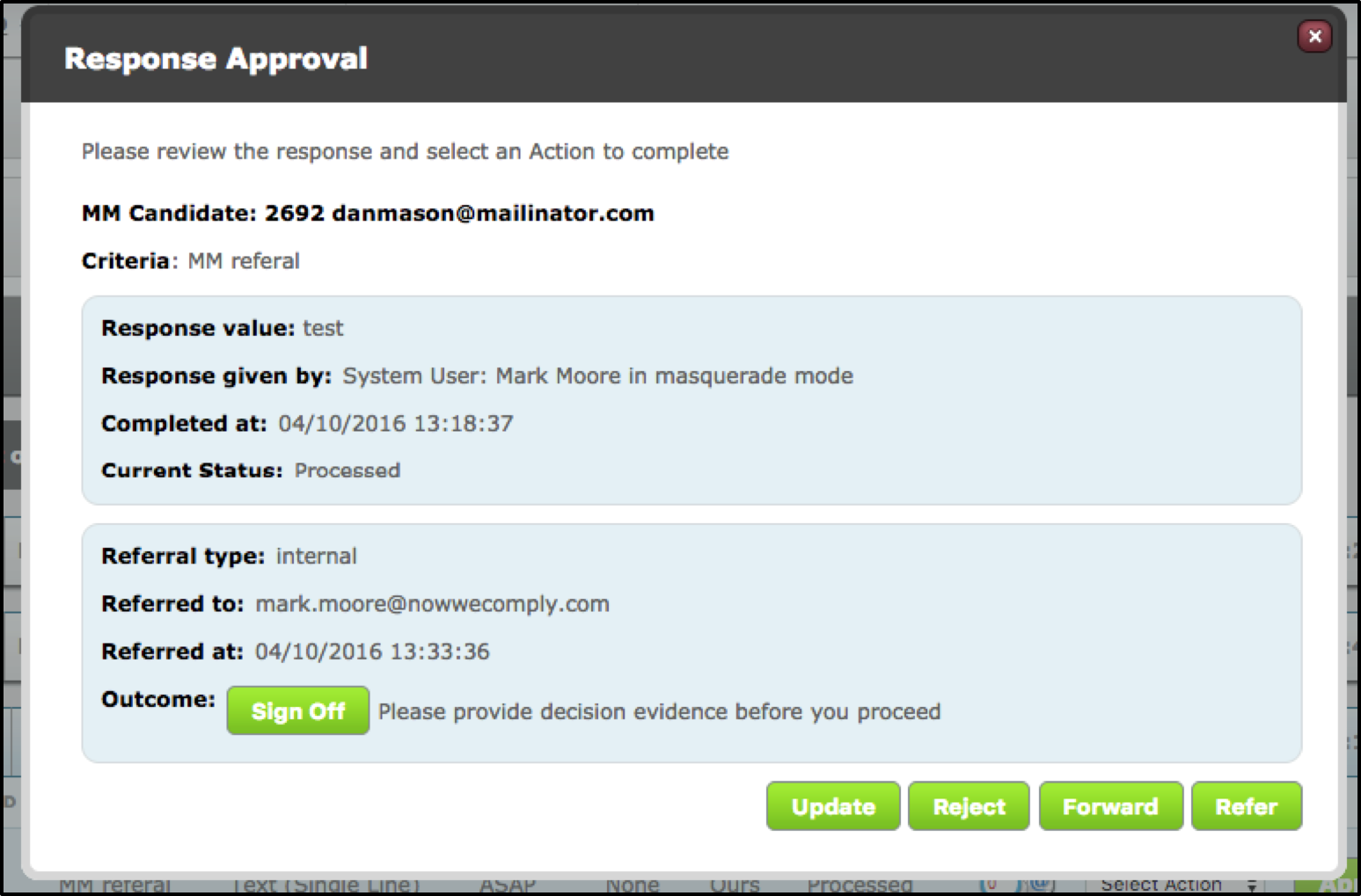
On the Dashboard, a criteria that is awaiting a referral will display as Processed [referred].

A reply is expected external to the system. When the referred party has responded, the system user can click Approve from the Dashboard to open the Response Approval screen.
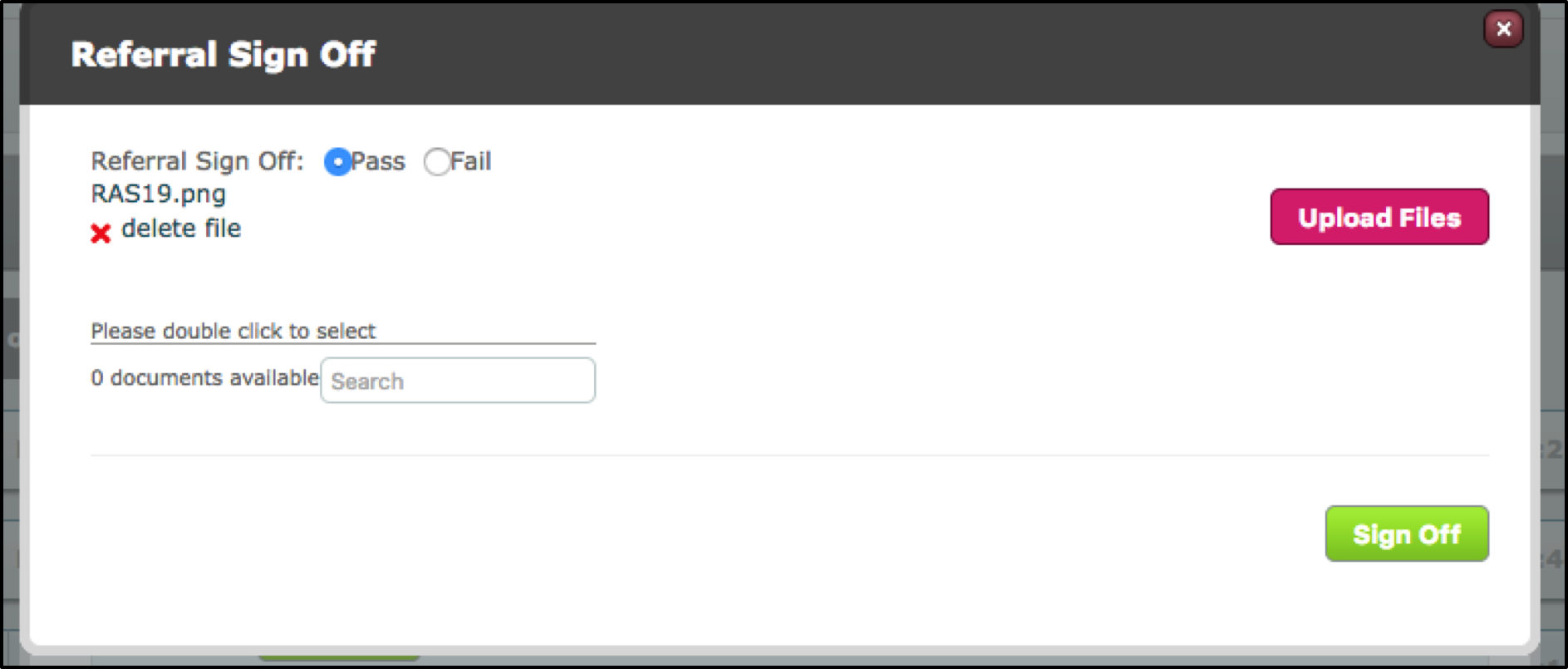
Clicking Sign Off will open the Referral Sign Off screen. The Approve button is currently not visible.
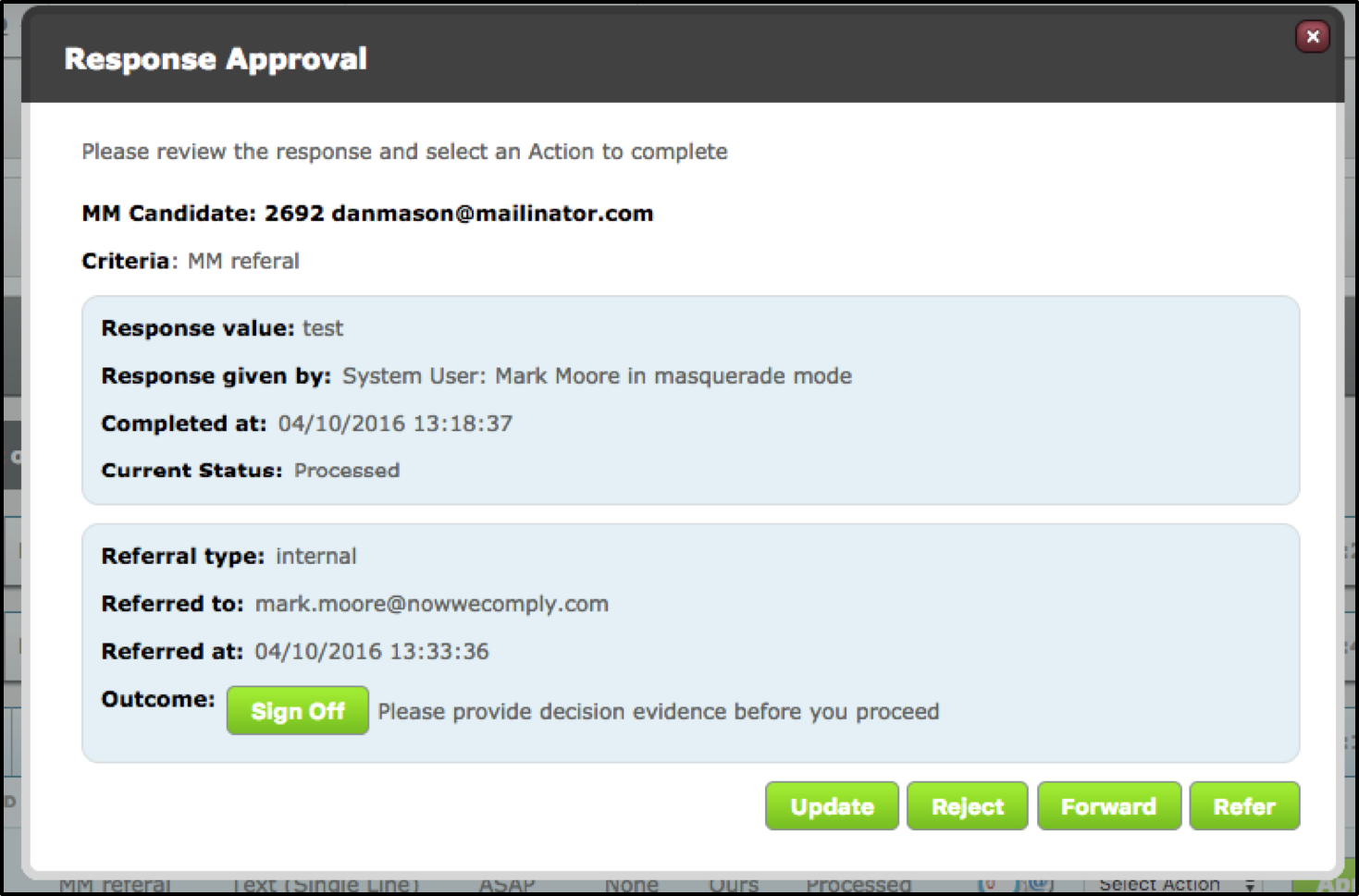
In this screen, the response of the approval can be made, evidence of the approval can be provided and then Sign Off can be clicked.
If Signed off with a Pass, the Approve button becomes visible.
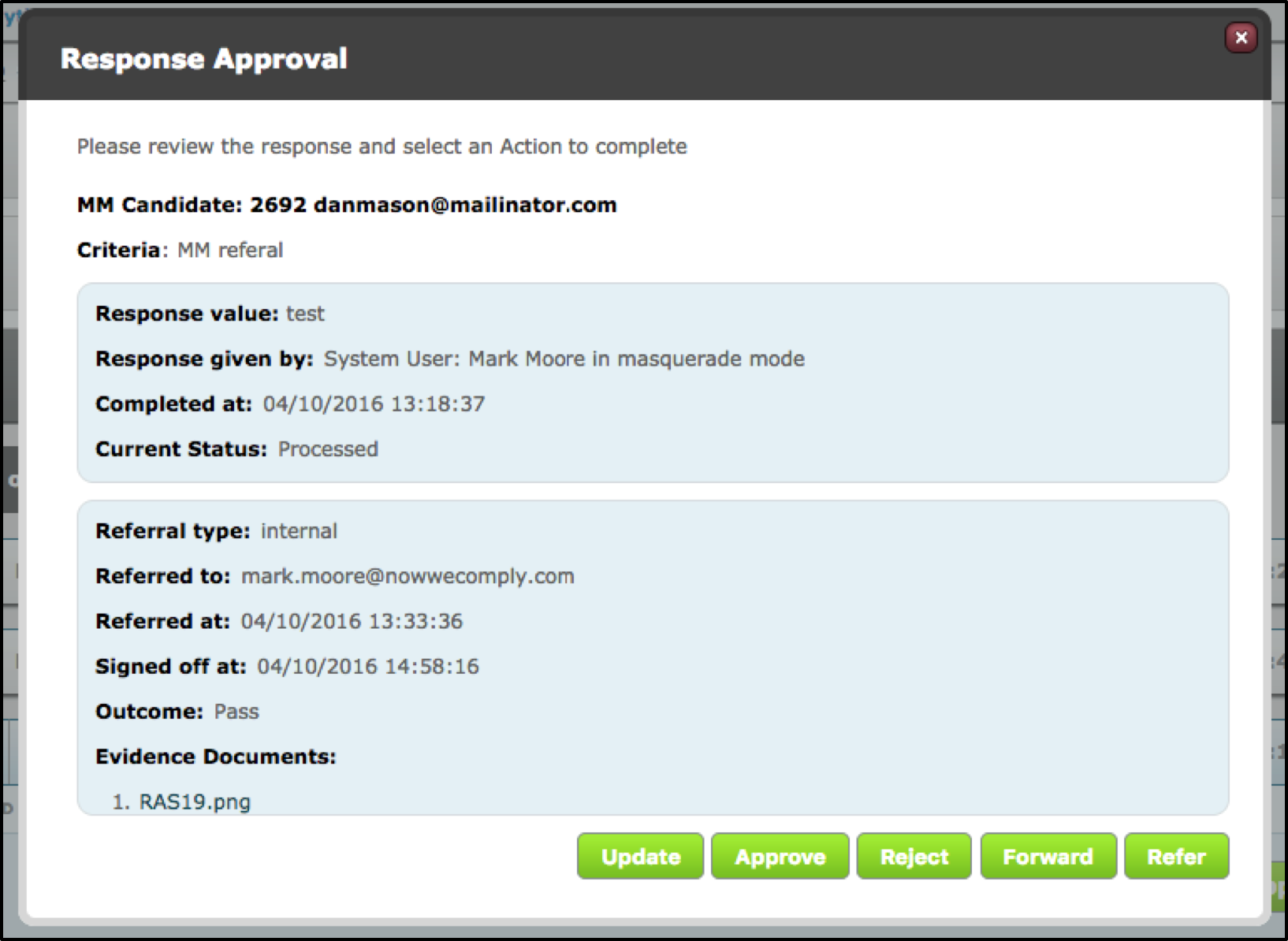
The criteria will then be marked as complete.

Comments
0 comments
Please sign in to leave a comment.