
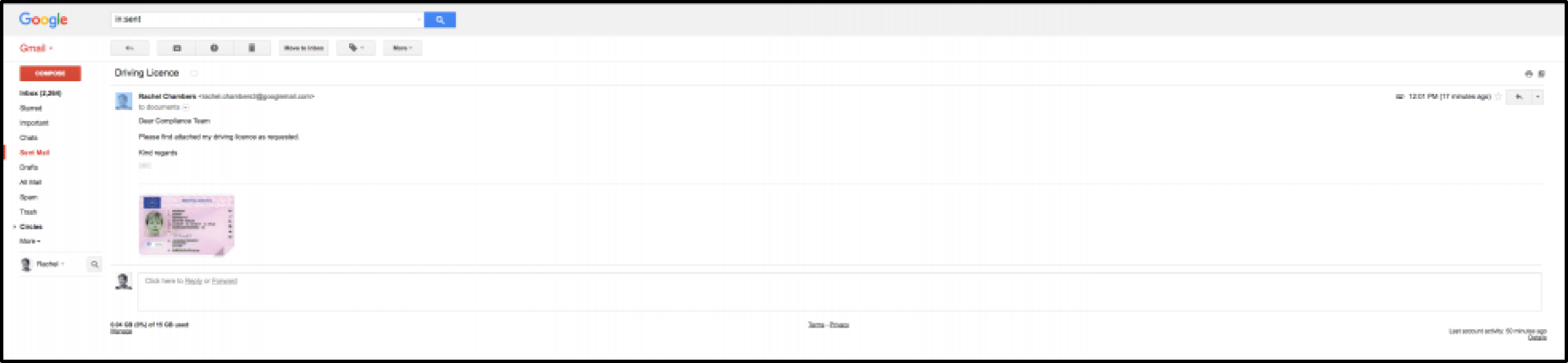
A target sends an email (with attachments) to the address specified in the Mailserver Settings/ Username i.e. the inbox you have specified for the Email Collection app. Or another individual sends an email relating to a target.
Please Note:
- The target must exist in your autologyx build
- The target must be a member of one of the target groups you selected in the Email Collection setup
The email and attachments will appear on the target's Unassigned tab in their Documents List.
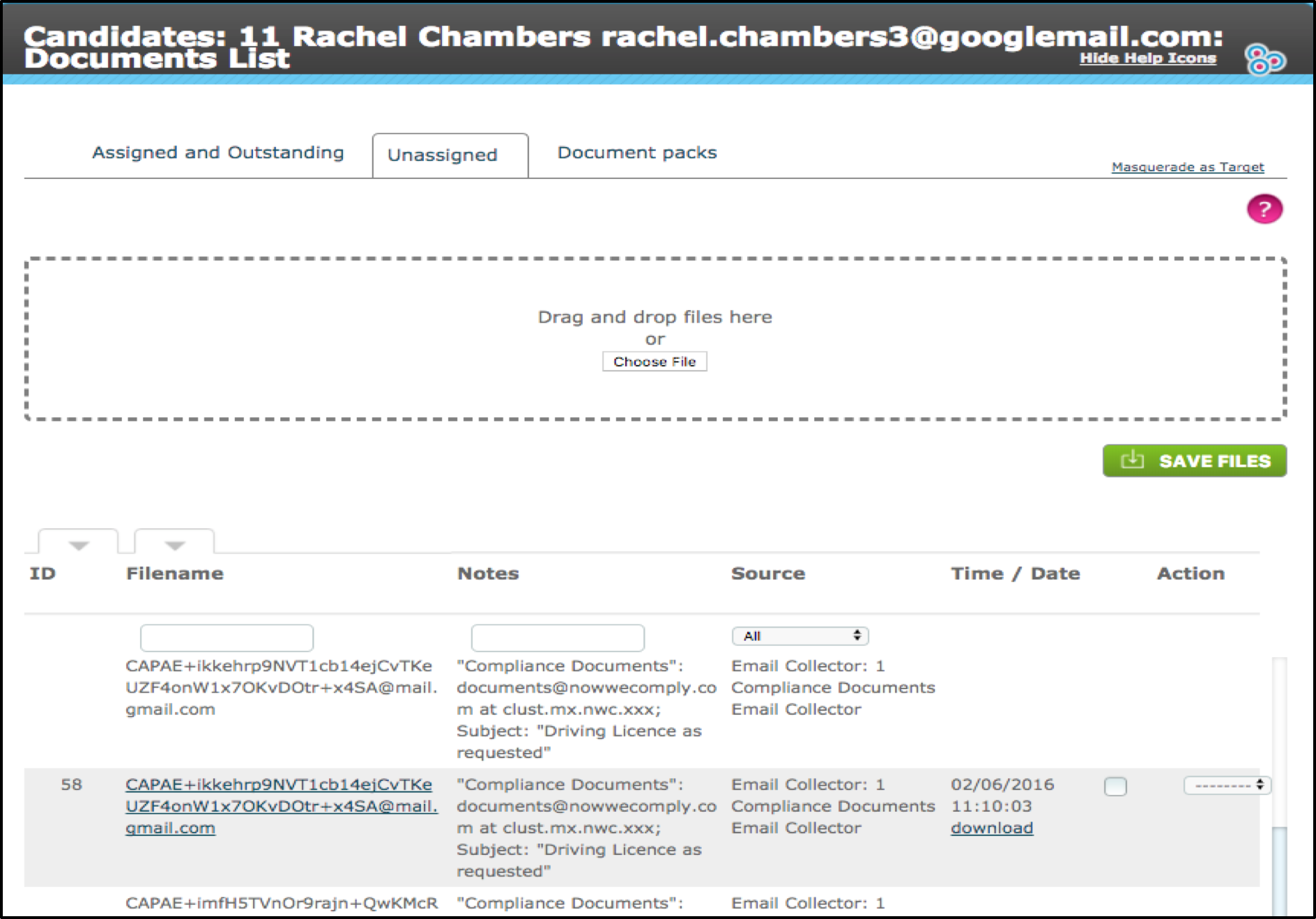
Please note:
- This page has a scroll bar on the right-hand side which is only visible when you click onto the page
- You can rename entries to make them easier to find in future
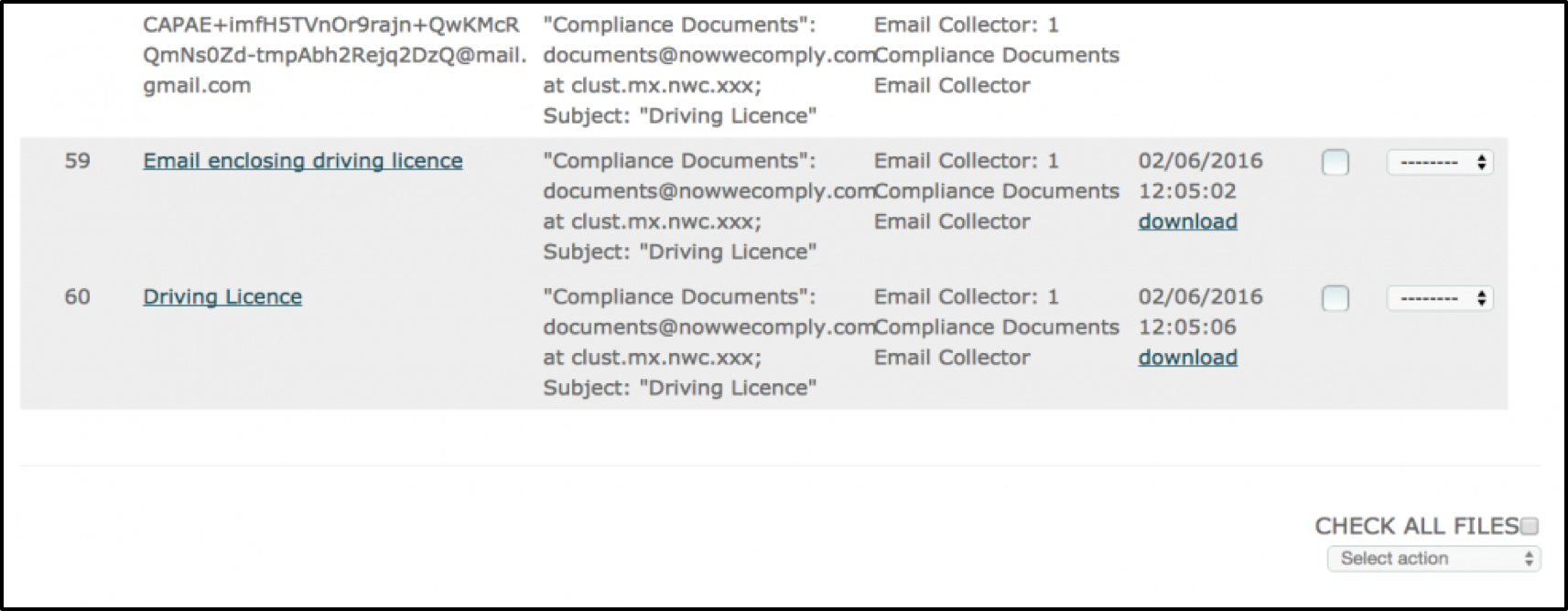
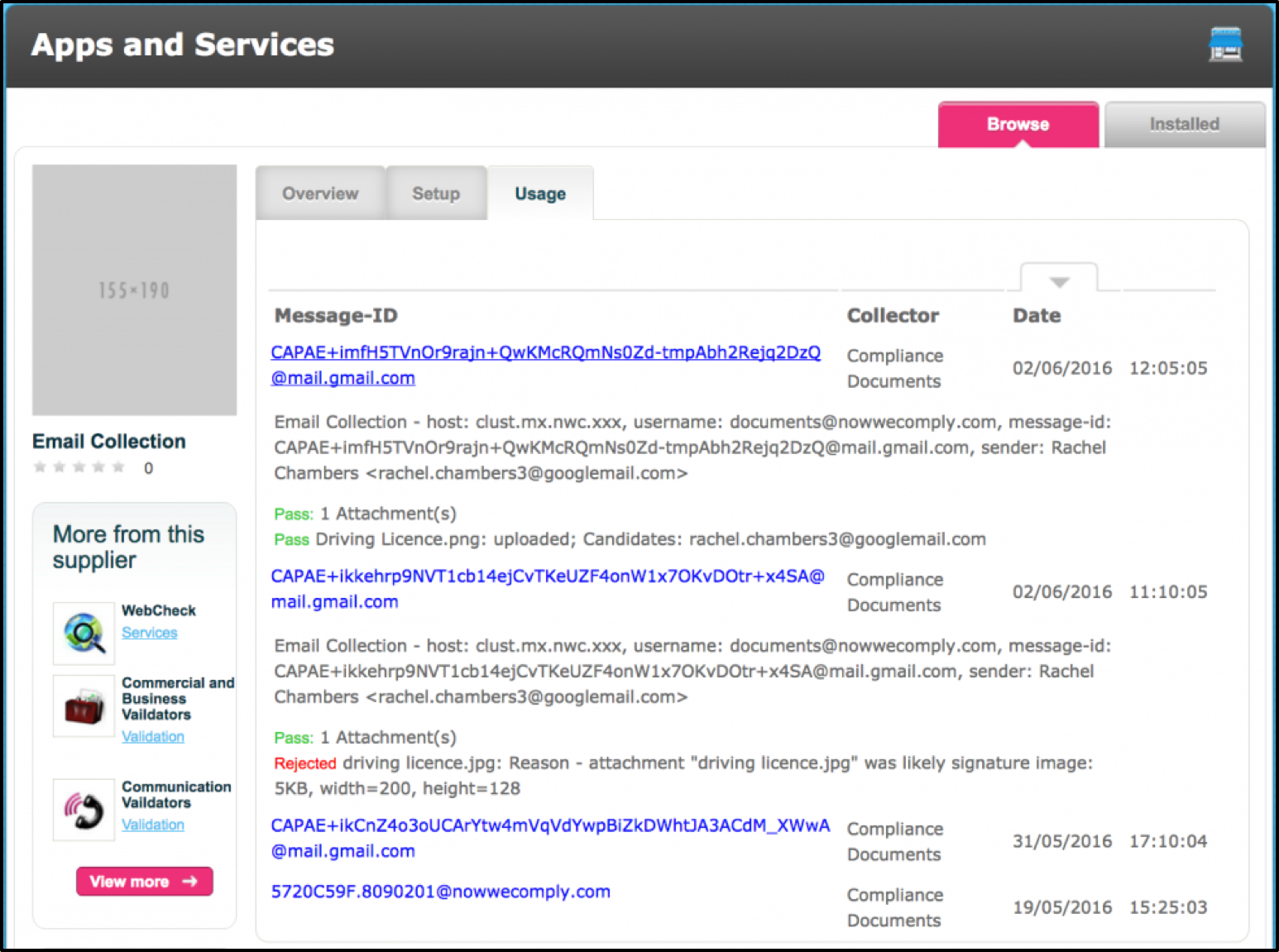
If any documents fail to be attached, you should check the Usage tab in the Store setup. Here you can click on an item to expand the listing to show the status:
- Pass - will show the email address of the target where the email and attachments have been added to the Unassigned tab
- Rejected - will show the reason for failure. In the example below, the attached document falls outside the minimum size specification and has therefore been treated as if it were part of the email signature and not a valid document
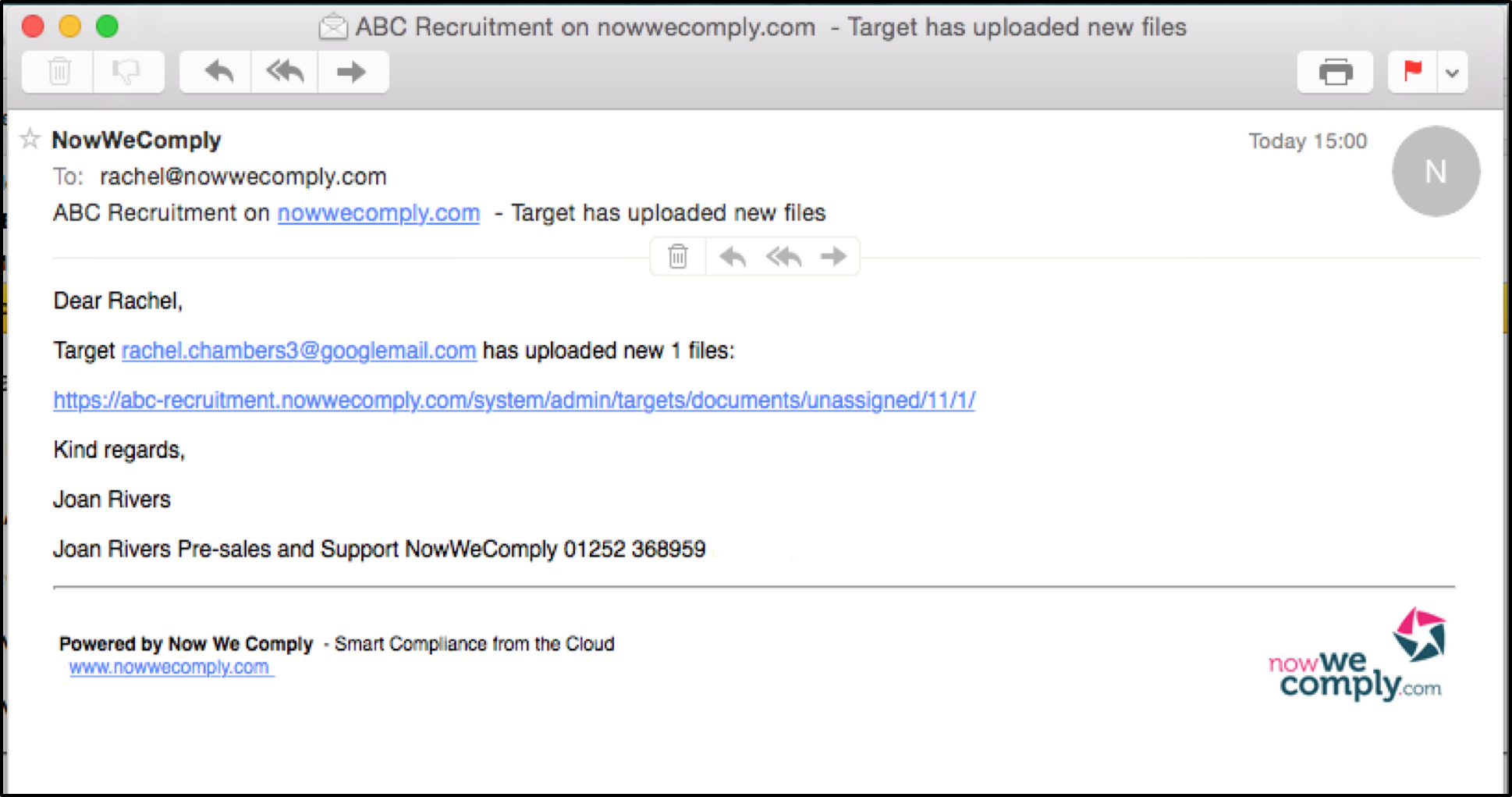
Once an email or document has been collected and added to the Unassigned tab, the target's patron (system user responsible for that target) will receive an email notification to advise them of this. This email contains a link which will take the user straight to the Unassigned tab.
Things to be aware of:
An image must be greater than 200x200 pixels or more than 15KB to be treated as a document attachment
If a document has already been emailed/collected and added to the Unassigned tab it will fail the second or subsequent times it is sent
Emails and attachments won't instantaneously appear on the Unassigned tab; timescales will depend on the collection frequency you chose in the Setup
Comments
0 comments
Please sign in to leave a comment.