
Once the Address History application has been downloaded from the store, the User will be able to use it in a criteria.
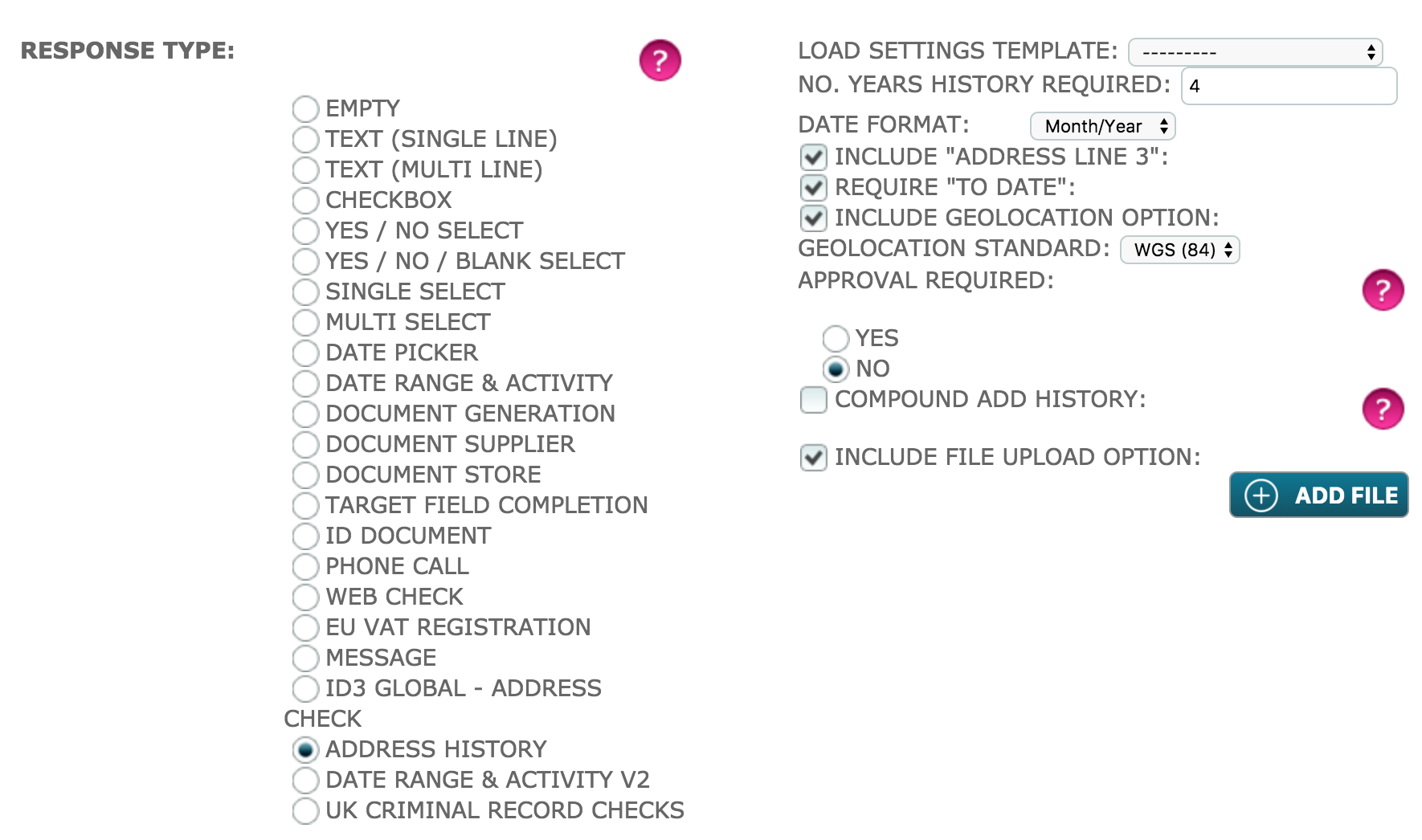 The following table will provide a guide of set up choices available:
| Load Settings Template |
Select a previous set of settings | Only one option is available in the drop-down menu, this being 'Disclosure Scotland/DBS'. Selecting this has populated some Address History configurations. |
| No. Years History Required | Select the quantity in years that you require the Target to provide. | |
| Date Format | Select the Date Format | |
| Include "Address Line 3" | Select to enable the Target to provide an Address Line 3 | |
| Require "To Date" | Enable to ensure the Target provides address history to the current date | |
| Include Geolocation Option | Enable for the Target to provide the Geolocation | A Geolocation Standard drop-down menu will be displayed when the option is selected. The only option available to select is 'WGS (84)'. |
| Approval Required |
Enable so the user has to give approval for the response |
When enabled, an 'Add Approval Conditions' button will be available. Here the User can specify what the condition is. |
| Approval with 2 Factor Auth | Enable the use of 2 Factor Authentication for the User, when they approve the criteria | This option is only available to select, if the Approval Required checkbox has been selected. |
| Compound Add History |
Enables the User to populate the Criteria, through a previous response from another criteria, where the response type is Address History too |
A drop-down menu for 'Compound to Include' is displayed, where the User can select the Criteria to compound to. |
| Include File Upload Option | Select to allow the Target to upload a file attachment | An 'Add File' button will display when this option is selected. Here the user can provide a description and notes of the file, an example file can be provided to the target, decide if the file is mandatory and its frequency. |
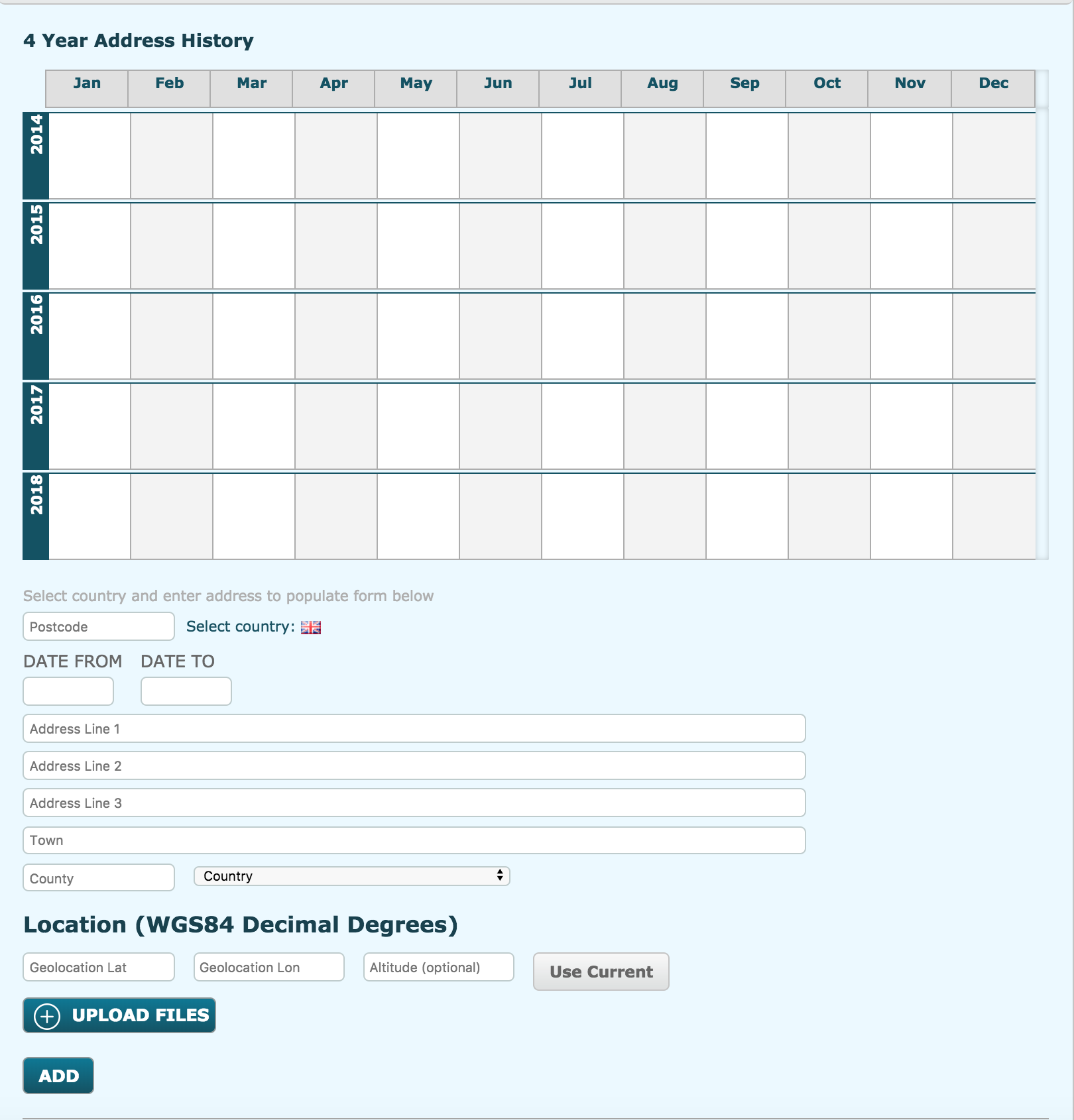
Below is an image of what the Target would see, based on the configurations set in the first image in this article.
Comments
0 comments
Please sign in to leave a comment.