
Docassemble is an open source system typically used in the legal sector.
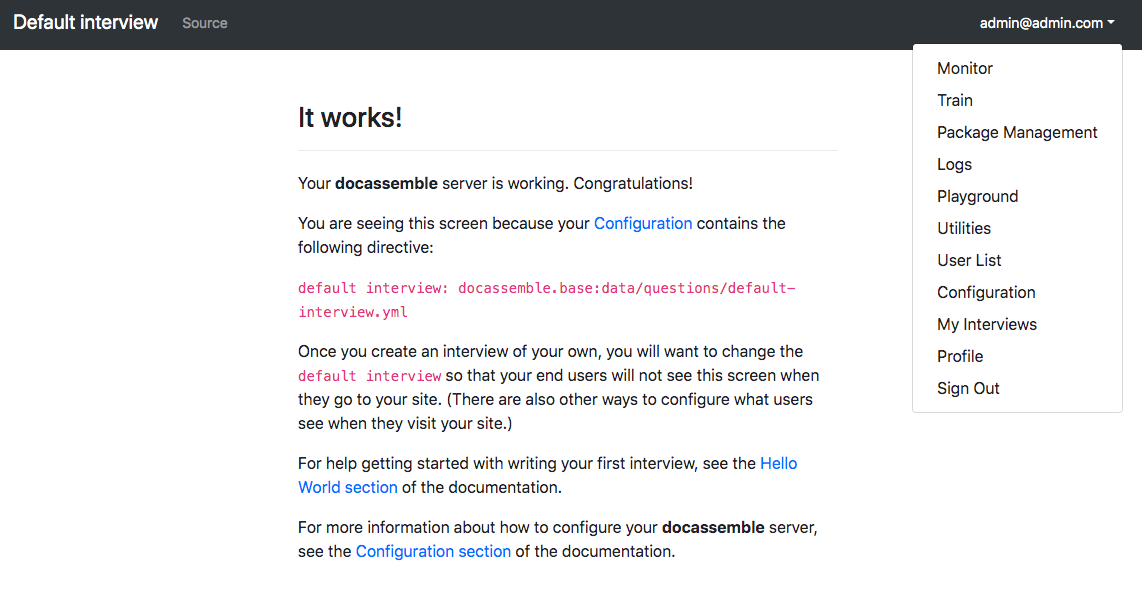
The main purpose of the platform is to supply guided interviews constructed by the admin, to the user to complete.
Upon completion, the answers from the interview are populated into a pre-made template which can be downloaded or emailed to various parties.
Autologyx has set up their own docassemble instance to create interviews.
What are interviews?
The playground is where all the interviews are created. Interviews are simply an YAML file where the admin creates questions, for the user to answer. The questions are conditional, so they are only asked based on the variables that the system requires to be defined unless the questions is mandatory. Below is an example of part of an interview.
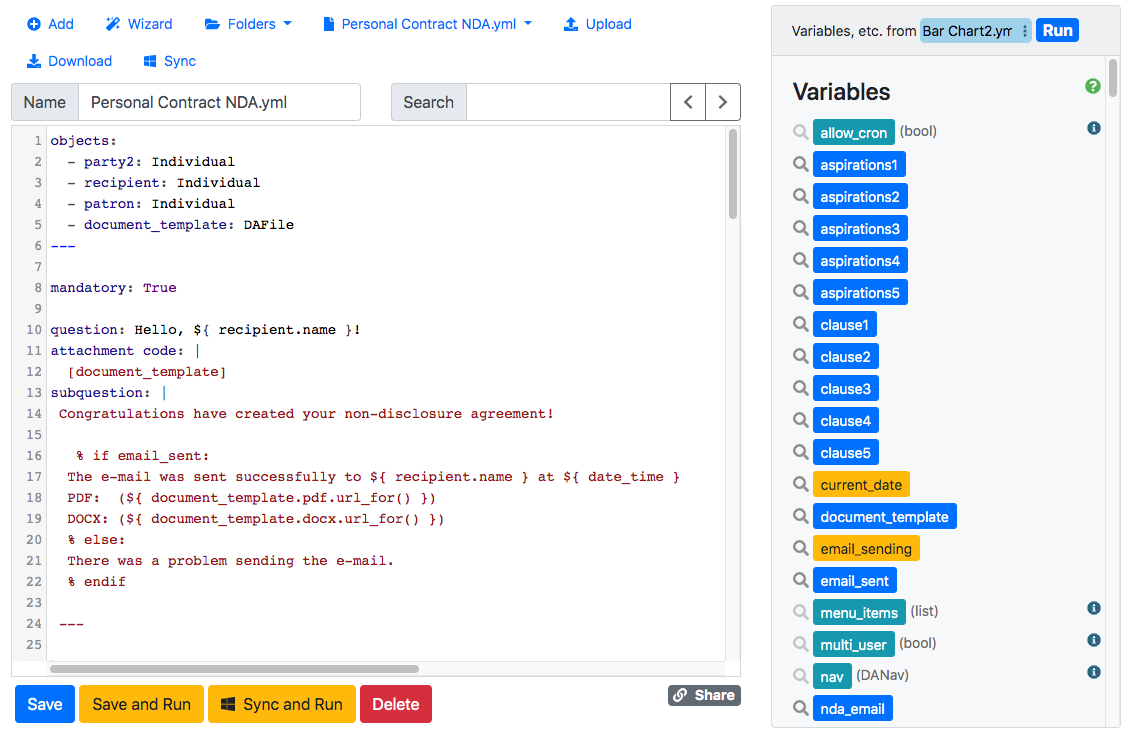
The goal of the interview is to show to exit screen which you can see is defined above after the question ‘Hello, ${recipient.name} is completed.
Within questions, docassemble is able to store variables. These variables correlates with the variables in a template which we will expand further into later on.
All questions in the interview are separated by ‘---’. This signifies the end of a questions.
How to log into docassemble
Go to https://docassemble.autologyx.com/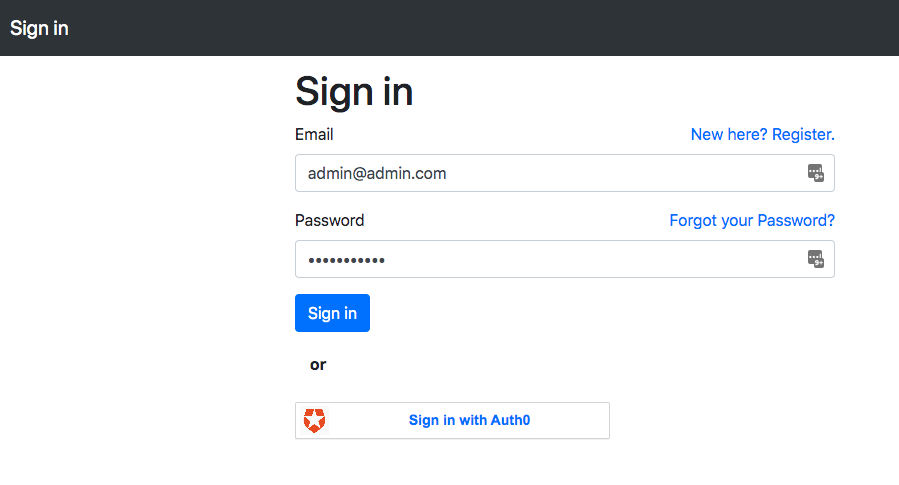
Sign in using the credentials :
Username: admin@admin.com
Password: ***********
How to create an interview
Click on playground
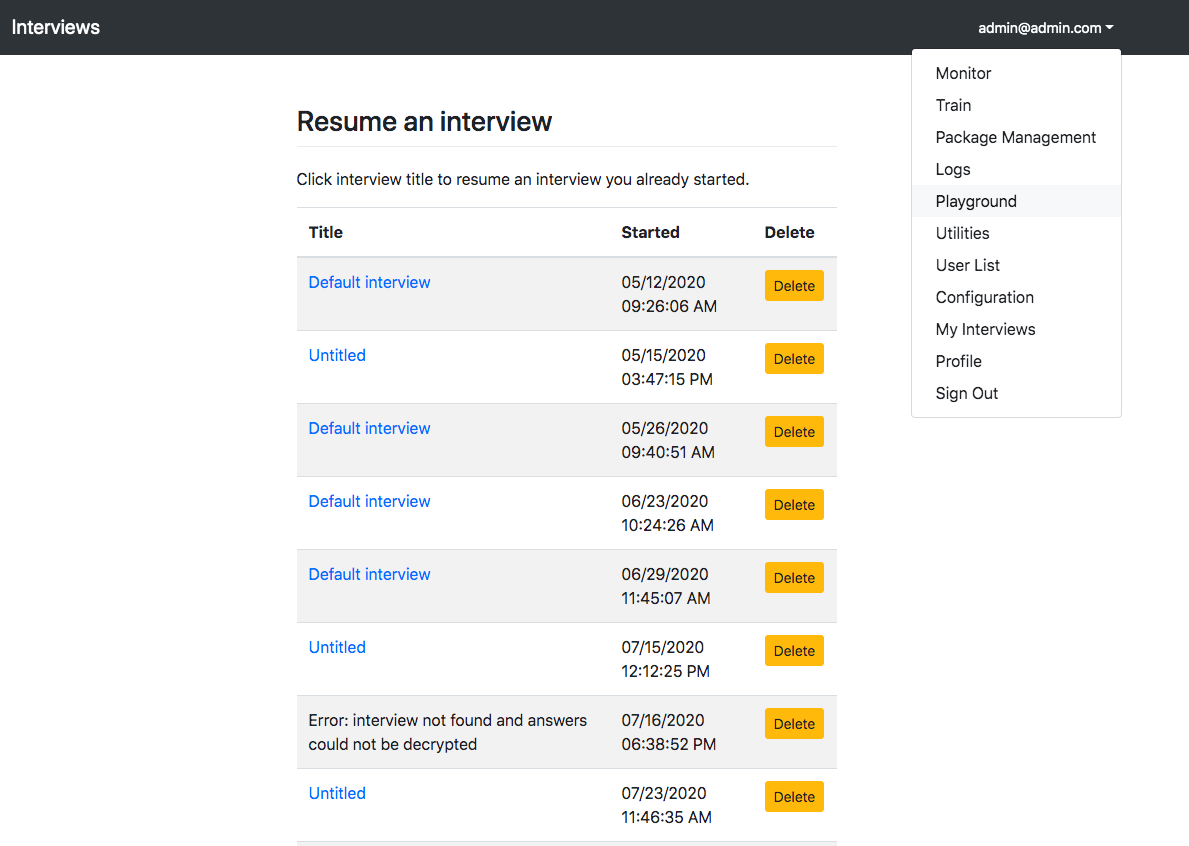
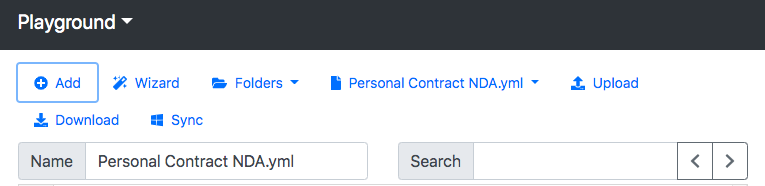
Create a new Interview clicking the Add and type in the name of your interview in the ‘Name’ field.
What are questions?
Questions are used to drive the docassemble process. Their main priority is to define variables.
When creating a new interview there are certain questions/code that are needed for the interview to successfully be integrated with the Autologyx platform. The below code is needed at the start of any interview.
How to initialise a variable?
Variables are used to store a users input when a question is answered. It simply initiated by typing the variable name next to the field name.
For example,
- Target ID: reference_name
We have the field name ‘Target ID’ and the variable name is ‘reference-name’.
Mandatory Interview questions/code
Objects are built in object oriented programming. They are used as templates for collecting common data.
‘Individual’ as seen above will define the standard information for a ‘recipient’, this includes first name, last name, address, which are defined as the variables reciepient.name.first, recipient.name.last, recipient.address. More on this topic can be found here: https://docassemble.org/docs/objects.html#Individual
A ‘DAFile’ is used to refer to a single file within a in interview. There are standard attributes that are associated which are defined here: https://docassemble.org/docs/objects.html#DAFile.
When the document is assembled it is assigned the name document_template, this tells the system that the variable contains a file of some type.
More information on objects can be found here: https://docassemble.org/docs/objects.html
mandatory: True

question: Hello, ${ recipient.name }!

attachment code: |

  [document_template]

subquestion: |

 Congratulations have created your form!

   % if email_sent:

  The e-mail was sent successfully to ${ recipient.name } at ${ today() }

  % else:

  There was a problem sending the e-mail.

  % endif

 ---

buttons:

  - Exit: exit

---

code: |

  current_date =  today()

---
The block of code above is our initial/ last question.
Previously, it was mentioned that docassemble objective is to answer all the questions necessary to get to the exit screen. As seen above the exit screen is defined in the first question with the tag ‘Mandatory: True’ which forces docassemble to ask the question first.
Docassemble works in a logic order, it will look for the first mandatory question and answer it, if the value of a variable is required to be outputted in the question, for example ‘ ${ recipient.name } ’, docassemble will seek out the definition of the variable before continuing to find the definition of [document_template] etc till it gets to the end of the question.
When seeking the definition of the document_template, docassemble reads the docx file provided. In here if you have variables defined in the document but not in the interview it will throw an error. More info on how to structure a docx template can be found here.
When the question is fully completed and answered, it will move onto the next mandatory question and the process starts again until it gets to the exit screen. Ideally you want to ask your final question at the beginning, so docassemble is required to find the definition of all variables in the document in order to complete the questions.
attachment code: |

  [document_template]

This attaches the assembled document to the question so the user is able to view the completed docx/pdf file.


subquestion: |

 Congratulations have created your form!

   % if email_sent:

  The e-mail was sent successfully to ${ recipient.name } at ${ today() }

  % else:

  There was a problem sending the e-mail.

  % endif

Subquestions add additional text underneath a question. This is primarily used to give an explanation if needed. Within the question above the sub question is used to confirm is the assembled document has been successfully emailed to  the recipient.

‘email_sent’ is  code within the question that sends the email.

code: |

  current_date =  today()

We have the ability within questions to auto set variable instead of asking for the user to provide the answer. The above is an example of this. The variable ‘current_date’ is set to the date the interview is completed.
---

question: |

  What is the email recipient information?

fields:

  - Email Address: recipient.email

    datatype: email

  - First Name: recipient.name.first

  - Last Name: recipient.name.last

mandatory: True

---

  What is the target id?

fields:

  - Target ID: reference_name

---
The question is derived from the individual object as defined at the beginning of the interview.
As seen above we are using the predefined variable names. Notice how the ‘datatype’ function is used, this is to define that this is an email type field which will automatically add validators against the field.
attachment:
name: bar Chart
filename: ${ reference_name } Bar Chart
valid formats:
- docx
variable name: document_template
docx template file: document.docx
---
template: nda_email
subject: |
Completed Customer Assessment Tool ${ reference_name }
content: |
Dear ${ recipient.name },
Please see the attached completed contract.
Regards,
Legal Team
The attachment block defines has the following properties:
Name: Name of document description in the docassemble web app
Filename: Name of document
Valid formats: The file type you would like the document to be returned as. In this case it will create a DOCX and PDF version. Note that if a PDF version is created it will ALWAYS email the PDF versions, if you specify for it to emailed to the recipient.
Variable name: This is the variable the assembled file will be saved into. This was previously defined in the objects block at the beginning of the interview.
Docx Template File: The name of the docx template that is stored in the templates folder. Alternatively, you can use pdf template file if the template document is a PDF
The Template block is the email that is sent to the recipient when emailing the assembled file.
Template name: specifies which template example to use - leave as nda_email
Subject: Email subject
Content: Body of the email
code: |

    email_sent = send_email(to=recipient,

      template=nda_email,

      attachments=[document_template])

---
The variable ‘email-_sent’ as defined in the first question is responsible for sending the assembled document to the recipient. The inbuilt function ‘send_email(to=, template=,attachments=[])’ is the base template and the variables created in the interview are substituted in, in the appropriate places.
Types of questions types
1. General Questions
 question: |

  Form details

fields:

  - First Name: d1_first_name

  - Last Name: d1_last_name

  - Credit Agency: credit_counselor_agency

  - Case Number: case_number

  - State: d1_state

---
This is the most common type of question block where you can simply list the field names : variables in a list. The field will appear as part of one question in a list form from the user to complete.
2. Single Select
 question: |

  What is the contract in relation to?

field: contract_type

choices:

  - BUSINESS ENGAGEMENT

  - PERSONNEL/OPERATIONAL MATTER

---
Predefines the values the user can select.
Field: Initialises the field variable name
Choices: List all options required for the field.
3. Conditional Fields
question: |

  Is the NDA time limited?

fields:

  - NDA Time Limited?: nda_time_limited

    choices:

       - Yes

       - No

  - How often do you want the NDA to renew?: auto_renew_frequency

    show if:

      variable: nda_time_limited

      is: Yes
The first field specified is the field that the conditional field is dependent on:
Field_name : Variable_name
With the variable options listed below
The conditional field is defined after:
Field_name : Variable_name
variable: state the variable name of the field that determines if this field is shown
Is: State the value required for the field to appear
Document Templates
Creating Document Templates
Document templates are straightforward and easy, they are identical to ALX document templates with a slight change in syntax.
For example: I have an interview with the following questions:
question: |

  What is the Contract Type?

fields:

  -  Contract Type: contract_type

---

code: |

  current_date =  today()
When constructing the document template, the variables we would like to output are ‘contract_type’ and ‘current_date’.
Below is an example of a doc document template:

To output the variable value, surrounded it with curly brackets like so: ‘{{ variable_name }}.
Upload Document Template in Playground
Once created, document templates are simply uploaded into the docassemble web app by following the steps below:
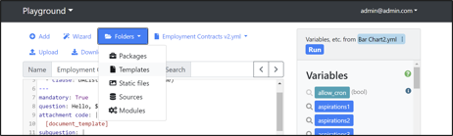
- Click on Folder > Templates
- Click browse to choose your docx template from your working directory.
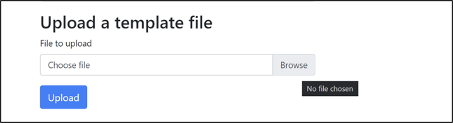
3. Select upload to upload the document into the Playground templates folder
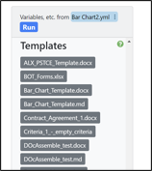
- Template is successfully uploaded when it appears in the sidebar
Connecting Docassemble to ALX
Docassemble can easily integrated in 3 easy steps:
1. Get Session/Secret
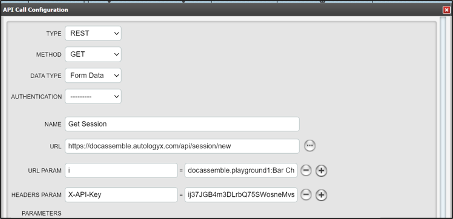
Where the URL = https://docassemble.autologyx.com/api/session/new
I = docassemble.playground1:name_of_interview.yml
This is the name of the interview in the docassemble web app. You can simply copy and paste the interview name in ‘Name_of_interview’. It doesn’t matter is the name contains spaces.
Headers:
X-API-Key = ij37JGB4m3DLrbQ75SWosneMvsun0y1P
The API Key is static and defined in the docassemble web app.
Response: The response is the I (interview), secret and session.
- Save Secret in a local variable
- Save session in a local variable
2. Post Interview
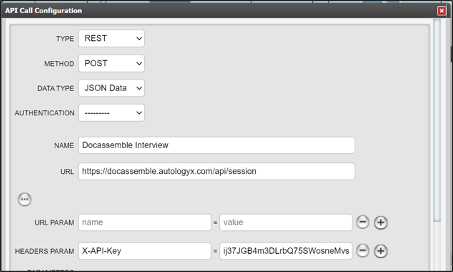
Where the URL is https://docassemble.autologyx.com/api/session
Headers:
X-API-Key: ij37JGB4m3DLrbQ75SWosneMvsun0y1P
Body:
{
    "i":"docassemble.playground1:name_of_interview.yml",
    "session":"{{session}}",
    "secret":"{{secret}}",
    "variables": {
        "recipient.email": "docassembletest@gmail.com",
        "recipient.name.first": "<<patron.first_name>>",
        "recipient.name.last": "<<patron.last_name>>",
        "reference_name": "tid=<<target.id>>"
    }
}
Where:
I = interview path - substitute name_of_interview wit your interview name
Session = Session merge field from local variable
Secret = Secret merge field from local variable
Variables = JSON Object where the docassemble variables are mapped to the ALX merge fields. For example: ‘recipient.name.first’ is a variable defined in the docassemble interview and ‘<<patron.first_name>>’ is a merge field in ALX.
Response: 200 OK
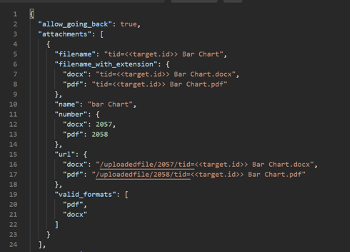
If the call is successful, the response should return the above which includes the links to the assembled docx/pdf document.
Note: If the response contains questions, then those questions are missing from your API Call.
3. Get Assembled Document
The assembled document is returned in two ways:
- Via Email
When the interview returns the Status Code: 200, an email should be sent to docassmbletest@gmail.com. As long as the email collector is correctly setup the email will appear in the target’s document unassigned tab.
2. Via ID into Document Field
ALX now has the capability to send the assembled document to a field using the document number.
- Save the docx or pdf number in a local variable.
2.
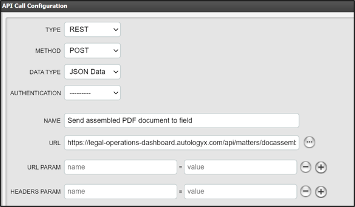
Where:
URL = https://legal-operations-dashboard.autologyx.com/api/matters/docassemble
Body =
fileId = Number saved in local variable
xApiKey = ij37JGB4m3DLrbQ75SWosneMvsun0y1P
targetId = Target ID
filename = Name of File
fieldName: ALX Document field you are sending the assembled document into
targetGroupId = Target group id
suffix = pdf/docx
Comments
0 comments
Please sign in to leave a comment.