
2 Factor Authentication is an additional form of security, where a unique code will be required by a user to make changes within the system, even though they are logged in.
Install 2 Factor Authentication within the store.
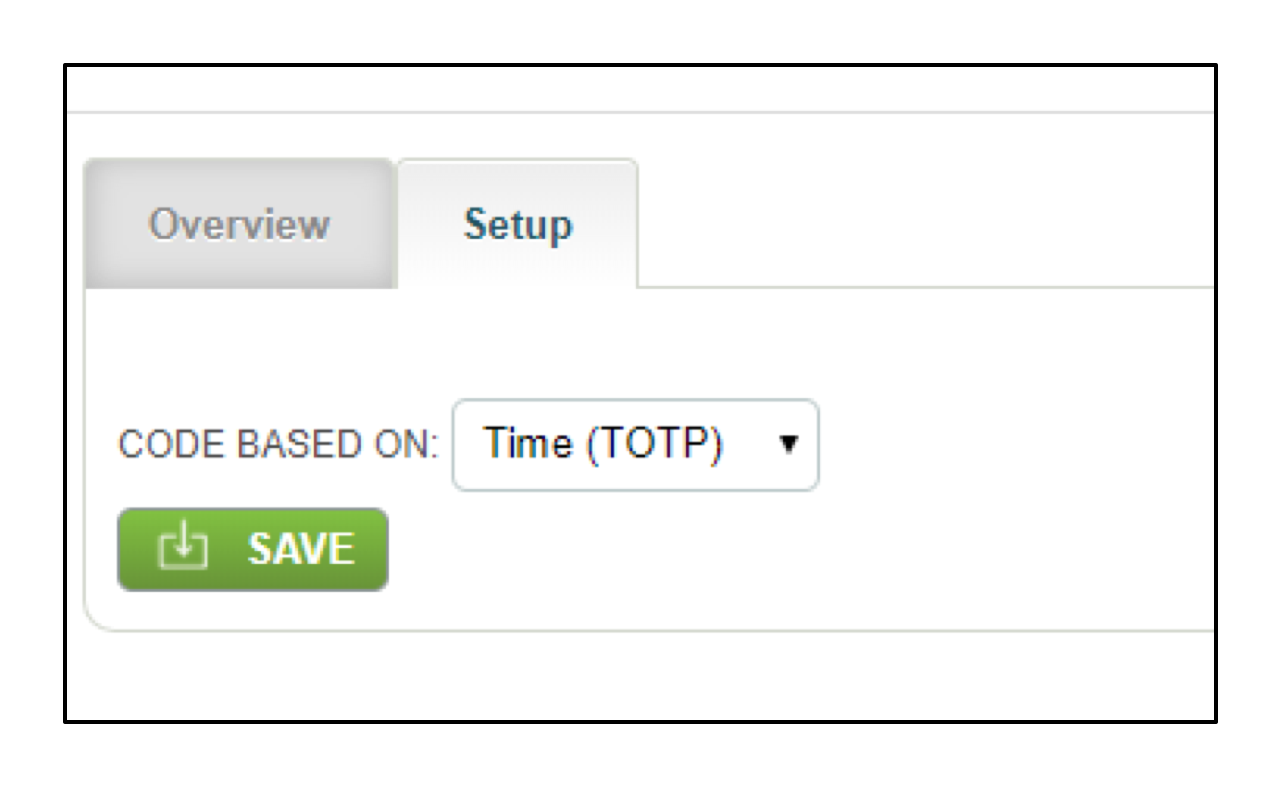
On the setup tab (in the store), a drop-down menu allows a user to select what the authentication code is based on.
Select ‘Time (TOTP)’ to use codes which are issued every 30 seconds. OR
Select 'Event (HOTP)' to have codes issued per event ie each time a user carries out an action which requires this second authentication.
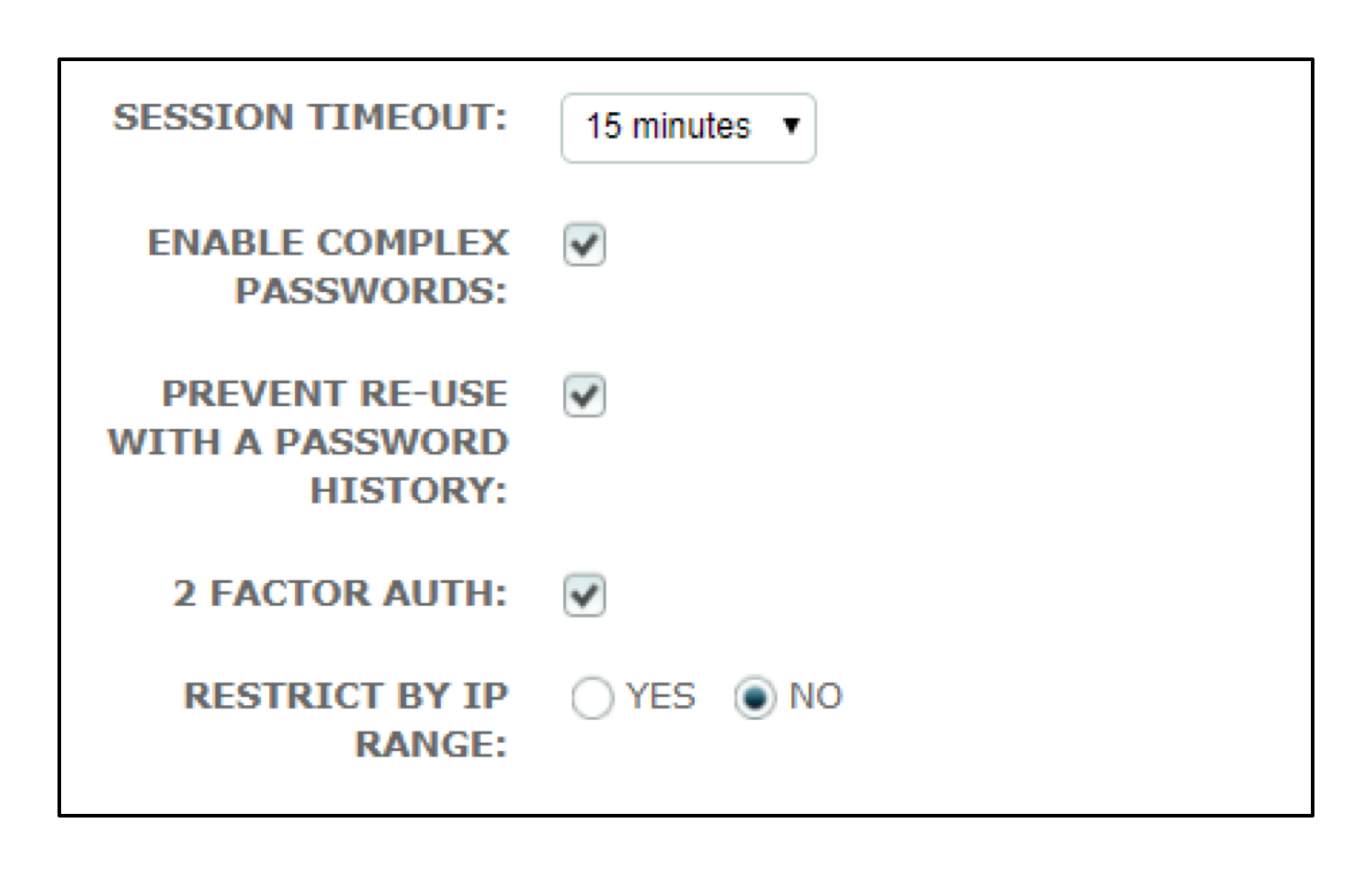
Once installed in the store, in the System Role page, a new check box is displayed. Ticking this new checkbox will enable the 2 Factor Authentication to work for the user(s) with this role.
After ticking the checkbox above, remain in the System Role page, scroll down to the Role Permissions. Select the ‘Apps’ tab, you will now see an additional sub-tab for 2 Factor Authentication. On this tab, the user will be able to select what activities require re-authentication.
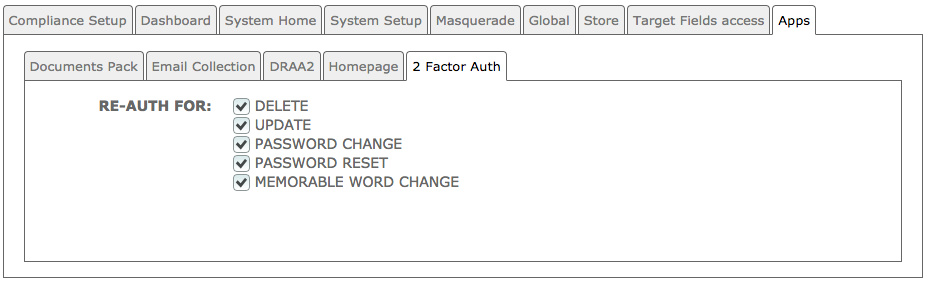
If you don't tick any of the above, users will simply require a code when logging in.
Save the Role.
Users will need to download the Google Authenticator app onto their phones (other apps are available).
Having downloaded the Google authenticator app on your phone dependent on which checkboxes are selected from the list above in the role permissions, the system will require an authentication code prior to the system changes being saved.
The below is shown on-screen.
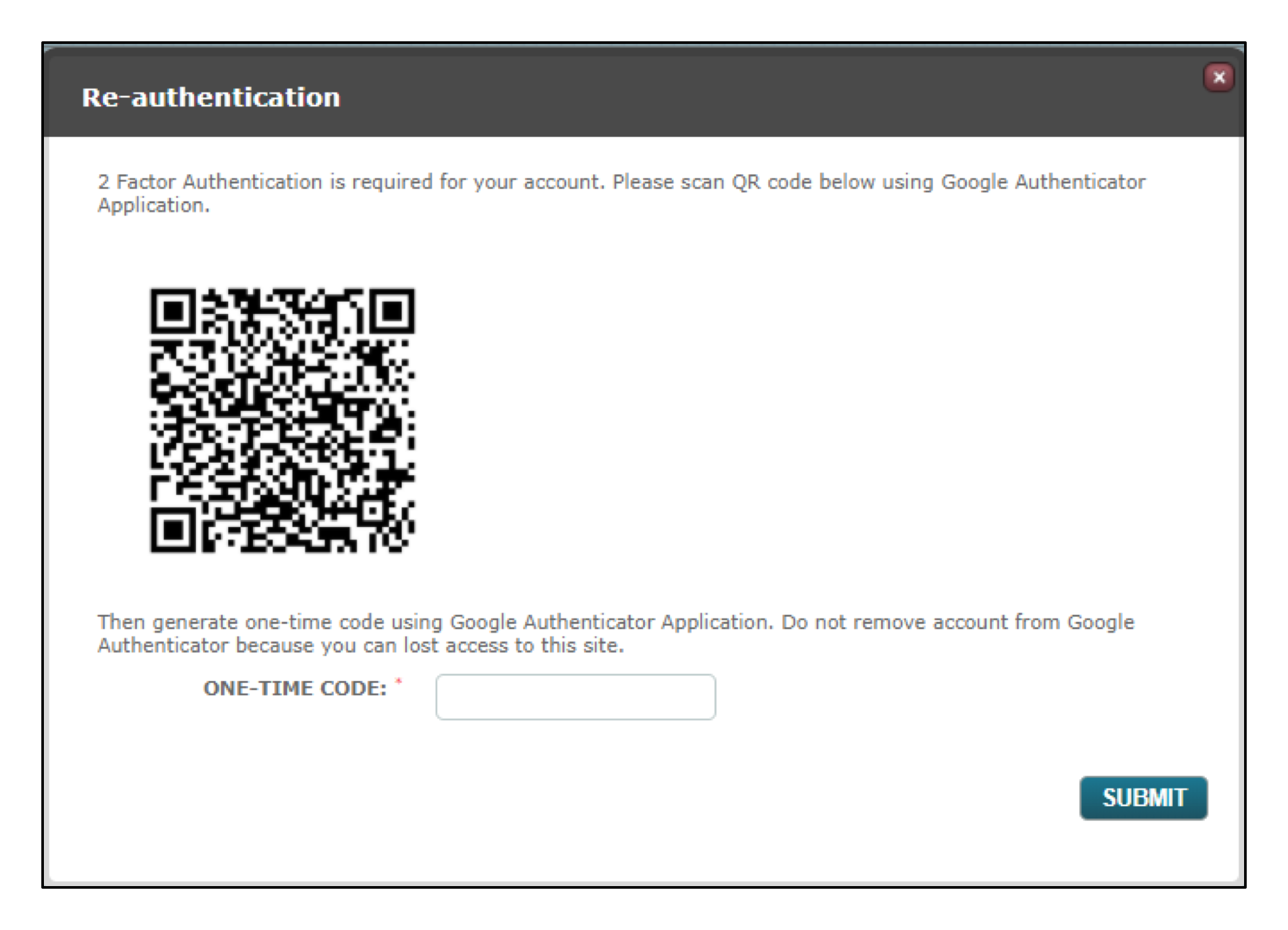
If the Store set-up requires a code based on Event, the user should open the Google Authentication app on their phone.
The phone will access the camera. Scan the camera over the QR code that has appeared on the screen for authentication. Once registered, a six-digit code will be provided.
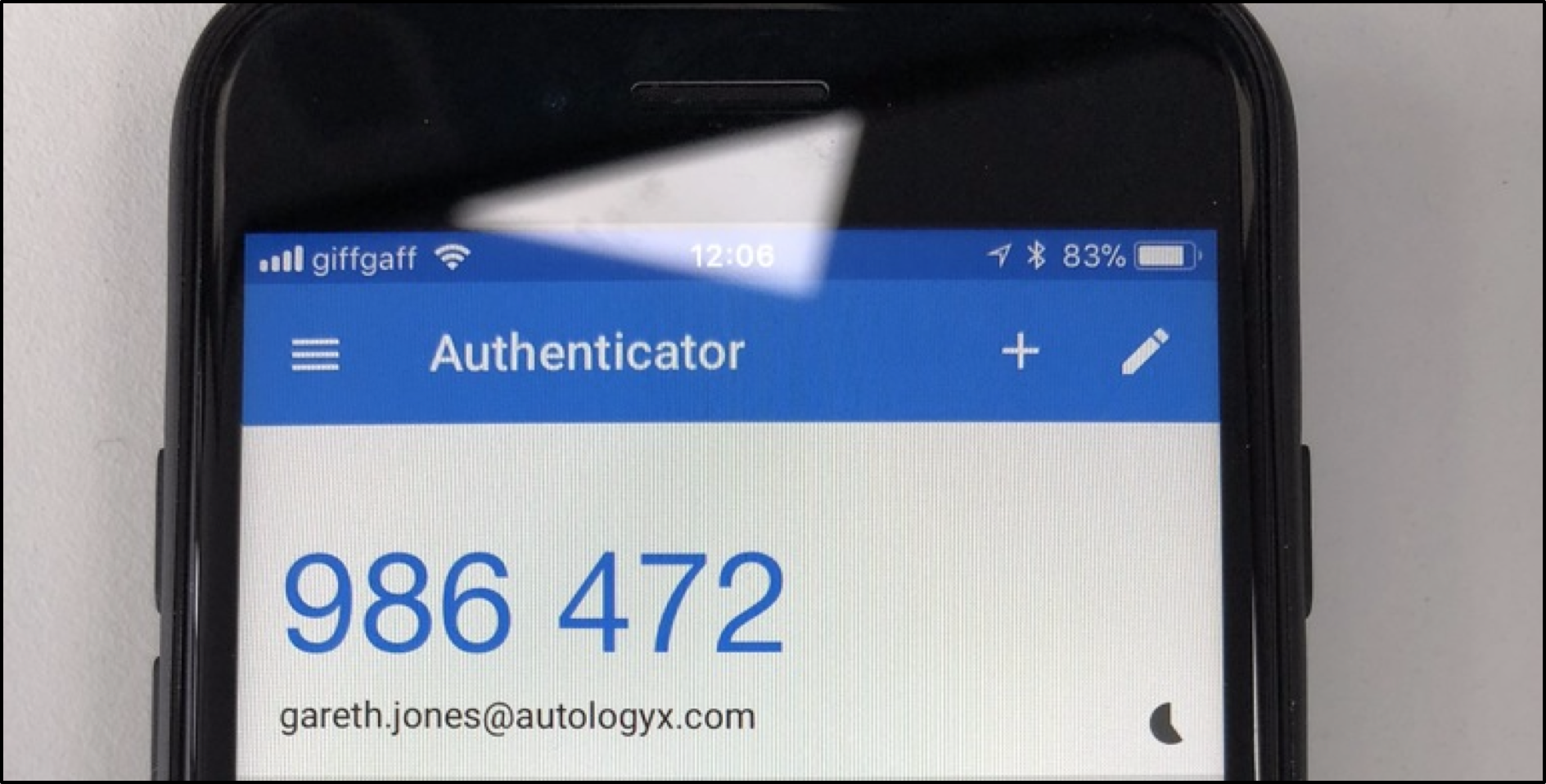
Enter this code and click Submit.
Having done this the user will be able to get a new event code from their phone by refreshing the account with the circular arrow symbol to the right hand side.
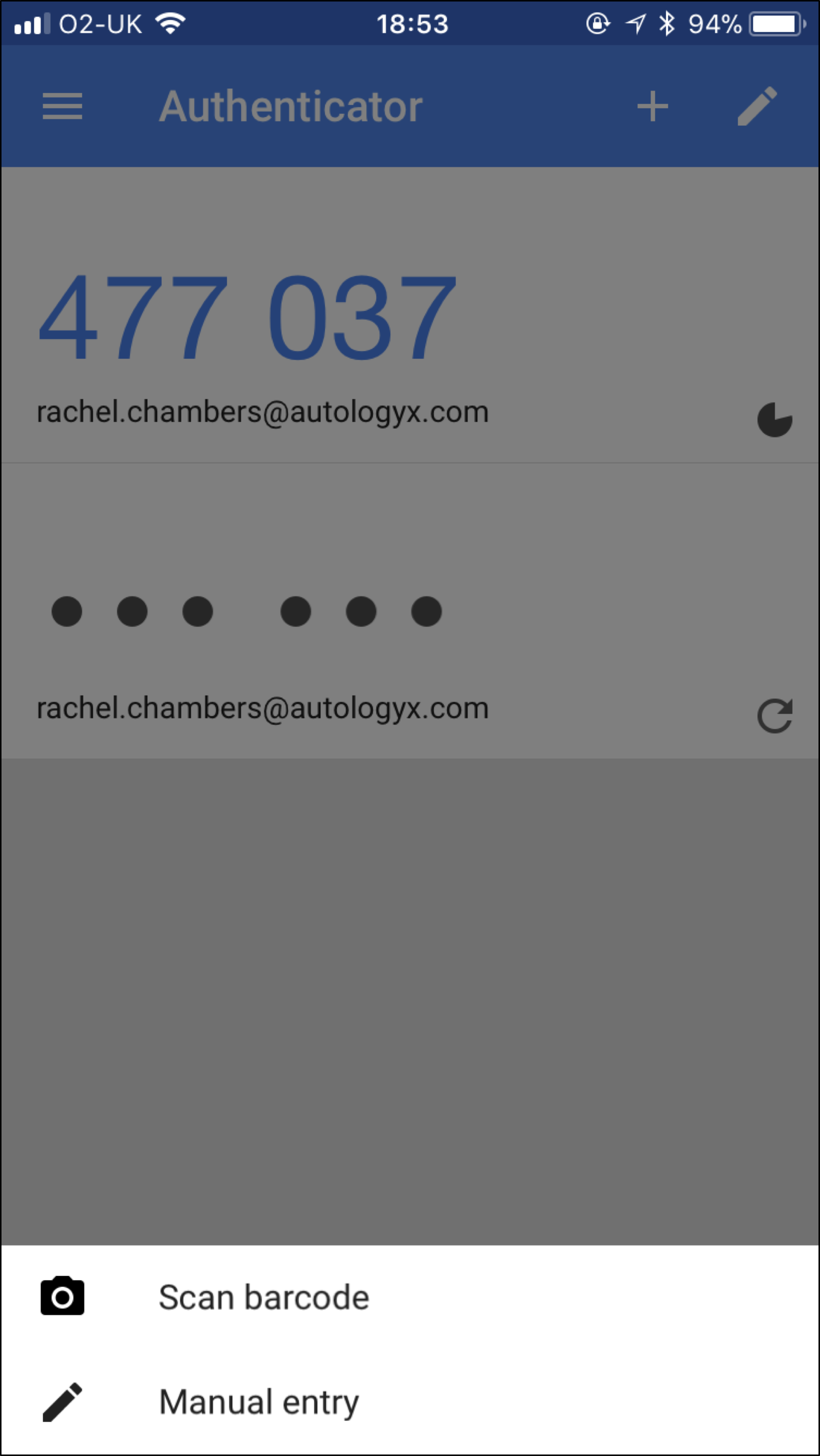
If the Store set-up requires a code based on Time, the app on the phone generates a timed code every 30 seconds. These codes have a "clock" symbol to the right hand side which counts down the 30 second validity period.
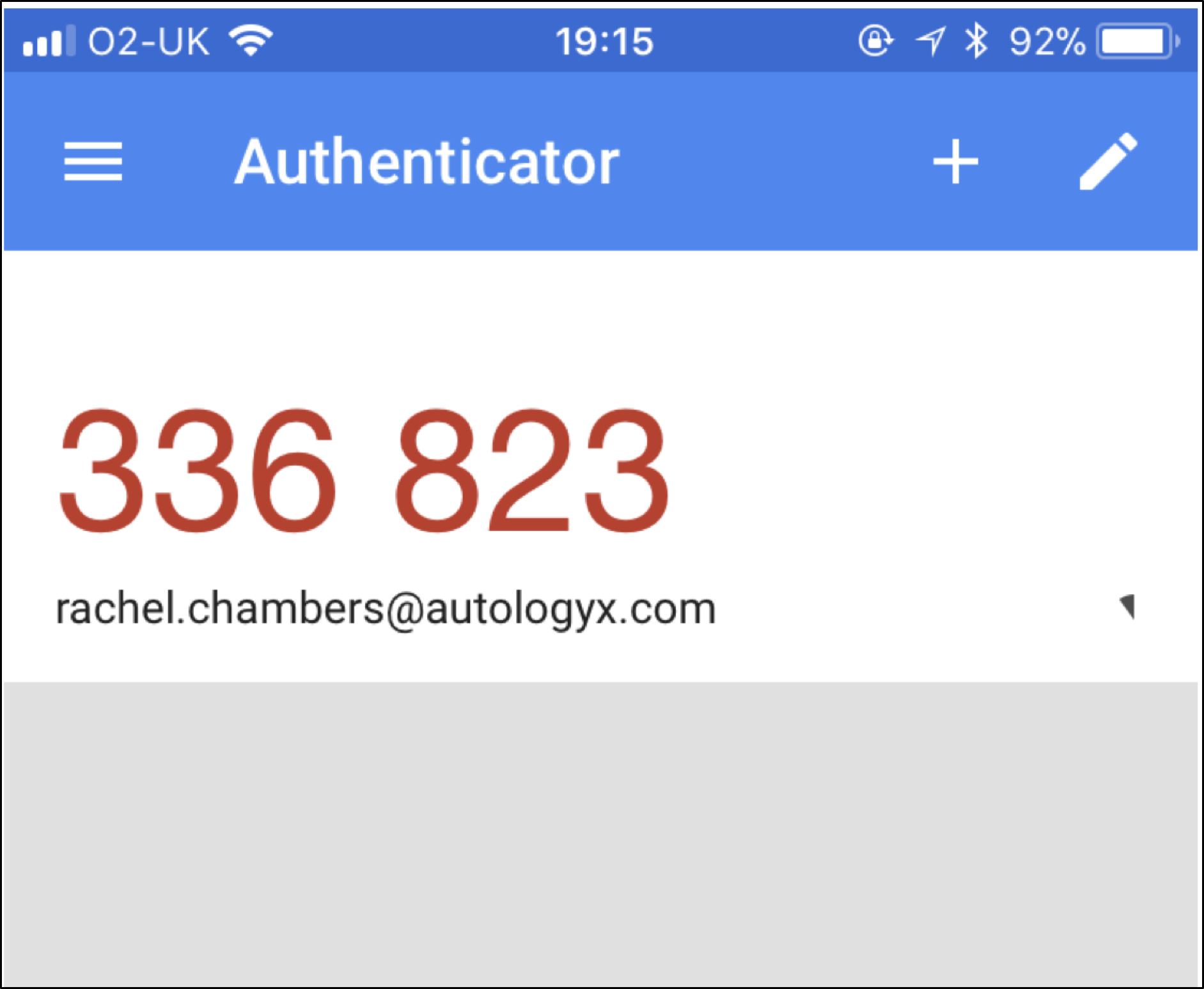
Enter the last code generated and click Submit. If the code goes red as shown below it is becoming invalid (ie after 30 seconds) so it is probably wise to wait for the phone to generate the next one.
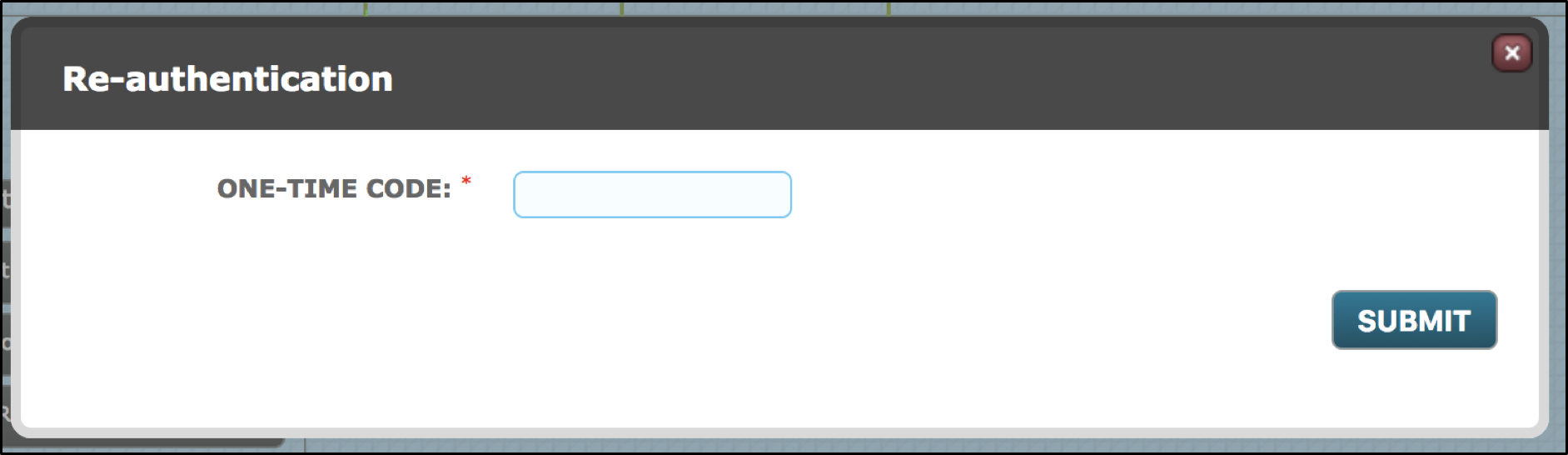
If 2 Factor Authentication is no longer required for the User Role, a code is needed to save the change once the 2 Factor Auth field has been unticked.
Comments
0 comments
Please sign in to leave a comment.