
In Autologyx, we have the ability to use homepage templates in the system. Homepage Templates need to be downloaded via the store, type in ‘Homepage’ in the search bar, then select the application and then install this application.
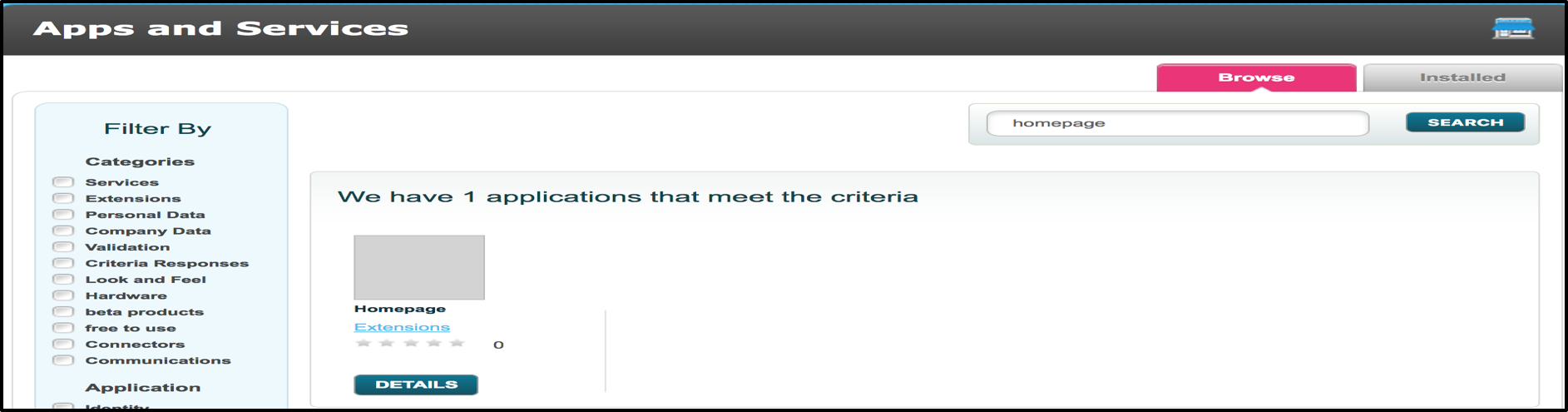
Once Downloaded, to create and manage Homepage Templates, go to Admin > Under ‘System Setup’ select ‘Homepage Templates’.
After selecting, the next page will show a list of Homepage Templates that have been created, with details such as the ID, Name of the Homepage Template, the Roles assigned to the Homepage Template. The user will also have access to an ‘Action’ drop down menu list. This list will enable the user to a number of actions as shown below.
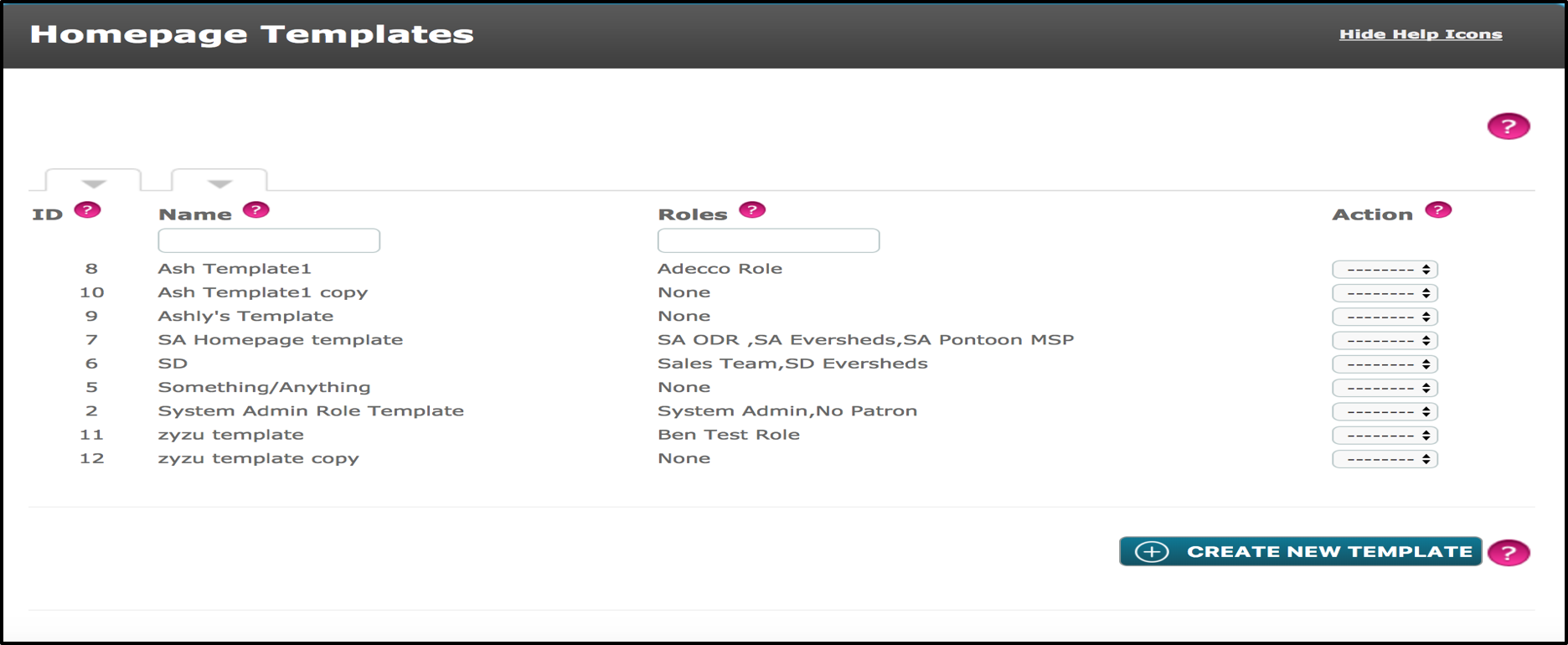
This article will be showing how to create a new Homepage Template, so click the ‘Add New Template” button.
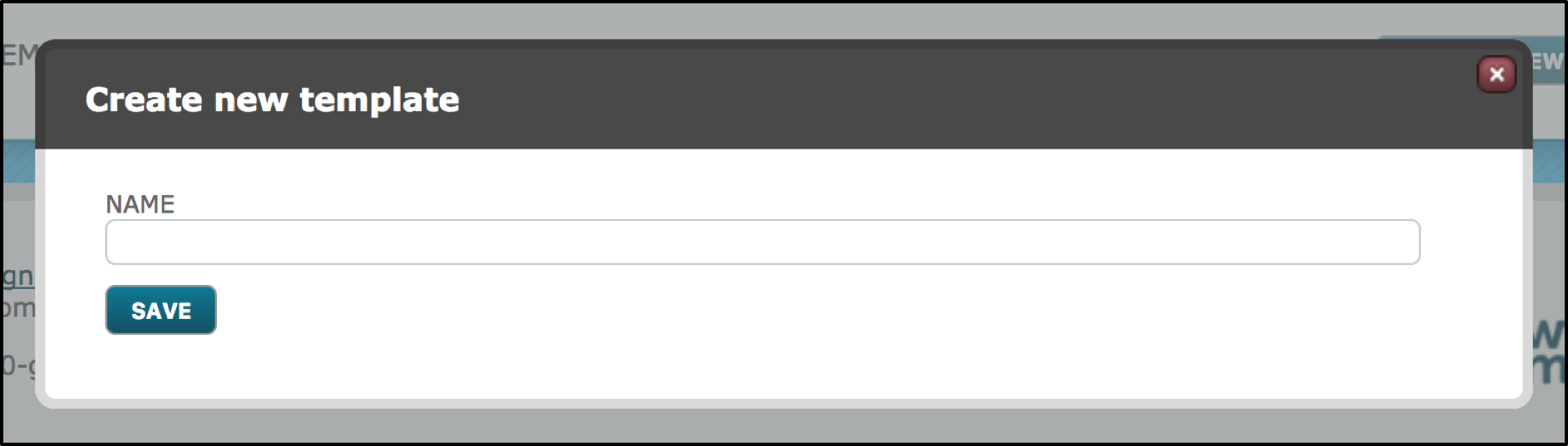
Next, you will be asked to name your new Homepage Template, complete the field then click ‘Save’ once completed.
Once the Template is created, a new page will automatically load which can be shown below. As you can see, this page states that the new template created is “in use by no roles”, once the template is completed then you can assign this template to certain roles on the system.
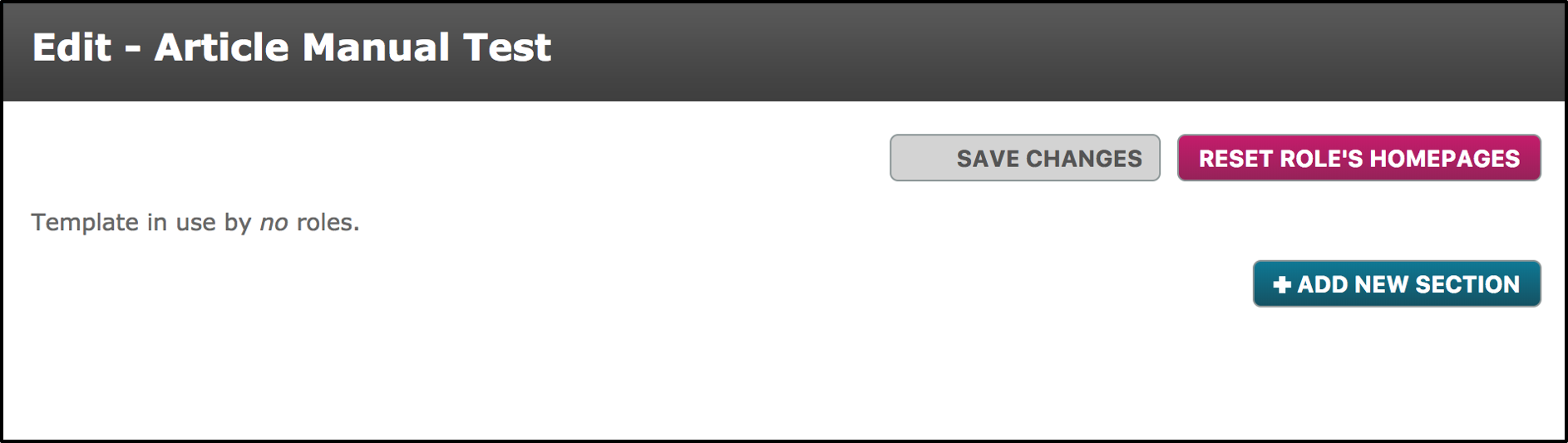
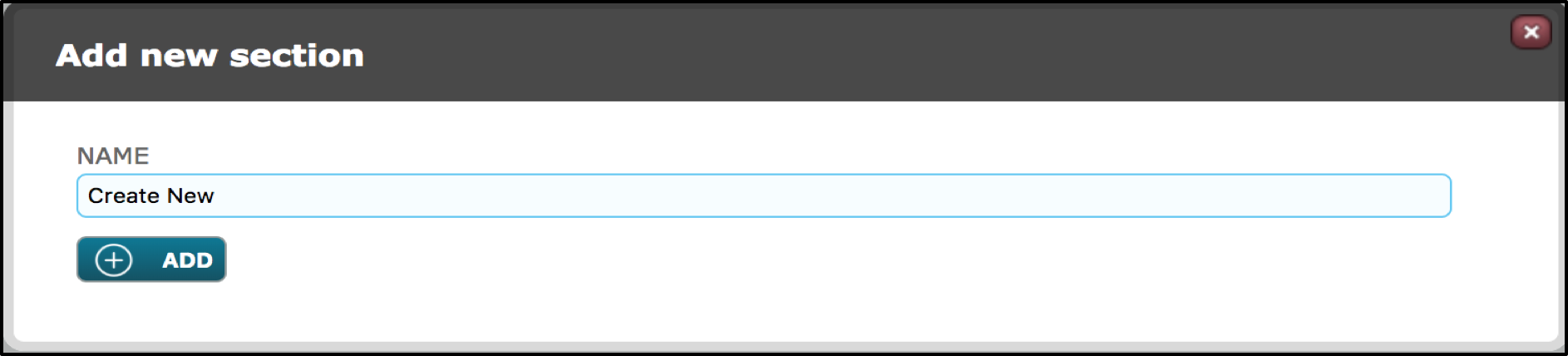
A section is created by selecting the ‘Add New Section’ button. Once clicked, enter in the name of the new section you wish to have. Once completed, select ‘Add’.
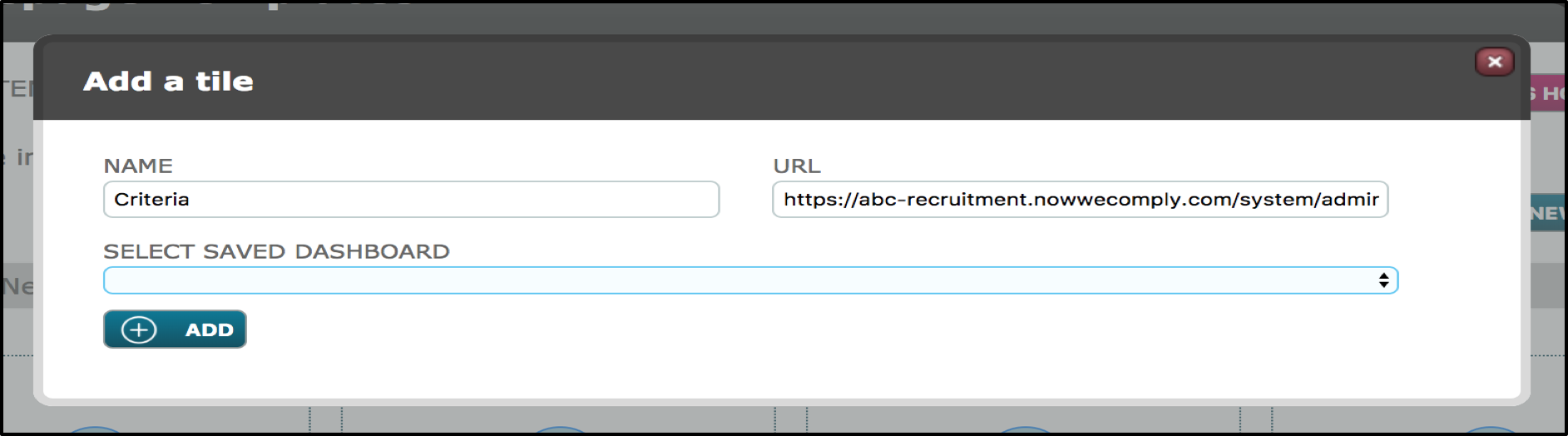
Next, click on one of the four boxes below the header of the new section that has been created. Once a box is selected, it will enable you to ‘Add a Tile’. A Tile is a shortcut for the user to have in order to avoid getting to a page manually. The section that has been created, ‘Create New’, will contain many ‘Tiles’ which will consist of all the shortcuts where a user can create something. The first tile, as shown below will be for ‘Criteria’. Firstly, enter the name of the tile. Next, copy and paste the URL from the page where you wish to create a shortcut. Then select ‘Add’ to complete creating the tile.
An alternative way to create a new tile, would be through the use of the ‘Select Saved Dashboard’ drop down menu. Name the tile, however this time a URL is not required IF the user required to select from the drop-down menu. As stated in a different article, a user can create a ‘Saved Dashboard View Template’. This is where a user can automatically have specific filters assigned and populated without the need to manually select the filters each time the dashboard is accessed. With this saved view created in the dashboard, this existing dashboard format can also be selected here in the drop-down menu.
Note: If a ‘Saved Dashboard’ is selected, it is important that the role that’s assigned to this Homepage Template, also has access to all the filters, people & groups, target group, and targets that were saved in the ‘Saved Views Template’. This is important, otherwise the user will not be able to see what the user who created this ‘Saved Views Template’ can, meaning this shortcut won’t be effective and the shortcut won’t do its purpose.
Once added, you will be taken back to the previous page. Under the section header ‘Create New’, the new tile that was created, ‘Criteria’ can be seen. If this is then clicked on by the user, they will then be redirected via a new tab, to the page on the system where a user can create a new criteria.
A user can create as many new sections and new tiles as they please. The principal of the Homepage Template, is to create a shortcut (s) for a user to make the user’s life easier. The user can select the ‘Save Changes’ button at the top to save the progress they have done in creating the Homepage Template.
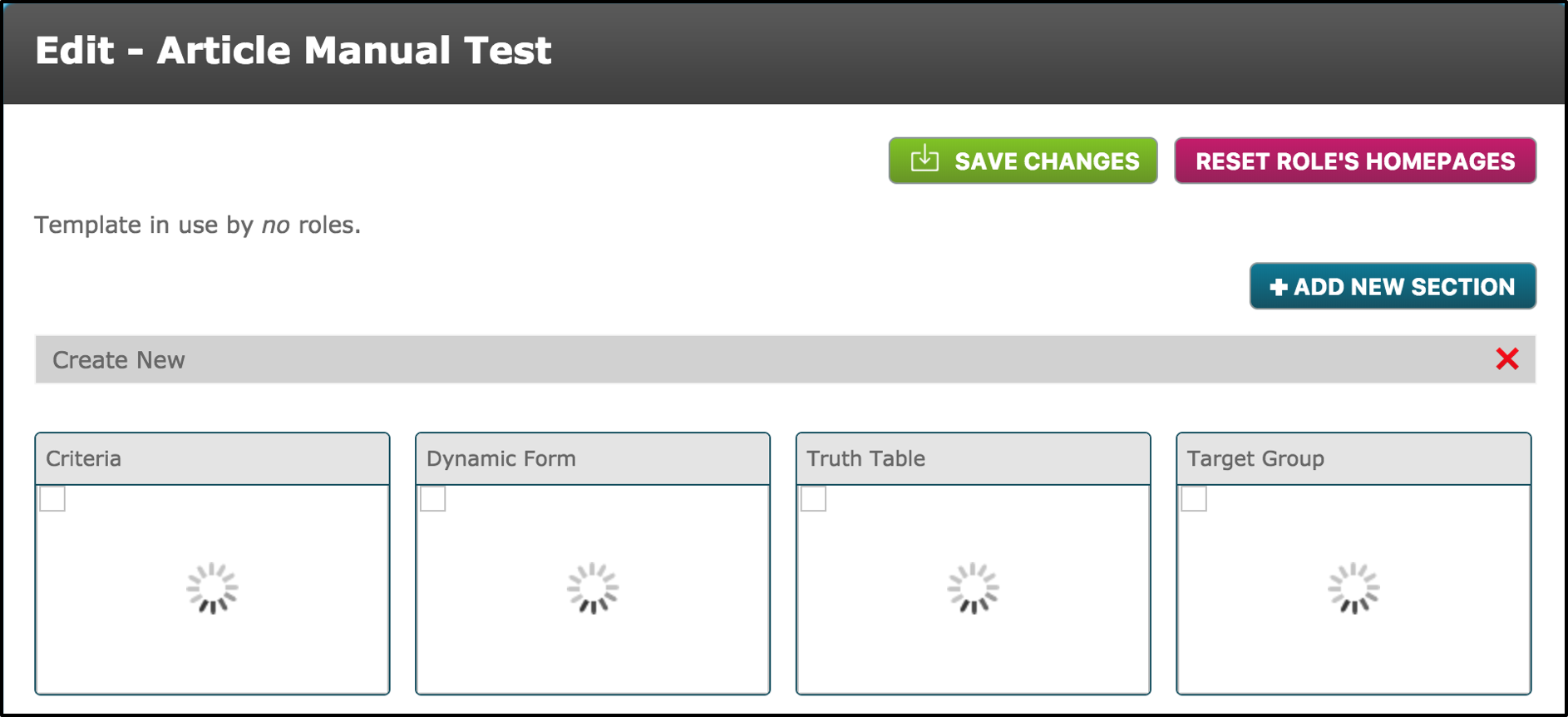
As stated before, when a new Homepage Template is created, a statement saying, ‘Template in use by no roles.’ Once a user account is created, and a user role is created, the user will need to configure the role permissions for that role.
The role ‘BDUK Security SD’ had its ‘Role Permissions’ configured, to enable the use of homepages, with the ‘Article Manual Test’ which was created, being selected. As you can see from the image below, previously the statement on the Homepage Template said ‘Template in use by no roles’, whereas now it says ‘Template in use by BDUK Security SD roles’.
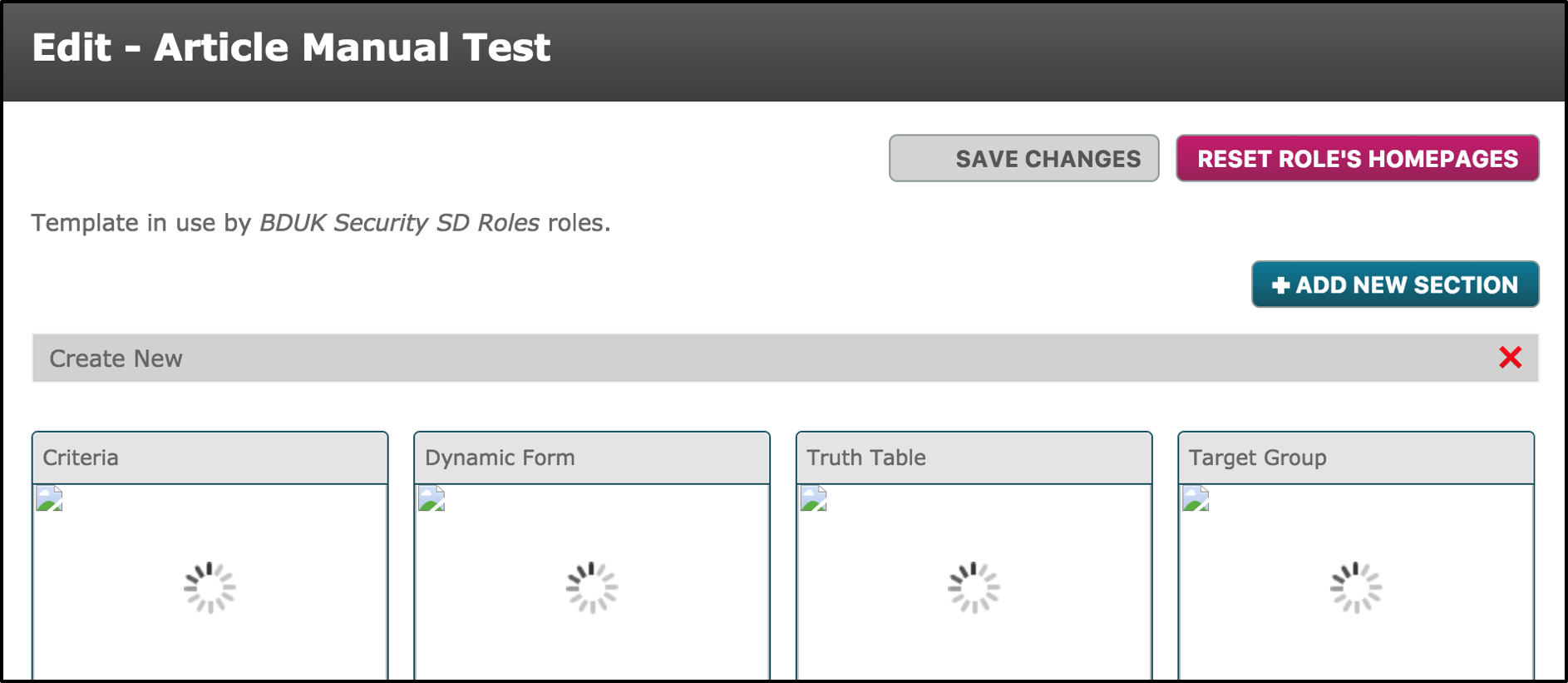
If the user wishes to implement this Homepage Template, the user will need to select the ‘Reset Role’s Homepages’ button. This button will then lead to a page where the user will have to select a checkbox to ensure they know that they indent to implement these changes.
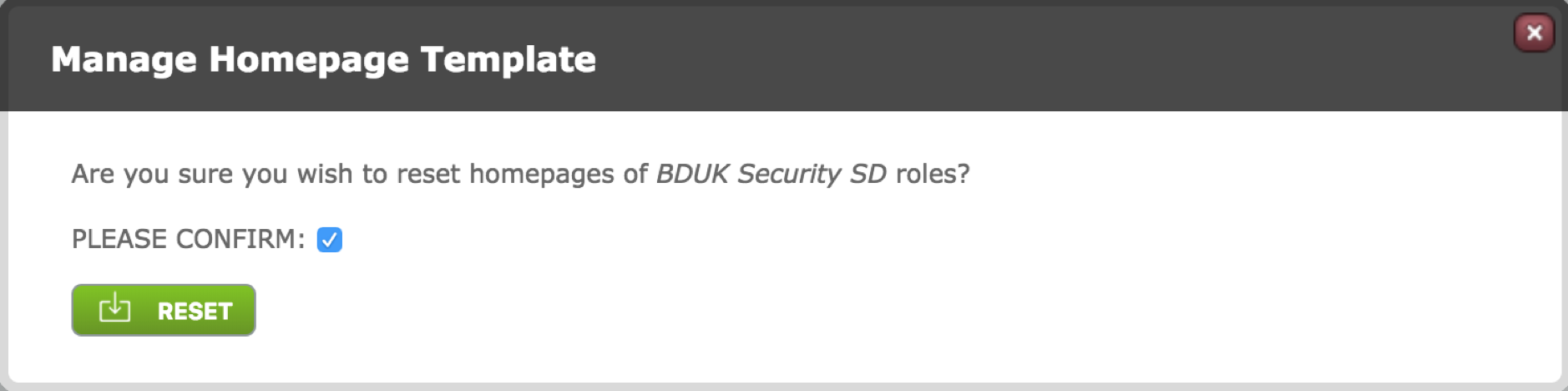
Once the reset button is selected, the user will then be able to view this Homepage Template when they log in.
Comments
0 comments
Please sign in to leave a comment.