
Having installed the criteria response type, go to the Setup tab. You will see 3 sub-tabs as follows:
Target Field Mapping
On this tab you will be presented with all the target groups which have been set up in your system. Click on the target group you wish to use as a Referee group. All the fields which have been marked as "Display and Edit" in the Visibility column on the target group setup page will be shown.
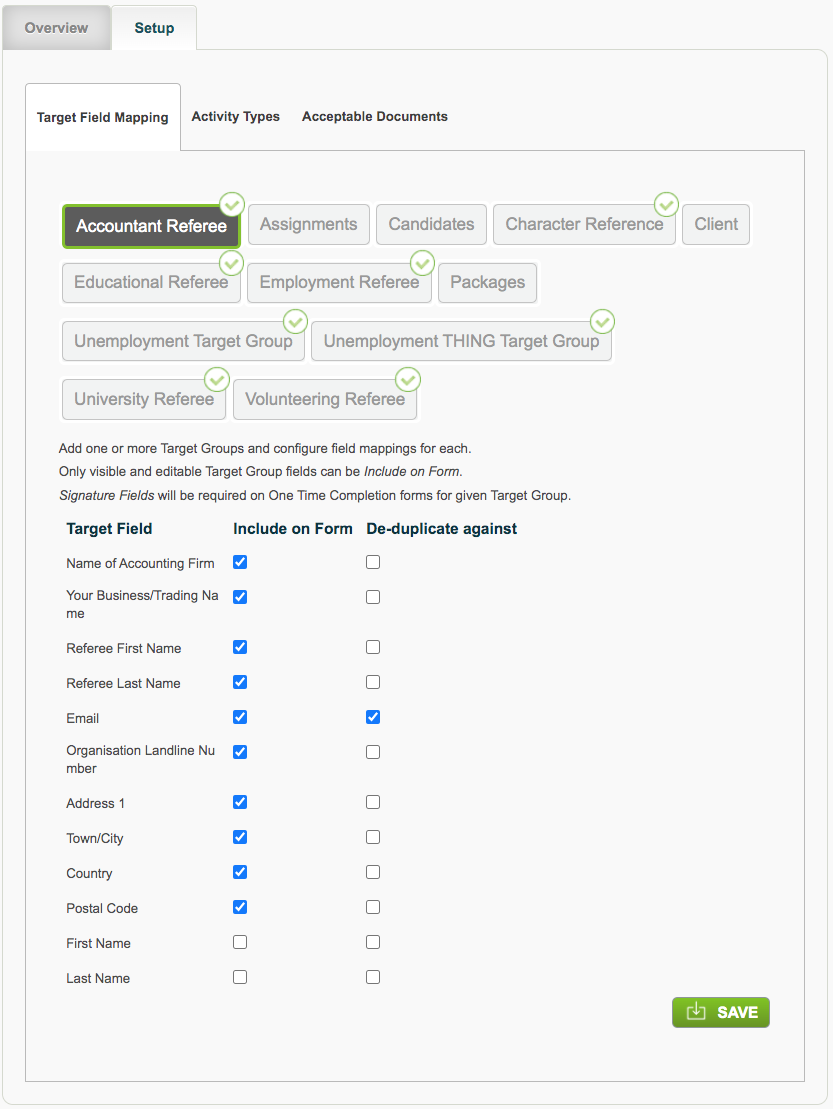
In the "Include on Form" column tick all the fields you wish to be presented to the applicant who will be providing the referee details.
You must tick one field in the "De-duplicate against" column. We always advise that Email is used.
Drag and drop these fields to re-order them.
Click Save. A green tick in a green circle will show that the target group mapping has been completed for that group.
Activity Types
This is the tab where you will define the activities for which you wish to collect data.
The screenshot below shows a very comprehensive set of possible activities an applicant may tell you about when you ask them to provide occupational history.
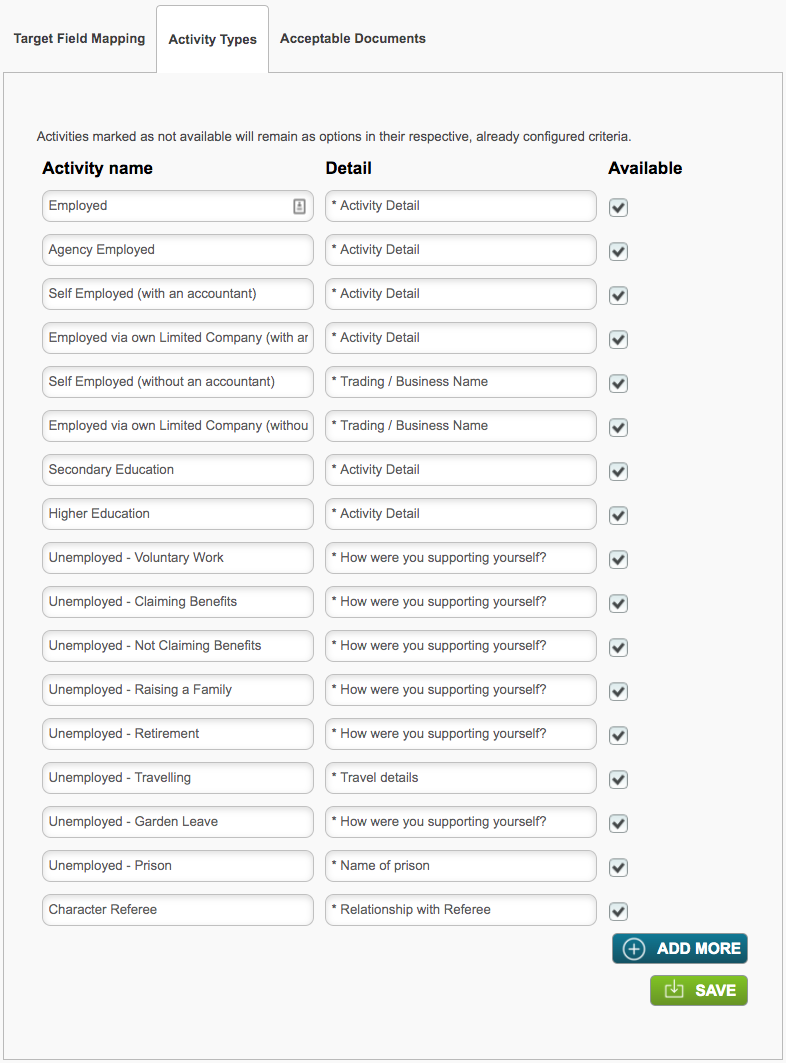
Your list of activities could be much smaller. For example, if you wish to collect information about Educational History you may only have two or three activity types, such as:
- GCSE/A Levels
- Further education
- Higher Education
Enter each activity type in a separate row. In the Detail column add some text which will be used to prompt the applicant to provide specific information relating to that activity type.
Click Save.
Acceptable Documents
On this tab enter a list of documents which will be acceptable either from the applicant or the referee in place of a reference. For instance, if the time period for a specific employment is more than 7 years ago, it may be that the company no longer holds records about an ex-employee. In this case a contract of employment, bank statement or HMRC employment history letter might be acceptable alternatives.
The Available column should be ticked for each entry you wish to reference in the criteria.
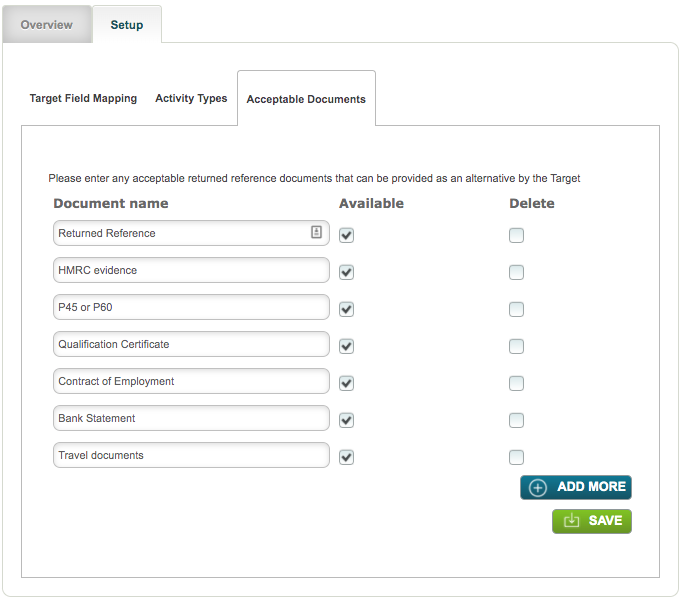
The delete column allows you to delete unwanted document entries from the list.
Click Save. Go to Admin/Criteria/Create a New Criteria where you will be able to set up the Date Range & Activity V2 task.
Comments
0 comments
Please sign in to leave a comment.