
When you expand a person type target you have several links depending on your role permissions.
The "Send a Message" link allows you to send an ad hoc or templated email (or SMS, if you have a service set up) to the target.
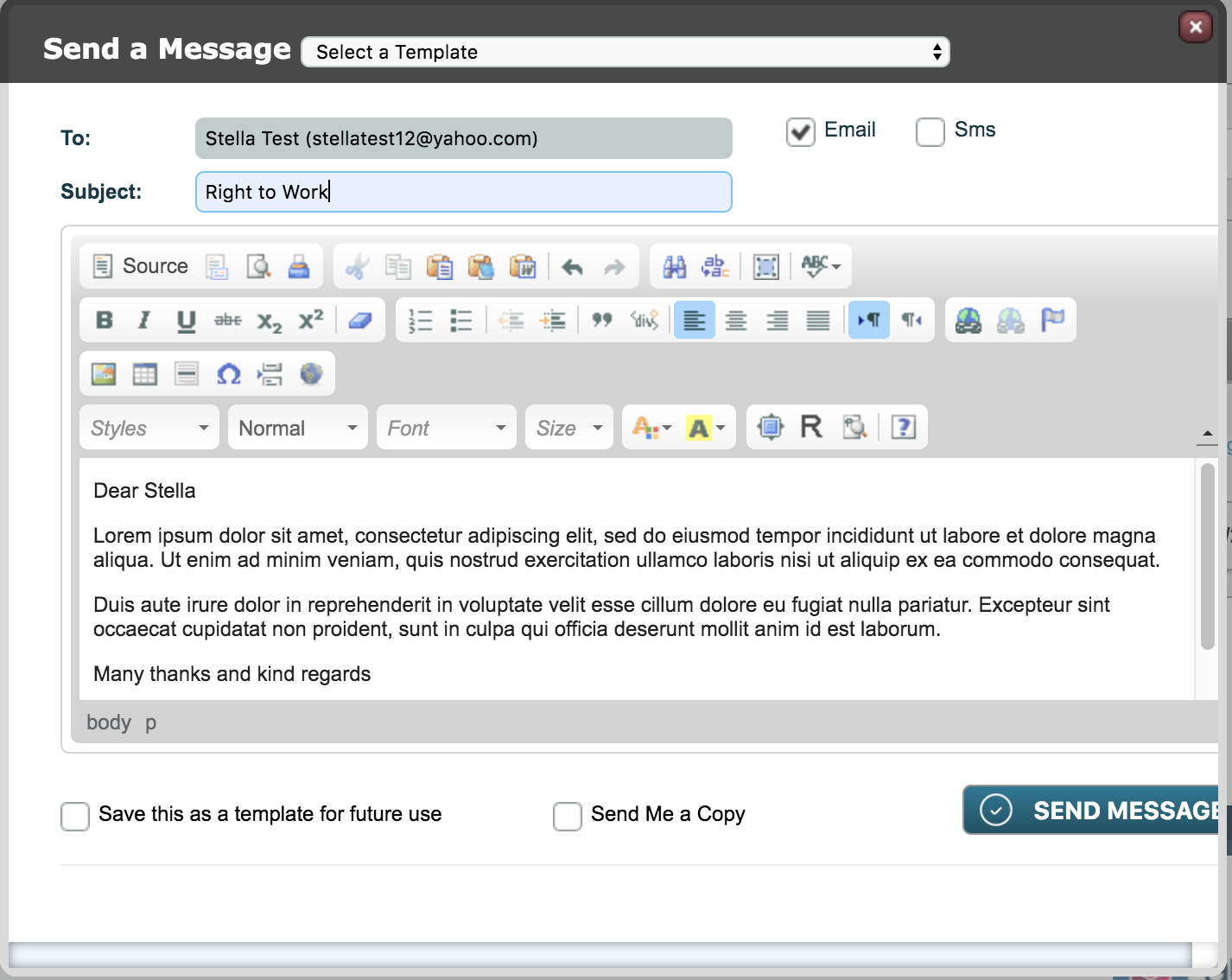
Previously, this email would simply be sent and could be seen in the Sent Messages of the mailbox detailed in "Notification e-mail backend settings". It would also appear in Housekeeping > Outgoing Messages.
This is still true but with the addition of the Message Dashboard, you will now be able to view these outgoing messages via the new "Message Dashboard" link.

When the Message Dashboard link is clicked a modal window opens as below:
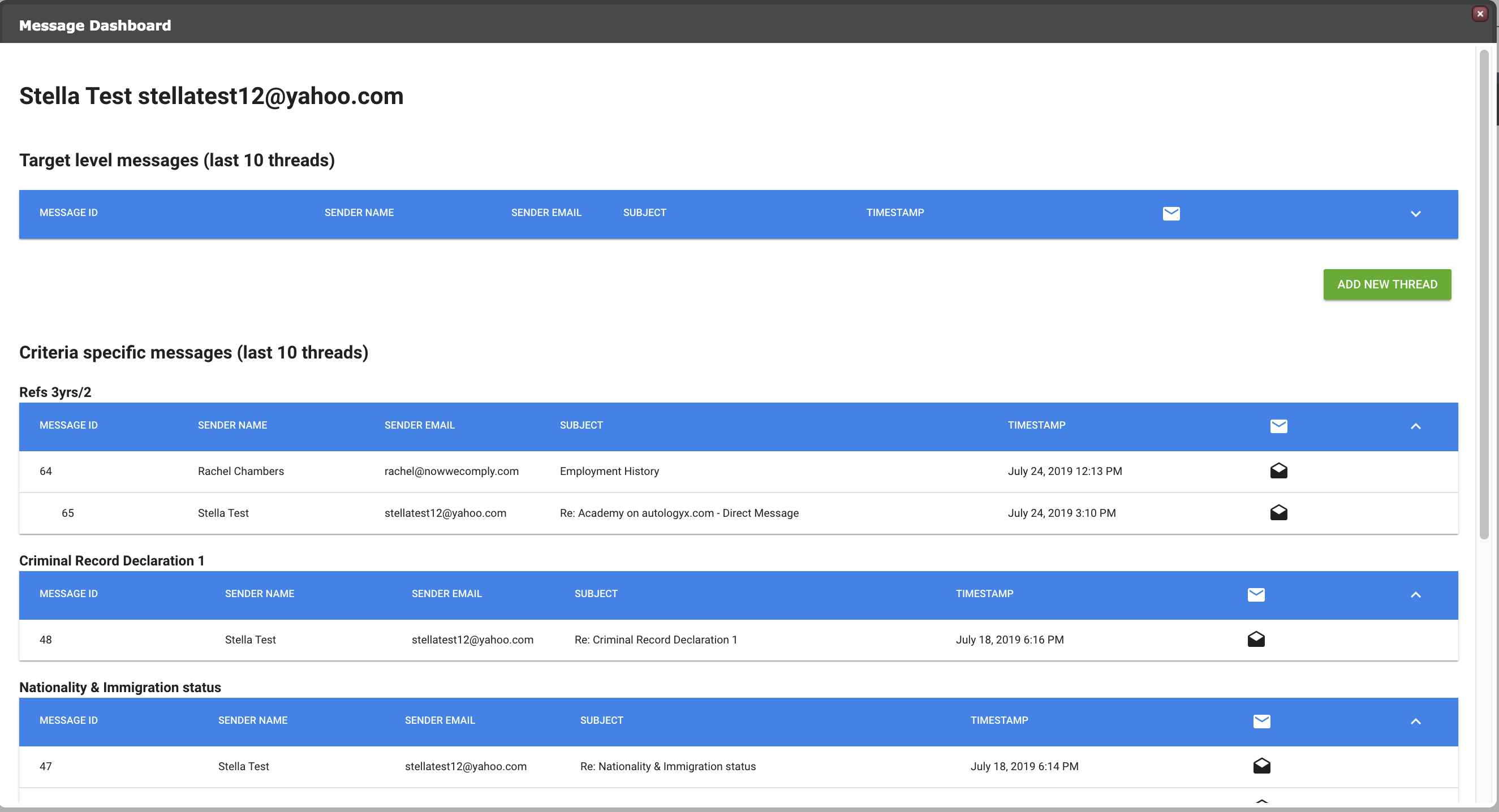
Messages are displayed in two sections:
Target level messages: these are messages which have been sent by using the Send a Message link or the Add New Thread button.
Criteria specific messages: these are messages which have been sent by using the Send Message option from the action menu against a specific criteria.
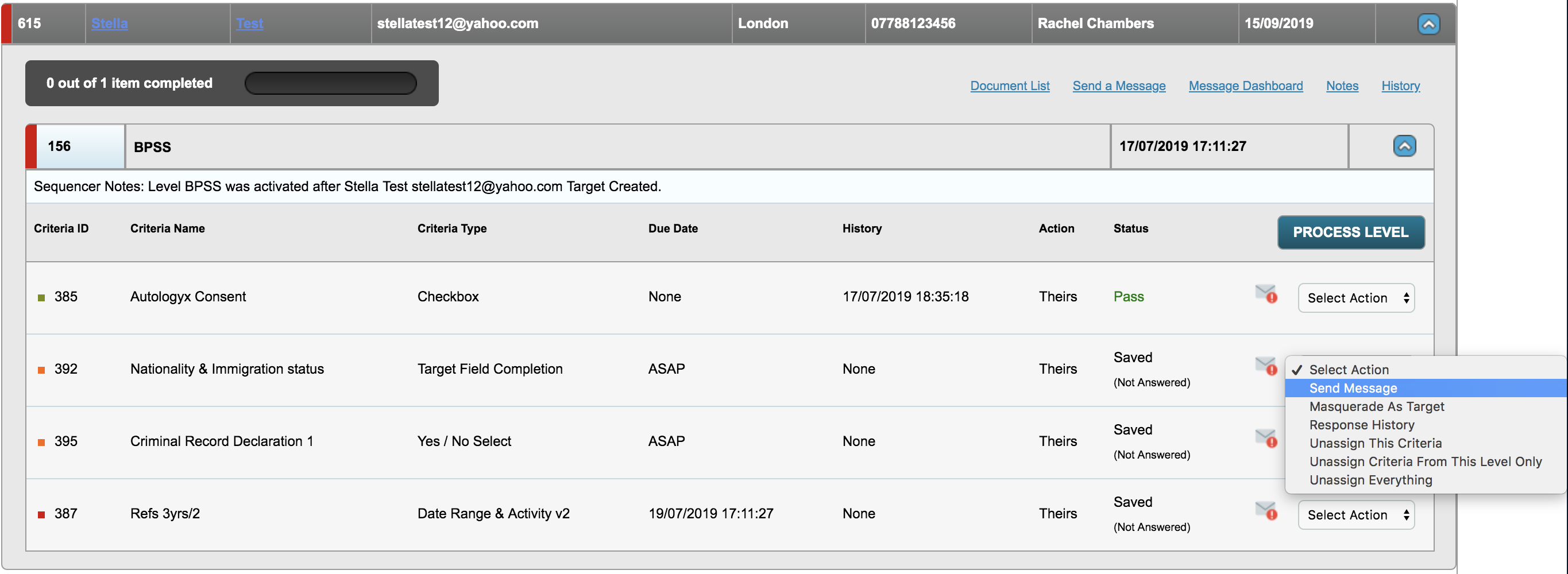
Criteria from which a target has sent a message will have an exclamation mark icon on the envelope on the Dashboard, as shown above.
When the envelope icon is clicked the user will be taken to the message or string of messages in the Message Dashboard relating specifically to that criteria.
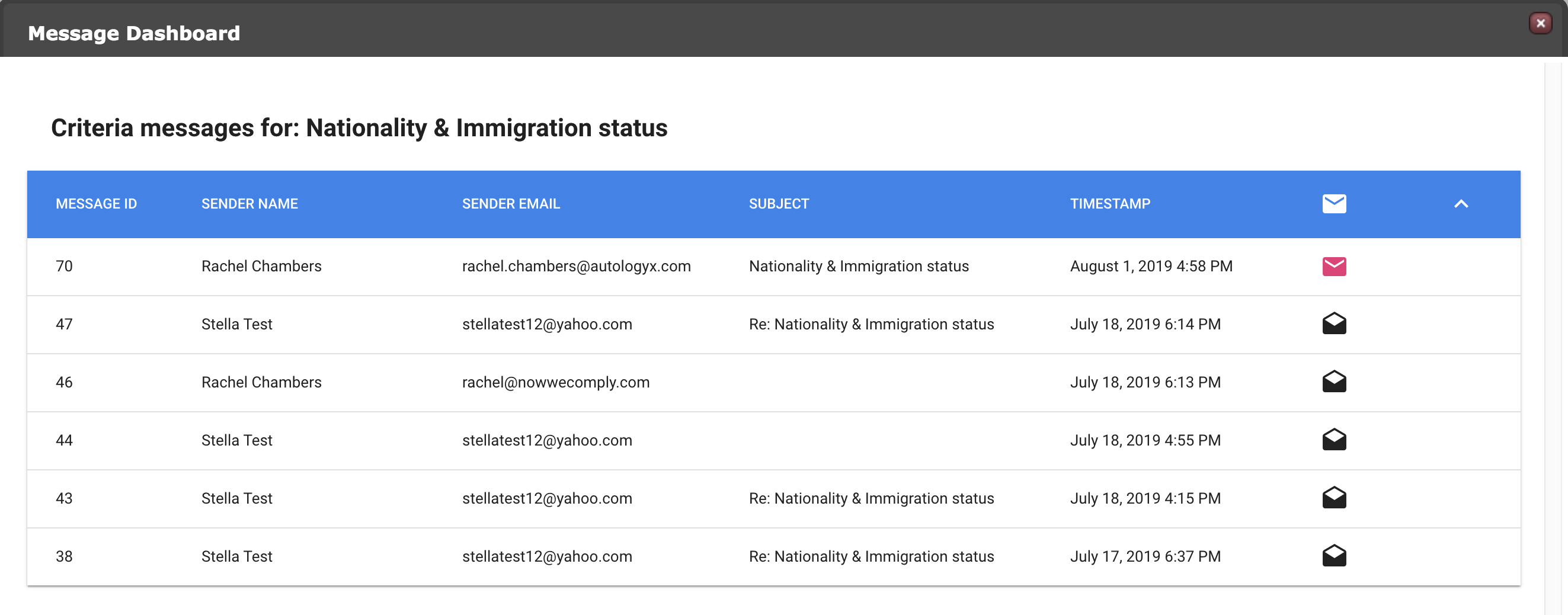
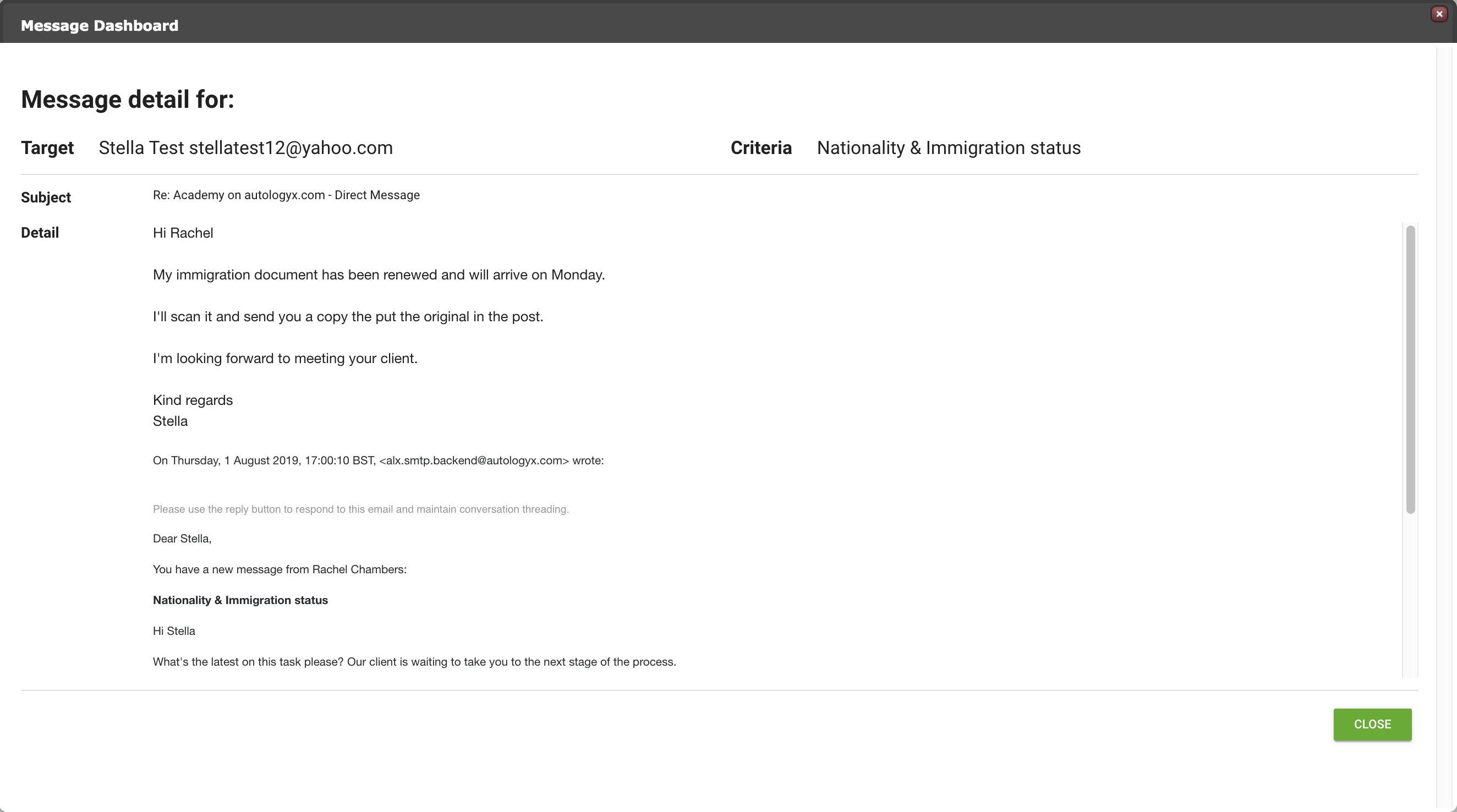
When the target replies to a message sent from the Dashboard it will appear under the original so that an email thread is started.

A black envelope icon agains a message in the list denotes a message which has been read while a pink envelope shows that a message is unread.
Clicking on the envelope icon will open the message thread as below:
Please note:
Messages sent via a Send Message Actor in a sequence or from a Message response type criteria will not appear on the Message Dashboard.
Comments
0 comments
Please sign in to leave a comment.