
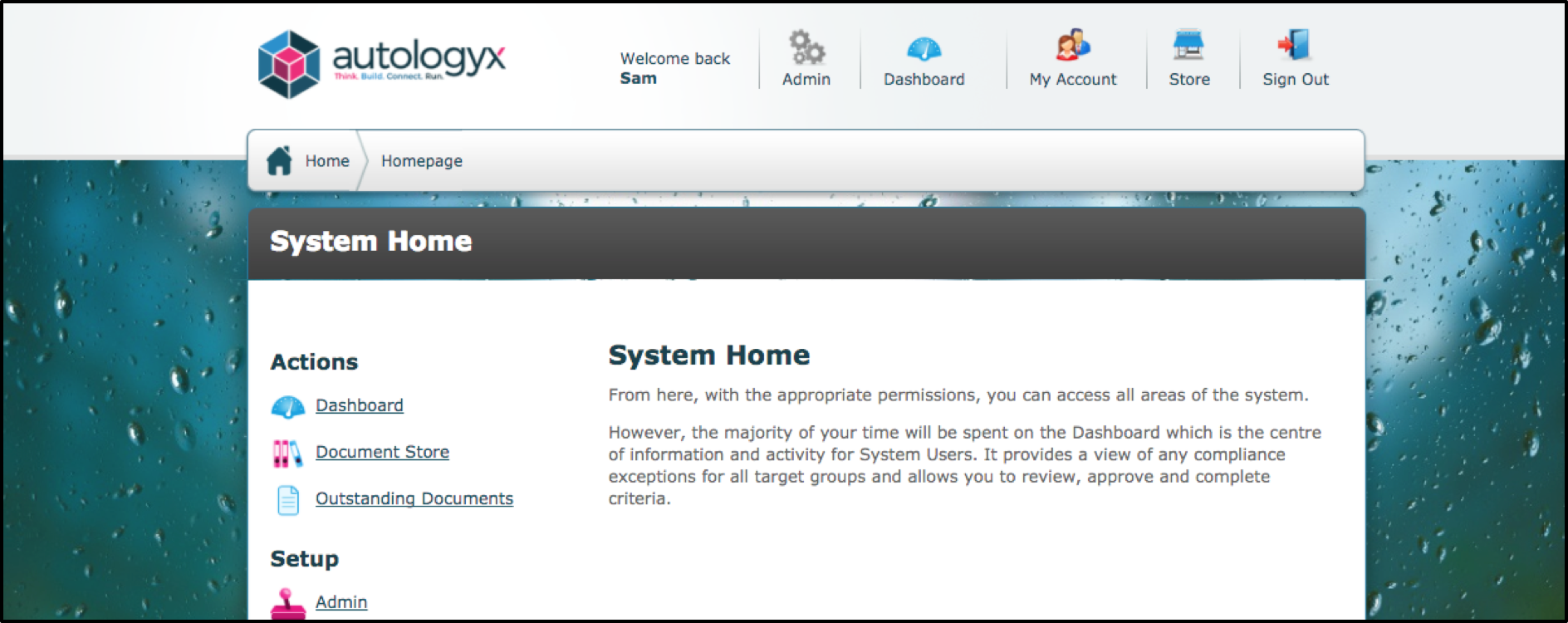
The default colour used is light blue with images of files embedded.
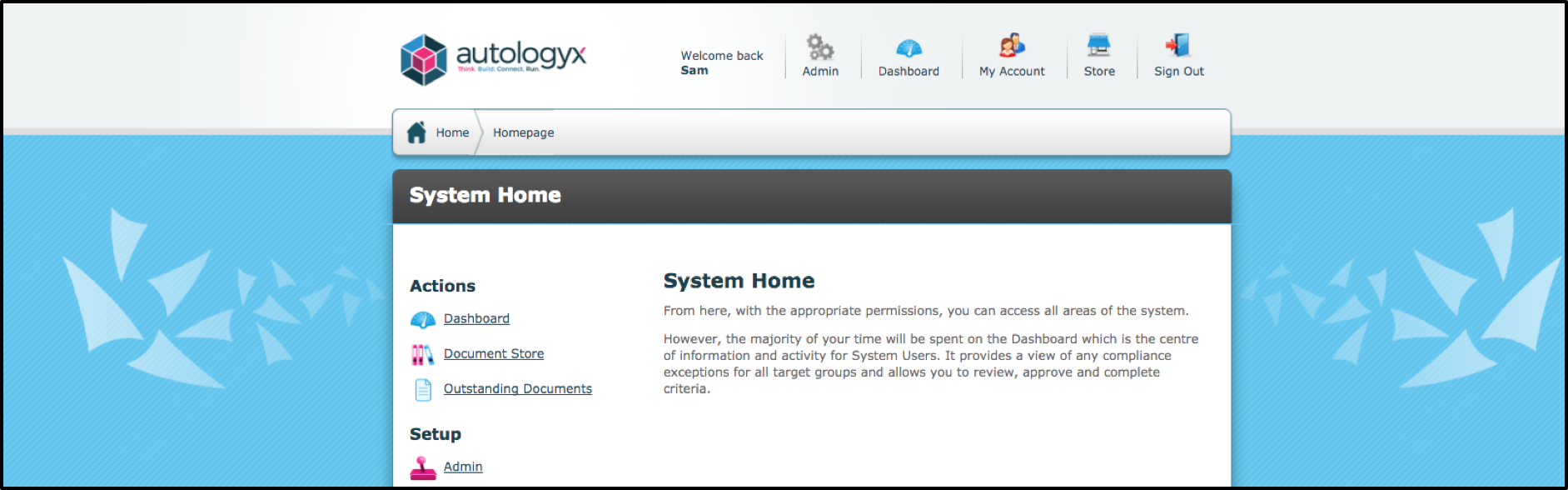
A user is capable of changing this colour from blue to what they wish. Either a plain colour can be used or an image can be used, the URL of the image will be required if you wish to use an image.
Ensure that System Pages Styling is installed in the Store.
Add the following HTML code:
#page {
background-image: none;
background-color: ;
}
body {
background-image: none;
background-color: ;
}
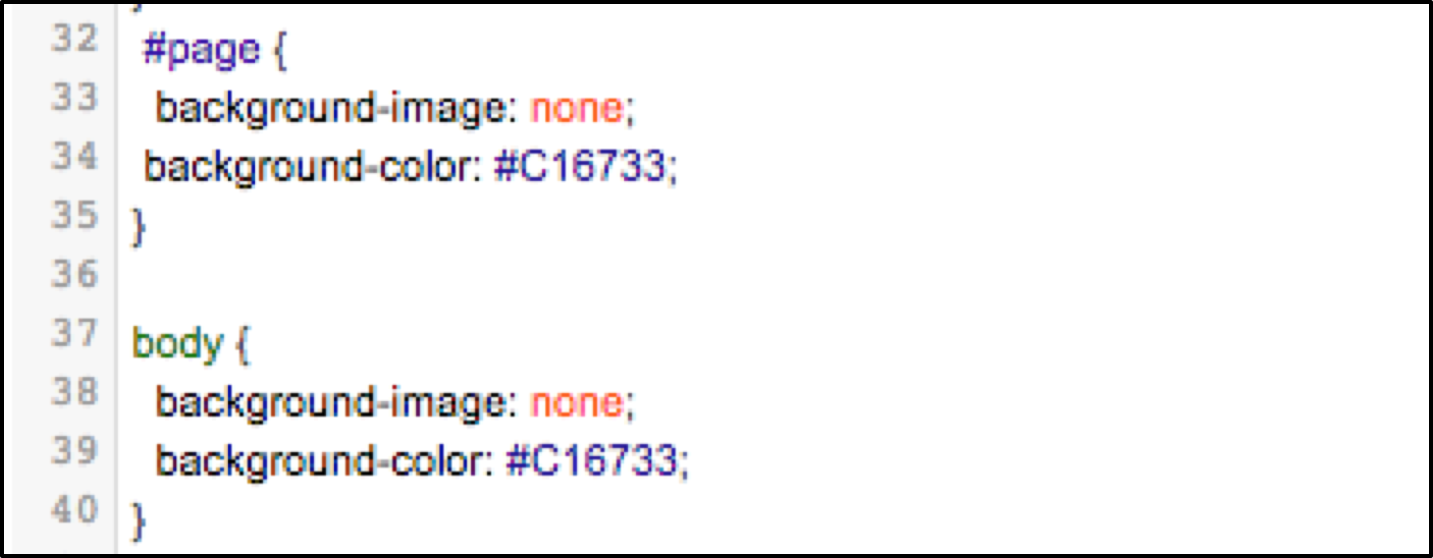
After background-color:, enter a hexadecimal colour value in. Once entered, place a ‘;’ after wards along with closing the brackets. In the image below, the code is in the setup, and the hexadecimal colour used is dark orange colour.
Ensure that the stylesheet is ticked as Active and Save.
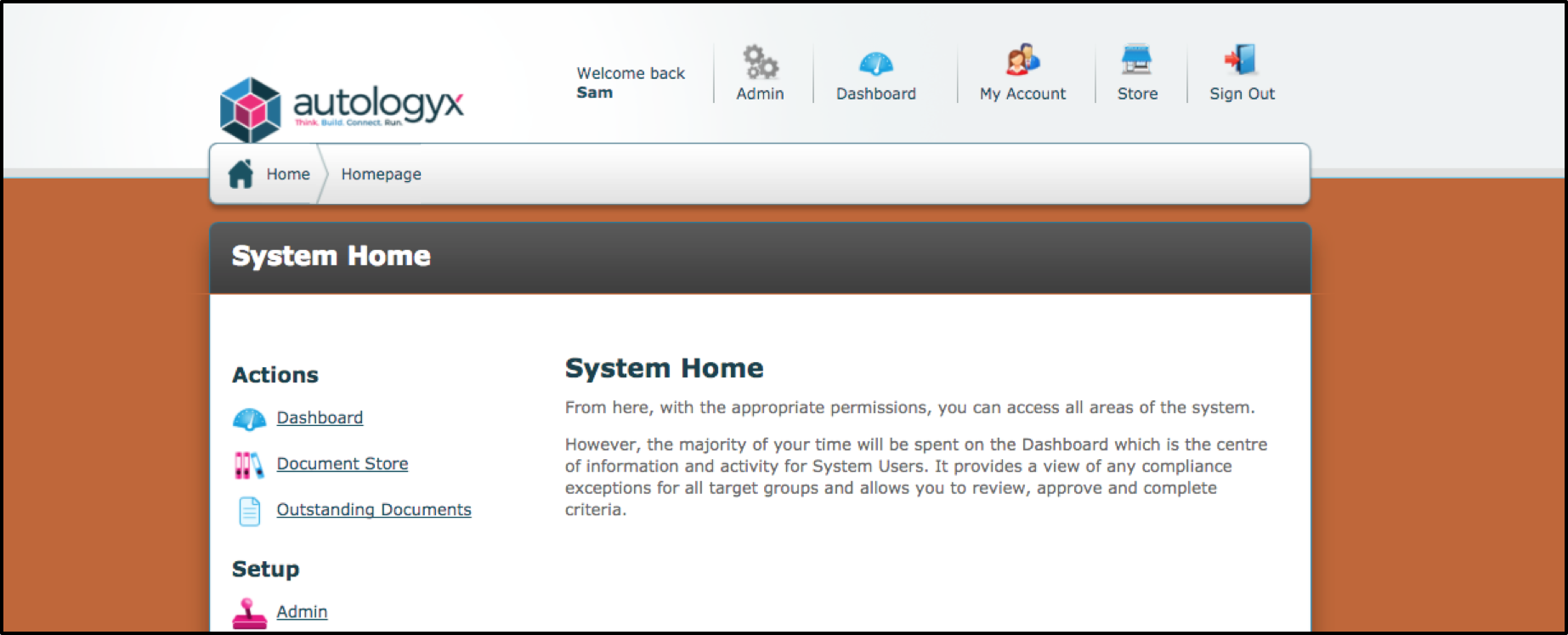
As you can see from the image below, the colour has changed from the blue with white small files visible, whereas now a dark orange is visible. The page section relates to the bulk colour on the sides, the body section will change the colour of the scroll bar.
If the user wishes to use an image as the background as opposed to a block colour, the user will need to change the configuration for the code inputted. Below is an example of the code required
Add the following HTML code:
}
#page {
background-image: url(‘’);
background-color: none;
background-size: cover;
height: 100%;
margin: 0px;
padding-top: 40px;
}
body {
background-image: none;
background-color: none;
}
#header {margin: 0px;
height: 160px;
border-bottom-width: 20px;
border-bottom-color:#dedfdf; }
Ensure that the stylesheet is ticked as Active and Save.
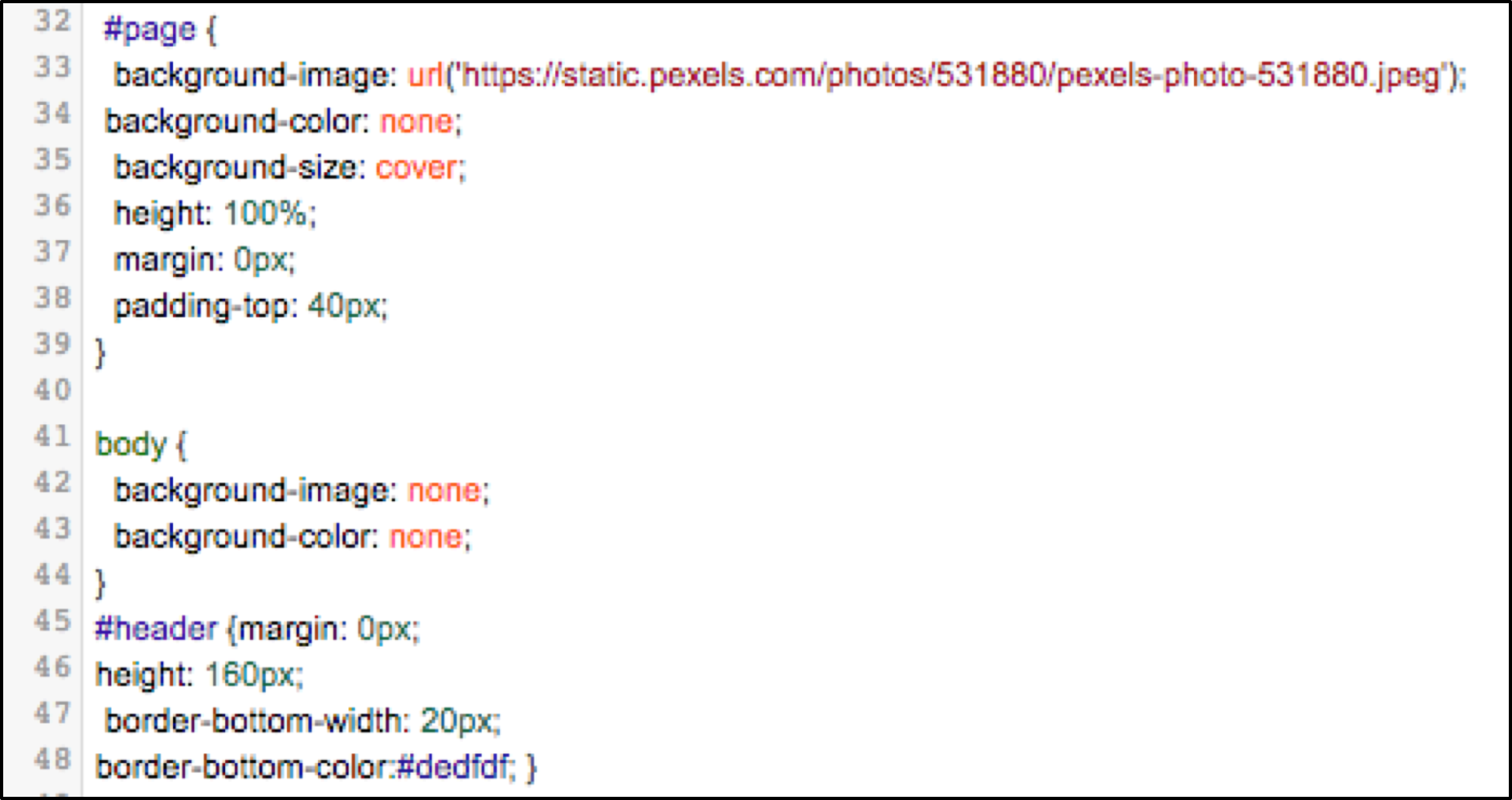
If an image is to be used, a URL of the image is only required in the page section (Line 33, not Line 43). A body colour can still be implemented for the scroll bar and other sections too.
The header section (Lines 44 – 48) is required to ensure the picture meets the header perfectly. The image its self can be either as one or repeated, this can be set on line 35 with either cover or repeat.
Comments
0 comments
Please sign in to leave a comment.