
In Autologyx, there is the ability to view all actions that are completed by the system. This is an inbuilt function that is provided within the system.
Outgoing messages presents an overview of all the messages sent by the system, this includes any emails activated by the send message actors, the auto generate account messages. This is a clear way to monitor the actions within the system.
To find Outgoing Messages go to Admin > Housekeeping > Outgoing Messages
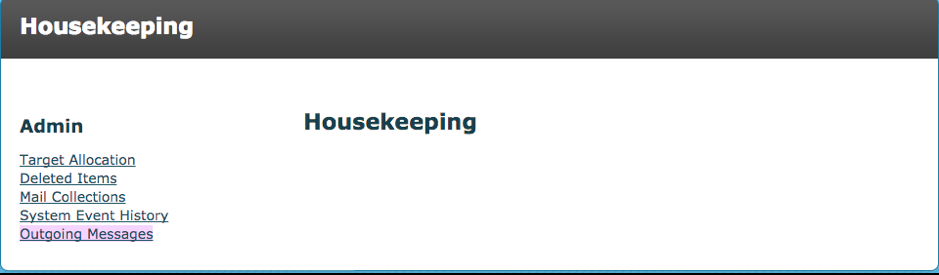
Upon entering the Outgoing Messages, the image below is shown.
 The upper quartile of the webpage provides on overview status of the providers the system messages that are sent form, the number of messages sent to date and the remaining available balance left.
Backend – The provider the system used to send the message
Limit – Your message allowance
Messages Sent – The number of messages sent to date
Messages Left – The remaining number of messages that can be sent
Below the overview is the record of all the messages the system sent in real time. Each record is split into seven columns as seen below in the image. Some off the columns have filter options.
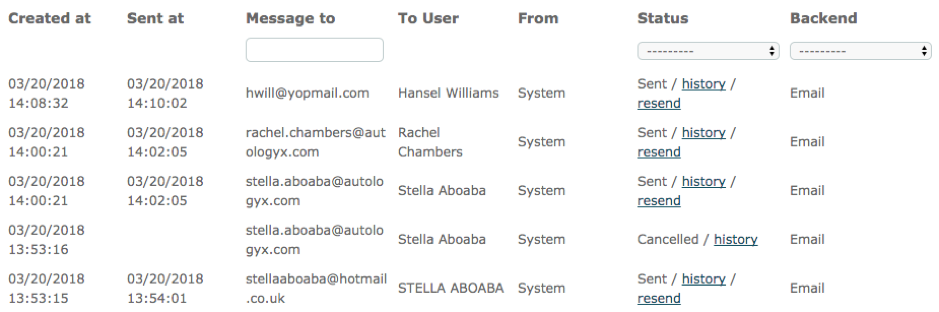 Created at – The time that the prerequisite action has been completed, that leads to a message being sent
Sent at – The time the message was sent to the user
Message to – The email address or social media account that will receive the message. This can either be a user, target or a referee that the message is sent to
To user – The user’s name that is linked to email address that the message is sent to
From – The person that is sending the message. In this case it will always be the system
Status – States the status of the message, whether it has been sent, failed, or cancelled. This column also offers the option to resend a message and view the history; the details of the process.
Backend – Displays which provider the message was sent from; social media or email
Comments
0 comments
Please sign in to leave a comment.