
All Targets have an owner; this System User is called their Patron. The Patron is usually the person responsible for ensuring that tasks are completed and that the Target moves through processes effectively.
There are situations where Targets will need to be moved from one Patron to another either on a permanent basis because that System User has left the business or maybe on a temporary basis if the Patron is on annual or sick leave.
The Target Re-allocation feature allows you to do this, and where the move is temporary it will ensure that Targets are returned to the original Patron on the allotted date.
Go to Admin/ Housekeeping/ Target Re-allocation.
You will see two links:
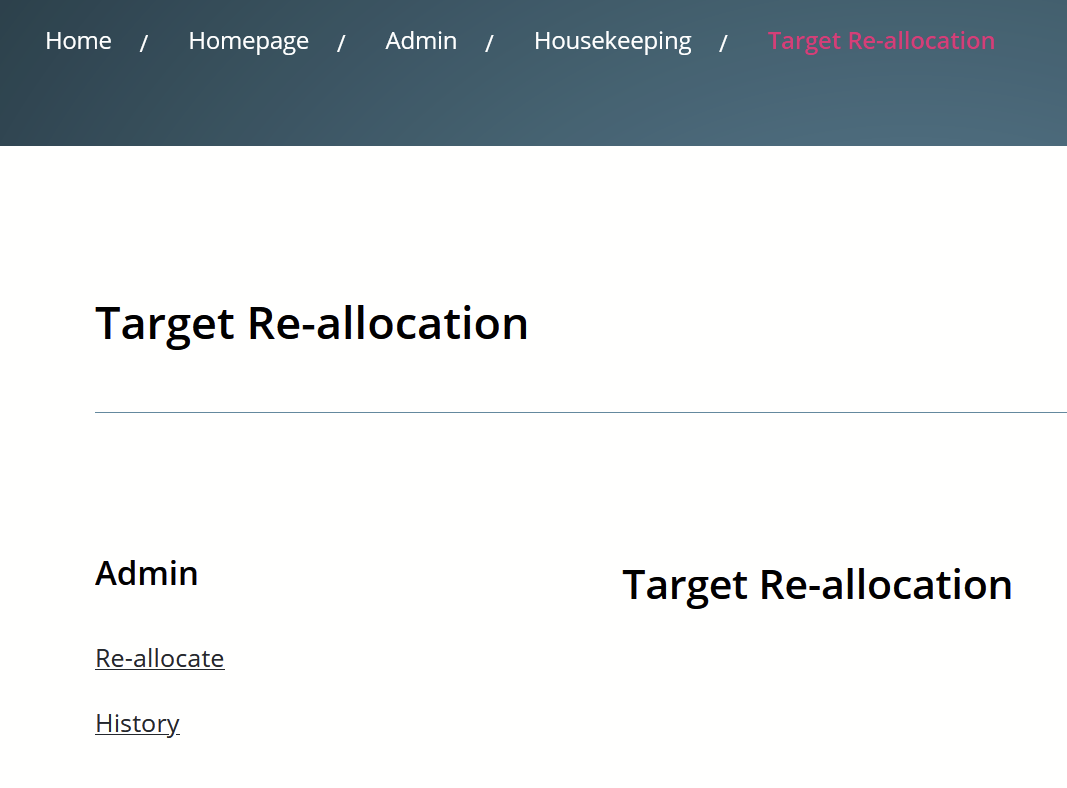
Re-allocate will take you to the page where you can set up the required move of Targets.
History will take you to the page which details the Target Re-allocation events which have taken place in the system.
How to set up a Permanent Target Re-allocation
Click "Re-allocate".
On the left hand side of the page you will see a From section. Here you will be able to select one System User.
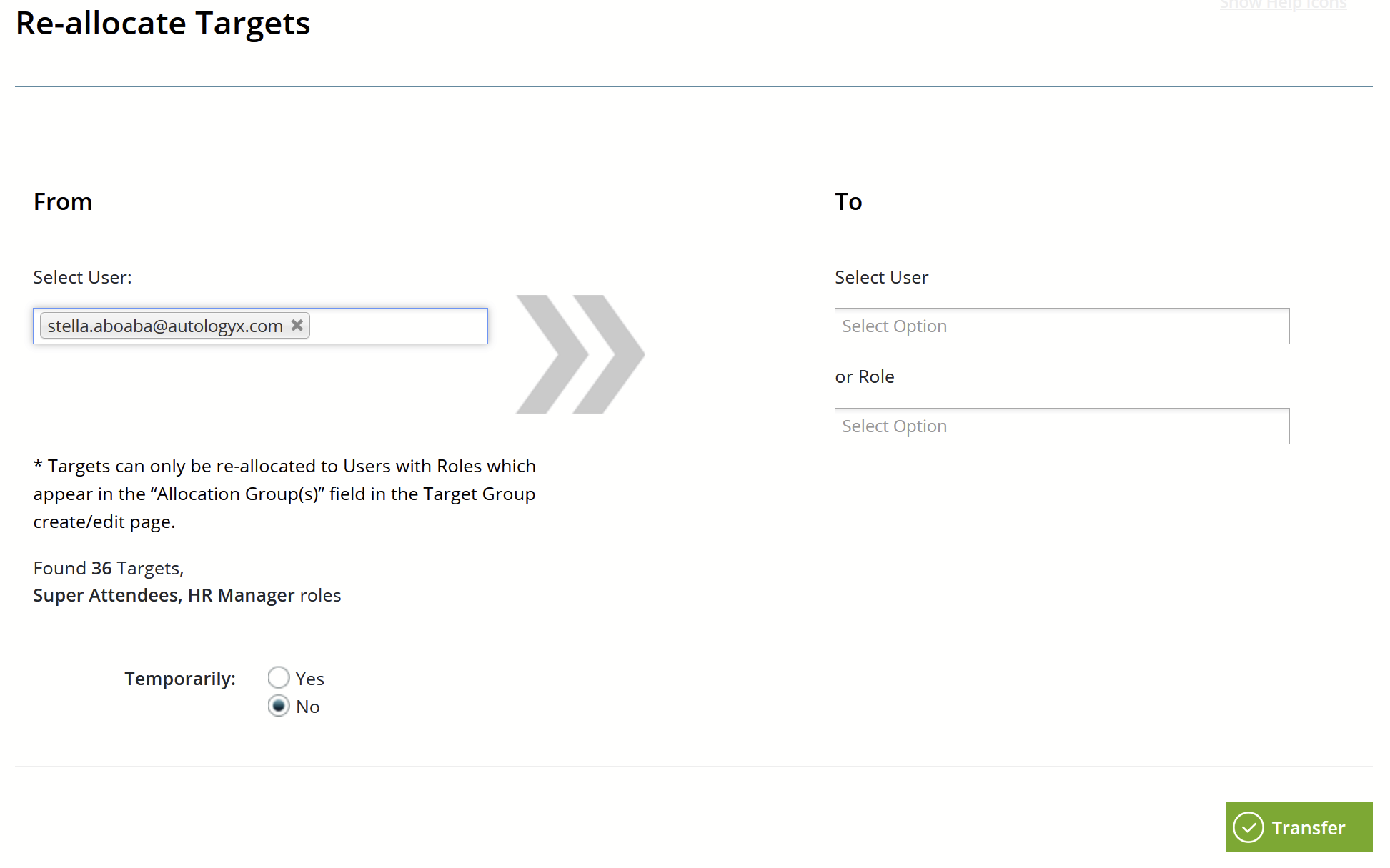
You will note the online message which explains that Targets can only be re-allocated to Users who have compatible System Roles. The following will explain this in more detail.
Stella is the User from whom Targets are to be re-allocated.
36 Targets have been found; this means that Stella is the Patron of these 36 Targets.
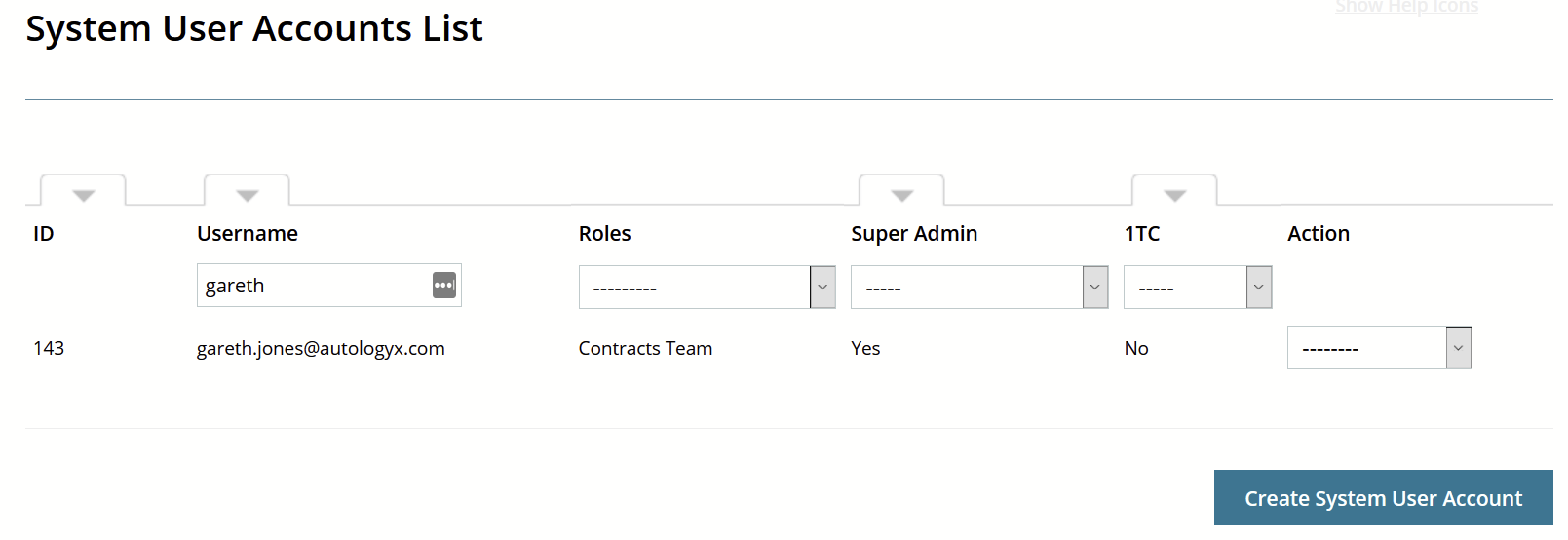
Stella's System Roles are: Super Attendee and HR Manager - the screenshot of her System User Account shows this to be true.
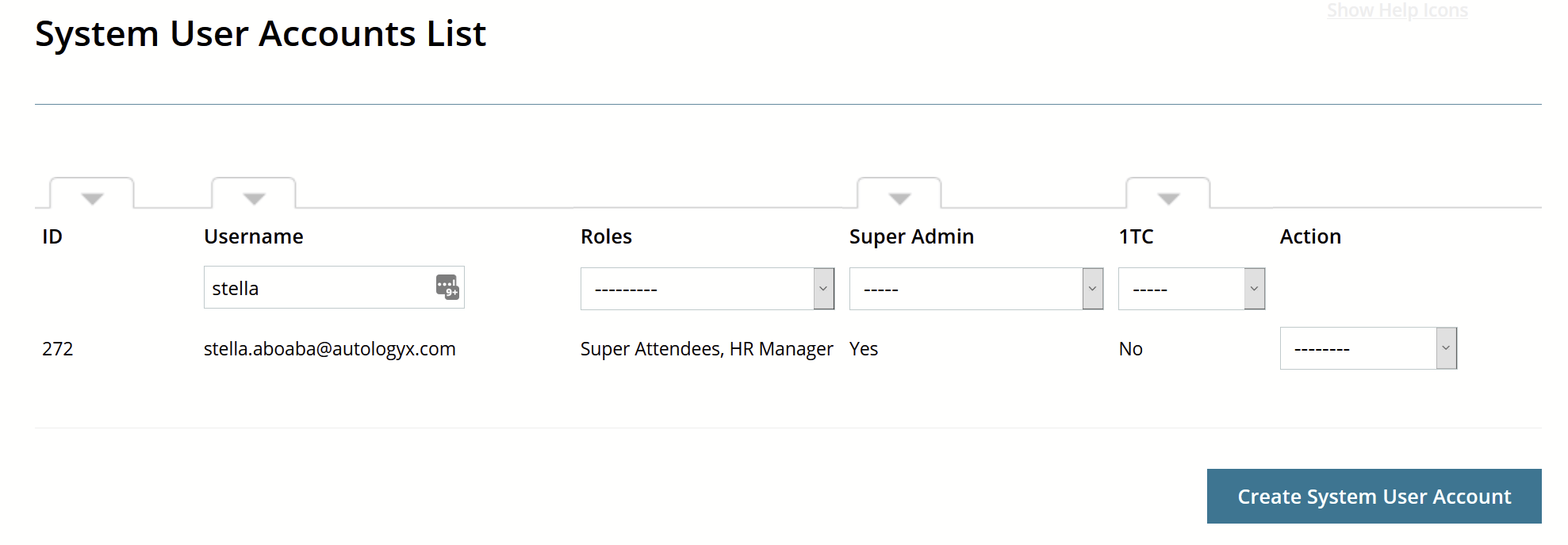
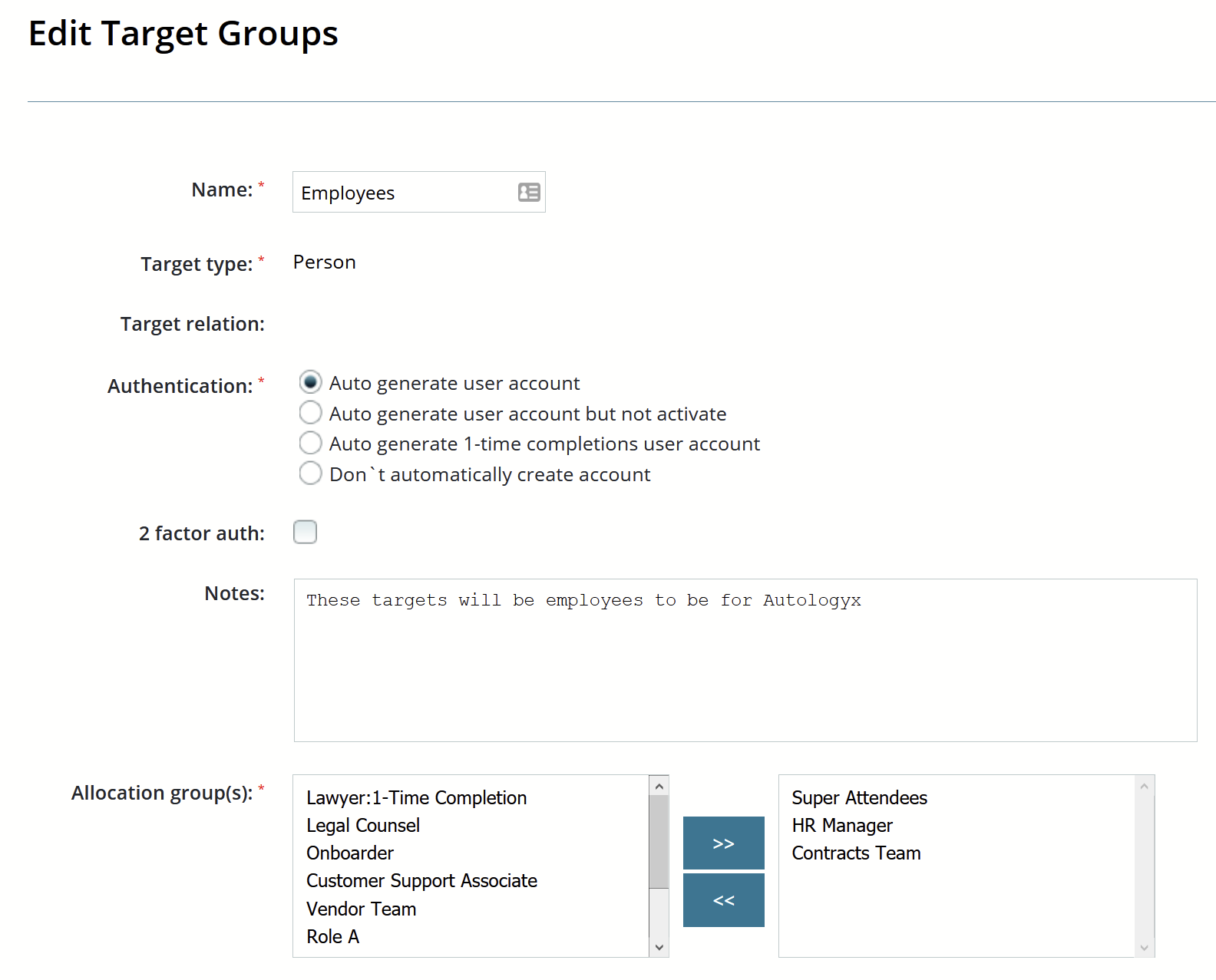
Therefore, Stella can only be the Patron of Targets who are in Target Groups where the Allocation group(s) field includes her System Roles - Super Attendee and/or HR Manager.
As an example, the Target Group "Employees" includes both these System Roles in the Allocation group(s) field as well as the System Role "Contracts Team", shown below:
Stella is actually the Patron to 4 Employees Targets as shown on the Dashboard:
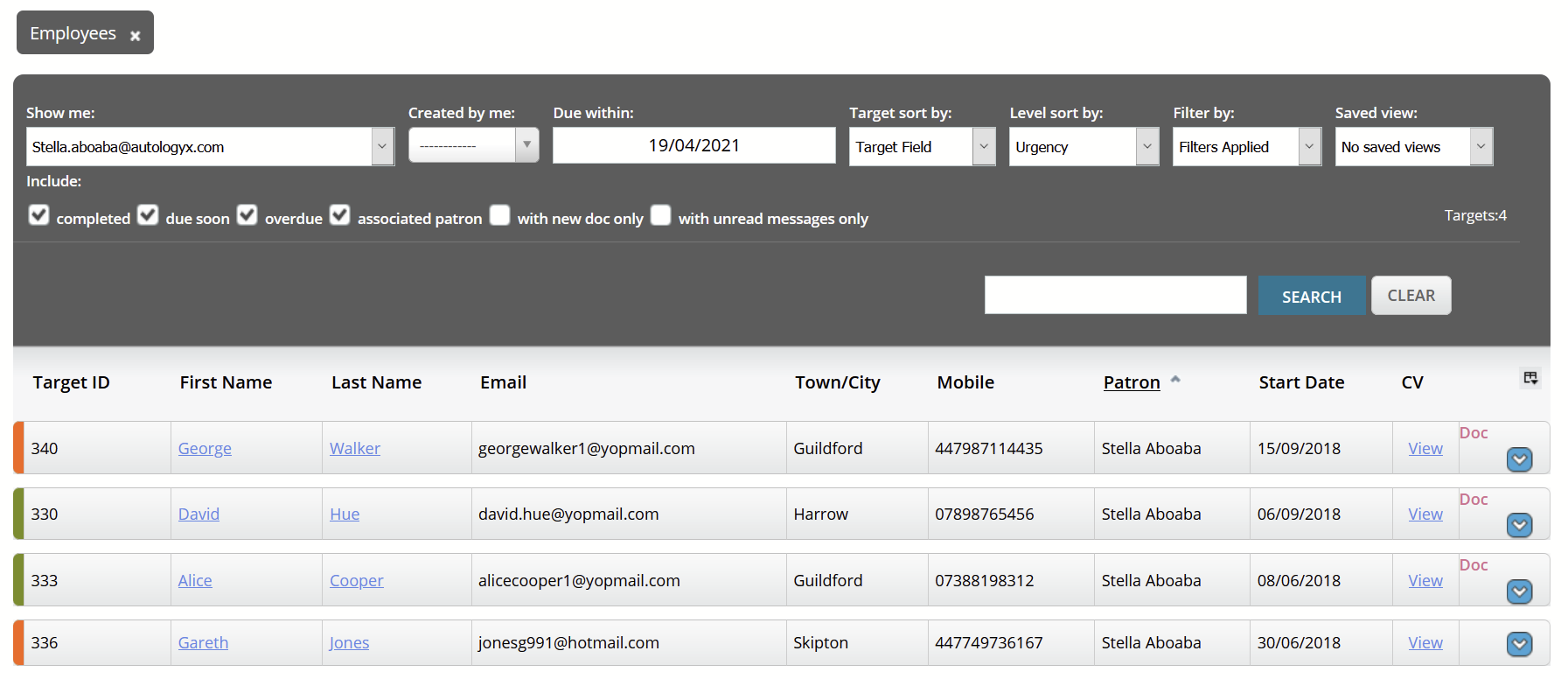
Only Users who have one or more of these 3 System Roles will be able to have Targets from the Employees Target Group re-allocated to them.
Going back to the Re-allocate Targets screen, the To section on the right hand side will allow you to select one System User or one System Role. In our example, Gareth is the System User who has been selected.
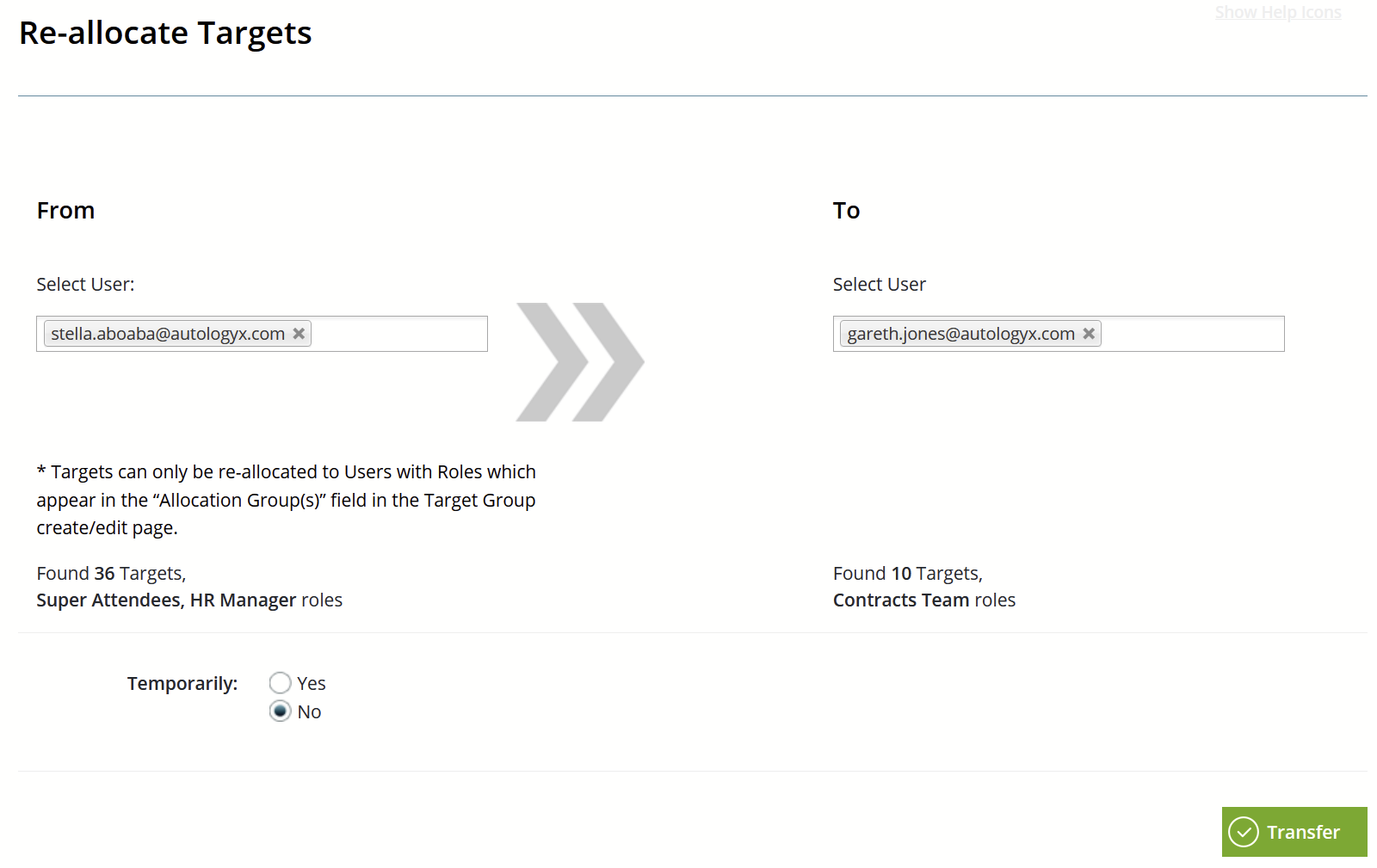
We are shown that Gareth has one System Role, "Contracts Team" and that he is currently the Patron of 10 Targets. Again, the screenshot of Gareth's System User Account bears out that he only has the one System Role.
The re-allocation to Gareth is to be permanent as the No radio button has been selected under the field Temporarily. Click Transfer.
On the Confirm screen we are told that of Stella's 36 Targets only 8 will be re-allocated to Gareth:
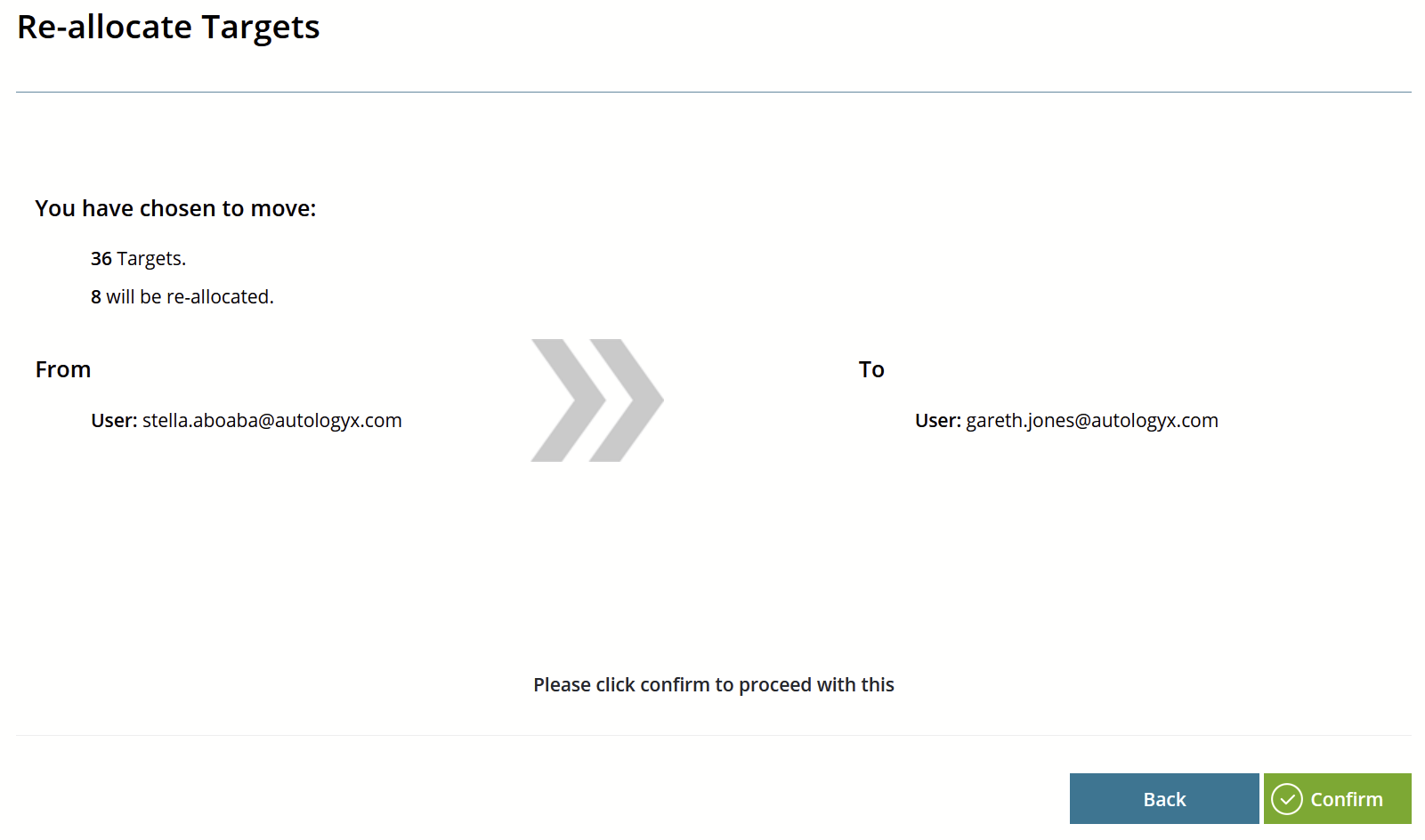
This is because Stella's remaining 28 targets are in Target Groups for which Gareth does not have the required System Role. Please Note: Because we have a hidden default in this feature which forces a change of Patron to take place, Stella's remaining 28 Targets will be re-allocated to System Users with Super Attendee and/or HR Manager System Roles.
Click Confirm.
You will see an on-screen confirmation in a yellow banner to tell you that the re-allocation of targets has commenced.
On the Dashboard we can see that Stella's 4 Employees Targets now have Gareth as their Patron.
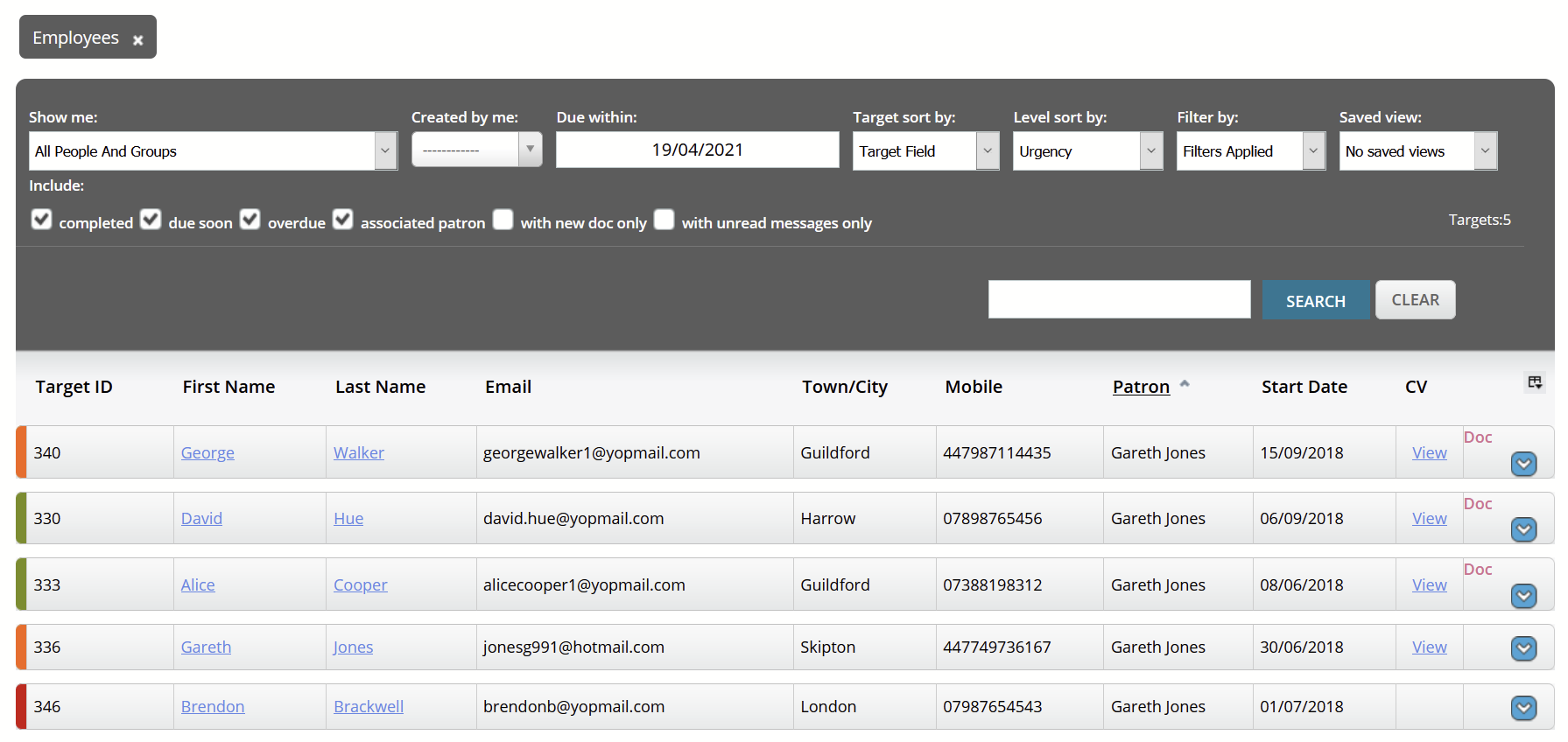
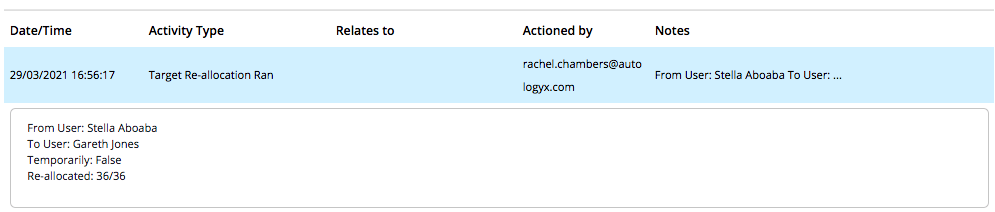
There will be a record of the Target Re-allocation in History as below:
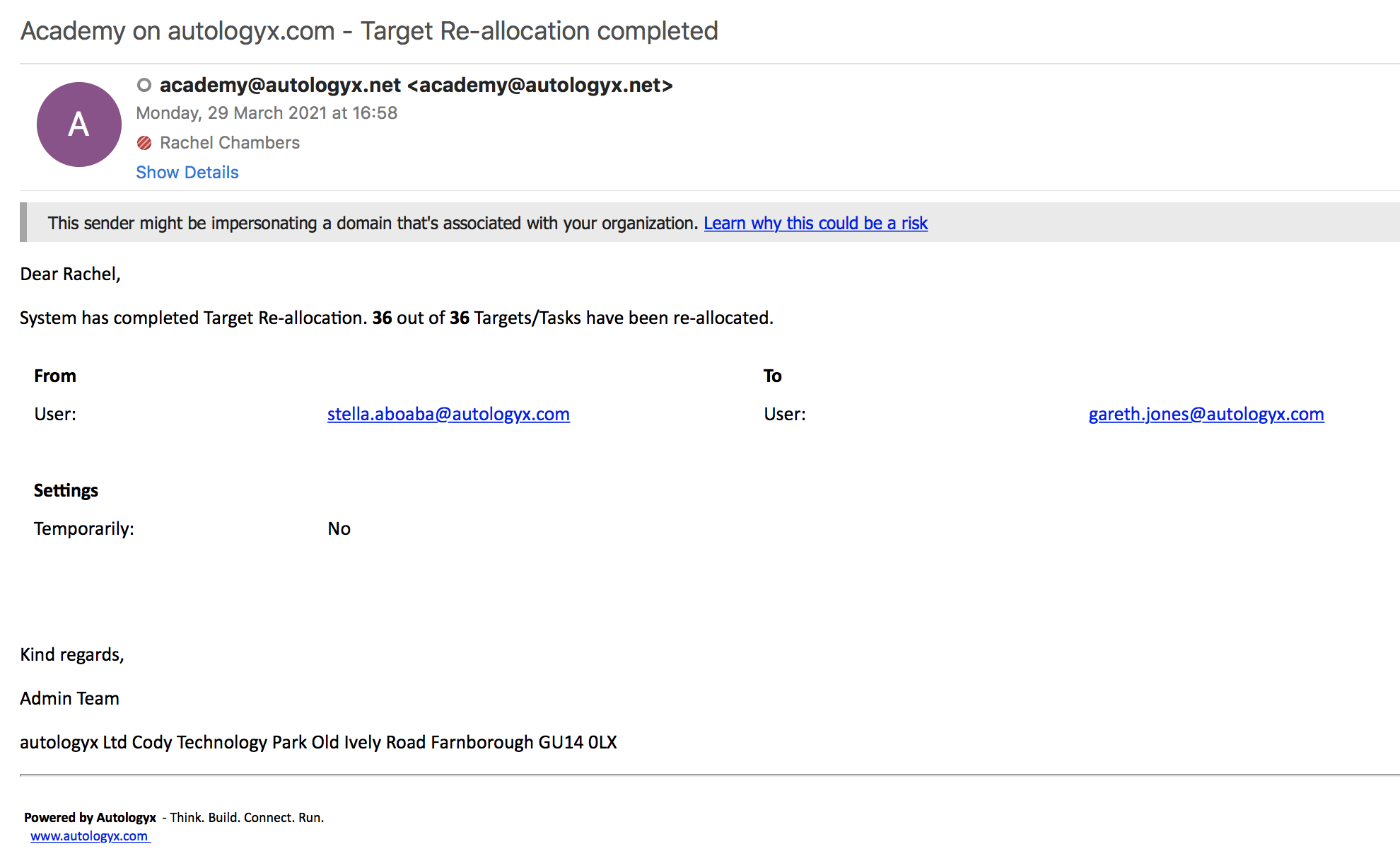
The System User who set up the Target Re-allocation will receive a confirmation email as below:
How to set up a Temporary Target Re-allocation
From Admin/ Housekeeping/ Target Re-allocation click "Re-allocate".
Select the User from whom Targets are to be re-allocated.
Select the User or Role to which Targets are to be re-allocated.
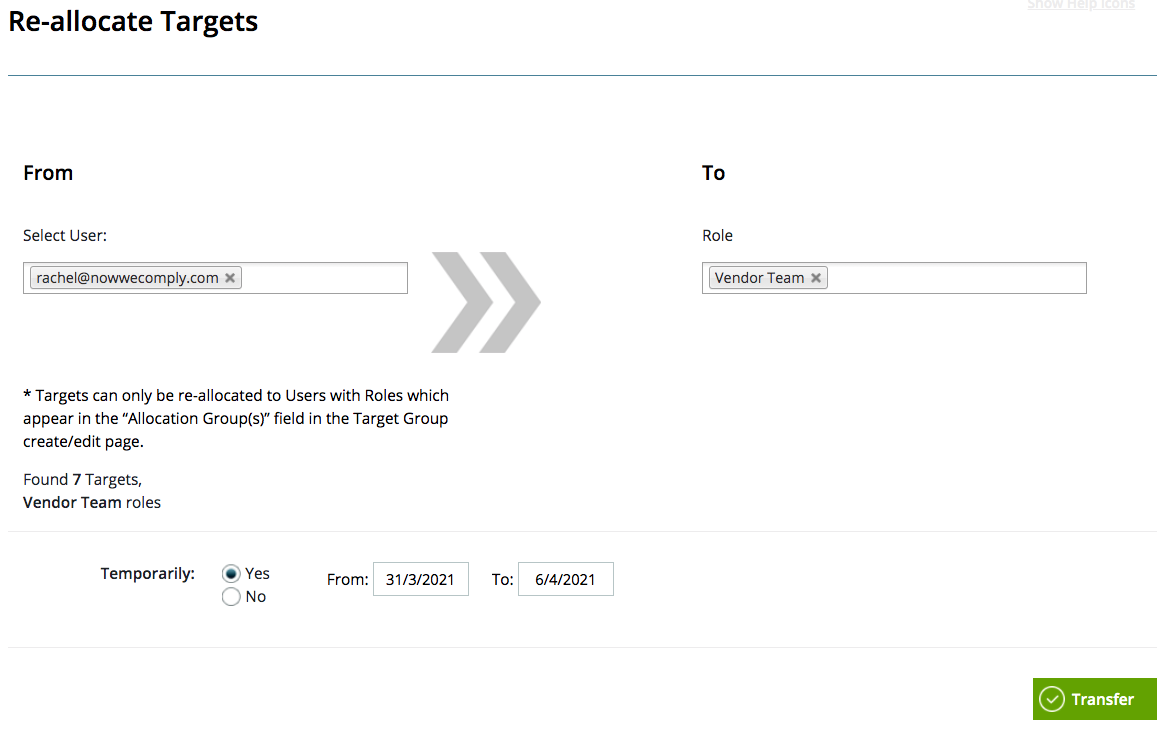
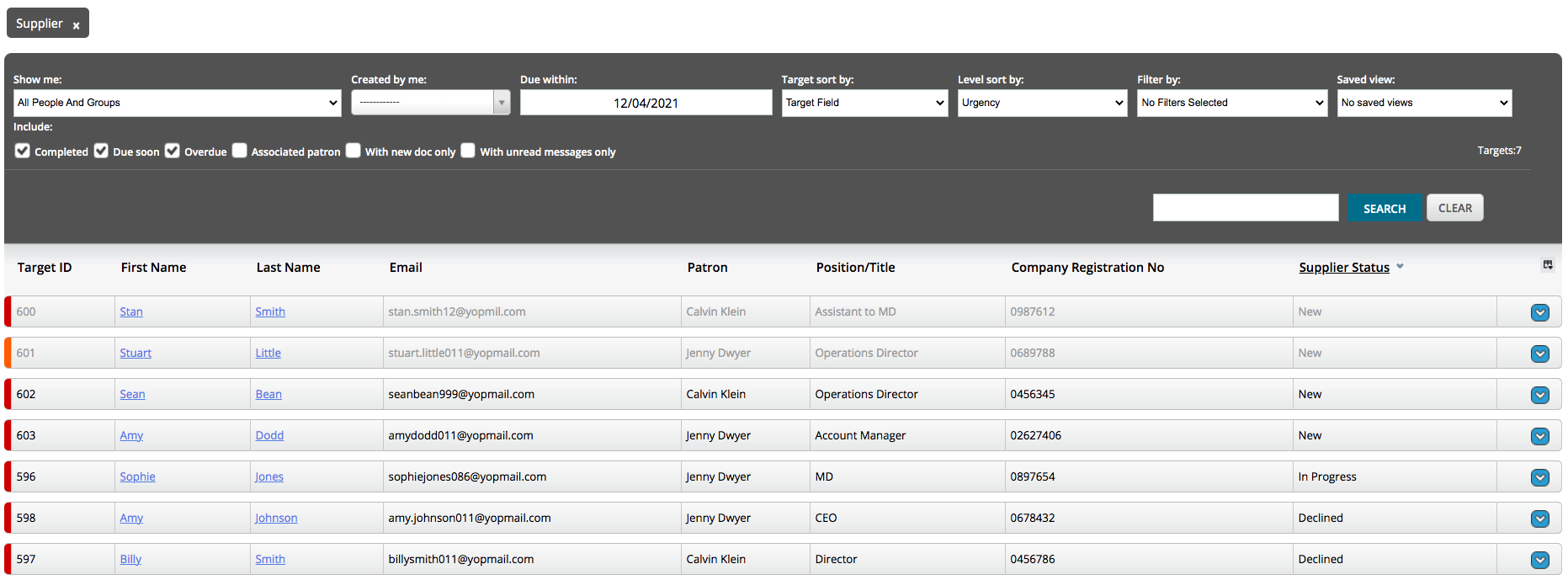
In the example below the User has 7 Targets which are to be distributed to other Users with the Vendor Team System Role. Six of the 7 Targets are shown below on the Dashboard; they belong to the Supplier Target Group. The seventh Target is not on the Dashboard at this stage because they don't have criteria assigned.
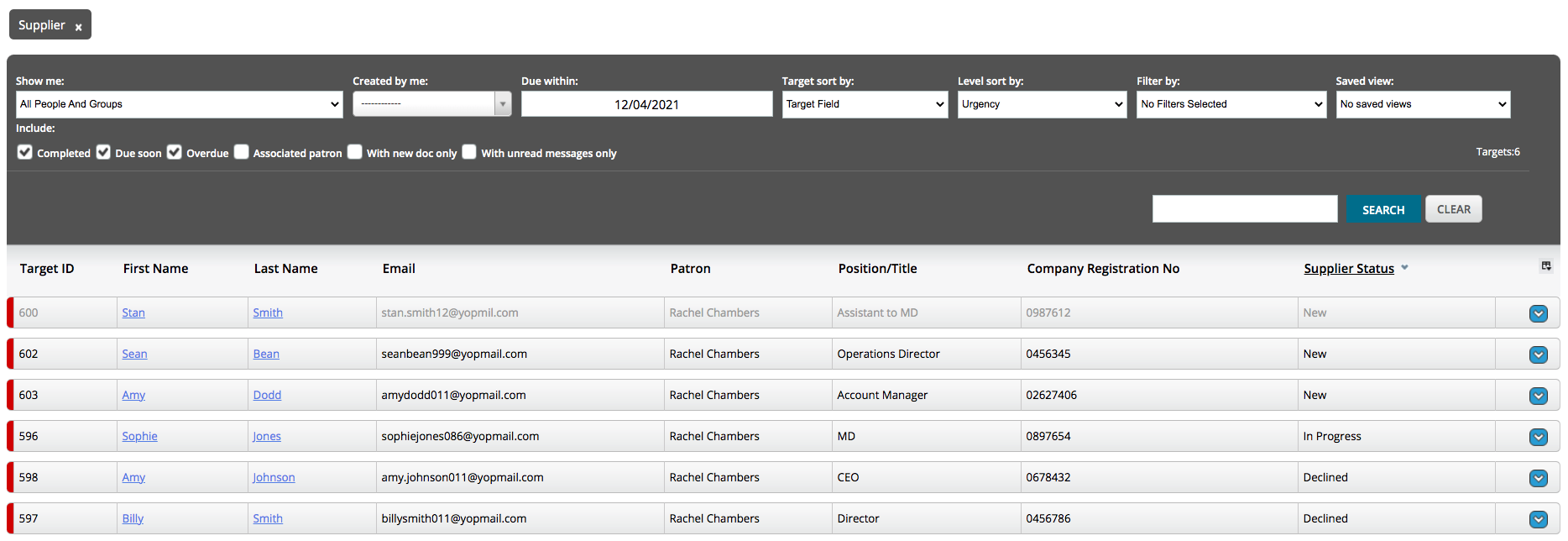
This time the re-allocation is to be temporary as the Yes radio button has been selected under the field Temporarily.
Enter the From and To dates to indicate when the re-allocation should take place and when the Targets should be returned to the original Patron.
Click Transfer.
On the Confirm screen we are told that all 7 or Rachel's Targets will be re-allocated to the Vendor Team. This will be done on a round-robin basis to each of the System Users with this System Role.
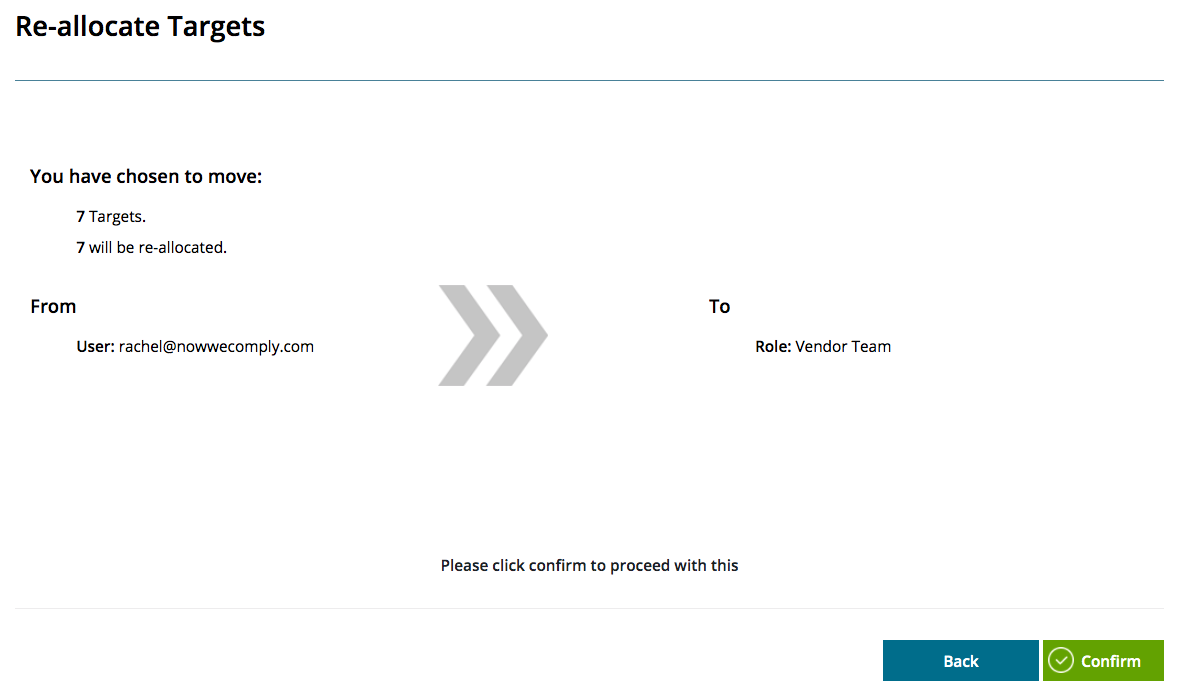
Click Confirm.
If the re-allocation of Targets is set to commence from today, you will see an on-screen confirmation in a yellow banner to tell you that the re-allocation has commenced.
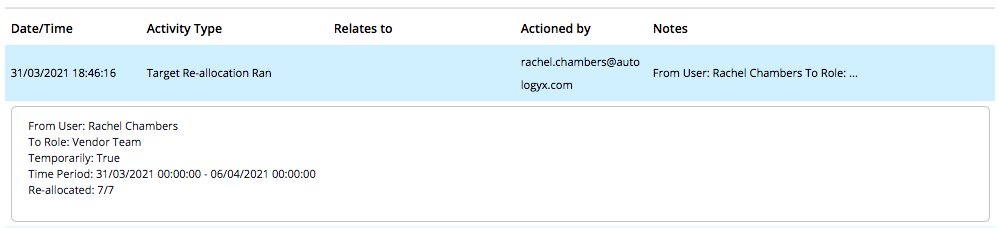
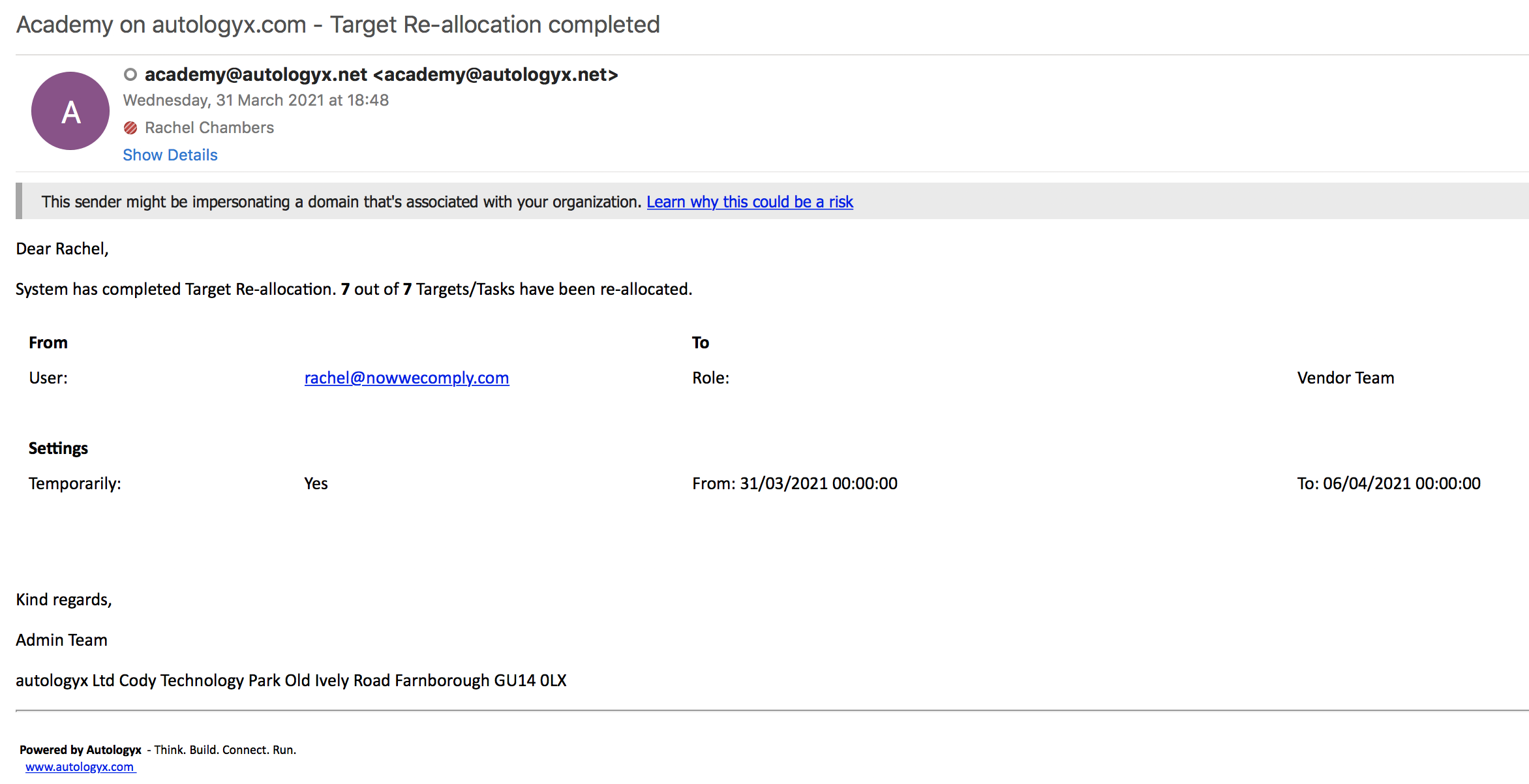
The event will be recorded in History and the System User who set up the Target Re-allocation will receive an email to confirm this.
The Dashboard shows us that the 7 Supplier Targets have been re-allocated to the two other System Users who have the Vendor Team System Role as follows:
Calvin Klein - 3 Targets
Jenny Dwyer - 4 Targets
Comments
0 comments
Please sign in to leave a comment.