
Admin > Document Templates > Add a New Template
A Document Template can be created/edited to then be used for a Target/User within the system, such as in Criteria and in the Sequence.
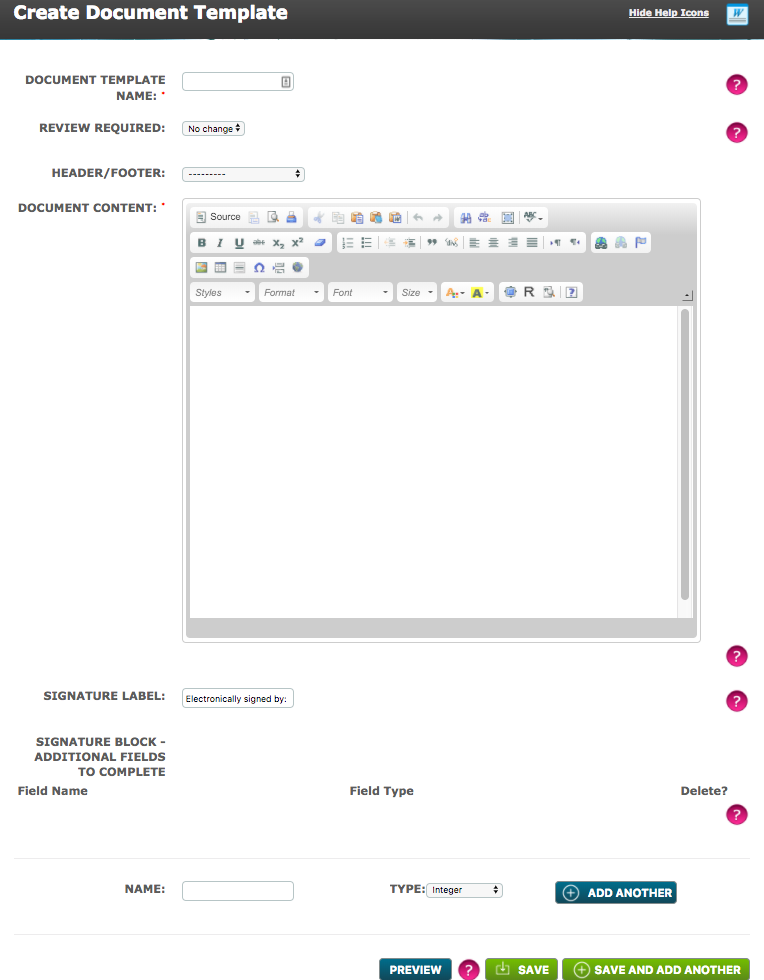
Document Template Name - Name what the Document will be called.
Review Required - The review required option that resides at the top of the webpage, is no longer functional, all interaction and reviews are set in the individual criteria’s for the documents.
Header/Footer - Select the Header/Footer to be applied to the Document.
Document Content - When creating a document template, you can type directly into the document editor.
Alternatively, if you have an existing document you can copy and paste from “Word” by clicking the paste from Word icon  .
.
Occasionally you will have to reformat some parts of a document but it's worth spending a little time to get your template correct.
To insert images/pictures such as logos, etc:
• Click  . This icon displays a pop up box called Image Properties
• Click Upload
• Click on Choose File and browse to find the required image/picture
• Double click this then hit the bright blue Send it to the Server button
• The image will appear in the Preview pane where you can resize it if necessary
• Click OK and it will appear in the Document
Once on the server your image will be available to use again.
When you have finished entering your content use the Preview button at the bottom of the page to check the spacing and line breaks, etc. Amend as necessary and save your Document Template.
Editor Icons
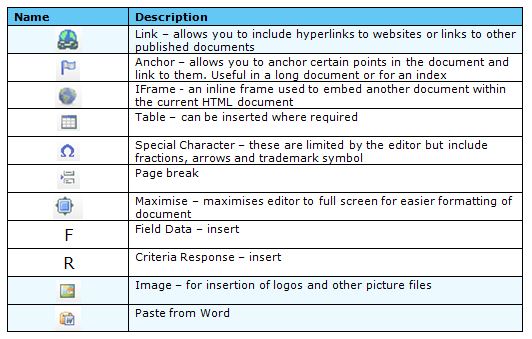
Icons which might not be familiar are shown below:
Comments
0 comments
Please sign in to leave a comment.