
Admin > Document Templates > Add a New Header/Footer
• Give your Header/Footer Template a name which accurately describes what it is or where it should be used
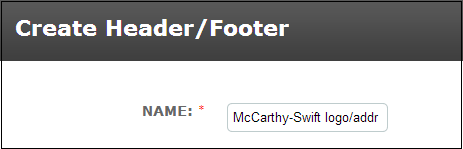
The content for the header must be entered into the "Header" field and the content for the footer must be entered into the "Footer" field. These are HTML editor fields in to which you can type text, copy and paste text, add images and tables.
• For inserting an image such as a company logo,click on the Image Icon 
• Click the upload tab at the top
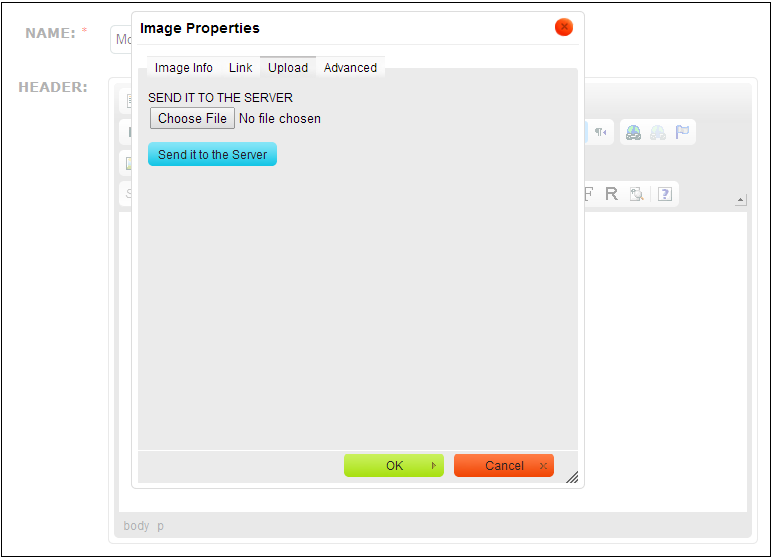
• Click Choose File and select your image (from your local or shared drive) by double clicking
• Click Send it to the Server
• You will see a preview of the image in the preview pane and you can resize the image if you require
• You can add a border if required and align the image to the left or right
• Click OK and the image will appear in the Header or Footer field
Once the image is uploaded it is available to use from the server again; you only have to upload it once.
• Type or copy any text into the appropriate field. (Please note, if you are copying from word you will need to copy and paste it into the Header or Footer using the Paste from Word icon  otherwise the formatting might not be correct)
• Check the height of your Header and Footer. If either the Header or Footer aren't appearing in your Document Template when you preview it later the Header Height or Footer Height field should be increased in size. As a general rule 3 is a good Header Height where a logo has been inserted and 2 is a good Footer Height where 2 lines of text have been entered for address details
• Show Page Number - tick to have page numbering appear in the footer on your documents where this Header/Footer is used
• Click Save to save this Header/Footer or click Save and add another to save this Header/Footer and create another one
Comments
0 comments
Please sign in to leave a comment.