
Admin > Document Templates > Add a New Template
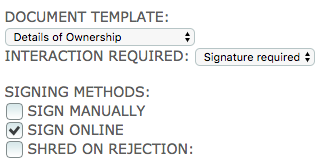
If you require your document to be signed using the online signing functionality then you have to select "Signature required" in the Interaction Required field in the criteria setup.
The signature fields are at the bottom of the document template page. You’ll note that the Signature Label is already pre-populated with the text, “Electronically signed by:”. This text appears above the target's signature when the Document is signed. It can be amended to your own requirements or indeed it can be deleted.
You may want to ask for further information at the signing stage; the “Signature Block Additional Fields to Complete” section allows you to add those requirements.
• In the Name field enter the information you require, e.g. Date, PO Number, Month of Birth, etc
• Then from the drop down menu select the Type of field required
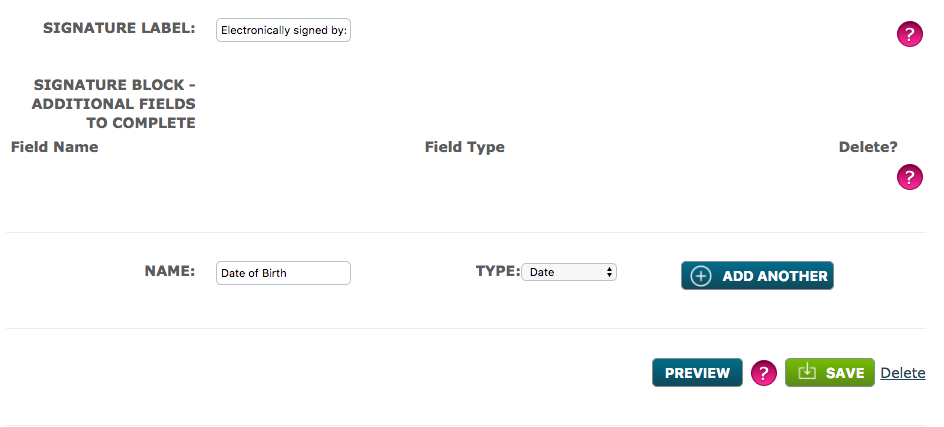
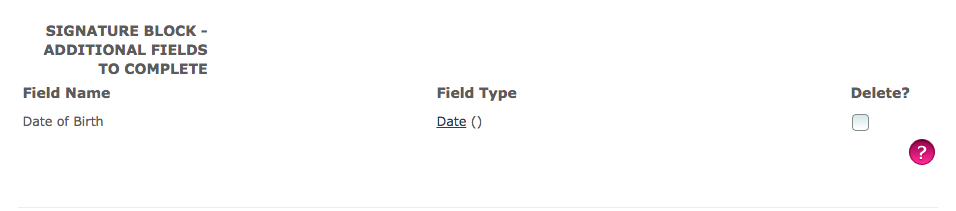
• Click Add another to move your additional field up to the Signature Block. The Field Name and Field Type will now both display the newly created custom field. Select the delete checkbox, to delete the custom field.
If you choose the field type Select From, in order to provide a list you will need to click Select From on the custom field you have just created and a Choices field appears in which to type your options.
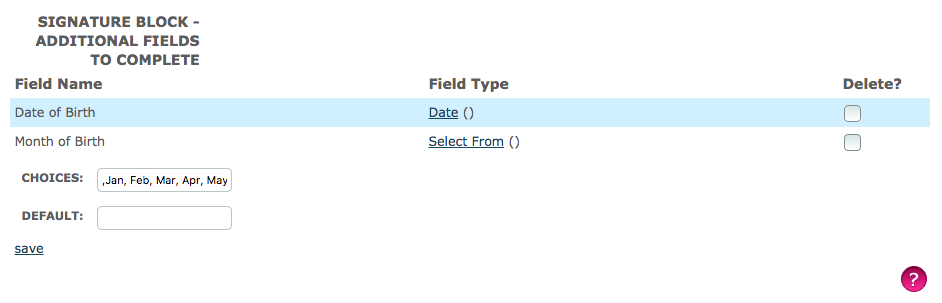
• Start with a comma (,) so that the default is blank and separate each item with a comma
• When you’ve listed all your possible choices click Save
Repeat as necessary for any other information required from the target at the time of signing the document.
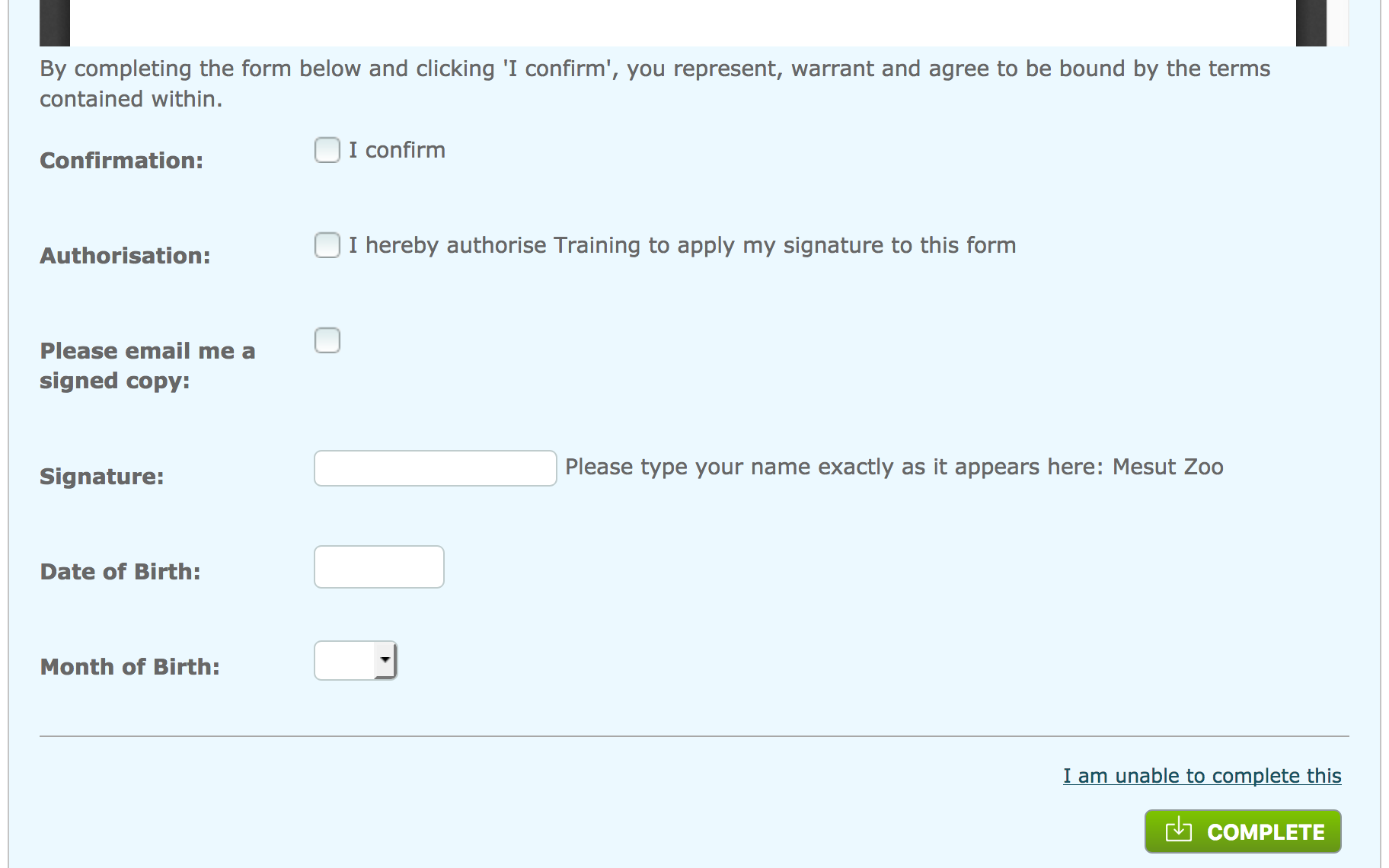
In the example below, the target has been asked to provide their Date of Birth, Month of Birth and their Signature.
Comments
0 comments
Please sign in to leave a comment.