
From the Dynamic Forms list, either click the URL or use the download link and open the HTML file. Bookmark the URL to find it easier next time!
Alternatively, you may wish to add a link to the form in a criteria or in a send message actor.
When the form opens, if no CSS has been applied in the settings, it will look similar to this:
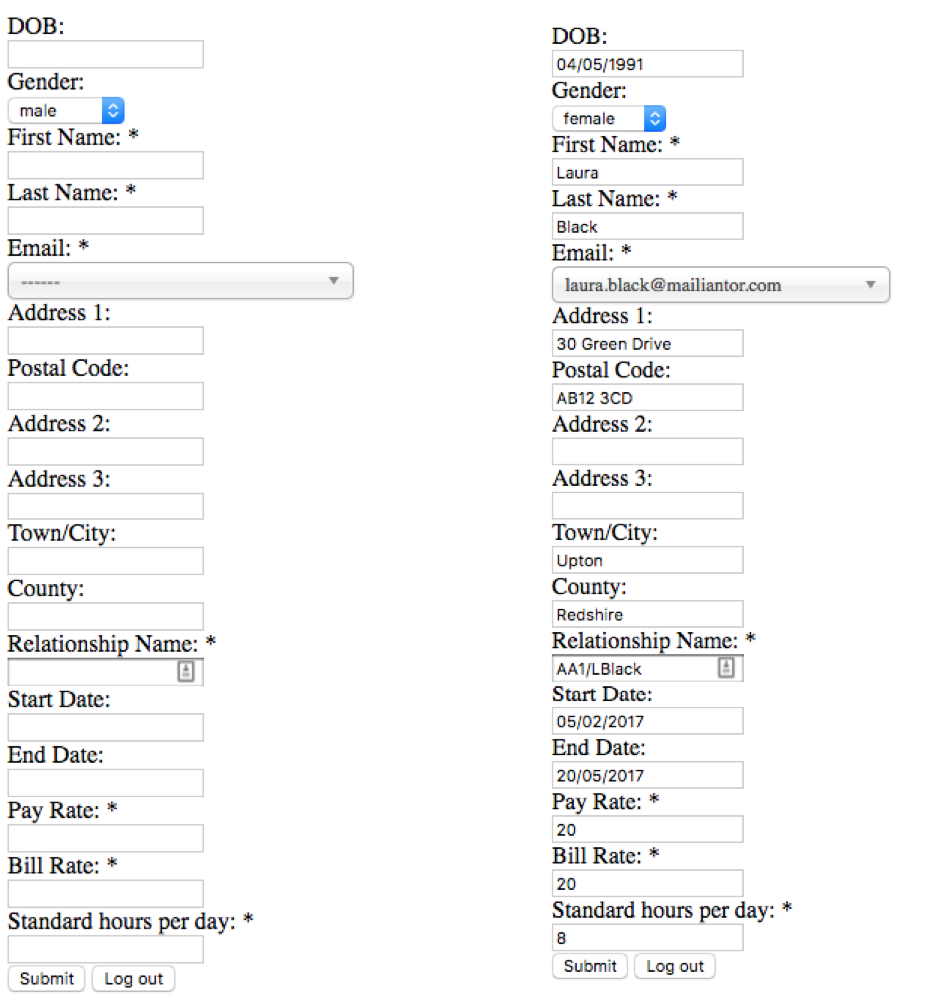
If you are updating an already existing target record, start with the field chosen as a lookup selection.
In the example above, Relationship Name has been used to look up the relationship and email address is used to look up the Child Target. This means that details already in the system will populate relevant fields making the form quicker to complete.
Click into the first field and work through the form. An asterix indicates a mandatory field. Either click into each field or use the TAB key to move to the next field, use SHIFT + TAB to move back up.
When complete, click the submit button (Remember the text on the ‘submit button’ is customisable, yours may be different).
A confirmation will alert you that the submission was successful. If you have chosen the Internal Thank you page, it will look like this:

Comments
0 comments
Please sign in to leave a comment.