
In Excel, on the Ribbon go to Data > Get External Data > Existing Connections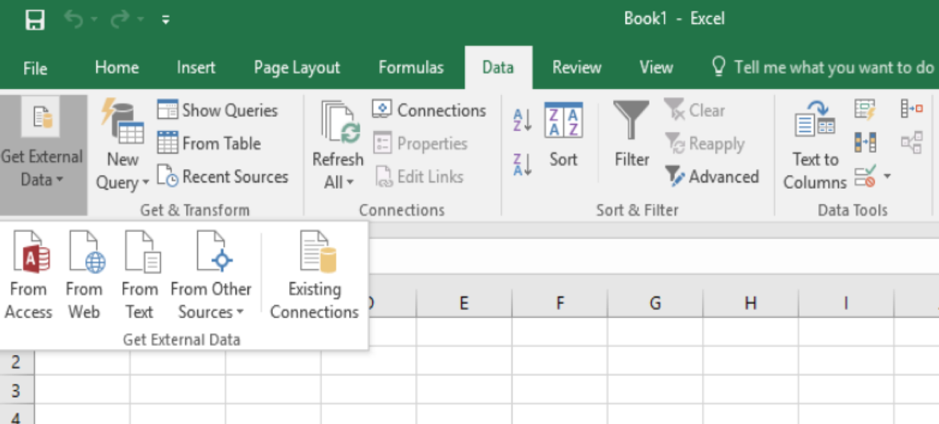
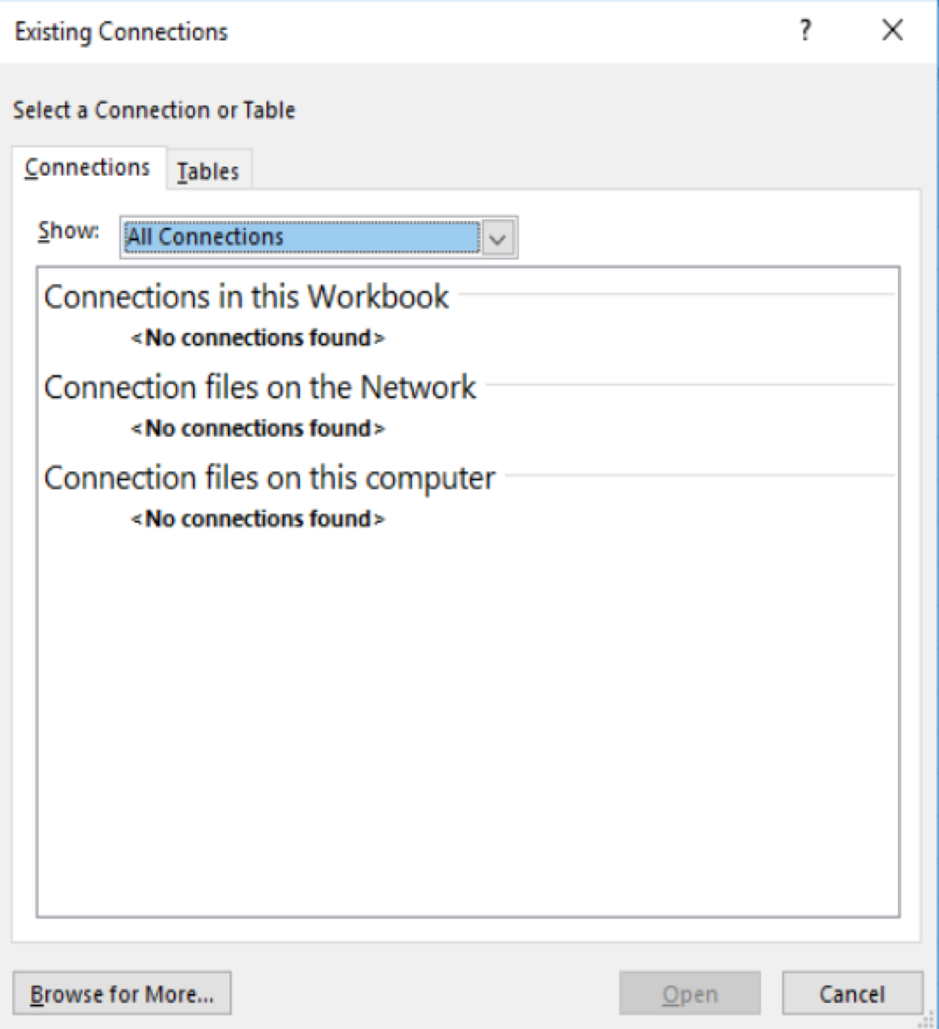
In the Existing Connections Window, click Browse for More…
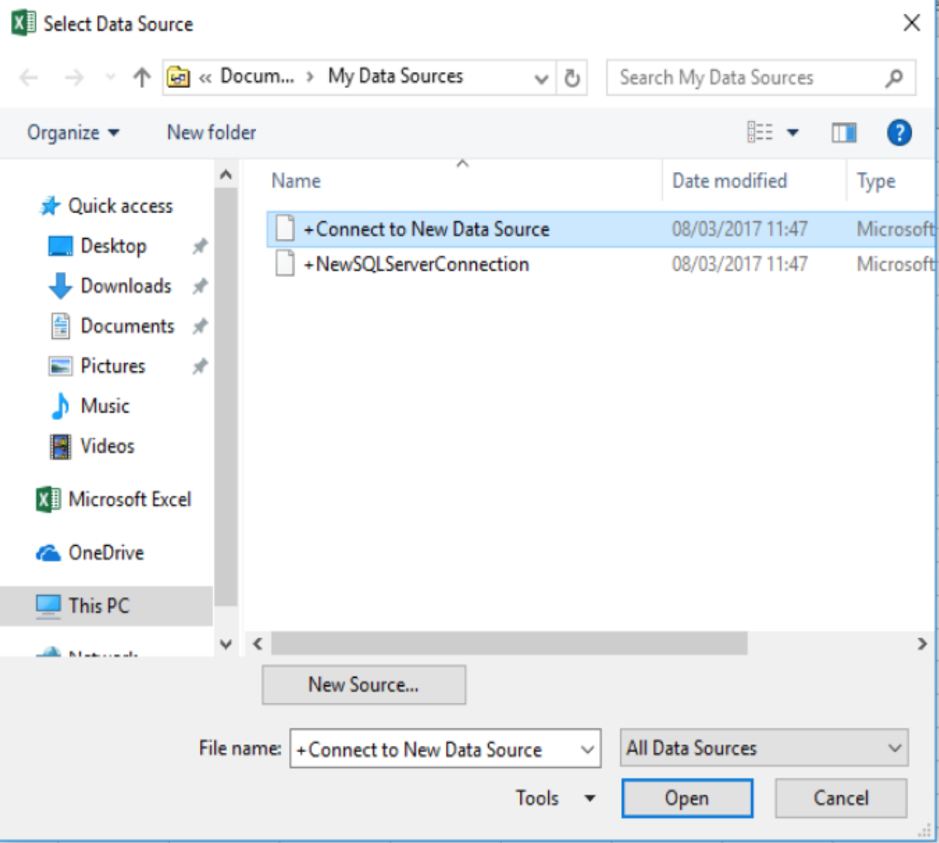
Open + Connect to New Data Source
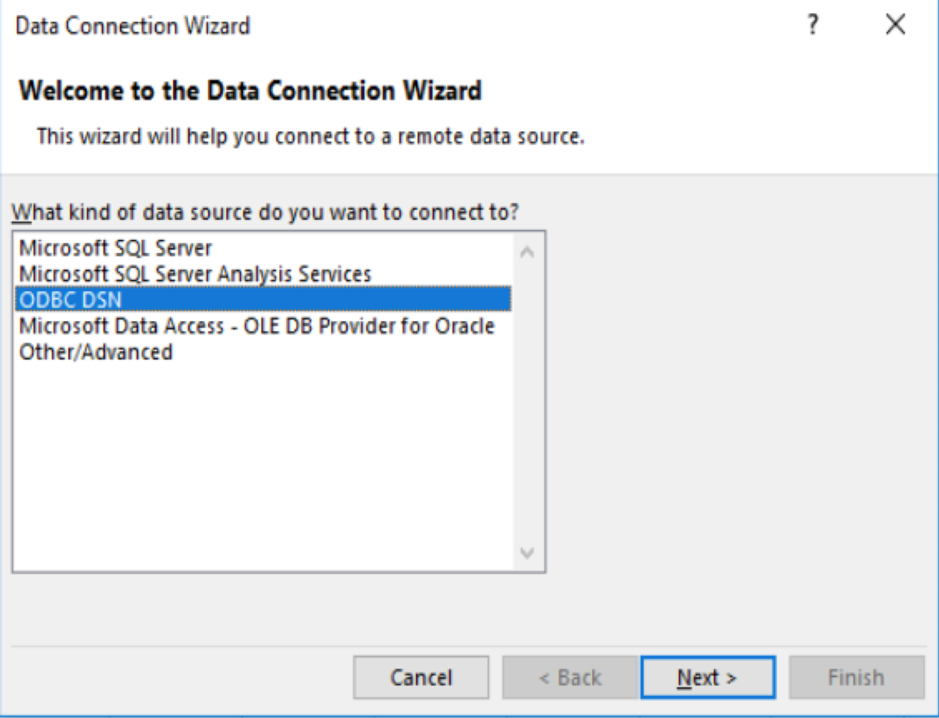
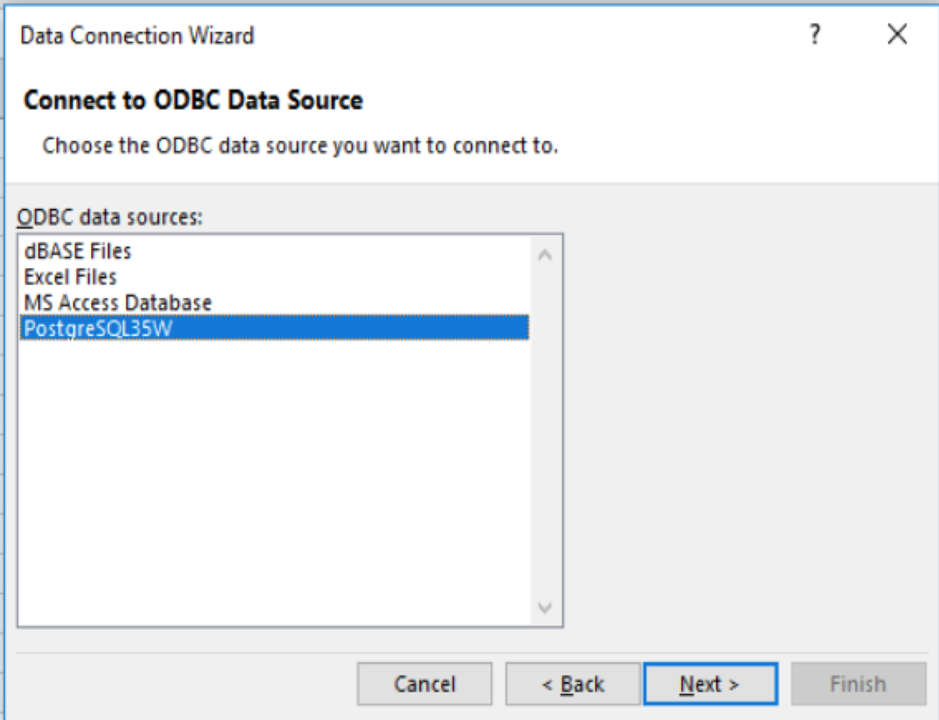
Now you can see the Tables and Views that are part of the nwc_history database, select the Tables and Views you want to use or make sure ‘Connect to a specific table’ is unchecked and click Next.
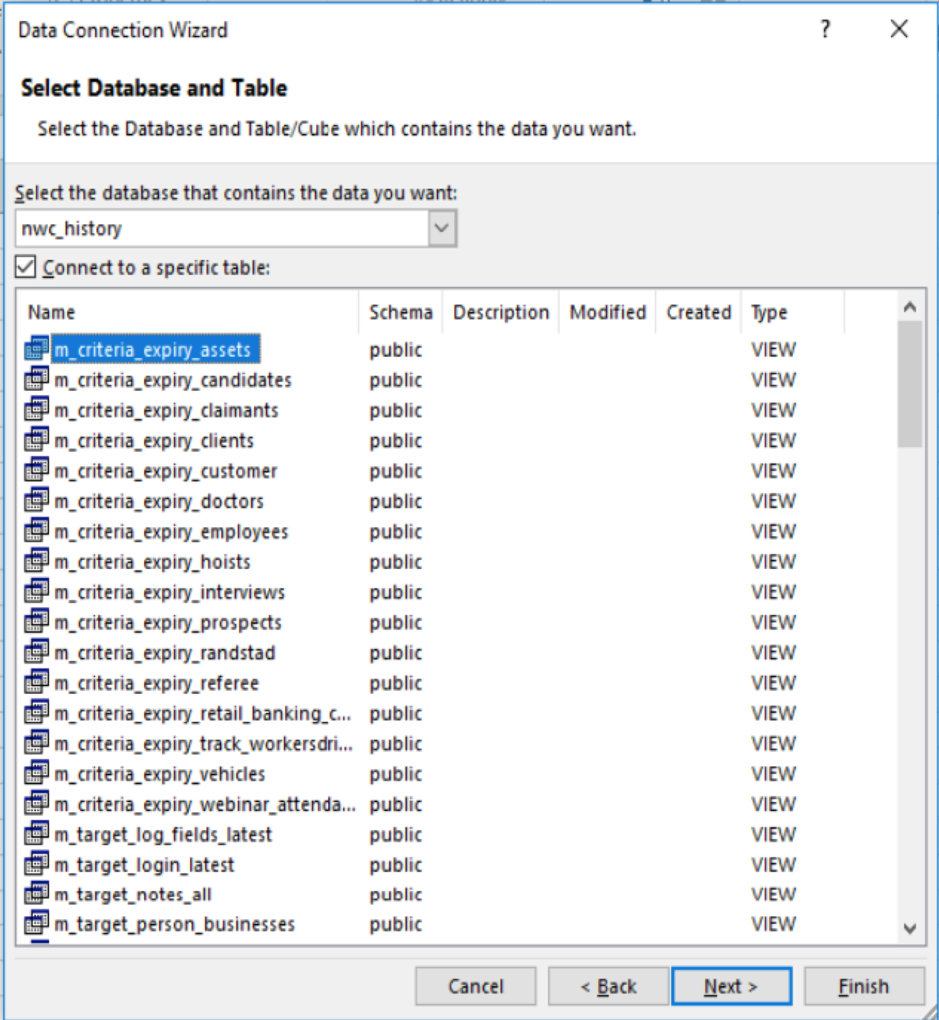
Either use the default text or choose your own name for the connection file, description and friendly name for this connection, then click Finish.
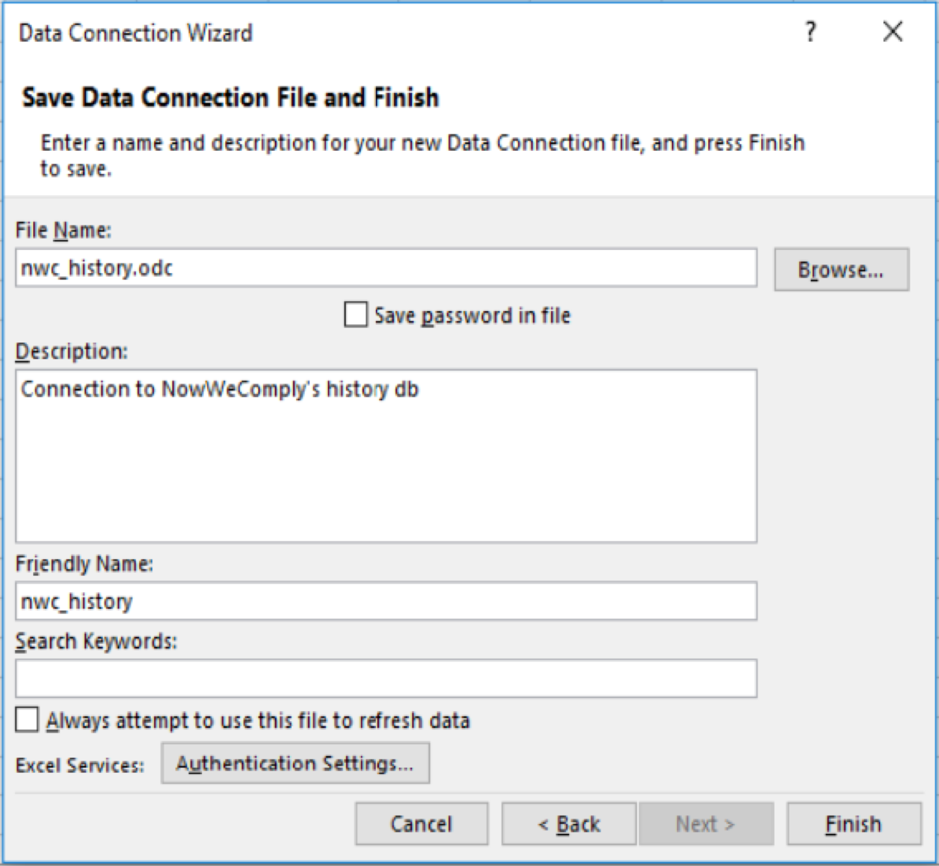
Now you can select one or multiple tables and views to use through excel and decide whether to import any relationship between the selected tables.
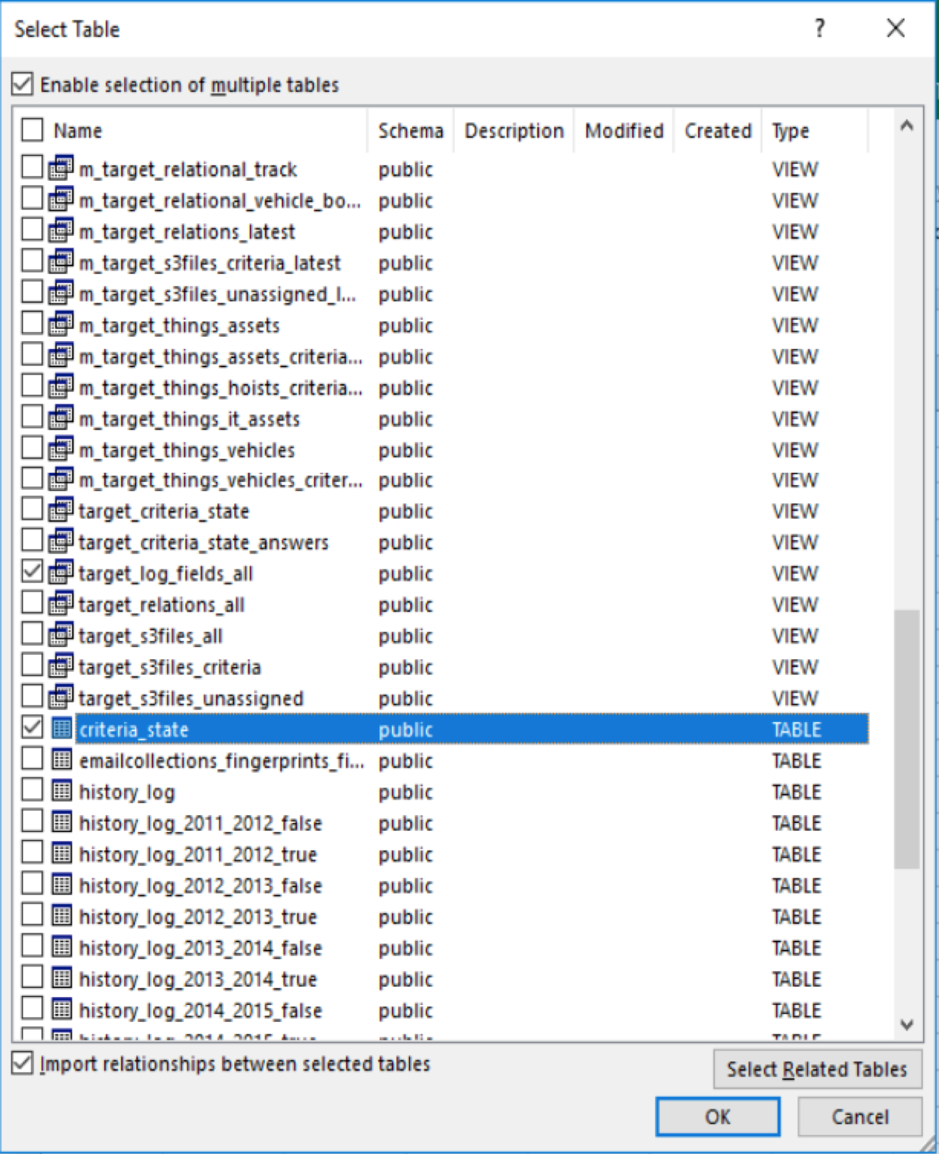
Choose how to import the data, if you select Pivot tables, you will be required to arrange the Axis. In this example, we will use a table.
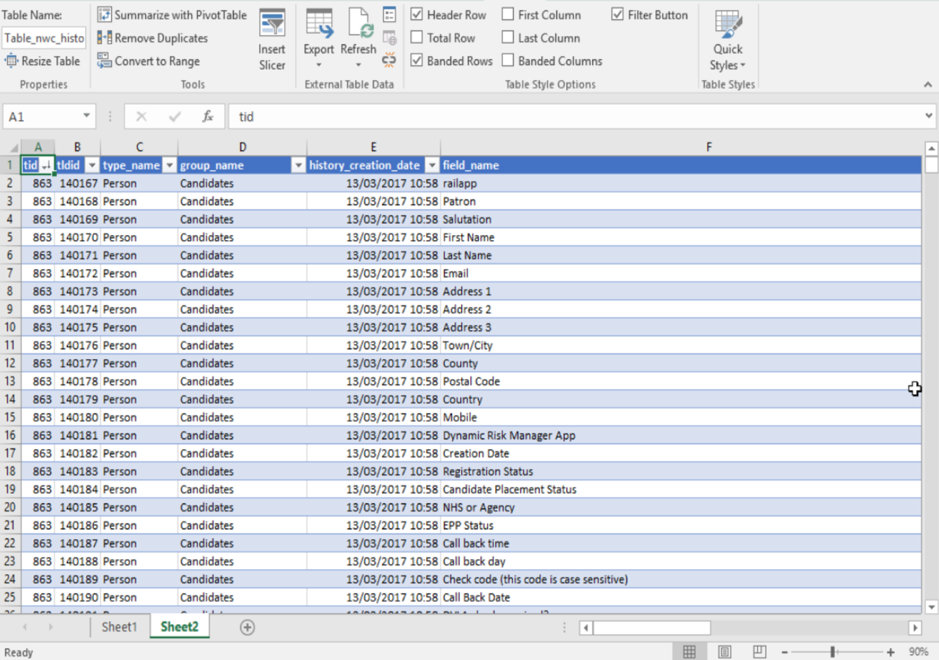
Once the data is in Excel, it can be manipulated using the native tools of the application and you should refer to official Microsoft resources from here on.
Useful link: https://support.office.com/en-gb/article/Use-Excel-tables-to-manage-information-1c3d9852-4b0b-4496-a1fc-30c5121fb05e
Comments
0 comments
Please sign in to leave a comment.