
Import File format
In Step 2 of Target Import Creation an import file must be uploaded and a corresponding CSV Dialect must be selected.
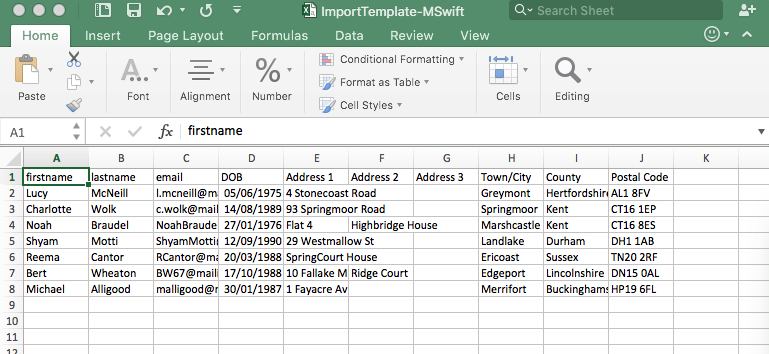
An import file can be easily created using a spreadsheet application such as Microsoft Excel or Google Sheets. Each column represents a field of data that will be imported into Autologyx.
An example import file of new targets for Autologyx to import:
CSV Dialect
Ensure that the delimiter of the chosen file is matched in the CSV Dialect field, a CSV (comma-separated value) file can be delimited by characters other than commas, Autologyx supports tab (TSV files) and semi colons (also CSV). If you are unsure, open your file in a text editor such as Notepad or Text Edit to view which character is being used for separating the fields, typically it will be a comma.
CSV File, separated by commas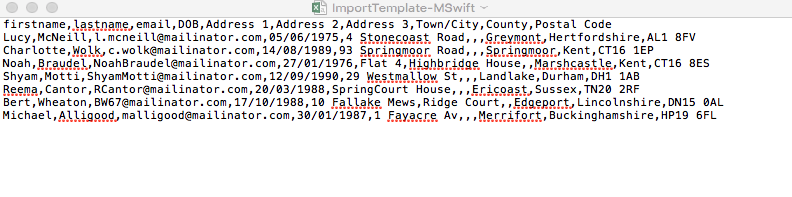
CSV file, separated by semi-colons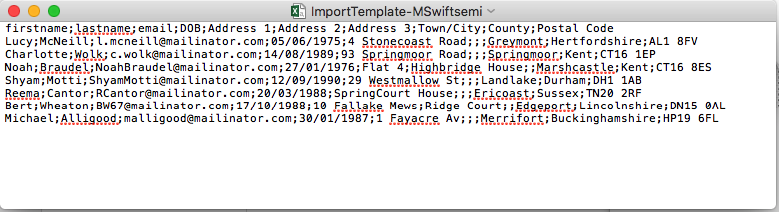
TSV file, separated by tabs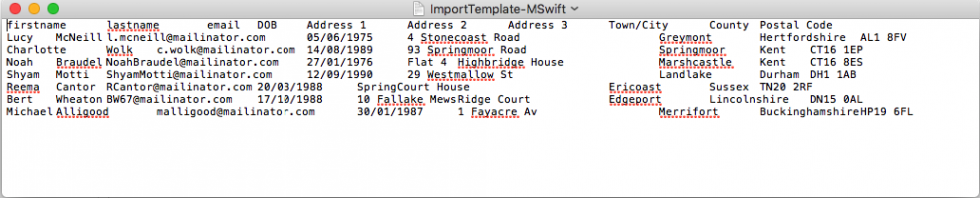
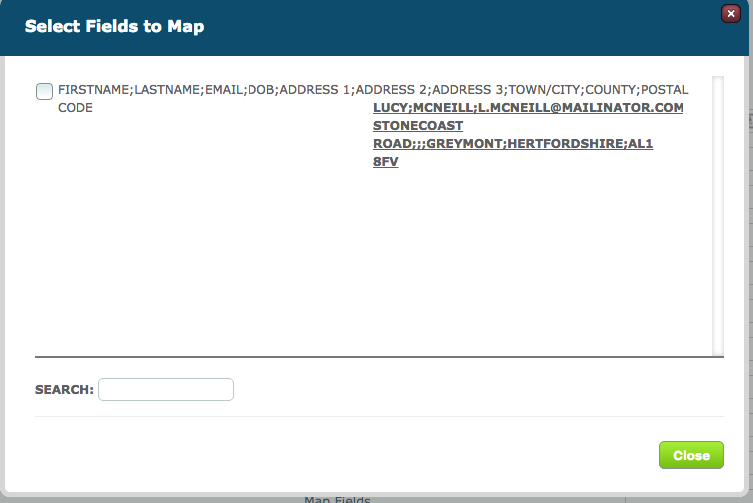
If for example the wrong dialect is chosen, something similar to the below will occur in Step 3. If this happens go back to Step 2 and make sure the Dialect field matches the import file.
Comments
0 comments
Please sign in to leave a comment.