
REST URL
Importing targets into Autologyx using a REST URL.
Step 1
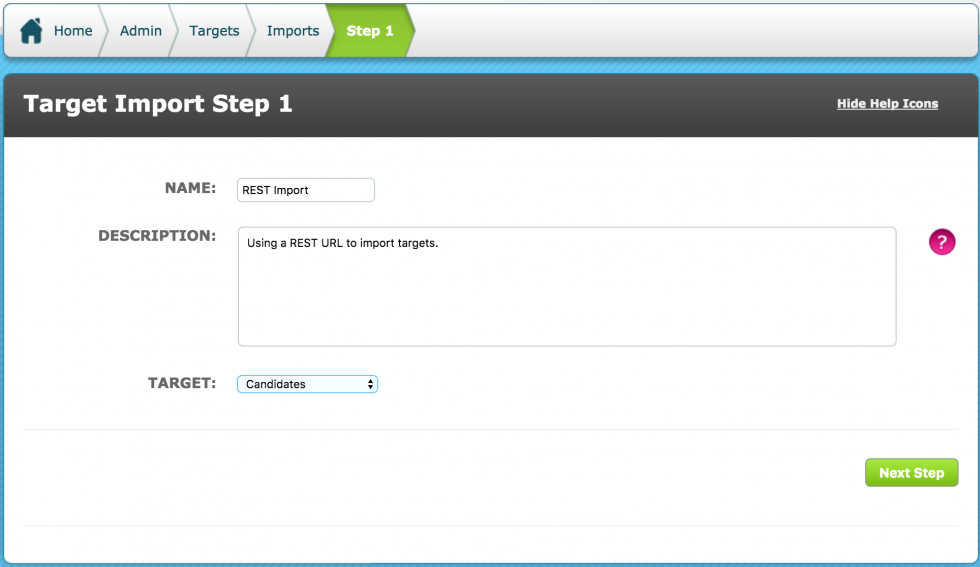
Go to Admin > Targets > Target Import. This opens Target Import Step 1
Give the import a name, enter a description for future reference and select the Target Group from drop down that applies to the targets that will be imported. If there are different target groups, then separate target imports will need to be created.
Click Next Step.
Step 2
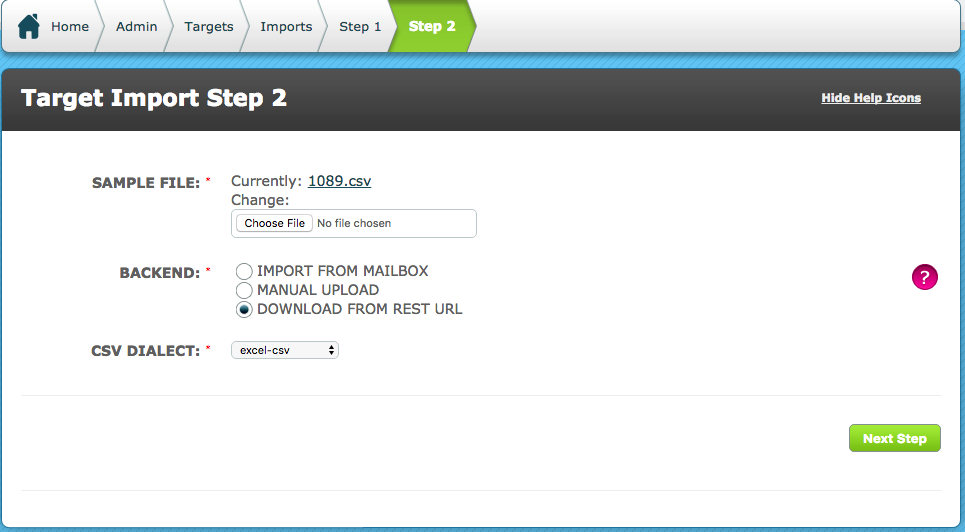
Click Choose File and select the file you wish to import. Select Download from REST URL. Choose the applicable CSV Dialect – Read more about the file types and the dialect field here
Click Next Step
Step 3
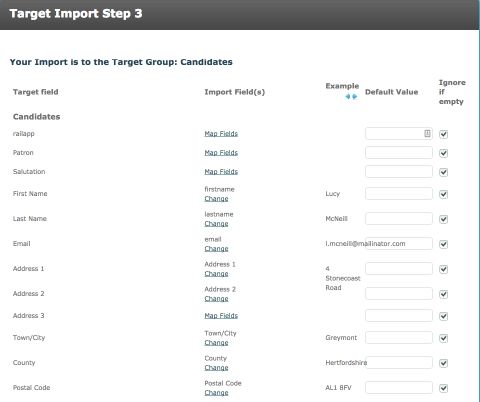
All fields against the target group are displayed in rows. Each field presented in the import spreadsheet needs to be mapped to the corresponding field that already exists in Autologyx.
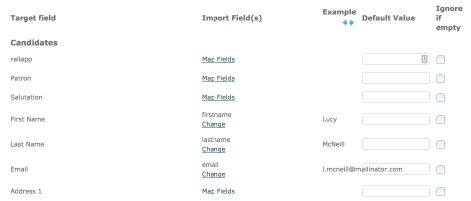
For each field, click Map Field and then select the corresponding data available from the spreadsheet. The pop up modal clearly presents the example data. This must be completed for each field, mapping all fields in a single Map Field does not work.
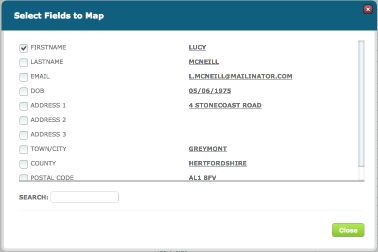
When fields are mapped, the Step 3 screen will look similar to the below. Check every field in the Ignore if Empty column, click Next Step when complete.
Step 4
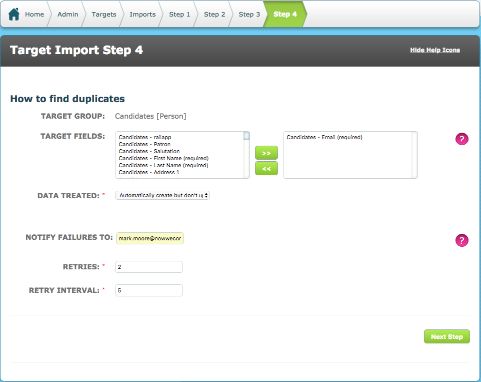
This step requires a target field or multiple target fields to be selected as the identifier for an imported target.
For example if a target is imported with the target field email address set to test@test.com and then another import runs with another target with the same email address, should the system recognise that this is a duplicate record? If the answer is yes, then the email field needs to be moved into the box on the right side.
The Data Treated field contains 3 options, these options control whether records can be created or updated by the target import process.
Notify failures to field; If an import fails what email address should receive notification. Note this email address also receives successful import notifications.
Retries: If an import fails to import the targets, how many times should the system attempt a re-import?
Retry Interval: How many minutes should the system wait before trying a re-import.
Click Next Step
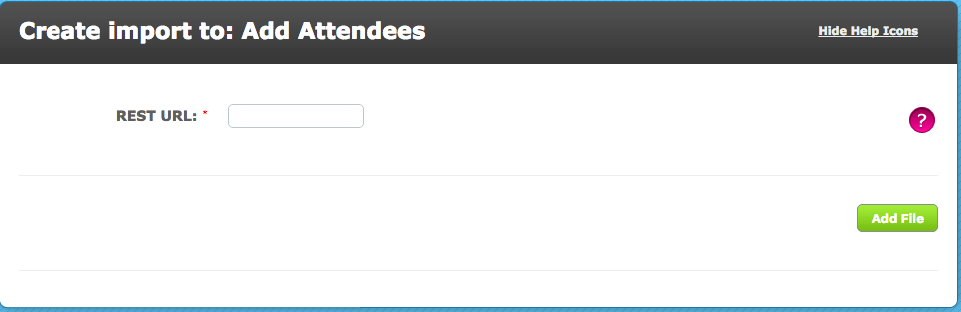
The REST URL import has now been setup. Click Add Import File and enter the REST URL for the file(s) to be imported. Click Start to begin the import. Alternatively, edit the import, to change any of the settings.
Comments
0 comments
Please sign in to leave a comment.