
The DBS app is called UK Criminal Records Check.
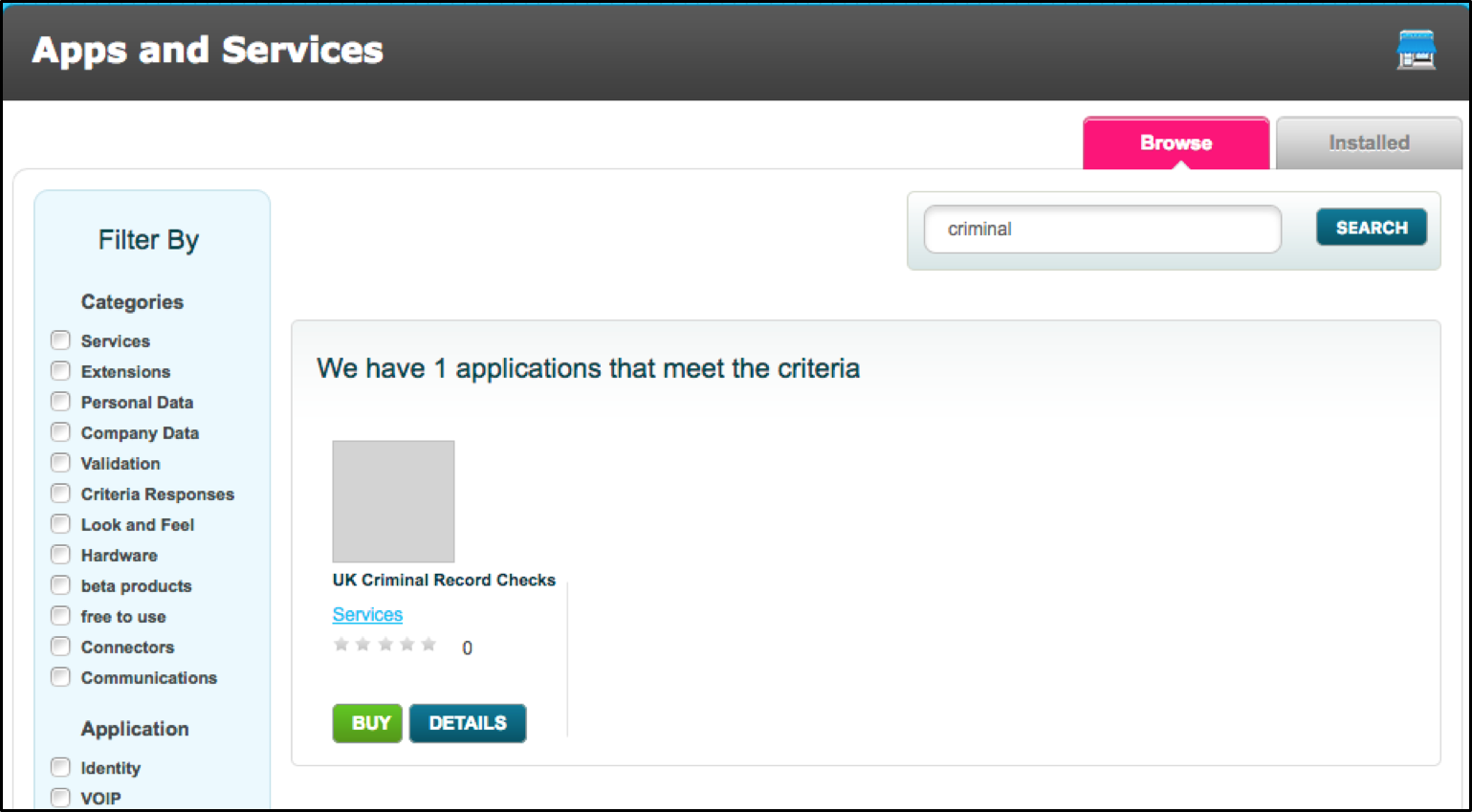 It is important to note that although our app is free to use, you will obviously incur charges from the third-party provider (GB Group).
BE AWARE: If the product is uninstalled then all criteria that are currently in process, will be rejected on the dashboard with an error message ‘Product uninstalled’.
Once installed, go to the Setup tab.
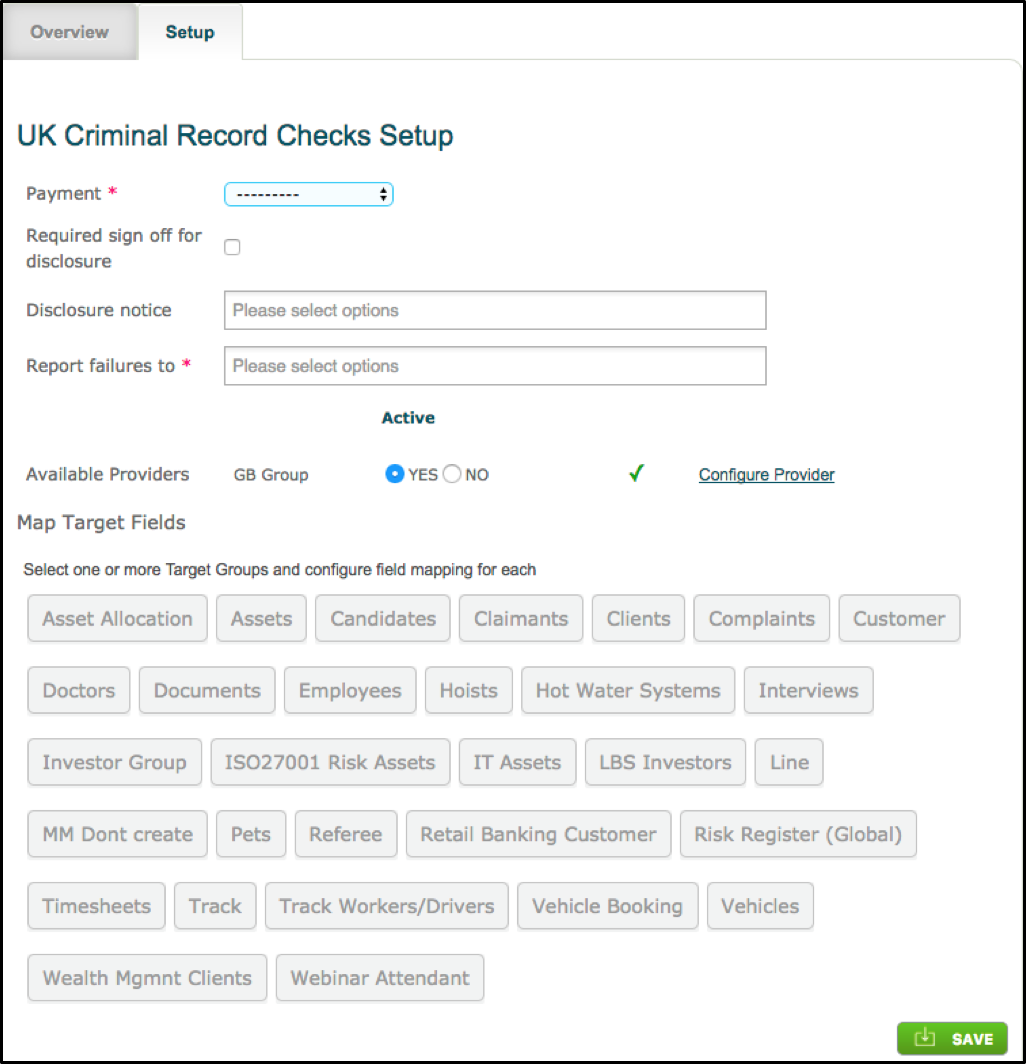 The following table will provide a guide of set up choices available:
|
Section
|
Description
|
Notes
|
| Payment |
This field determines how the organisation will pay for the DBS. |
Is it invoiced at the end of the month or paid on per check basis? |
| Require sign off for disclosure: |
Enabling this will add in a new stage ‘Counter Sign’ which will display all information to the nominated user/role to confirm prior to send to GBG |
Note: See Counter Sign |
| Signoff Approval |
This determines 1) which user/role can complete the counter sign section. This will appear before the application is sent to GBG. 2) If disclosure is returned as ‘non-clear, the user specified here, will have to do complete a second approval before the criteria is completed. |
Note: Will only appear if ‘required sign off’ is enabled |
| Disclosure notice: |
When a DBS has been returned by GBG the person(s) selected here will be notified |
|
| Report Failures to: |
If an error occurs when processing a DBS, the person(s) selected here will be notified by email. |
|
| Available providers: |
At the moment, we only offer integration with GB Group. Please select Yes under active |
|
| Configure provider |
Users will have an API Key and individual pins for standard, enhanced, disclosure for their business. |
Note: PINs that have not been provided, will be greyed out on the criteria page. If PINs are incorrect, the modal will error. |
| Map Fields |
Mapped fields will pull through any data that has been provided on the Target Record. First Name, Last Name and Title will automatically be mapped if they are available and set to ‘display and edit’. |
Note: Fields must be set to ‘display and edit’ to appear here. Please be aware that changing any of the data provided in ANY mapped fields whilst a DBS is in process will cause the DBS to be stopped. |
Modal for Configure Provider
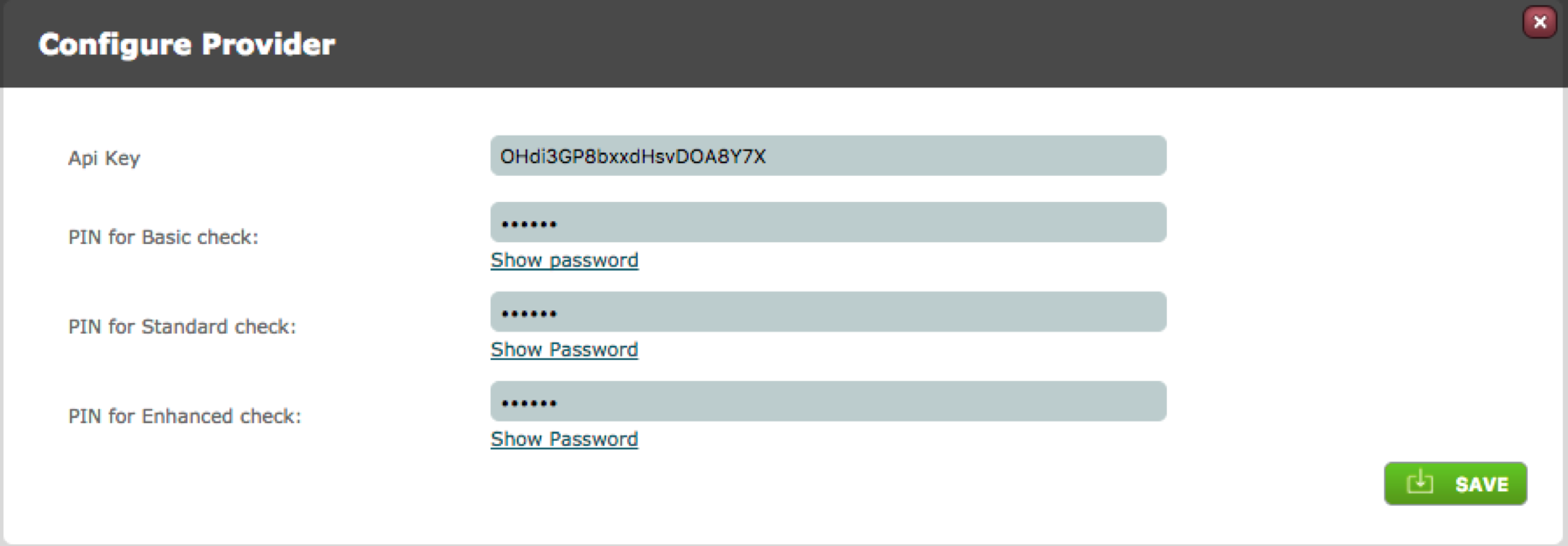 Complete the required fields and click Save. You will see an on-screen message to show that validation is being carried out. When completed correctly, the page will show a green tick next to the Configure Provider link.

Comments
0 comments
Please sign in to leave a comment.