
Status will change to processing and data is sent to GBG. Please remember that result can take weeks to be returned. The status the application stage, will appear under the process icon and these will change as they move through the steps taken by GBG.
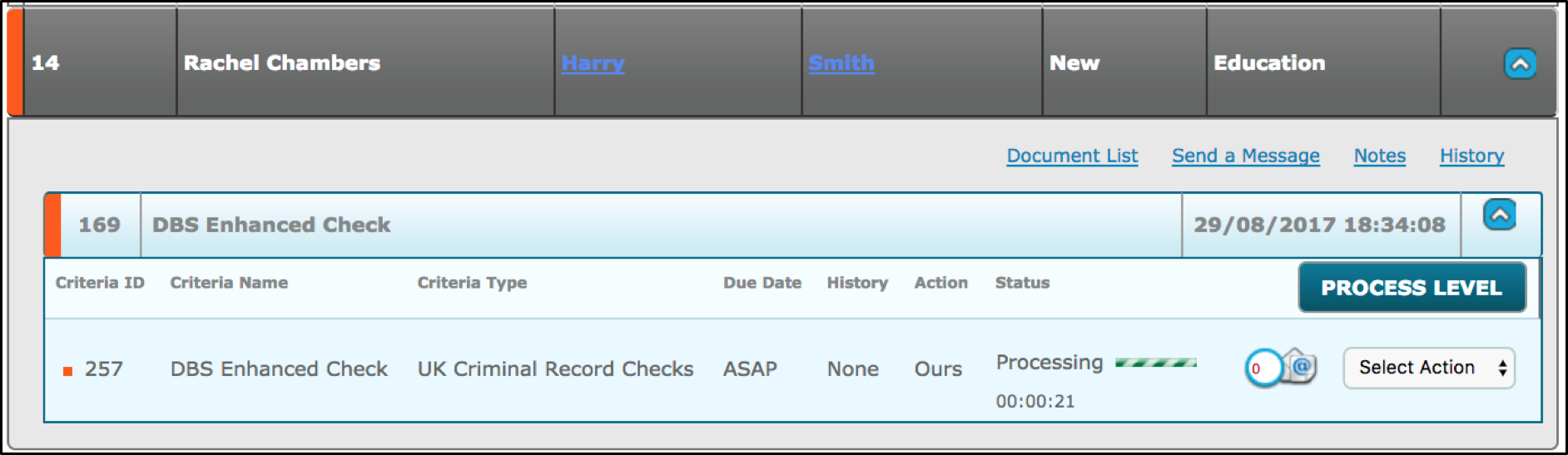

When the application has been returned by the third-party provider the user(s) specified in the Store Setup, “Disclosure Notice’ will receive an email to inform them that the application has been processed. This email provides details of the individual and the outcome status. It does not include the DBS document.
Processed DBS – ALX Statuses
When a DBS has been returned from GBG they will appear on the dashboard with a status of Processed ‘Non-Clear/Clear/ Withdrawn’ with an approve button. Note: A filter has been added to ‘Show me’ so users can filter by: Sign/ Non-Clear/Clear.
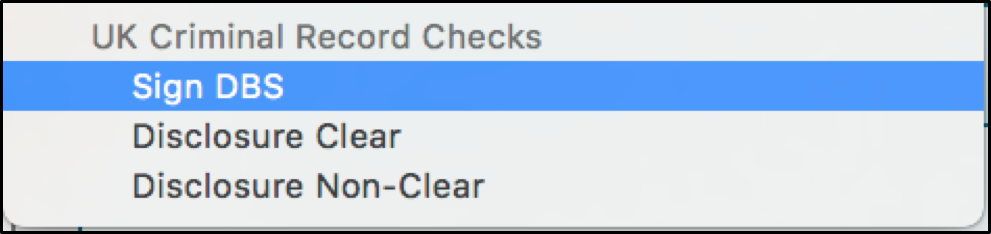
Processed Clear
When a check comes back as ‘clear’, an approve button will be displayed to all users. When returned, a copy of the declaration and the document template defined in the criteria, will be attached to the response.
Processed Non-Clear
When a check comes back as ‘non-clear’, a user can override this decision. If the user wants to approve the DBS, they will have to confirm that they are aware that there is a disclosure against this record and will have to provide an explanation of why they want to override this. If the user wants to reject a disclosure, they simply click reject disclosure, which will mark it as fail on the dashboard.
If you have ‘Required sign off for disclosure’ enabled in the store, a ‘sign approval’ button will appear and will only be available to the user/group specified in the set up. If ‘'Required sign off for disclosure” is not selected in the store, the Criteria will complete
Withdrawn
If the DBS is ‘withdrawn’, the Criteria will appear as ‘fail’ on the dashboard. If users want to resubmit the DBS, they will have to reject and ask again making sure that all information is complete and correct.
Stopped
A DBS will be stopped if an error has occurred whilst processing the check. This could be down to configuration or validation of field data. The user will see the status as ‘Stopped’ with an [Error] Link. The following will happen:
- An email will also be sent to the user(s) defined in the store under ‘Report Failures to:’ informing them of the error, target and Criteria.
- If Error Link is clicked, the cause of the error is explained:
Some reasons maybe:
- Authentication: Credentials are incorrect
- Validation: Data provided in request is not valid
- Unknown - Unexpected error occurs in our code (can't parse response, some part of code failed in relation to sent request)
- From the [Error] modal, Users will also be able to select “Reject and reset to the ID Document step” allowing them to go back into the application and amend any required information and resubmit it.
- A resubmit button will be available underneath [Error] allowing users to resubmit the information.
Red Exclamation mark
If you see a red exclamation mark next to a ‘processing’ DBS, it means that the application is being processed but the PIN has been removed so will not be returned until the PIN has been re-added.
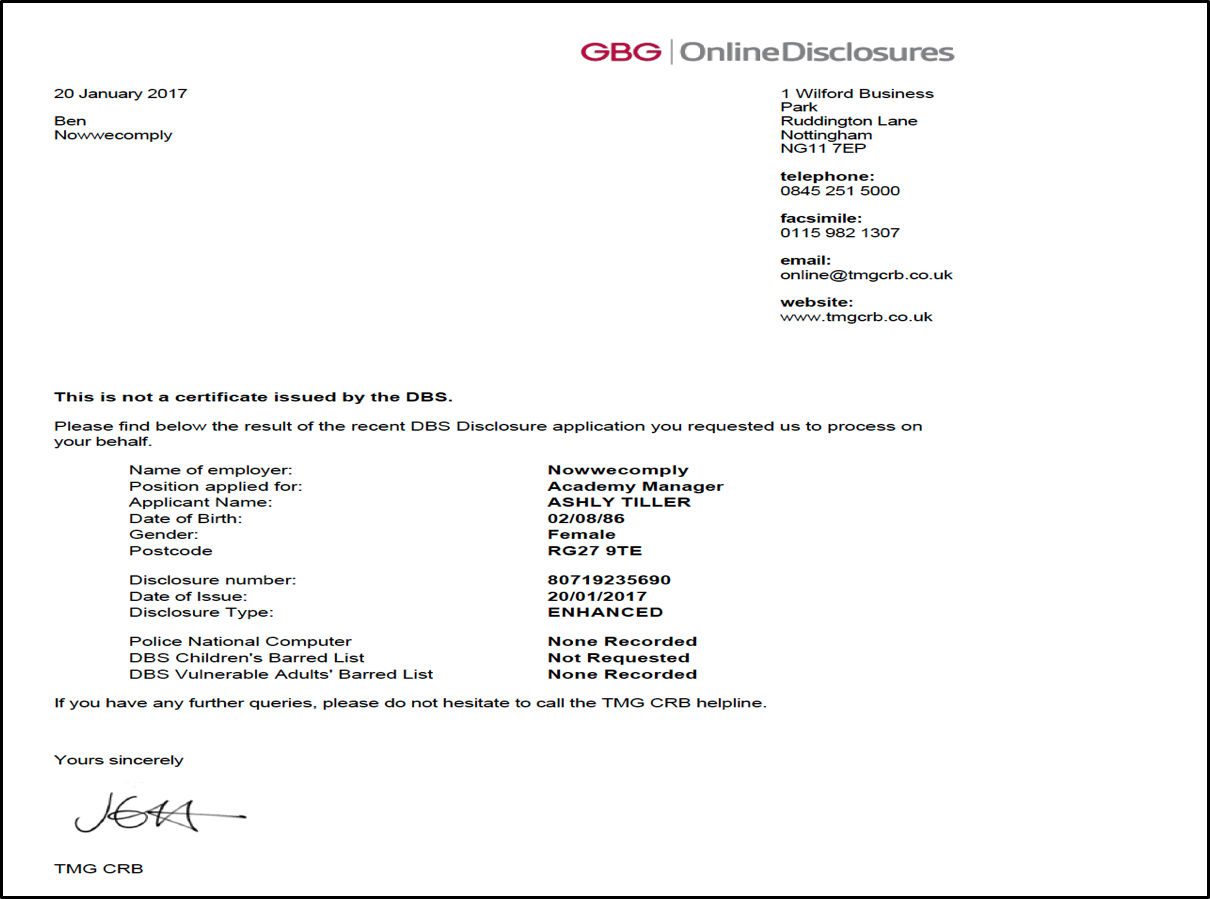
Example of Clear return:
Comments
0 comments
Please sign in to leave a comment.