
Admin > Criteria > Add New Criteria
If the response to a Criteria has an expiry date such as a passport, Visa, training certificate, vaccination or registration with a professional body, autologyx allows you to record this and set a reminder against it so that it can be revalidated before the expiry and therefore maintain the Target's compliance.
You can also set an expiry a certain number of days/weeks/months from the date the criteria was assigned or completed so that for instance criteria can be asked every month or annually. Or, you can set a specific date for expiry, if applicable.
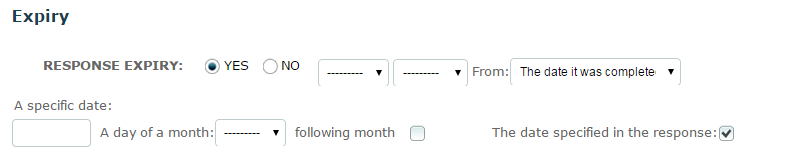
• In the Response Expiry field select YES if the response includes an expiry. Enter the required expiry conditons. If your response type is Single or Multi-Select the field, “The date specified in the response” will be pre-populated with a tick (as shown below) because dates recorded in these response types are always expiry dates
• In order for the criteria to be revalidated and appear on the dashboard prior to the expiry you must set the required revalidation period. In the “Revalidate Up To” fields set the appropriate number of days/weeks/months
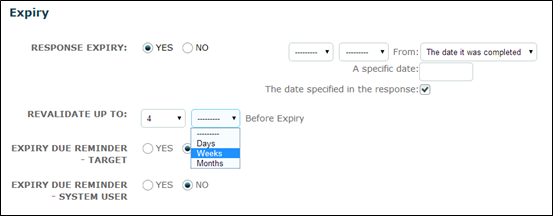
• Next select yes or no in the fields to determine whether you want a reminder about the expiry to be sent to either or both the target and system user
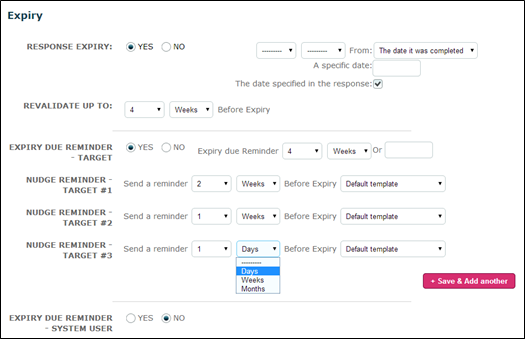
In the example above the target will be reminded about the expiry 4 weeks before the criteria is due to expire. Additional nudge reminders have been set at 2 weeks, 1 week and 1 day before expiry. Obviously, if the criteria is revalidated between planned reminders, no further reminders will be sent.
The example shows that the default message reminder template will be used but you can add criteria specific message templates of your own in the message templates area of autologyx.
Reminders are sent by email as the default. However, if enabled in Reminders & Notifications and chosen by the target as their preferred method of communication they can be sent by SMS.
If you have selected NO to Response Expiry you will not have the option of setting reminders or nudges.
Re-Validation:
Towards the end of the criteria set-up page you will find the Re-Validation section, in which you must set the conditions for the criteria to be re-validated.
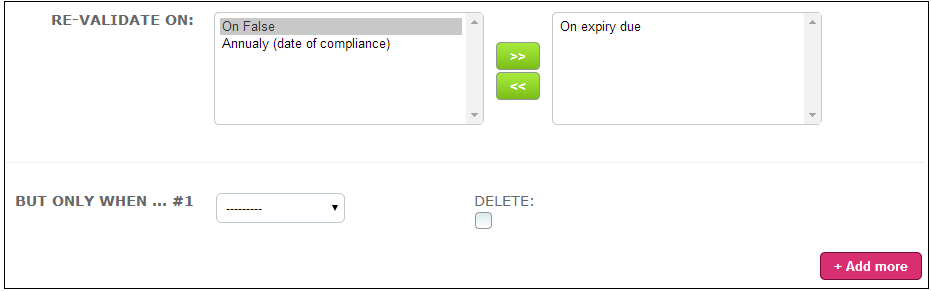
If you wish to use re-validation, then select the 'On expiry due' option. The other two options are historic so please ignore these.
- On expiry due – When the specific date for the response or when a specific date has been set in the criteria for it to expire.
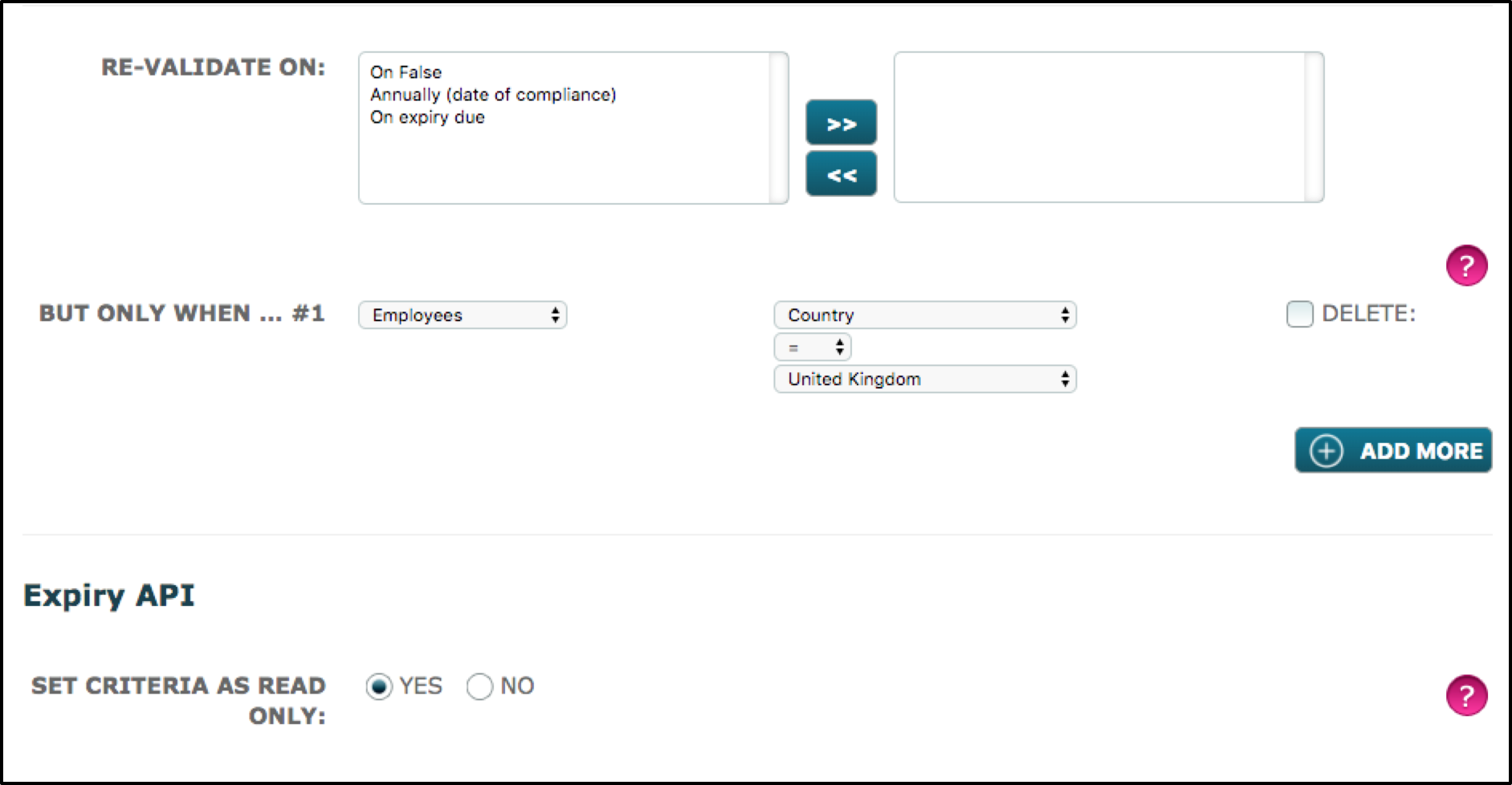
In addition, you can set conditions so that only certain Targets in a particular Target Group receive the Criteria for re-validation. The “But Only When” fields are used for this purpose; they provide a filter.
• Select your Target Group from the drop down menu
• Select what you wish to filter by from the “Field” menu (this menu is made up of the target group’s fields)
• Select the appropriate value indicator e.g. = or contains, etc
• Select the appropriate value from a choice field or type in the value when given a freeform field
• Click the “+Add More” button to add further filters
In the example below, the criteria will be re-validated for targets in the Employees group who have their Country as United Kingdom.
Comments
0 comments
Please sign in to leave a comment.