
The Document Signature response type should be used in conjunction with Document Generation v2.
Admin > Criteria > Create a New Criteria
- Create your Document Generation v2 criteria
- Complete the initial fields on the Document Signature criteria page as normal
Response Type: select Document Signature.
Document Criteria: Select the Document Generation v2 criteria you prepared earlier.
Signing Methods: Please note that only Sign Online is supported.
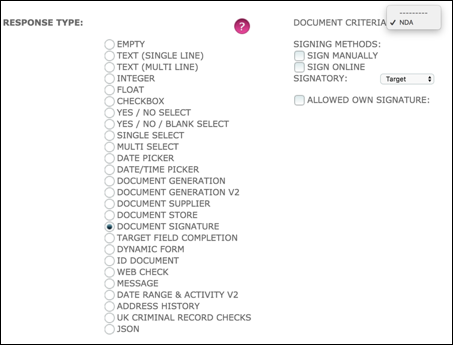
Signatory: Select Target, Patron or Us.
Allowed Own Signature: For first phase, this only applies to the selection of Patron or Us in the above field. The system user account page has a field called "Document Signature" where a user can determine how they wish to sign documents, as below.
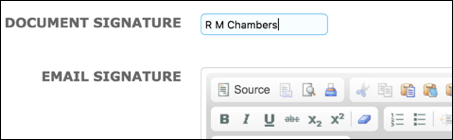
If Allowed Own Signature is ticked, this will allow the user to sign for example as R M Chambers when in their user account their first and last names are Rachel Chambers. Previously the system would expect them to sign documents as "Rachel Chambers".
- Complete the rest of the criteria as required
- At the end of the page at the section for Action and Visibility, you'll notice that you will not have the Who To Action By Default field as you have already stipulated Target, Patron or Us above
Save.
Create one Document Signature criteria using the same Document Criteria for each person you need to sign the document.
Ensure that you sequence the assignment of the Document Signature criteria:
- after the Document Generation v2 criteria and
- in the order you wish signatories to sign the document
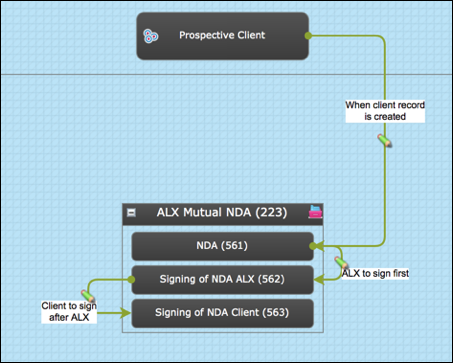
User Dashboard
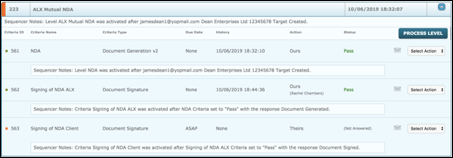
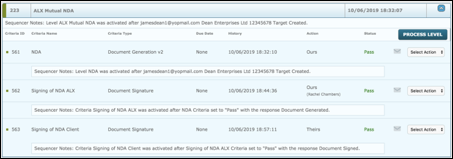
As shown above the NDA process is sequenced so that the document is generated first. The criteria (ID 561) has auto-completed and the dashboard status shows "Pass".
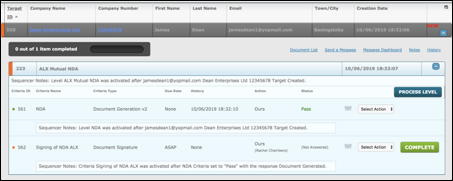
Criteria ID 562 has been assigned and is awaiting signature by the patron.
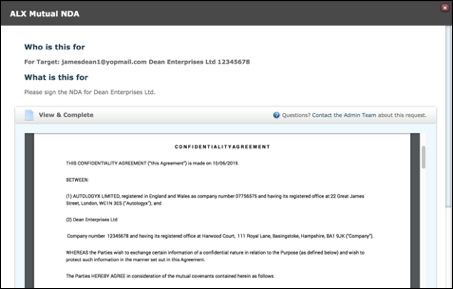
Data from the client record has been merged into the document.
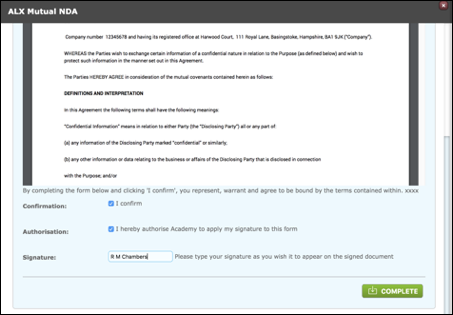
Please Note: the patron is asked to sign the document "..... as you wish it to appear on the signed document".
When the criteria is completed the dashboard shows that the next Document Signature criteria (ID 563 has been assigned. This has a "Theirs" action as it is to be signed by the client via the target portal.
Target Portal
The client will have received a "New Action" email to inform them that they have been assigned the task.
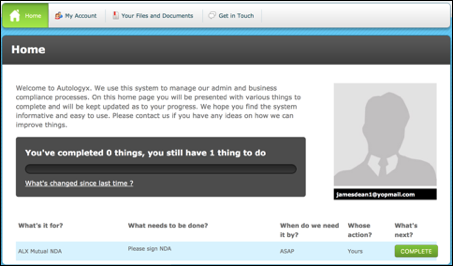
Clicking the link in the email or clicking the Complete button for the task on their target portal home page will take them to a modal showing the document.
Scrolling to the bottom of the document will allow them to see when and by whom the document was signed before them.
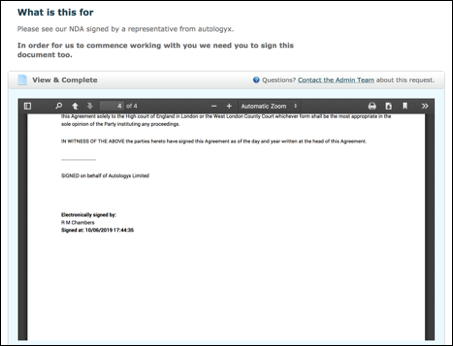
The target must sign the document and click the Complete button to finish the task.
User Dashboard
As the final Document Signature criteria did not require an approval, it is shown as completed as is the level.
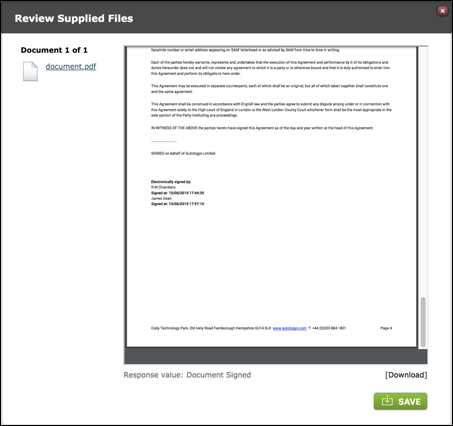
When the response of the final document signature criteria is viewed, the signatures appear at the bottom of the document with their date/time stamps in the order they were signed.
Please Note: In our release (3.59.1) we included a feature which allows the positioning of signatures anywhere on the document and the use of one signature more than once in a document. Click here for more details.
Comments
0 comments
Please sign in to leave a comment.