
Admin > Criteria > Add a New Criteria
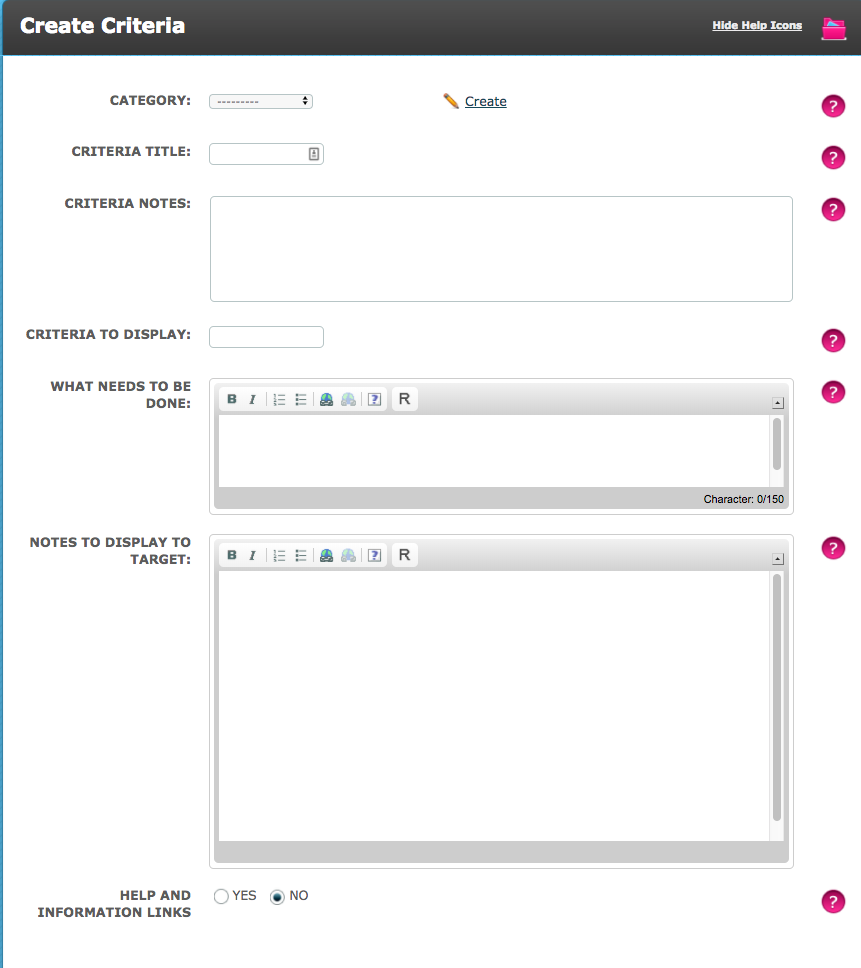
- Category - Select a Category for your Criteria. Remember, Categories are only used for navigation purposes so think of them as groups of related Criteria. If a suitable Category has not been created, click the "Create" link to add one now.
- Criteria Title - Name your Criteria, pick a name which defines the action
- Criteria Notes is for internal use only - you might want to give a brief description of the action required or you might want to let other system users know why we need the Target to complete the action
- Criteria To Display. This is the subject field that your Target will see. (Often it is the same as Criteria Title)
- What Needs To Be Done - In this section enter a brief summary of what is required. It should be an instruction but not in any great detail
- Notes to Display to Target. This is where you can give full instructions to your Target. They will see this when they log in to complete the Criteria. Your instruction should be clear and informative
- Help and Information Links - Select Yes to reveal an additional field into which help text or hyperlinks can be added
Response Type
Choose the type of response you want from your Target. On the right hand side for each response type other than "Target Field Completion" you will have the option “File Attachment” and for each response type other than "Checkbox" and "Target Field Completion" you will have “Approval Required”:
- File Attachment - you have the option to ask the Target to upload a file(s), and to stipulate the minimum quantity of files required in the MIN. QTY field.
- Approval Required - you have the option to decide whether a system administrator must approve the response before compliance is attained.
- Comment Option - you have the option to allow the target to select whether they want to add an additional comment to what their response is to the criteria.
READ MORE: Response Types
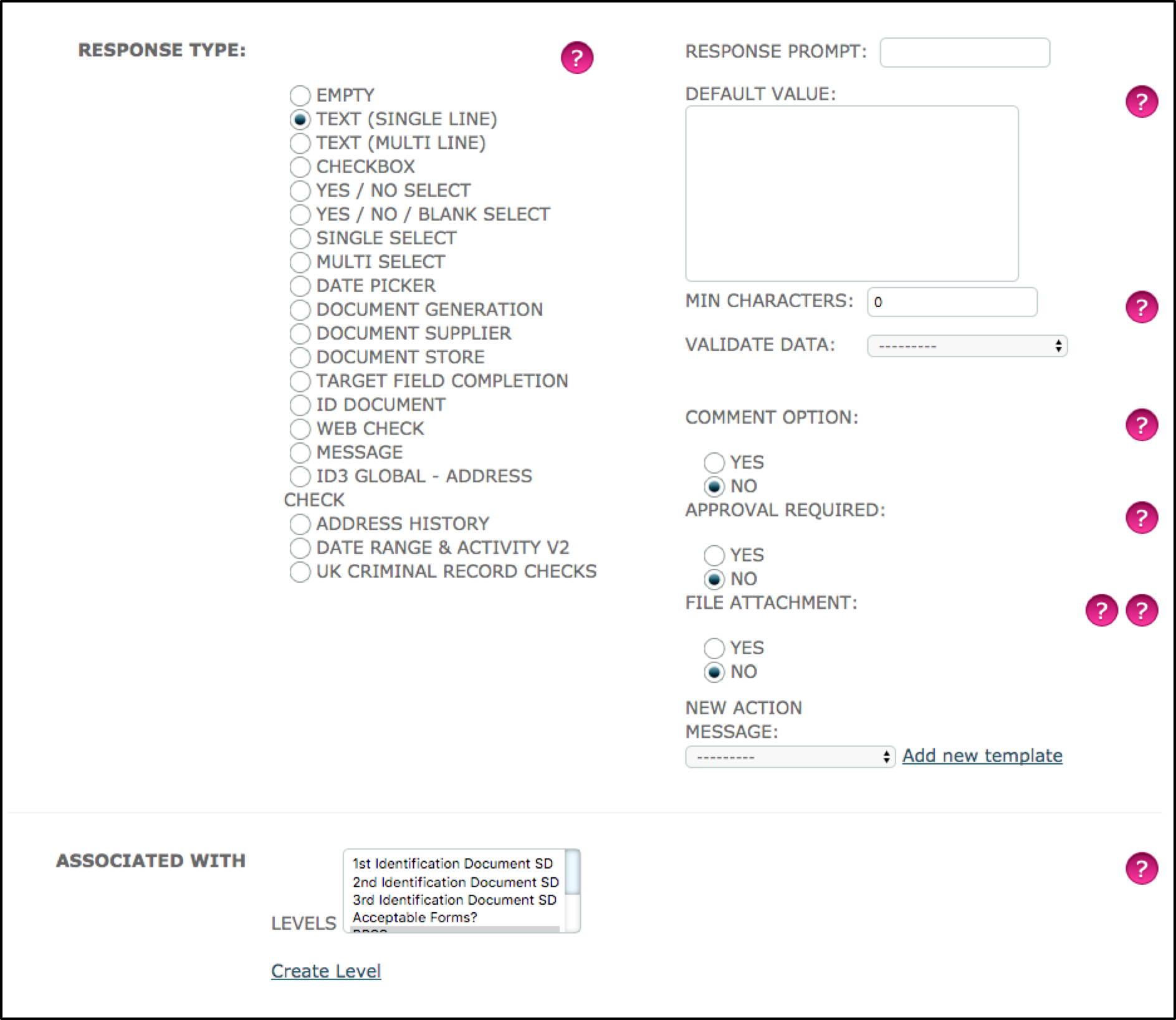
Associated with Levels
Select the Level in which this Criteria will appear. A Criteria can appear in more than one Level but if it is completed/compliant in one Level it will be completed/compliant wherever it appears. To select multiple Levels hold down Ctrl key and highlight.
The Create Level link here allows you to a pause in the Criteria and create a Level in which to add the Criteria you are building.
Completion, Expiry and Reminders
- Complete By - select ASAP if the request is not urgent or doesn’t have a specific timescale for completion. If you need the action completed by a specific date select “By Time”. This opens further fields allowing you to set a timescale of a number of days, weeks or months OR to set a specific date for completion.
- Set Complete By Reminder - Select No if you don't want to send a reminder to the Target or System User (dependent on who is responsible for completing the Criteria) to complete it. Selecting Yes will gives you further fields allowing you to set a timescale of a number of days, weeks or months OR to set a specific date for the reminder to be sent.
- Response Expiry - select Yes or No depending on whether there is an expiry date as part of the response. If selecting Yes please read more in setting
READ MORE: Reminders and Nudge Time
Re-Validate On and But Only When
When creating a Criteria you must establish whether it is a one time only action or if it needs to be renewed/updated. The Re-Validate On field is used to allow Criteria to be repeated.
But Only When allows you to set conditions on which Targets in a particular Target Group receive this Criteria when it re-validates (it is a filter).
- Select your Target Group from the drop down menu called “Target”
- Select what you wish to filter by from the “Field” menu (this menu is made up of your Standard and Custom fields).
So for people in a specific Target Group living in Bristol you would select:
= in the Is field
City from the Field menu
Bristol in the Value field
READ MORE: Re-Validation
Set Criteria As Read Only
- If you have external data influencing this particular Criteria then select No. If unsure select Yes (its the safe option, you can always edit it)
Action and Visibility
- Who to Action by Default? - who is responsible for completing this Criteria. Target instance if the Target is expected to complete the action or “Us”if the action is internal.
- Mandatory - here you are asked whether this Criteria is a must do/must answer.
- Visible to Targets - do you want this Criteria to be displayed to the Target on their home page.
- Documents Visible to Targets? - If the criteria generates or provides a document or requires that a target or system user upload a document as part of the response, this field will determine whether the document(s) should be available in the target's Document List on their portal. This means that you can have a criteria which requires a system user to upload or sign a document, the task for which is not displayed on the target's portal but the document is in their Document List for review or download.
- Show on Dashboard - do you want this Criteria to be displayed on the System Administrator’s Dashboard.
- Unable to Complete - do you want to give the Target the option to say that they are unable to complete the Criteria. If you select Yes, they will be asked to give a reason why and the System Administrator will have to decide whether to approve or reject the response.
- Click Save
Comments
0 comments
Please sign in to leave a comment.