
Admin > Criteria > Add a New Criteria
Autologyx core response types allow you to define the format of the expected response from a Target in order to complete the Criteria. The downloadable response types from ID document and below, will have their own individual articles.
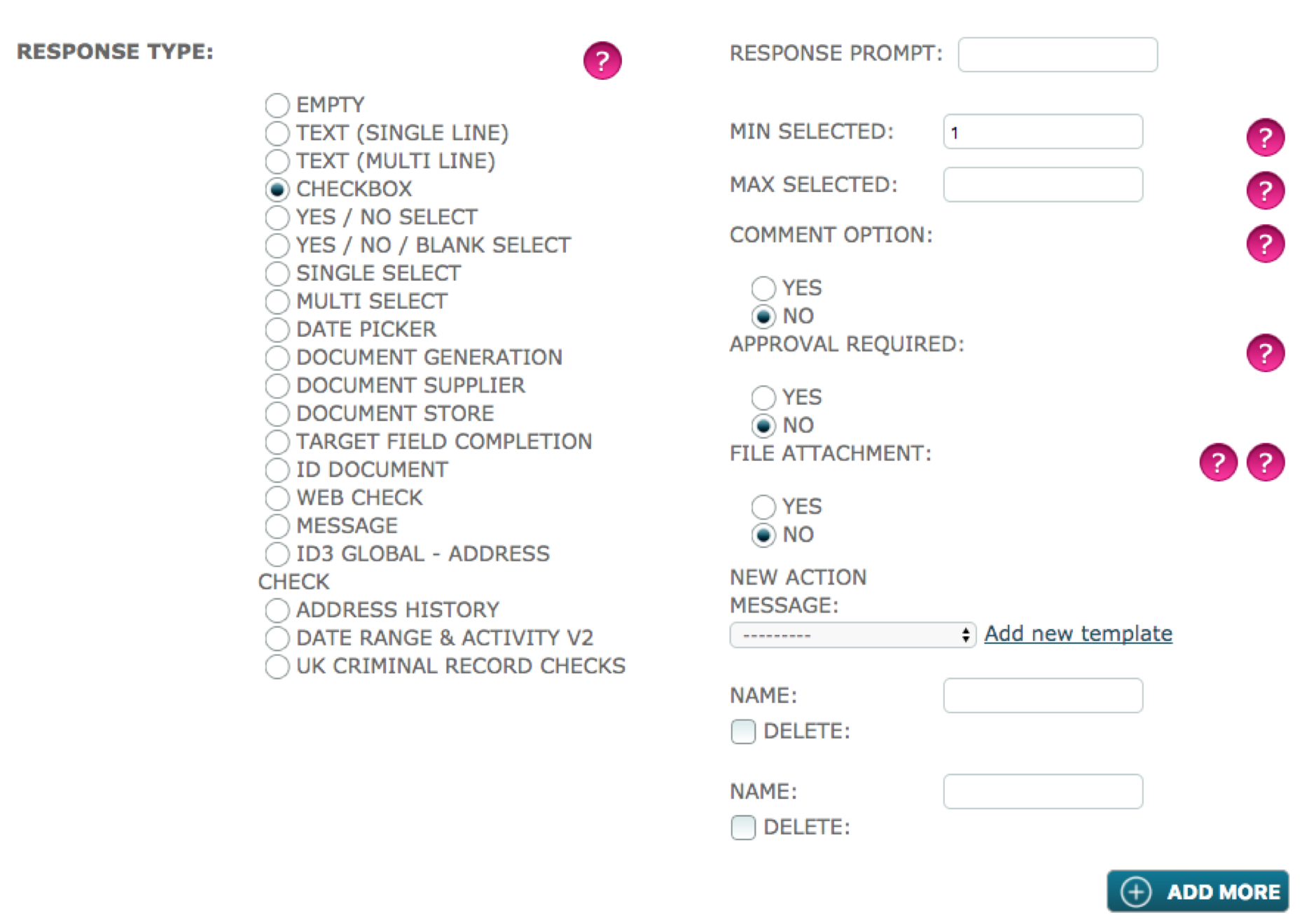
For each response type other than "Target Field Completion" you will have the option “File Attachment” and for each response type other than "Checkbox" and "Target Field Completion" you will have “Review Required”:
File Attachment - you have the option to ask the Target to upload a file(s), and to stipulate the minimum quantity of files required in the MIN. QTY field. Please note: if the file upload is not mandatory you must enter 0 in the MIN. QTY field in order that the criteria can be completed without a file being attached.
Approval Required - you have the option to decide whether a system administrator must approve the response before compliance is attained.
Empty - use this where you don’t need any response. Your Criteria may be simply providing the Target with information or asking them to upload a file or files.
Text (Single Line) - use this where the answer will be a short sentence.
Text (Multi Line) - use this response type where you expect an answer of several lines of text i.e. a paragraph or more.
For both text response types, you can include a default response or insert a partly completed response in the “Default Value” field and stipulate the minimum number of characters expected from the Target in the “Min Characters” field. This is useful where for instance you might ask the Target to provide an NI number or registration number of some sort where you know the exact format of the required response. In addition, if you want the system to check the type of data provided select “field has data” in the “Validate Data” field.
Checkbox - this is used where you want to provide a list of possible answers and you want your Target to tick one which best applies to them. You can also use it to confirm that something is read/agreed, etc. An additional field called “Min Selected” allows you to stipulate how many options the Target must select. Enter each option in a “Name” field and use the “+Add more” button for additional “Name” fields. Repeat this process until you have all your checkbox options listed.
Float - this is used to capture of decimal numbers. The criteria set-up allows you to specify a minimum and maximum number of digits allowed in the response including the decimal places. Read More
Integer - this is used to capture of whole numbers. The criteria set-up allows you to specify a minimum and maximum number allowed in the response. Read More
JSON - this is used to capture of a JSON array. The criteria set-up simply requires you to select the JSON response type. As usual, you can request a file attachment and select whether a user must approve the response. Read More
Document Generation V2 - allows the generation of a document from a template but auto-completes without interaction of any kind from a system user or target. Read More
Document Signature - this is used to allow Documents that are generated via 'Document Generation v2' to be signed online. Read More
Yes/No Select - this should be used where you require a yes or no answer from your Target.
Yes/No (Blank) Select - slightly different to yes/no select; this response type gives the Target the option to answer “none” rather than yes or no.
Both of the Yes/No Select response types have a “Default Value” field which allows you to select one of the options as the default answer displayed to your Target. In addition, if you want the system to check the type of data provided select “selected” in the “Validate Data” field. Finally, these response types have a “Help Text” field in which you can enter additional instructions.
Single Select and Multi Select - these response types allow you to give a list of options from which the target must select one or more, as appropriate. You have the ability to specify against each option in the list whether it requires a file upload, if yes how many files and whether that option has an expiry date. In addition, there are fields in which you can enter a description of the file you want uploaded and provide supplementary notes about it. You can also attach an example of the type of file you require.
For example, you could ask your Target to select from a list of training courses which they had attended within the last 12 months, ask them to upload the training certificate(s) and enter its expiry date(s).
Date Picker - use this response type where you are asking your Target to provide a specific date. For example, this could be their passport or driving licence expiry date. Using this response type will give you the option later under “Expiry and Reminders” to select the date given in the response as the expiry date. If you want the system to check the type of data provided select “field has data” in the “Validate Data” field.
Document Generation - this allows you to select and send the Target a document for their review or signature as required.
Document Template - select the required document.
Interaction Required - select whether you require the Target to view or sign the document.
Allow Direct Link - If the target is viewing the document, it sends the document's link in the New Action email. Therefore, the target is not required to log into the system to view the document.
Shred on Rejection - gives you the opportunity to completely delete the response if it is not what is required or if it is in any way defamatory.
Document Supplier - this is used when a third party within your organisation is required to supply the document for review or signature.
Supplier - select the person responsible for supplying the document.
Interaction Required select whether you require the Target to view or sign the document.
Allow Direct Link - If the target is viewing the document, it sends the document's link in the New Action email. Therefore, the target is not required to log into the system to view the document.
Shred on Rejection - If the criteria is rejected in any way, the document is removed from the system.
Document Store - this is used for documents which do not require the use of merge fields ie auto population or which do not require the online signing feature. You can add documents of any file type to the store and the Target will receive them in their original format. This method of getting a document to a Target is particularly useful for large documents such as a training manuals or employee handbooks.
Document - select the required document.
Interaction Required - select whether you require the Target to view or sign & return the document (this has to be done by printing, signing and preferably uploading) or select None if you simply wish to deliver the document to the Target. If you have selected sign & return you must select YES in the File Attachment field to allow the document to be uploaded in response.
Allow Direct Link - If the target is viewing the document, it sends the document's link in the New Action email. Therefore, the target is not required to log into the system to view the document.
Target Field Completion - this allows you to select from a "Fields To Update" menu of Standard and Custom Fields where the "Visibility" has been made "Display and Edit" in the Target Group. You can prompt your Target to complete or edit these fields as appropriate. This response type is particularly useful for managing data held on the Target record which you might not have at the time of creating their record or which you might be required to revalidate at regular intervals. Use the Shift or Ctrl key to select more than one field from the "Fields To Update" menu.
Comments
0 comments
Please sign in to leave a comment.