
Admin > Global Settings > Global Setting
Global Settings includes an area for inserting your company logo (which will display on pages within the target portal) as well as for selecting the date format you wish to use throughout the system. In addition, System Administrator contact details can be entered here for Document and Message Templates.
It is also in this area that you activate manual and/or online signing of documents and provides fields for you to enter the instructional text associated with this functionality ie the text that will be displayed to targets when using these features.
The following will help you decide on your settings:
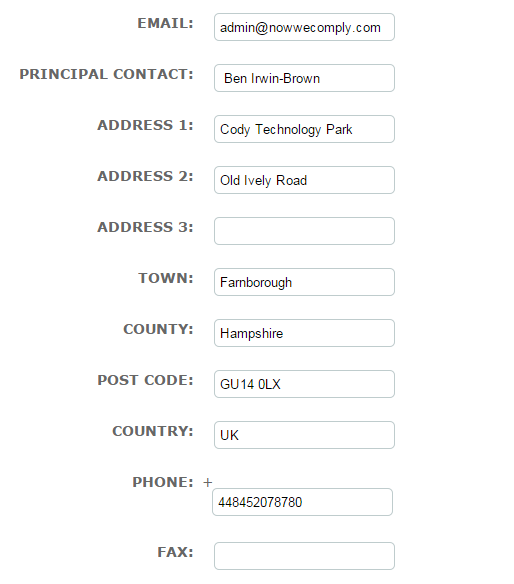
- Postal Address
The address fields are used in the Address Label which is made available when targets opt to manually sign a document. They are also displayed on the target's Get in Touch page.
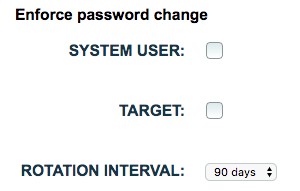
- Global Security Settings
When System User and/or Target are checked here, they will then be forced to change their password for their autologyx account. The frequency of this is set in the Rotation Interval.
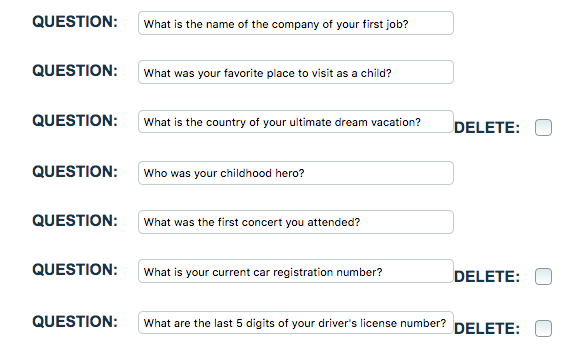
Secret Questions
These are the question options that are given to Targets when they first login. The target is prompted to choose a secret question and provide the answer. This information is used in the event of a password reset request. Please note these are pre-populated and can be adjusted if required. Please beware that once a question has been used, it cannot be deleted from here. Should you wish to edit any of the wording, the answer must remain the same for any users responding to this (i.e. do not overwrite questions, only re-word).
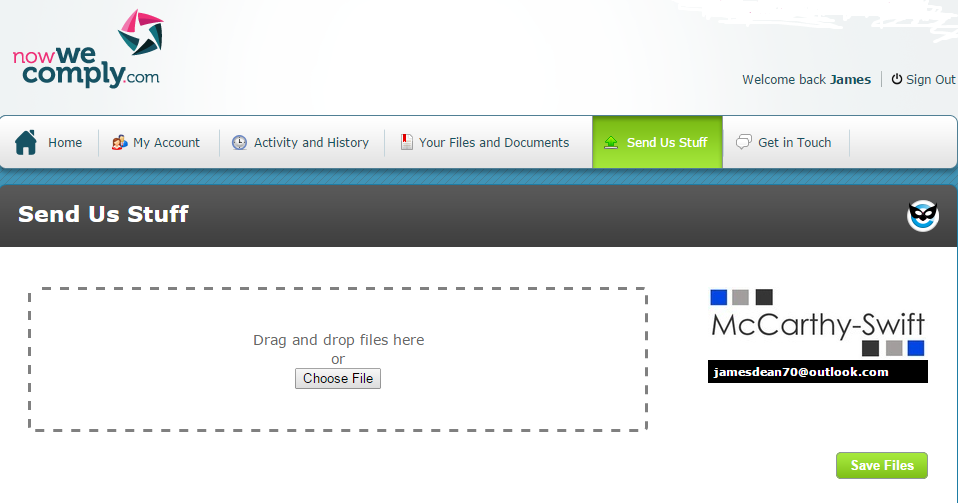
- Target Portal Settings
When checked, Send Us Stuff, appears as a tab on the target portal (shown below) which allows targets to send ad hoc documents to their patron.
Entering a Google Analytics User ID allows you to monitor which pages targets have visited and how long they have spent on them. In order to use this functionality you must set up an account with Google Analytics.
- Other Settings
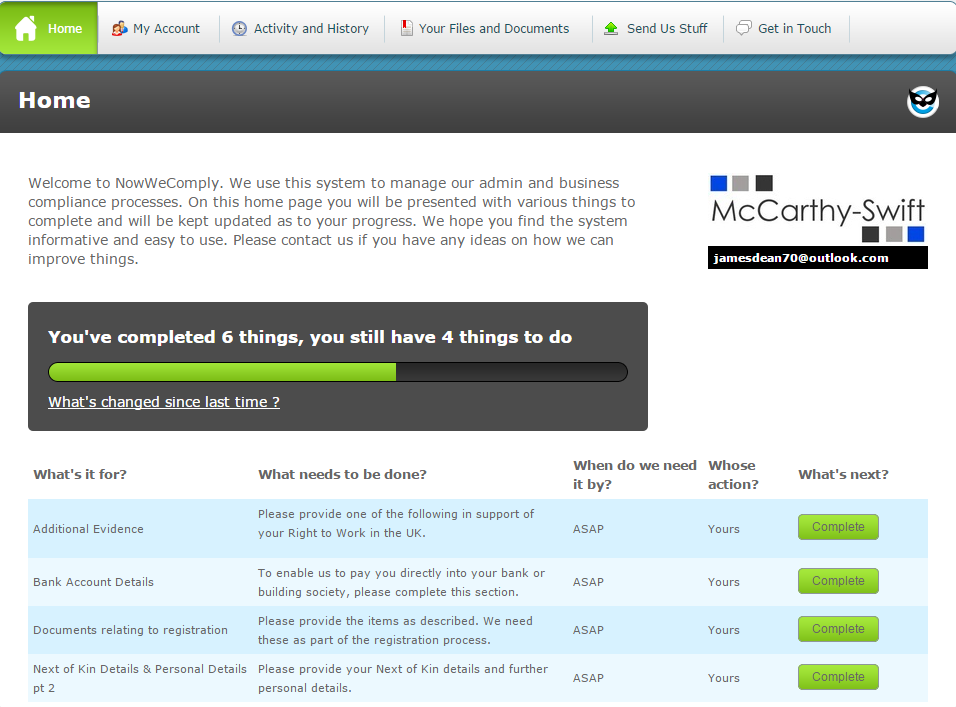
Here you can browse to upload your logo. This will be displayed to the target on their home page and each of their criteria response pages.
| AUTHENTICATE BY MEMORABLE WORD | If required, you are able to switch on authentication by memorable word as a secondary to password authentication. This can be used on all users or for the Super Admin role only (NWC's default role with all available permissions). |
| NO SIGNATURE REQUIRED TEXT | This is the text that is displayed to Targets when they receive documents which do not require a signature; they simply need to view them. |
| SIGN DOCUMENT MANUALLY | Tick to enable these methods of signing documents. Note: If you allow both methods here you can still override one when defining the requirements of a document type criteria. |
| SIGN DOCUMENT ONLINE | |
| SIGN DOCUMENT ONLINE TEXT | This is the text that is displayed to Targets when they are asked to electronically sign a document. |
| SIGN DOCUMENT MANUALLY TEXT | This is the text that is displayed to Targets when they are expected to print, sign and return a document. |
| ADMIN USERNAME | Complete these fields with details of a nominated System Administrator or a generic contact. These are merge fields which can be used in Document and Message Templates. The details you enter into Admin Signature are those that appear in System Message Templates. |
| ADMIN SIGNATURE | |
| TITLE | |
| ADMIN FIRST NAME | |
| ADMIN LAST NAME | |
| PHONE | |
| SEND MESSAGE TEMPLATE PREVIEW IMMEDIATELY | Tick for the ability to preview message templates before using them so that you can check the content and layout. |
| EMAIL FOOTER DEFAULT | Currently this is defaulted to the only choice available, that of Basic NWC which includes the NowWeComply web address and logo. |
| TIMEZONE | Select the desire Timezone with the drop-down menu. |
| DATE FORMAT | Select European or American date format to be used throughout. |
| DUE WITHIN | Allows you to set a timeframe on the dashboard within which criteria that are due are displayed. |
| DUE WITHIN - ALLOW OVERRIDE | Tick to enable override of Due Within. |
| SHOW LEVEL PROGRESS INFORMATION | Tick to enable view of level progression within the dashboard. |
| PROMPT 1TC TARGETS TO CREATE ACCOUNTS | Tick to enable prompting of one time completion targets to set up full accounts (only applicable if 1TC Target Authentication is utilised). |
| TEXT FOR 1TC PROMPT WINDOW | This is the text that will be displayed should the prompt above be ticked. This text will appear in new criteria action emails and on the target’s response page. |
| BACKEND CRITERIA COMPLETION | Tick to allow completion of criteria as a background activity so that system users can move around the dashboard quickly and efficiently without waiting for criteria to complete real-time, especially where these are associated with sequence triggers which provide data to other applications. |
| EARLIEST DATE ALLOWED | This is the earliest date allowed, when using the date picker function or any other type that require the use of a date function. |
| SHRED ON REJECTION - DEFAULT VALUE | Tick this box to make shred on rejection the default. When a user rejects or rejects and asks again a target criteria, that contains an image/document, it will be deleted from the system beyond retrieval. |
| DATE INPUT WIDGET | Select whether the date format should appear in a calendar form or as a drop-down menu when selecting a date within the system. |
| ACTIVATION LINK VALID PERIOD | The user can increase/decrease the length of time the link within the activation email is valid for a target. |
| DOC LIST DEFAULT TAB | When opening the document list link for a target, this option chooses what will be pre-selected and be the default view. |
| ALLOW USER DEFINED | Allows the user to pin a default document list view; assigned, unassigned, document pack, which can differ for each user. |
| DOCUMENT LIST VIEW |
Allows the user to select how the document list is viewed. Selecting Tab will open the document list in a new tab, selecting Modal will load the document list on the current page on clicking the link. |
| URL PROTECTION LEVEL |
Select if you want there to be No protection or URL Hash protection on URLS. |
| PROTECTED URLS | This will only show if in 'URL Protection Level' the option 'URL Hash protection' is selected. Select the URLS in the system that you want to be protected against being changed. E.g. if you are editing Criteria 54, you won't be able to simply change the URL from 54 to 55 to view Criteria 55 IF you include criteria as a protected URL. |
| DASHBOARD FULL SCREEN WIDTH |
When enabled, the dashboard screen width will become full screen for users. This makes it easier to view the targets along with the rest of the dashboard. |
| DYNAMIC NEW TARGETS NOTIFICATIONS |
When enabled, you will be notified in the dashboard when there are newly created targets available to be shown in the dashboard. The notification/prompt lets you know of newly created targets and asks you to refresh the page to see these targets. |
- Notification e-mail backend settings
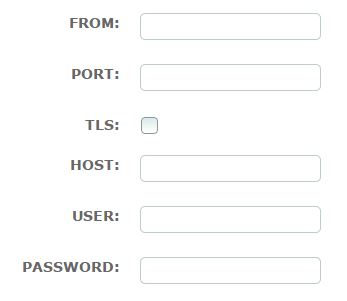

These are the details of the email address from which emails are sent by NWC. If blank: emails will be sent from noreply@nowwecomply.com.
Please note:
From is the from email address to be shown as sending from the system.
Port is the incoming port.
TLS is a type of encryption used by some mail servers. Only tick if appropriate.
Host is the format of your provider e.g. if the account is gmail then use smtp.gmail.com etc.
User is the email address of the account that you intend to use.
Password is the password for the email address specified in the user field.
Backend Failure Email is where an email address is entered in to notify someone if a message has failed to send from the system. Make sure the email address entered here is different to what is being used in the From and User fields.
- IMAP backend settings
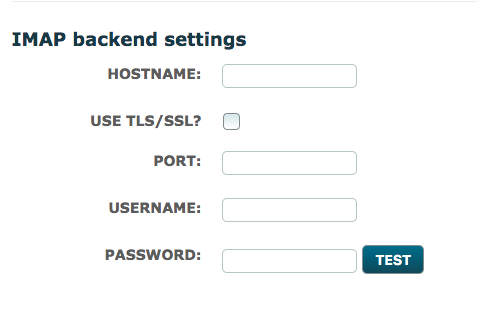
These are the details of the email address from which emails are picked up from and shown in the Message Dashboard.
Please note:
Hostname is the format of your provider e.g. if the account is gmail then use imap.gmail.com etc.
Use TLS/SSL? is a type of encryption used by some mail servers. Only tick if appropriate.
Port is the incoming port.
Username is the email address of the account that you intend to use.
Password is the password for the email address specified in the user field.
A 'Test' button is displayed for users to test/check that their credentials and/or IMAP settings that have been entered, are correct. If a password is wrong, or the wrong port number is being used then the outcome of the Test will be a fail.
Comments
0 comments
Please sign in to leave a comment.