
autologyx provides an area in Global Settings where you must configure the Mailbox settings from which emails will be sent from the system.
It is important to note that the mail account you use should be capable of mass mailing.
Office 365 and gmail for example have strict sending limits:
Office 365
Message rate limit (SMTP client submission only)
30 messages per minute
These services are not suitable for sending a large amount of commercial emails.
You may consider using a Transactional Email Service:
https://zapier.com/learn/email-marketing/best-transactional-email-sending-services/
To set up Email function:
Go to Admin > Global Settings > Global Settings then scroll to the bottom of the page where you will find the section heading "Notification e-mail backend settings".
You will need to know your mailbox account details before completing this section.
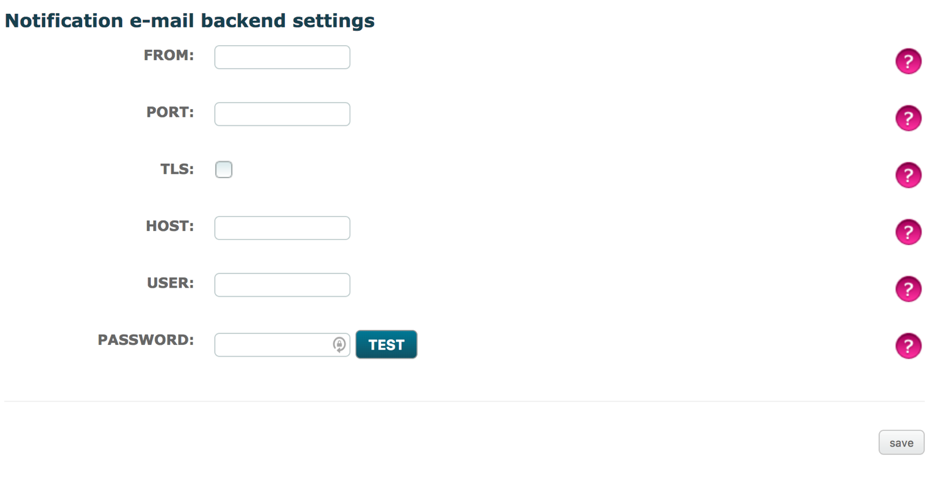
FROM: enter the mailbox email address.
PORT: The port is used for sending emails. Below are the default ports.
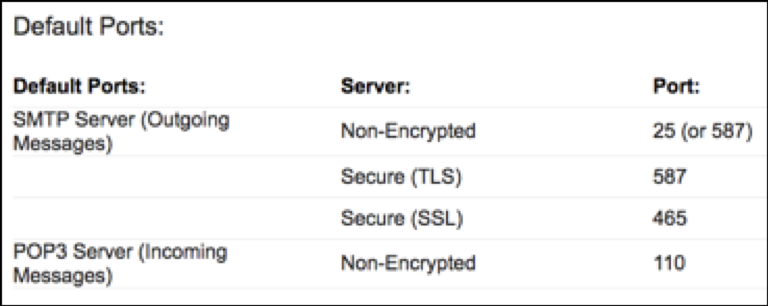
Port 587 is commonly used because it allows greater security. Both the email client and email server must support this option.
TLS: is a type of encryption used by some mail servers. Is TLS enabled? It is recommended as it is the most modern readily available form of traffic encryption. Tick if appropriate.
HOST: is the email provider's SMTP Server. Please note, if you want to allow targets and users to reply to emails sent from the system your mailbox must be enabled for this. The alternative is to use a no reply account.
USER: is the username for the account. Please note that the user name and the from name, should contain the same email address.
PASSWORD: should be the same used when logging into the email account provided.
Once the details have been completed, select the 'Test' button to test whether the details are correct. You will be displayed with a message saying whether the test was a success or an error.
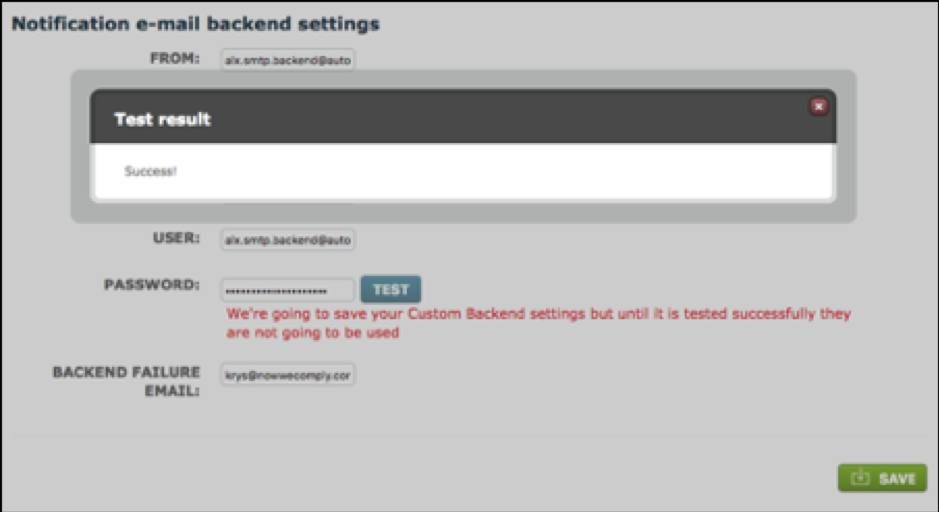
Once successfully tested ensure you then select 'Save' to implement the changes.

An optional field is displayed, the backend failure email. This will email the relevant email address if there is a problem with the e-mail credentials. This may be for example, because the password has been changed on the primary account or the server is down. This will email the stated email address with the problem that has occurred.
Office 365 mailbox details
If you do chose to use an Office 365 mail account because your sending capacity is not expected to be greater than the allowed limit, the following may be useful.
https://login.microsoftonline.com
Using an Office 365 account you can find your mail settings in the settings cog at the top right >under Your app settings choose Mail > in the left column choose POP and iMAP.
The protocol you use is optional.
Alternatively, if you do not know the details, ask your IT department to set up a mailbox or provide you with the appropriate details.
A check has been added to backend settings. If a mail server fails, a check will take place every 10mins to see if the issue has been resolved and the settings successfully go through.
Comments
0 comments
Please sign in to leave a comment.