
Admin > Global Settings > Reminders & Notifications
The Reminders & Notifications section allows you to choose when and how to send reminders to Targets and System Users for:
• new action items
• items that need to be completed by a certain date
• outstanding items
• items that are about to expire
• items that have expired
• overdue actions
These reminders are sent even if you have set specific reminders and nudges in individual Criteria.
The following will help you decide on what defaults you would like to set.
- Global Communication Channels
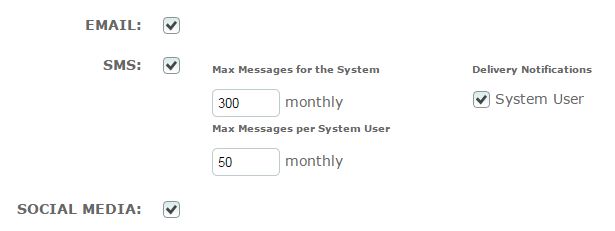 |
You will need to tick whichever communication channels you would like to use. When selecting SMS, you will need to enter the maximum number of messages from the system and per system user. This is because there is a cost associated with this delivery type. |
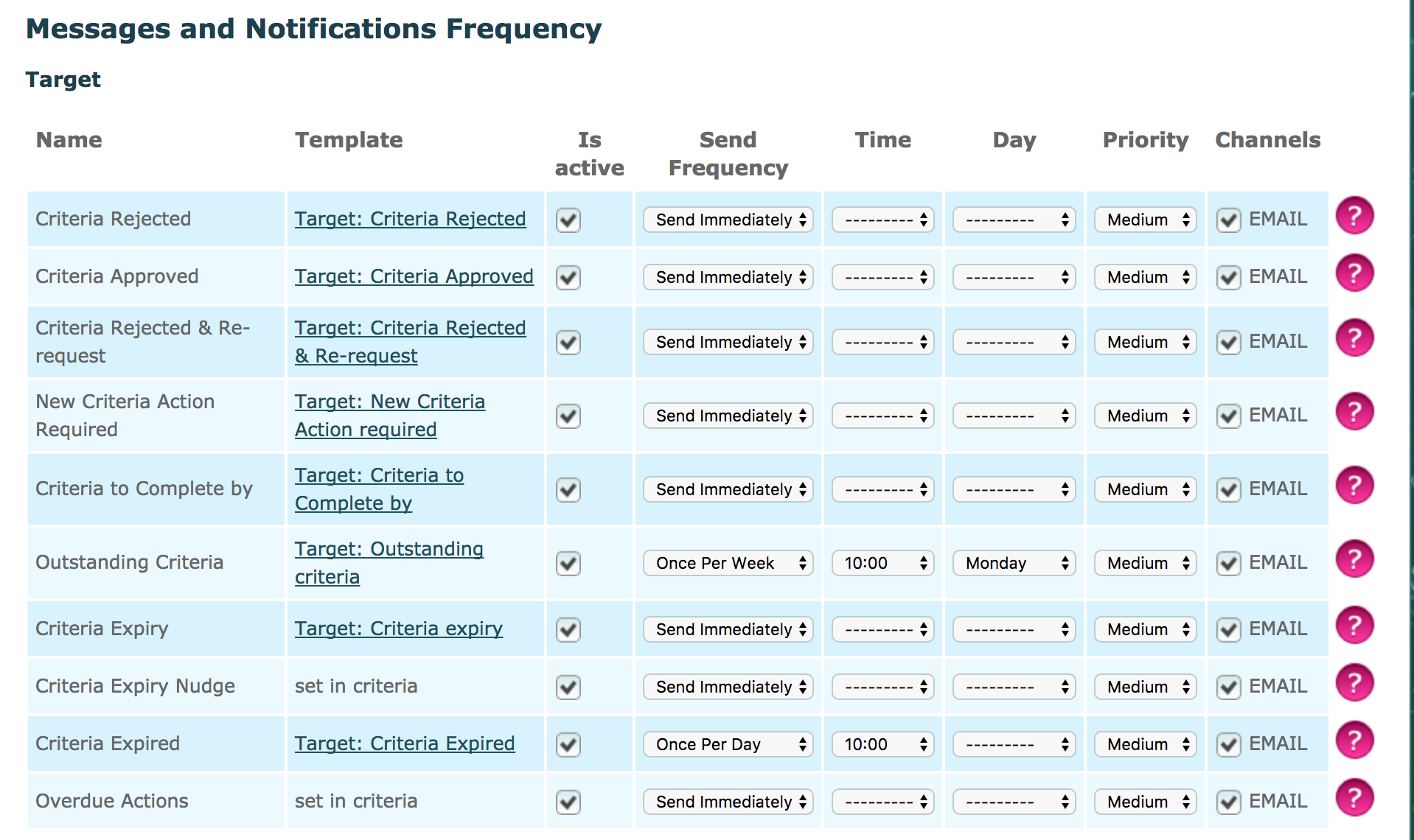
- Messages and Notifications Frequency
| Name | This is the name of the message or notification. |
| Template | This identifies which template is being used for this message. You are able to click the title in order to view/amend the template. |
| Is Active | When enabled, this message will be active to be sent |
| Send Frequency | This provides you with a drop down list in order to select whether to Send Immediately, Once Per Day or Once Per Week. |
| Time | If you have selected Once Per Day or Once Per Week, you will need to enter a time of day at which these messages are to be sent. |
| Day | If you have selected Once Per Week, you will need to select which day of the week these messages are to be sent. |
| Priority | You are able to notify the recipient of the urgency of the message or notification by selecting High, Medium or Low so that the messages are sent in priority order. |
| Channels | You will need to tick to select whether you would like to communicate this message solely via email (NWC default) or also via social media or SMS if you have enabled these communication methods above. |
| Target | |
| Criteria Rejected |
This message is generated when a Criteria has been rejected by a user. The target will be notified of the criteria and the reason for rejection. |
| Criteria Approved | This message is generated when a Criteria has been approved by a user. The target will be notified of the criteria that has been approved. |
| Criteria Rejected & Re-request | This message is generated when a Criteria has been rejected by a user. The target will be notified of the criteria and the reason for rejection, and the target will be told the criteria is available to be answered again. |
| New Criteria Action Required | This message is generated when the target has new criteria to attend to. This can outline the criteria title, what needs to be done and a hyperlink to the criteria itself. |
| Criteria to Complete by | This notification informs the target that action is needed in order to complete a criteria by the date specified in the criteria. It is therefore only sent when the "Complete By" field is changed from ASAP to a specific timescale or date. |
| Outstanding Criteria | This acts as a reminder to the target that they have outstanding criteria to attend to. |
| Criteria Expiry | As part of the set up of criteria you are able to enter expiry dates and a time before this date to notify the target. This message will be sent to the target at this time. |
| Criteria Expiry Nudge | This message acts a reminder to the above official notification and this is configured in the criteria. |
| Criteria Expired | Following expiry of criteria, this message will be sent to the target to notify them of this fact. This refers to the expiry of previously completed criteria. |
| Overdue Actions | Should a criteria become overdue based on the timeframe given for a target to complete it, this notification will be issued. |
| System User | The same messages are available to be sent to system users via different templates when the "Who to Action by Default" field in the criteria set-up is set to "Us". |
- Escalation
| ESCALATE EXPIRIES | Select the number of days following expiry of a criteria response that an expiry escalation notification must be sent to the members of the nominated system role. |
| ESCALATE EXPIRIES TO | Select to which System Role notification of expiries are to be escalated. Dependent on how you manage System Roles, this notification could be sent to one person or several with the same role. |
| ESCALATE ACTIONS | Select the number of days following an action becoming overdue (as determined by the "Complete By" field in the criteria set-up) that an overdue escalation notification must be sent to the members of the nominated system role. |
| ESCALATE ACTIONS TO | Select to which System Role notification of overdue actions are to be escalated. Dependent on how you manage System Roles, this notification could be sent to one person or several with the same role. |
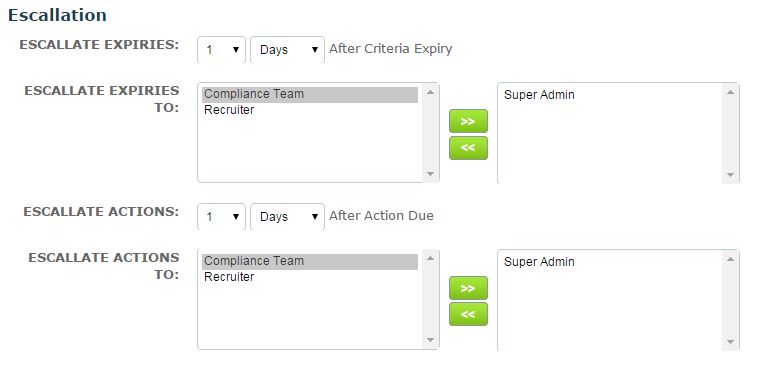 In the above set-up escalation of both criteria expires and overdue actions are sent to members of the Super Admin role one day after expiry or due date.
Comments
0 comments
Please sign in to leave a comment.