
Admin > Truth Tables > View/Edit Truth Tables
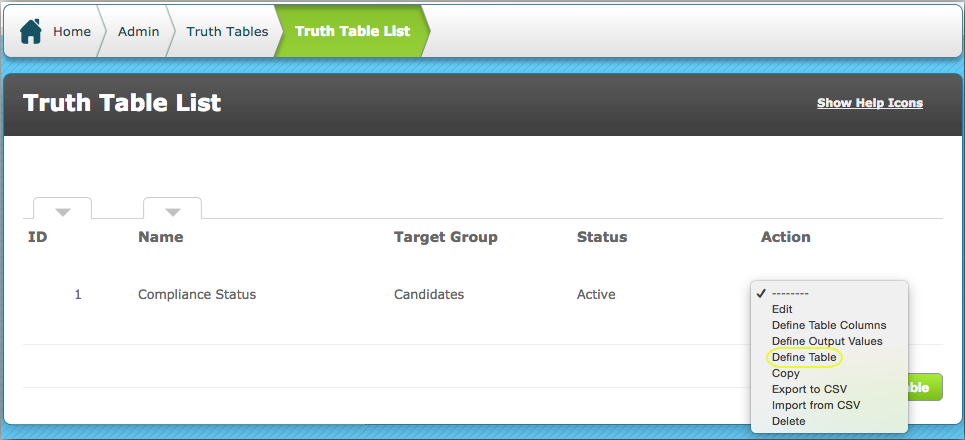
Go to the action menu for the required Truth Table and select "Define Table".
Each of the objects you selected when defining your table columns will be shown as a column header, as below:
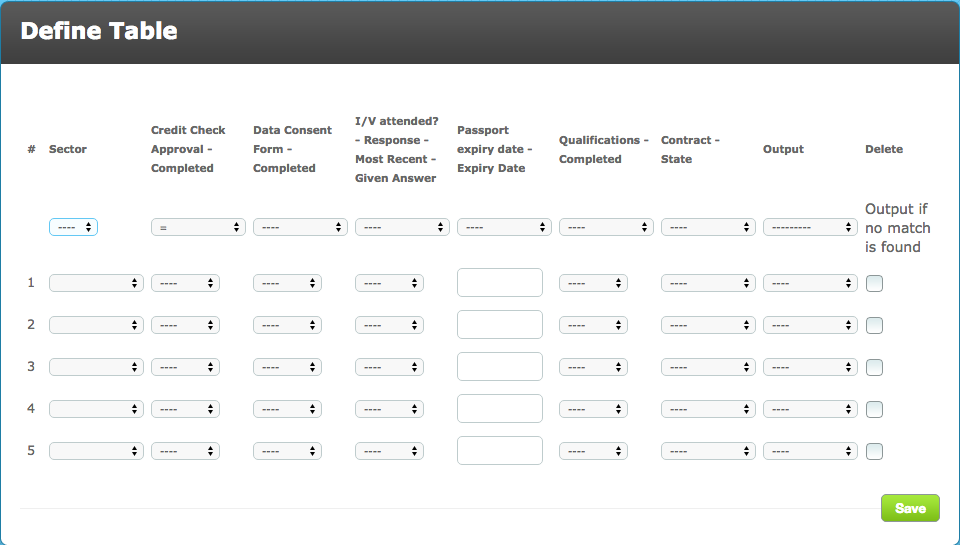
- For each column select the required operators
- On the same row under "Output" select the output required where the table doesn't provide a match. In this case, I have used "Not Matched". Remember we defined the Output Values in step 3
- Across row 1 select the appropriate value required for each column in order to provide a truth or match. Select the appropriate output; in this case, "Matched"
- Continue defining row 2, 3, etc until you have all possible combinations of the truth or match
- Save the Table
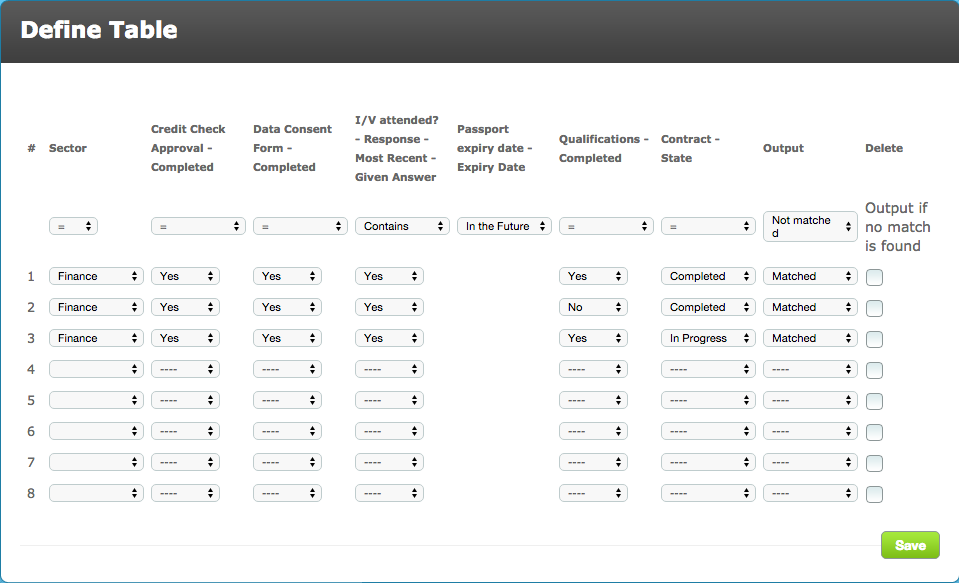
In the above table there are 3 possible variations (hence 3 rows) of the truth or a match to the data required.
In each possible match the following must be true:
- Target Field "Sector" must be equal to "Finance"
- Criteria "Credit Check Approval" must be completed
- Criteria "Data Consent Form" must be completed
- The most recent given answer to Criteria "I/V attended?" must be "Yes". This is a good example of where the criteria being completed is not enough to satisfy the requirement. The interview must have been attended
- The expiry date of Criteria "Passport expiry date" must be in the future ie it must not be expired
The final 2 columns are where the variations occur:
- Level "Qualifications" can be completed or not where the state of Level "Contract" is Completed
- The state of Level "Contract" can be "Completed" or "In Progress" where the Criteria "Qualifications" is completed
USEFUL TIPS:
- You can use the text today() when you want it to compare an expiry date for whatever the date is on the day the look-up runs
- You can select ignore() if you want to match a column without actually looking at whether data exists and indeed what that data is
Comments
0 comments
Please sign in to leave a comment.