
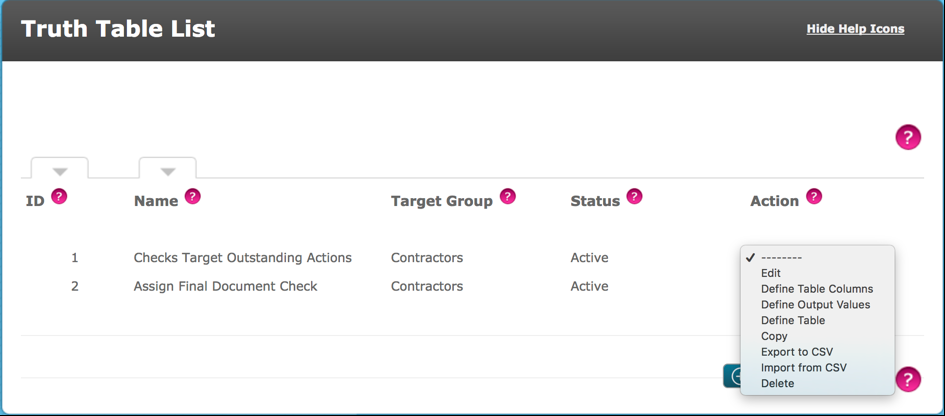
The action menu of each truth table, as shown below, includes options for:
- Export to CSV
- Import from CSV
Import/Export can be a very useful tool when creating a truth table with many columns and rows. When using this function keep in mind that Criteria Response Types and Target Fields are recognised by the system in different ways. Field values are exported as presented in the truth table ie the actual field value.
However, when referencing a criteria’s most recent given answer for example, or the state of a level, these are exported as number values. When referencing a completed criteria which presents itself in the truth table as “Yes” it is exported as “True”. When referencing expiry dates these are normally exported as “today()” because the requirement is “greater than today”. There could also be “ignore()” values where this piece of data is irrelevant.
It is advisable therefore to set-up a number of rows to export using each value of a given answer (View/Edit Truth Tables > Define Table), and then export it to a .csv excel file. This will allow you to see which number corresponds to each answer. You can then copy and paste to new rows that have the same answer.
Example below shows a section of an export from a truth table:
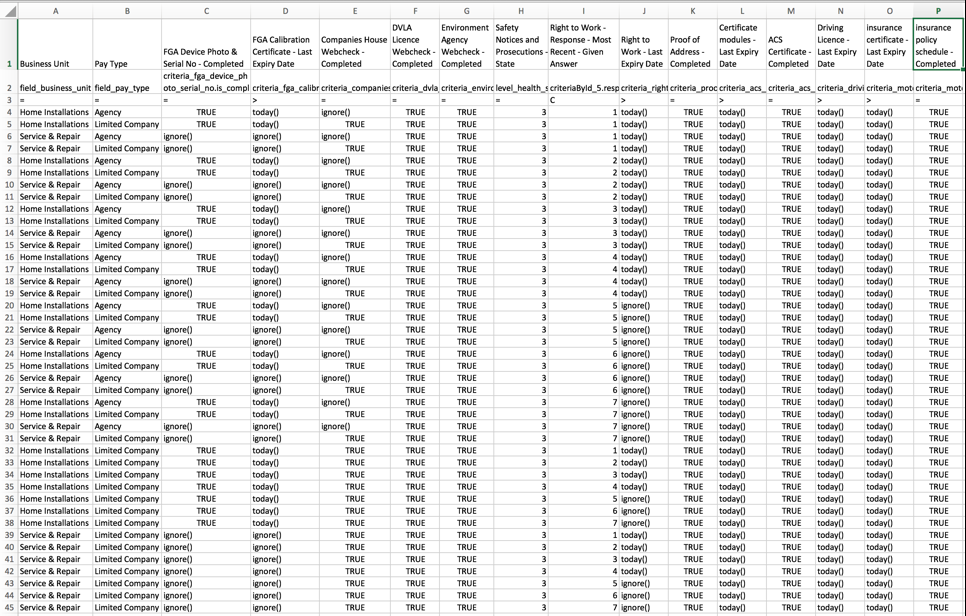
Note the number values in columns H and J.
Moreover, the second row of the excel spreadsheet should exactly correspond to the system’s criteria or target field syntax. For example, all the system’s target fields will start with either ‘field_ or target’, a criteria will start with ‘criteria_ or criteriaByld_’ and a level with ‘level_’. You can see why it is important to get this second row exactly right. Again, it would be really difficult to guess what fields, criteria or level will be called in the system, especially for criteria. The easiest way to find out is to set up the truth table’s columns and export it to a .csv file.
In review, before importing data from a .csv file, it’s good practice to export it first so that the columns are already defined by the system, and if the truth table contains output from a criteria, you should define those as well before exporting it.
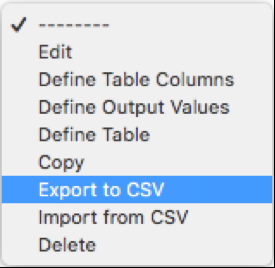
To export a truth table go to Admin > Truth Tables > View/Edit Truth Tables. Locate your truth table and from the action menu select ‘Export to CSV’.
The spreadsheet column headers are going to correspond to the truth table columns header from the system as shown below.


And if you have set-up everything, your spreadsheet should look something like the following:

Once you have set-up every row in the spreadsheet where the combination of values represents an acceptable match it can be imported. Be aware that the system won’t recognise duplicate rows that are already in the truth table. Therefore, either make sure that the truth table in the system is empty before the import, or only import new rows.
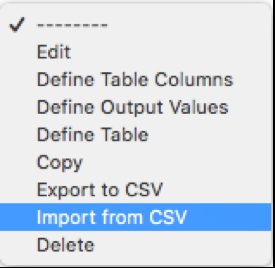
To import a .csv file go to Admin > Truth Tables > View/Edit Truth Tables. Locate your truth table and from the action menu select ‘Import from CSV’.
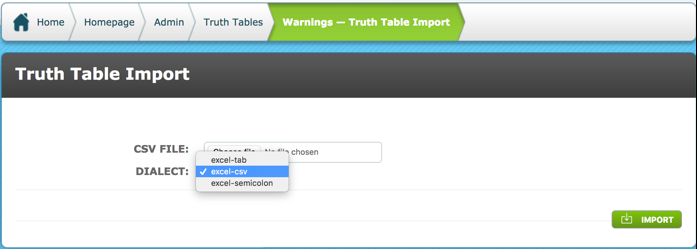
The truth table import page will prompt you to choose the file and to choose the type of excel document that you are have created. excel-csv is most commonly used but you can also upload an excel-tab or excel-semicolon file.
Once your import is successful, you will be directed to the ‘Define Table’ page. An advisory text will alert you that the import has been successful.
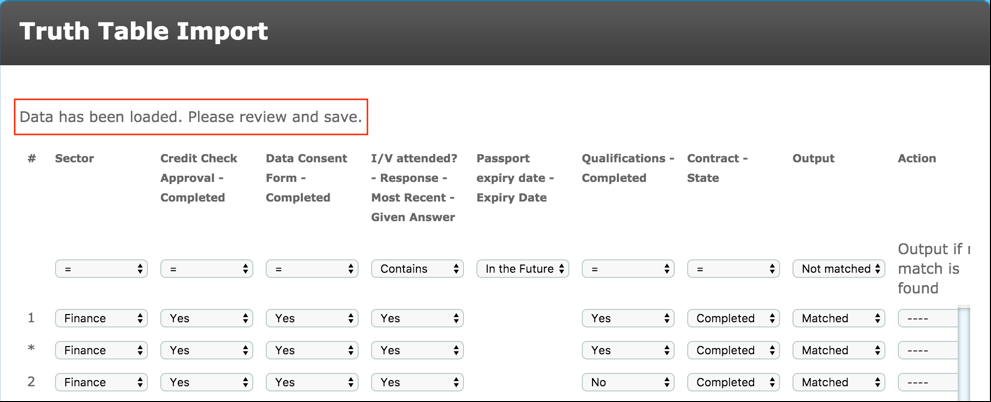
Check the rows and Save.
Comments
0 comments
Please sign in to leave a comment.