
Admin > Levels > Add a New Level
The In-Level Sequencer functionality allows you to build workflow into a level. It allows the response to one criteria to determine which criteria is assigned to the target next.
The main benefits of the In-Level Sequencer are to reduce the number of levels needed in the main sequencer and to allow you to group criteria of the same subject together irrespective of the fact that not all those criteria will be relevant to all targets in a group.
It can only be used if you have:
• More than one criteria in a Level
• At least one criteria has specific options for response as in Yes/No, single and multi select and checkbox response types
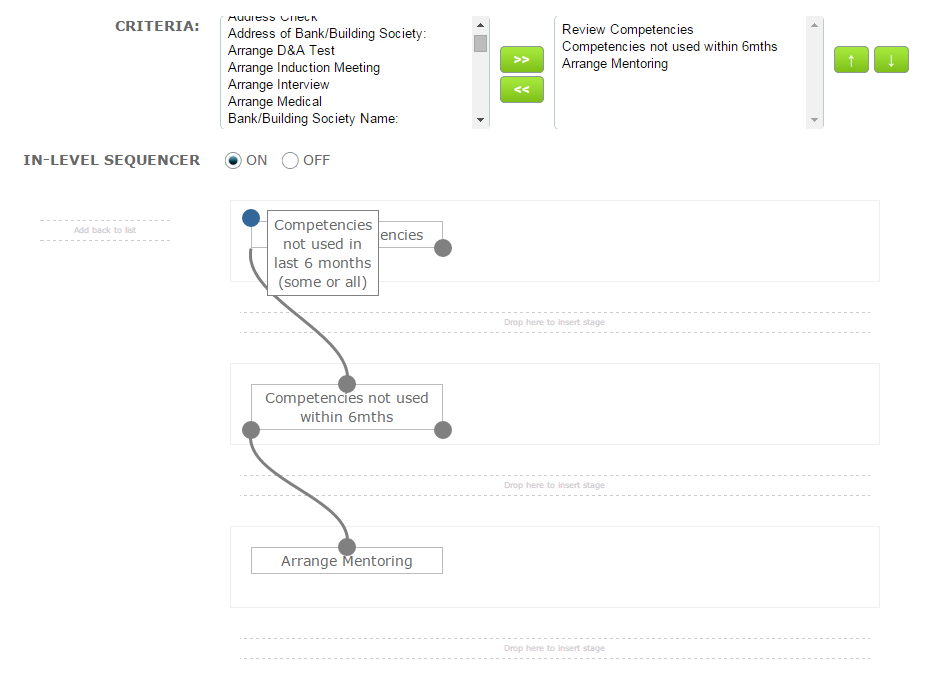
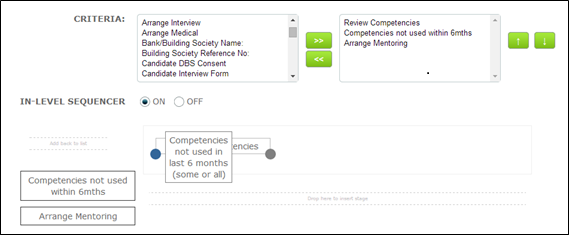
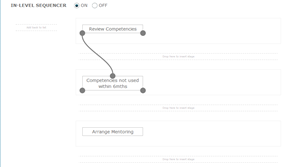
In this example, a system user is asked to review a target’s (rail worker) competencies. If any competencies have not been used within the last 6 months the system user is asked to confirm whether sponsorship of this worker should continue. A positive answer to that criteria leads to another criteria which advises the system user to check where mentoring is required and make the necessary arrangements.
The set up in the level is very simple.
• When you have selected your criteria for the level, select the ON radio button to enable the In-Level Sequencer
• Your criteria will appear in the In-Level Sequencer list on the far left of the page. You will note that the criteria are listed alphabetically
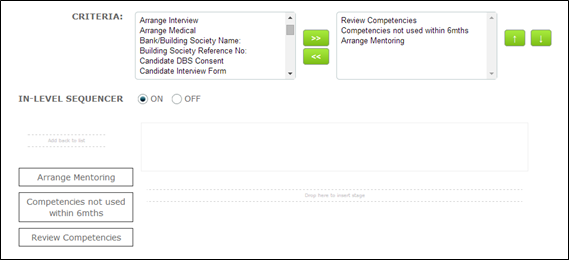
• Click and drag your first criteria onto the workspace. Drop it when the background turns green as shown
 |
 |
• A node for each of your response options will appear on the bottom edge of the criteria object. When you hover over these you will see the wording of the response option as shown below:
• Drag and drop your next and subsequent criteria onto the workspace in the order you wish to connect them
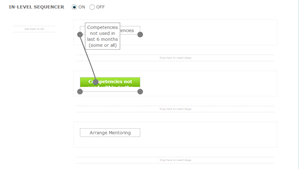
• From the node representing the required response on your first criteria drag a connector to the next criteria you wish to assign. If the target or system user gives any other response to the first criteria they will not receive the second criteria
 |
 |
• Complete the remainder of the level set up and click save
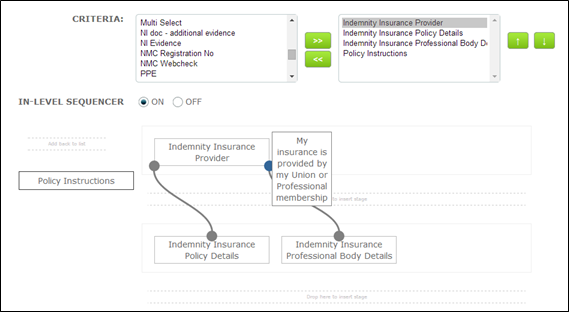
It is important to note that the first criteria in the in-level sequence AND any unconnected criteria will be assigned to all targets in the group. In the example below criteria will be assigned as follows:
|
Critieria: Indemnity Insurance Provider |
Assigned to: All targets in the group |
| Indemnity Insurance Policy Details | Targets who choose the option to tell us they have their own insurance policy |
| Indemnity Insurance Professional Body Details | Targets who choose the option to tell us that their insurance is provided via a third party (option wording shown) |
| Policy Instructions | All targets in the group |
Comments
0 comments
Please sign in to leave a comment.