
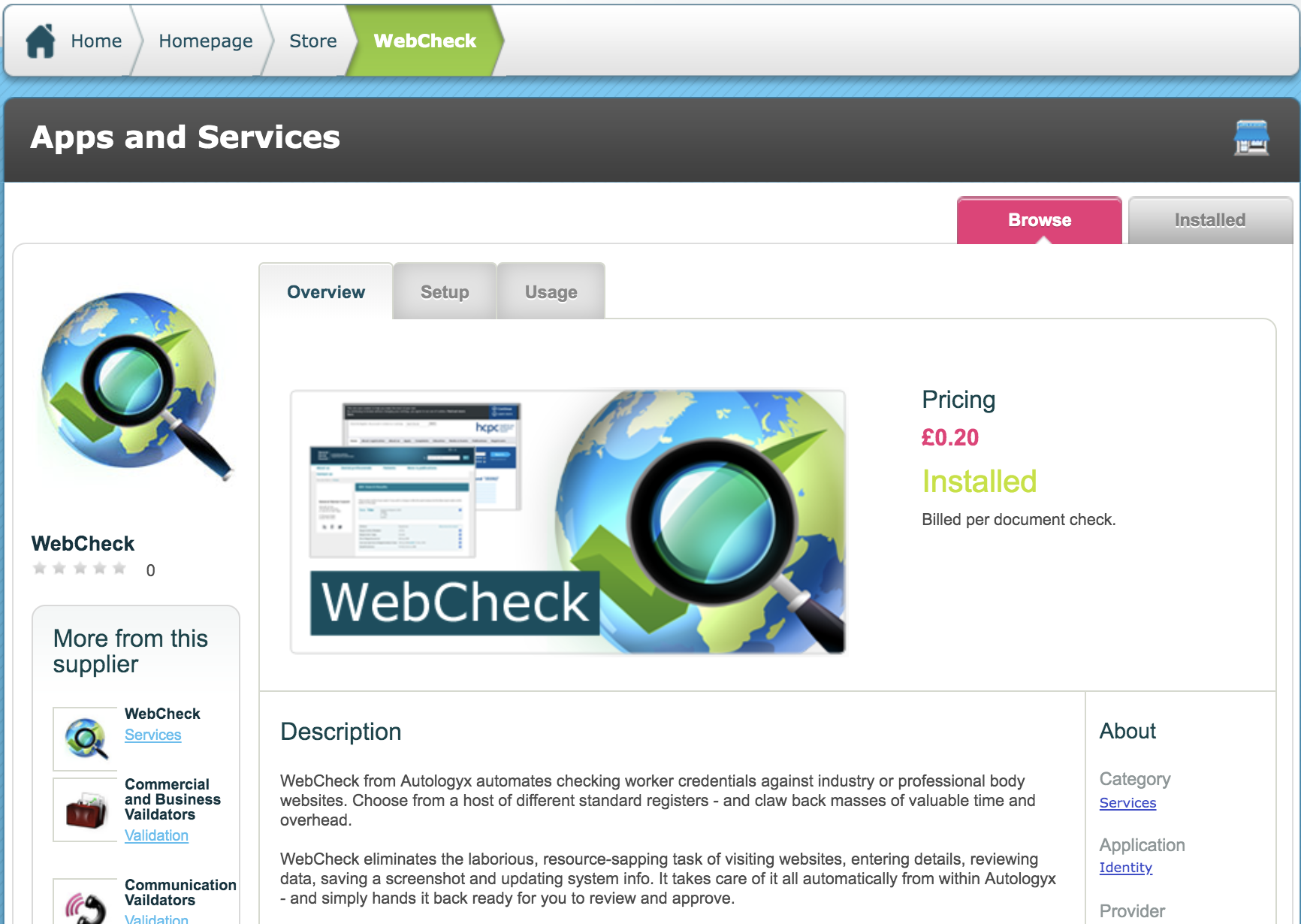
Check that the Webcheck response type is installed in the store.
Create a target field for Company Registration Number. If you already have this field set up you can use it for all additional target groups of the same type.
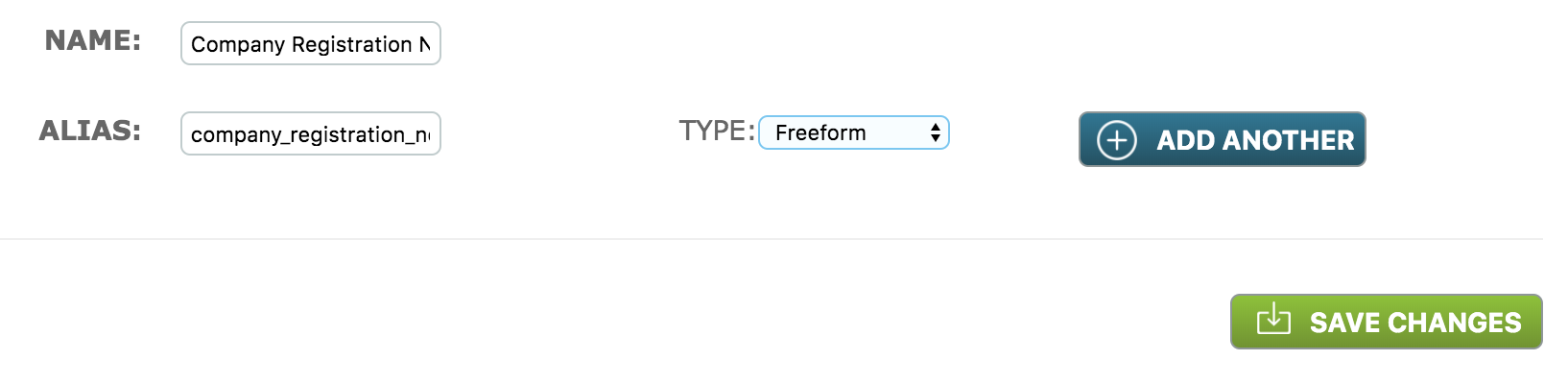
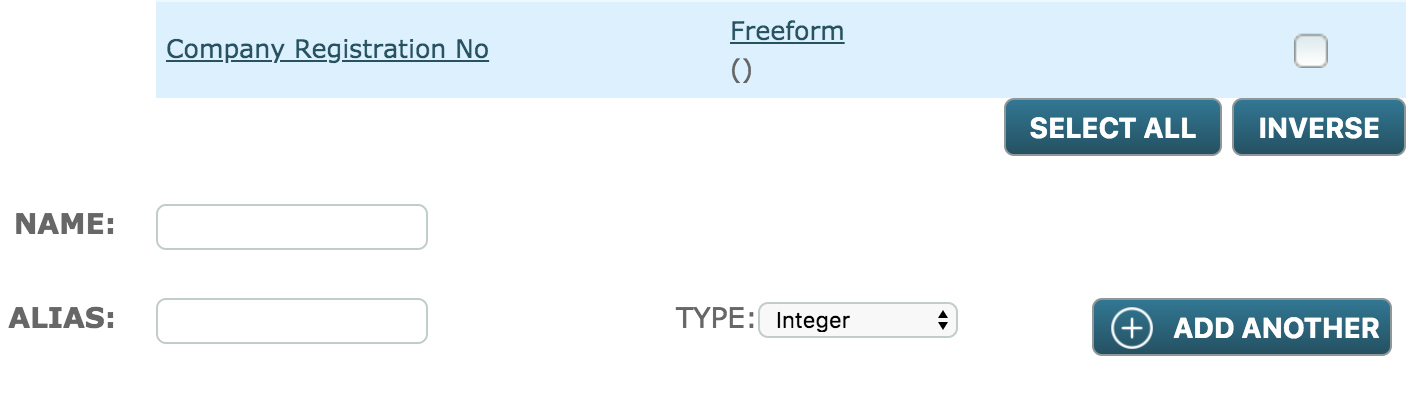
Make the field available to the target group against which the webcheck will be run.

If you make the field required it must be completed when the target is created. However it is likely that this type of data will be provided by the target via a target field completion criteria.
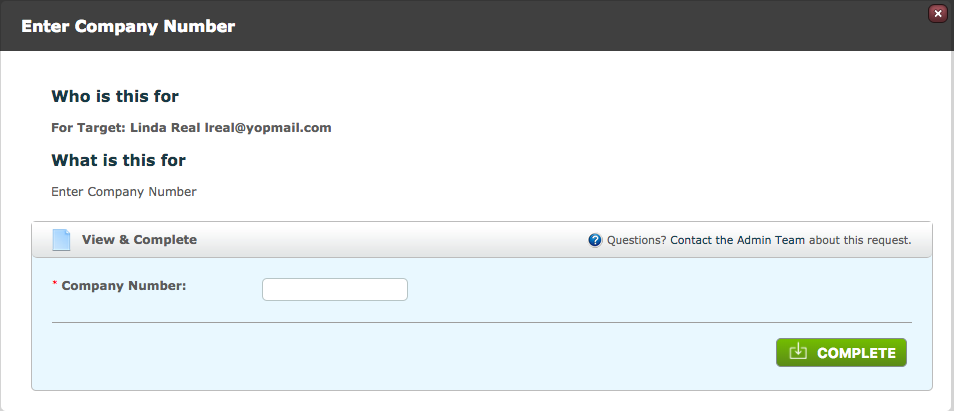
Example of target field completion criteria response type to capture Company Registration Number.
In the store, click the Setup tab.
Scroll to Custom Services and click Create New Service.
Enter a name for the Webcheck. In the example below it has been made very clear which pages will be returned by the check. Its a good idea to adopt this kind of naming convention particularly if you require different pages in different circumstances ie you will be setting up more than one Companies House check.
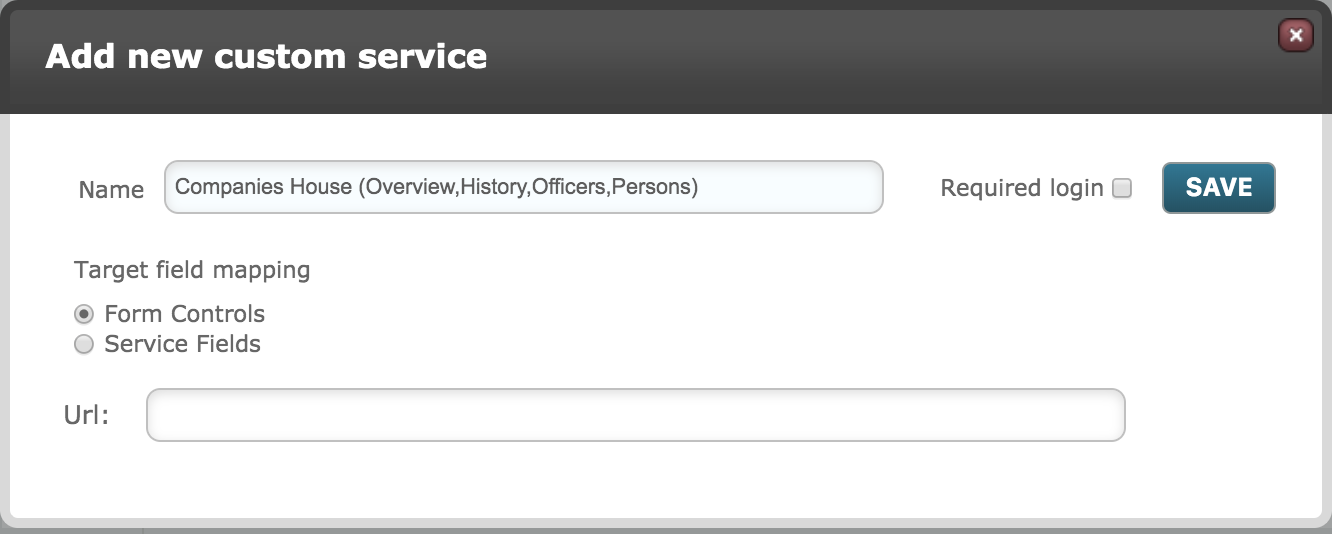
Required login: Some services require that you have an account to use them. They will usually provide an account login and PIN.
Target field mapping:
Service Fields: Selecting this option will allow you to enter more than one URL
URL:
For the Overview page enter: https://beta.companieshouse.gov.uk/company/<<target.field_xxx>>
Replace xxx with the target field you created for Company Registration Number. Each word in the field name must be in lower case and separated by an underscore _
If you are running the check from a relational target group you will need to use this format: <<target.target_worker.field_xxx>>.
- Replace "worker" with the name of the target group within the relationship which will have the check run against it
- Replace xxx with the target field you created for Company Registration Number
For the Filing History page enter: https://beta.companieshouse.gov.uk/company/<<target.field_xxx>>/filing-history
For the Officers page enter
https://beta.companieshouse.gov.uk/company/<<target.field_xxx>>/officers#
Please note: We are unable to filter out officers who have resigned.
For the Persons with significant control page enter
https://beta.companieshouse.gov.uk/company/<<target.field_xxx>>/persons-with-significant-control
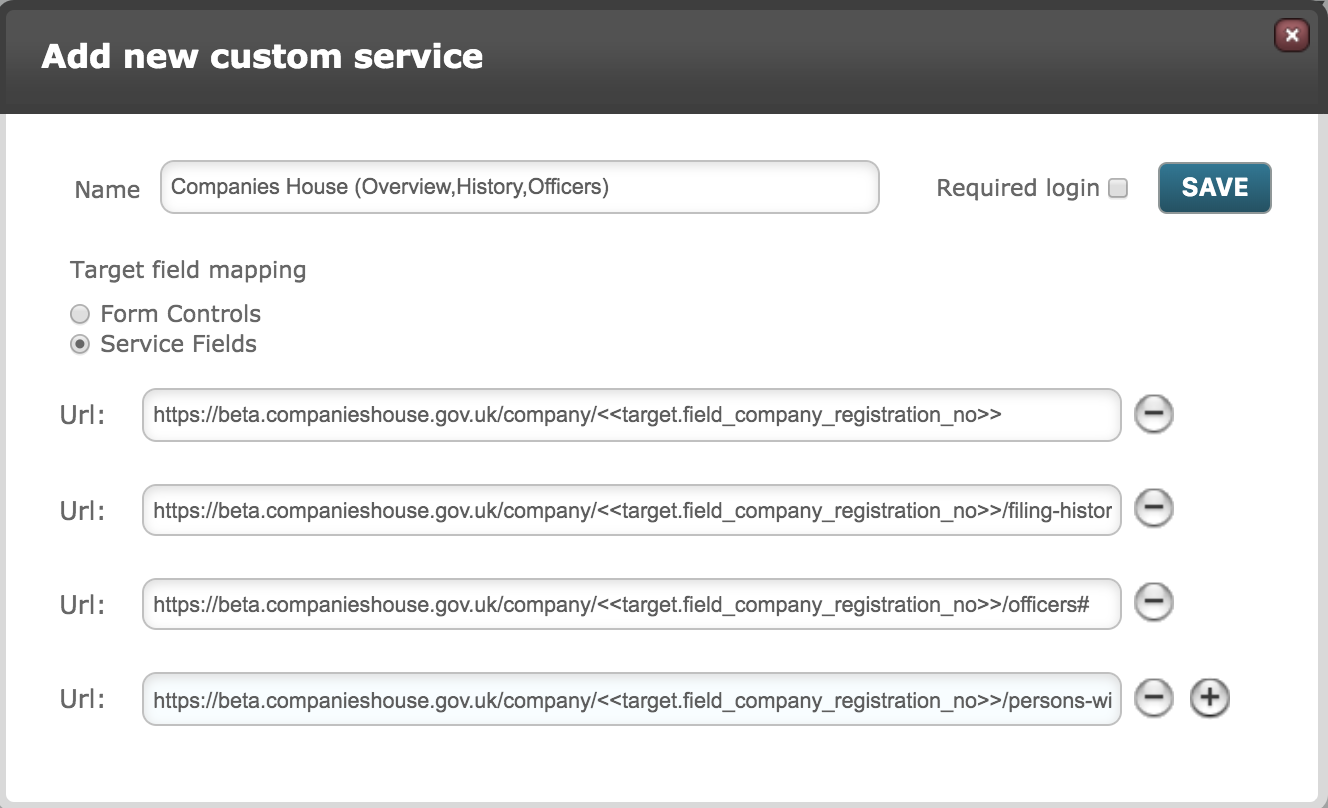
Save.
On the next screen click on the target group against which the check is to be run. You can use the same check against several target groups.
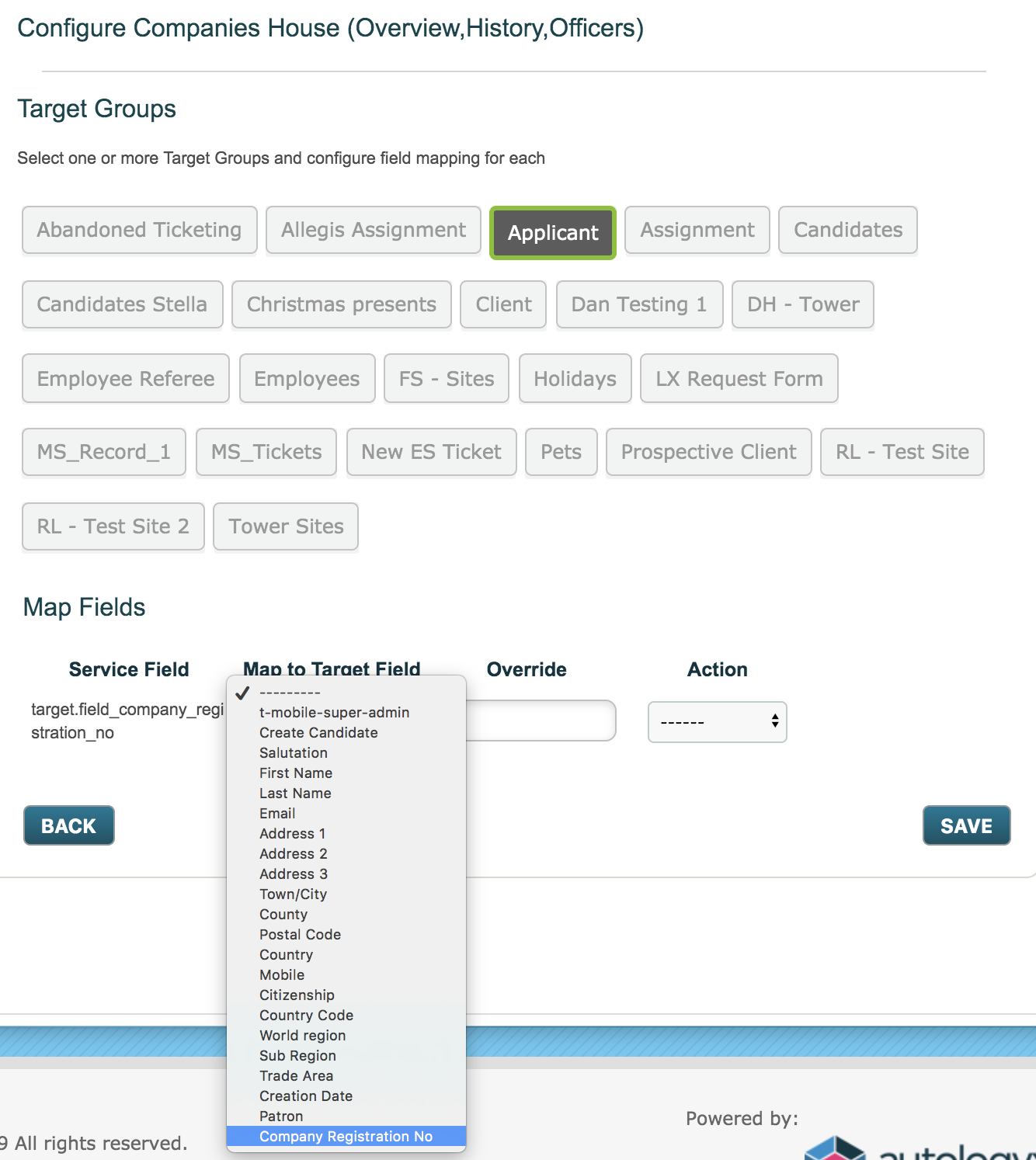
The field used in the URL setup will appear as the Service Field.
Click into Map to Target Field and select the field you created for Company Registration Number.
Save.
Your check will appear in the Custom services list.
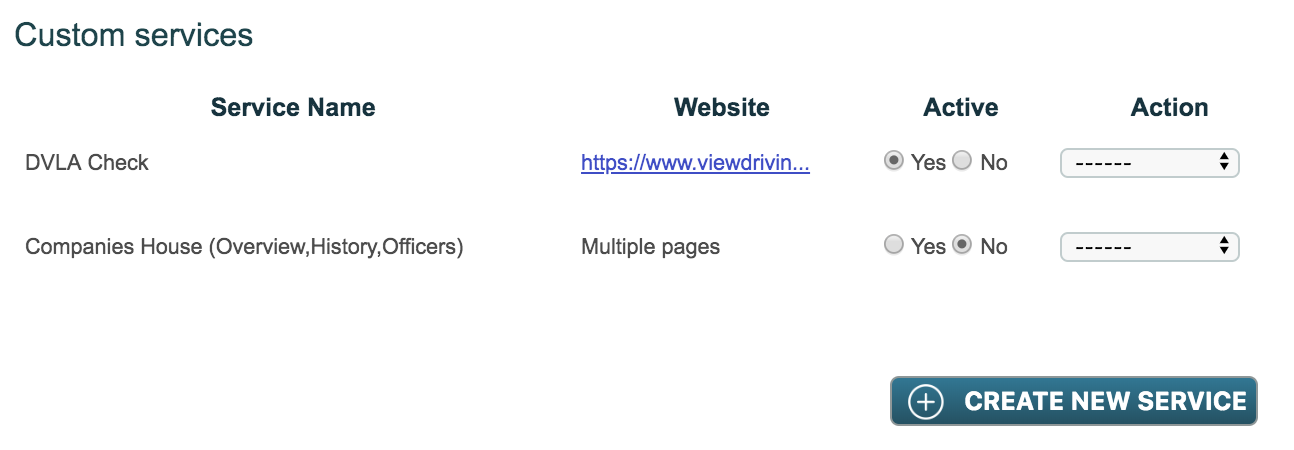
Make the Webcheck active!

Create your criteria:
In the Response Type section select Web Check.
In the Service Call field select the webcheck you require.
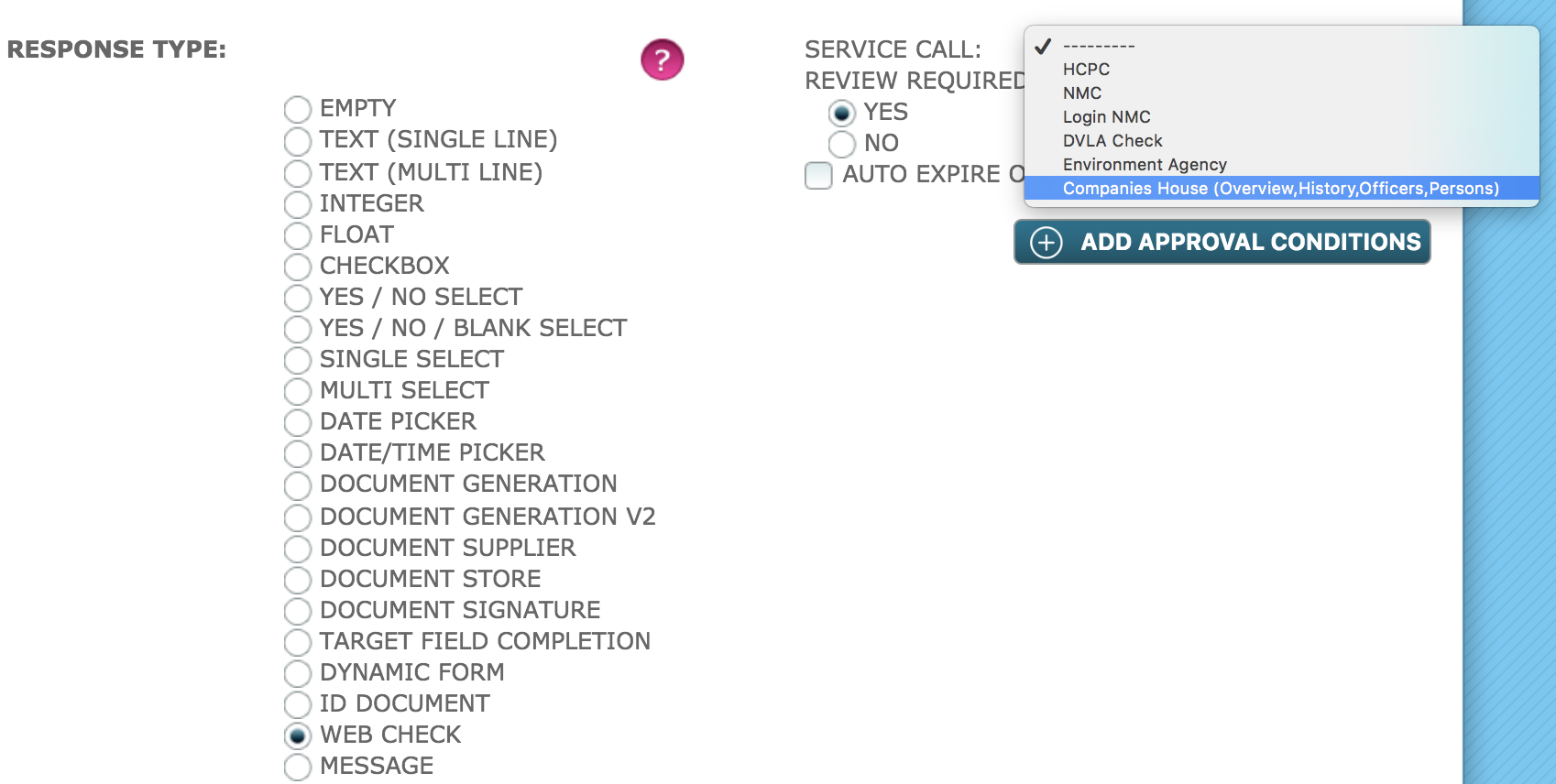
Create your level or add the criteria to an existing level as required.
When the Company Registration Number data is provided and the level is assigned the webcheck will run automatically.
The criteria will be available to Approve on the patron's dashboard.
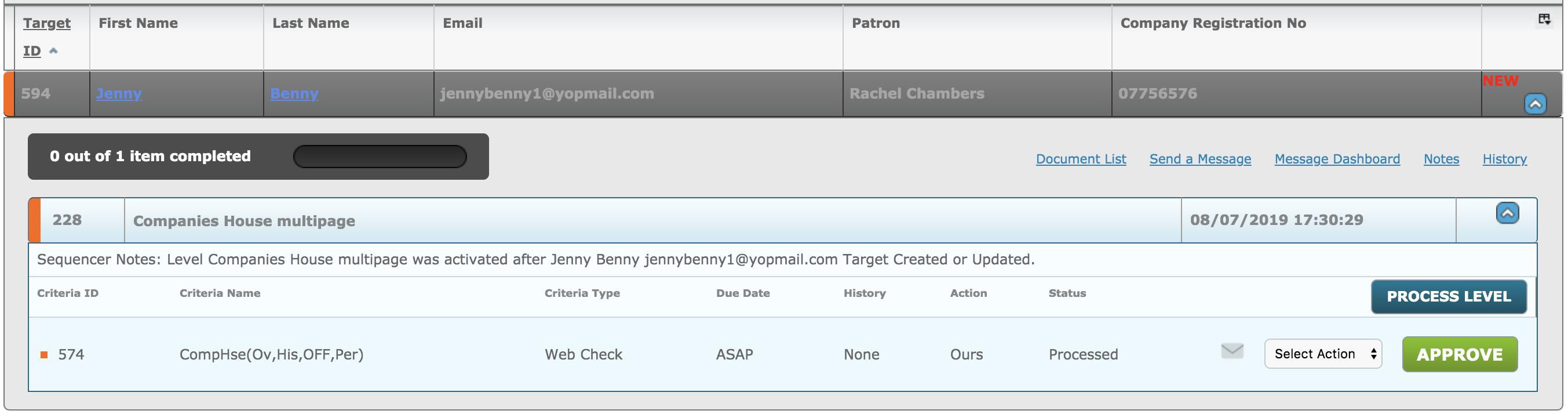
Click Approve.
Each page will be listed as a separate screenshot. There is a scroll bar on the right hand side of the modal to allow you to see the return in full.
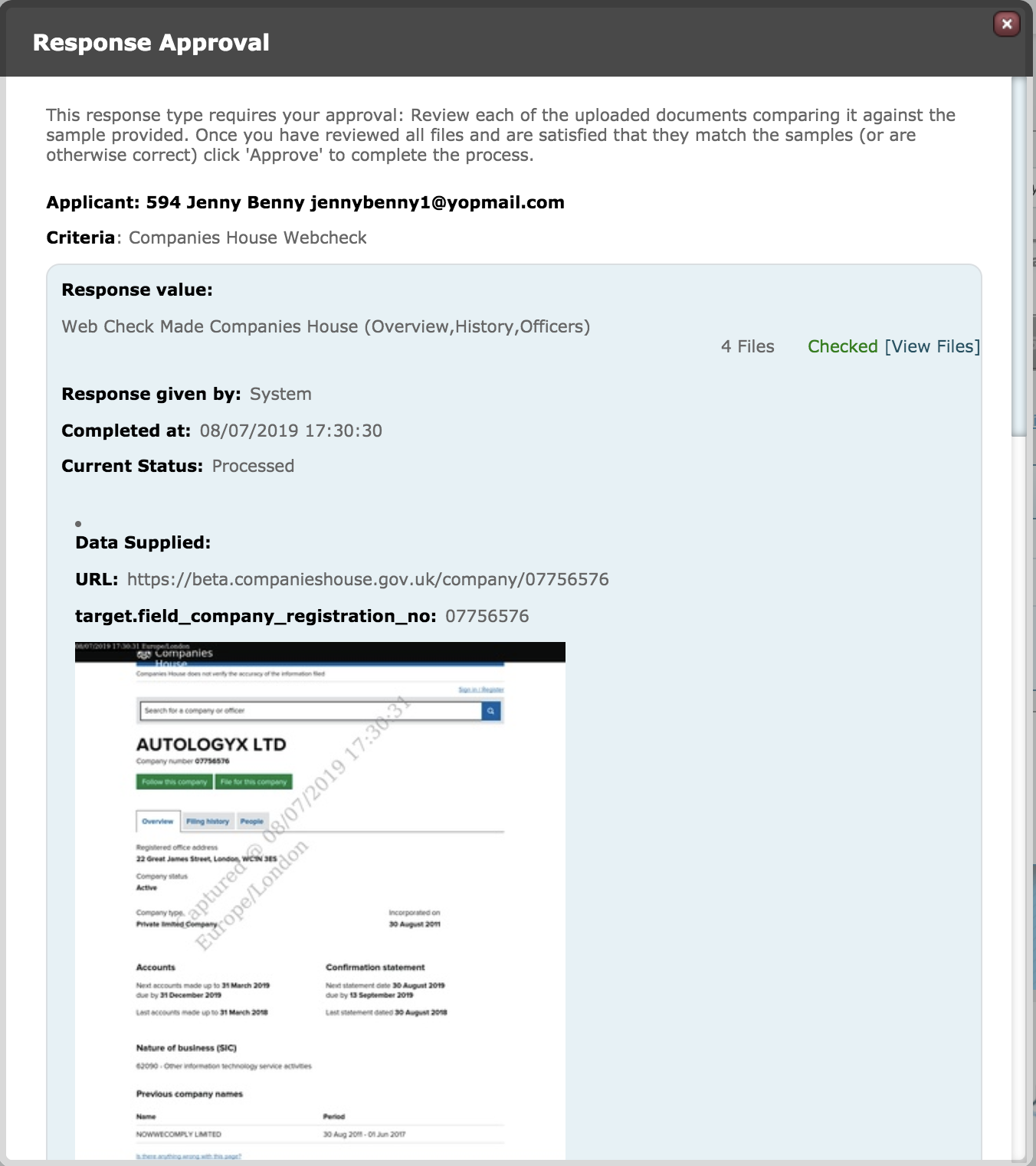
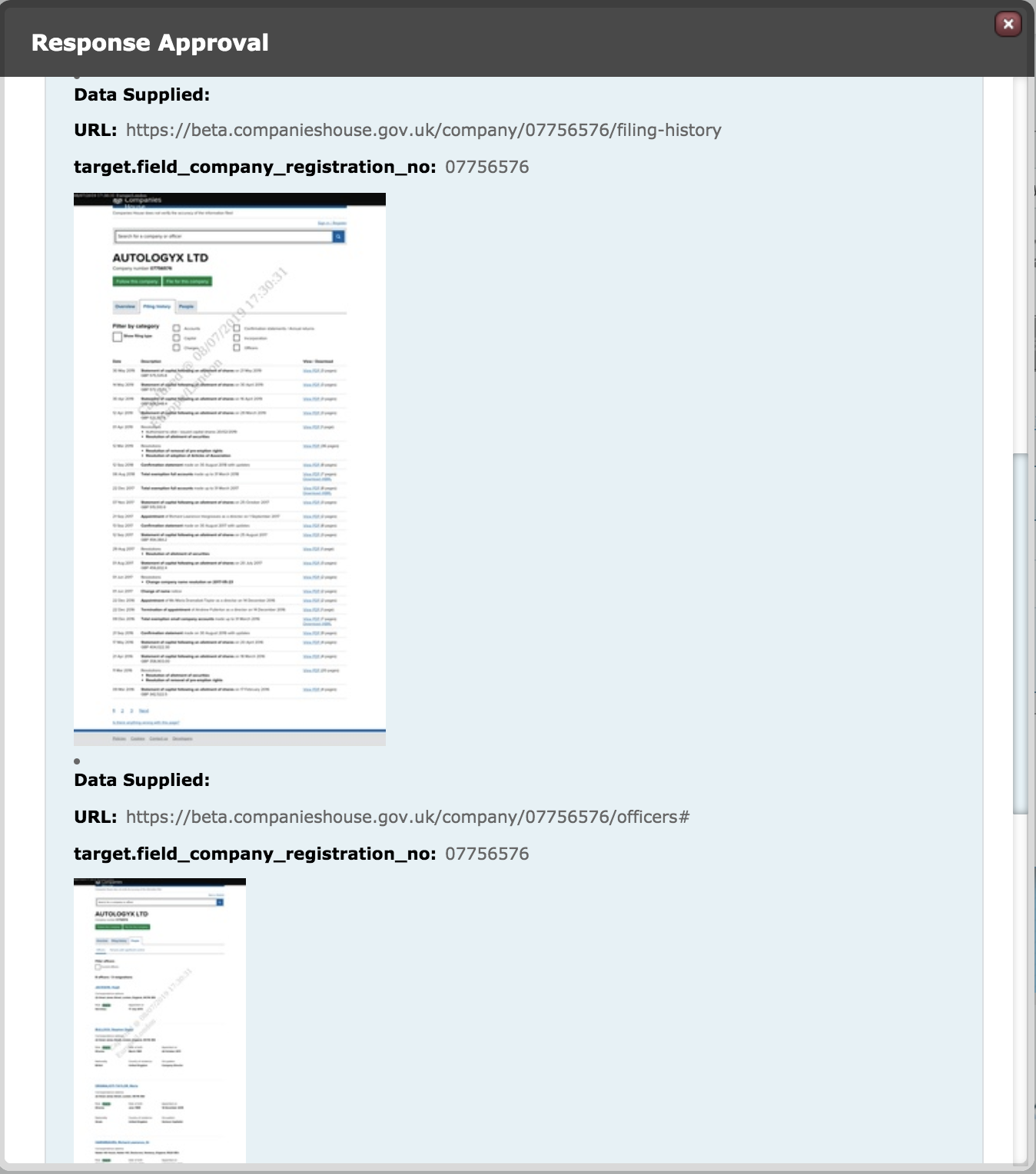
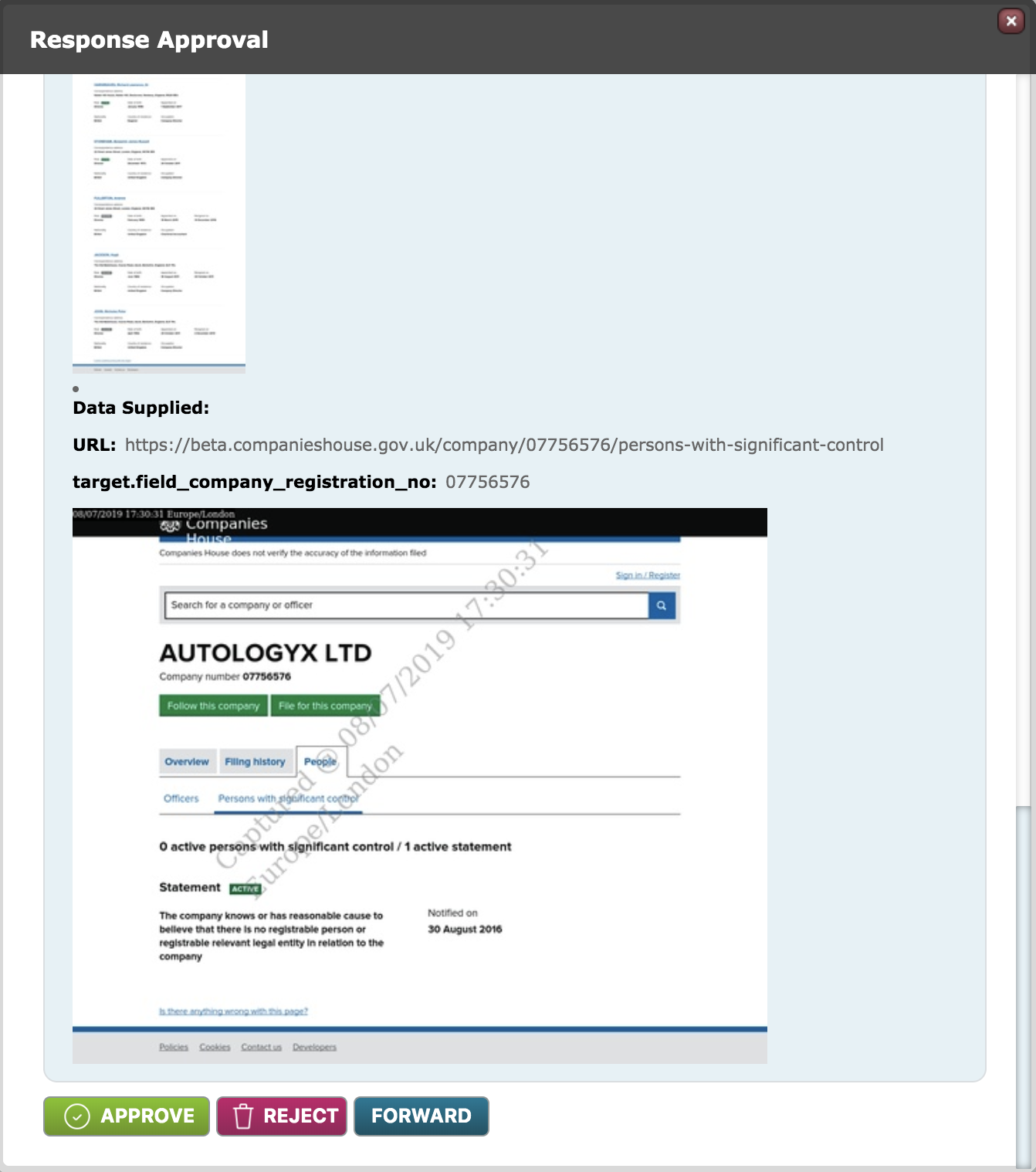
Each screenshot will have a date/timestamp watermark to show when it was taken.
The Filing History and Officers screenshots are likely to be long and narrow. Click on these to zoom in. The file will open in a new tab so that you can view the detail easily.
Once you have viewed each file and clicked Save the response will be marked as "Checked" and the Approve button will be enabled.
Click this to complete the criteria.
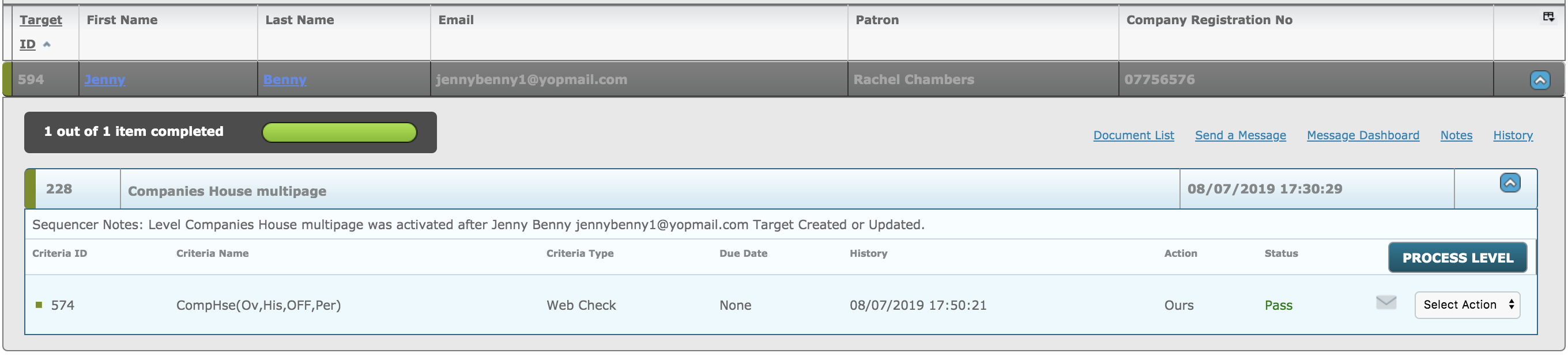
The criteria will be set to pass and have the green colour code to signify completion.
Comments
0 comments
Please sign in to leave a comment.