
This article will outline how to setup a NMC Webcheck by explaining what JSON object is required and what each section within the JSON object will specifically do.
The first steps are to name the custom webcheck and provide the URL.
The URL to be provided, is the followinghttps://www.nmc.org.uk/registration/employer-confirmations/ - this URL is the page where a user of the page is required to input the Employer caller code and Employer pass number.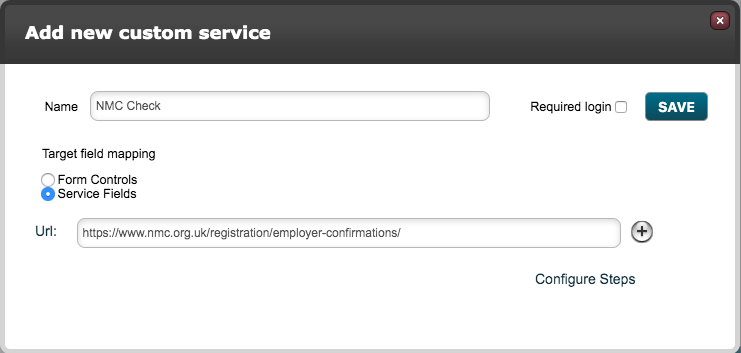
Next the user needs to click on 'Configure steps' for the URL that has been provided. Paste the following JSON object below into the Steps configuration.
Note: Where there is blue numbers in the value, this is where the user will need to input their companies log in credentials.
[
      {
      "action": "set_field_value",
      "selector": "#login-code",
      "value": "0000000"
      },
      {
      "action": "set_field_value",
      "selector": "#login-number",
      "value": "0000"
      },
      {
      "action": "click",
      "selector": "form > div > div.form-group:nth-child(3) > button"
      },
      {
      "action": "set_field_value",
      "selector": "#PractitionerRequests\\[0\\]\\.Pin",
      "value": "<<target.field_nmc_pin>>"
      },
      {
      "action": "set_field_value",
      "selector": "#PractitionerRequests\\[0\\]\\.DobDay",
      "value": "<<target.field_day>>"
      },
      {
      "action": "set_field_value",
      "selector": "#PractitionerRequests\\[0\\]\\.DobMonth",
      "value": "<<target.field_month>>"
      },
      {
      "action": "set_field_value",
      "selector": "#PractitionerRequests\\[0\\]\\.DobYear",
      "value": "<<target.field_year>>"
      },
      {
      "action": "click",
      "selector": "#submitForm"
      },
      {
      "action": "screenshot"
      },
      {
      "action": "get_value",
      "selector": "#ajaxForm > div.practitioner > div.table-responsive > table > tbody > tr > td:nth-child(1)",
      "return_as": "qualifications"
      },
      {
      "action": "get_date",
      "selector": "#ajaxForm > div.practitioner > div.table-responsive > table > tbody > tr > td:nth-child(2)",
      "return_as": "start_date",
      "date_format": "DD.MM.YYYY"
      },
      {
      "action": "get_date",
      "selector": "#ajaxForm > div.practitioner > div.table-responsive > table > tbody > tr > td:nth-child(3)",
      "return_as": "fee_expiry_date",
      "date_format": "DD.MM.YYYY"
      },
      {
      "action": "get_date",
      "selector": "#ajaxForm > div.practitioner > div.table-responsive > table > tbody > tr > td:nth-child(4)",
      "return_as": "renewal_date",
      "date_format": "DD.MM.YYYY"
      },
      {
      "action": "get_value",
      "selector": "#ajaxForm > div.practitioner > div.table-responsive > table > tbody > tr > td:nth-child(5) > span:nth-child(1)",
      "return_as": "comment"
      }
]
Step 1 breakdown
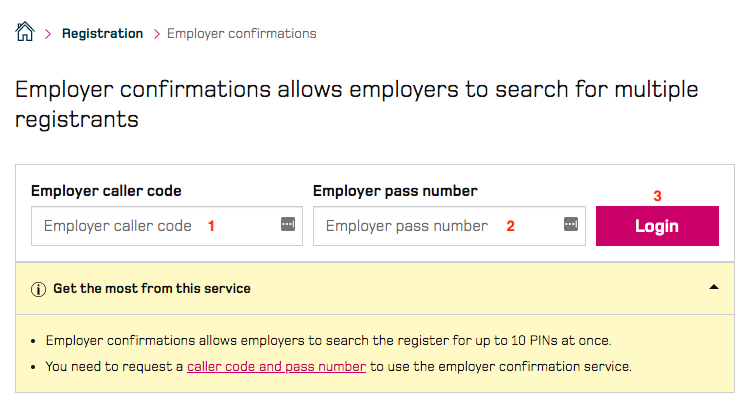
The first part of the JSON object as shown below, is required to input the login values to then be able to add in the NMC Pin and Date of Birth. The separate sections have been broken down to show what each section corresponds to on the NMC website.
      {
      "action": "set_field_value",
1     "selector": "#login-code",
      "value": "0000000"
      },
      {
      "action": "set_field_value",
2     "selector": "#login-number",
      "value": "0000"
      },
      {
      "action": "click",
3     "selector": "form > div > div.form-group:nth-child(3) > button"
      },
For step 1 the system will set the selector '#login-code' (this is the field 'Employer caller code') with a merge field value
For step 2 the system will set the selector '#login-number' (this is the field 'Employer pass number') with a merge field value
For step 3 the system will 'Click' on the selector 'form > div > div.form-group:nth-child(3) > button' (This is the Pink 'Login' button)
Step 2 breakdown
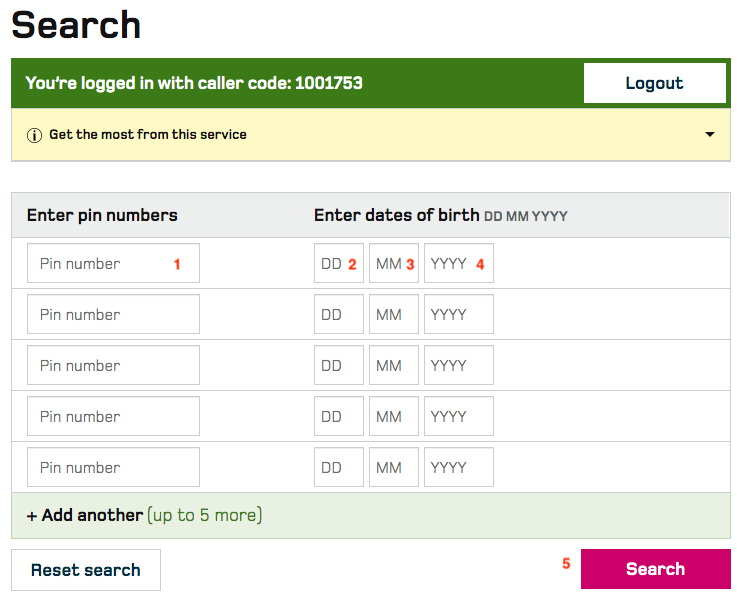
The second part of the JSON object as shown below, is required to input the candidates values to run the check. The separate sections have been broken down to show what each section corresponds to on the NMC website.
In the JSON object configuration, the merge fields highlighted in orange will need to be changed based on what the fields are called in the build that requires this NMC Check.
In this step 2 breakdown, at the bottom the first screenshot action will return a screenshot of the 'Results' page for the candidate.
      {
      "action": "set_field_value",
 1    "selector": "#PractitionerRequests\\[0\\]\\.Pin",
      "value": "<<target.field_nmc_pin>>"
      },
      {
      "action": "set_field_value",
 2    "selector": "#PractitionerRequests\\[0\\]\\.DobDay",
      "value": "<<target.field_day>>"
      },
      {
      "action": "set_field_value",
 3    "selector": "#PractitionerRequests\\[0\\]\\.DobMonth",
      "value": "<<target.field_month>>"
      },
      {
      "action": "set_field_value",
 4    "selector": "#PractitionerRequests\\[0\\]\\.DobYear",
      "value": "<<target.field_year>>"
      },
      {
      "action": "click",
 5    "selector": "#submitForm"
      },
      {
      "action": "screenshot"
      },
For step 1 the system will set the selector '#PractitionerRequests\\[0\\]\\.Pin' (this is the field 'Enter pin numbers') with a merge field value
For step 2 the system will set the selector '#PractitionerRequests\\[0\\]\\.DobDay' (this is the field 'Day' for Date of Birth) with a merge field value
For step 3 the system will set the selector '#PractitionerRequests\\[0\\]\\.DobMonth' (this is the field 'Month' for Date of Birth) with a merge field value
For step 4 the system will set the selector '#PractitionerRequests\\[0\\]\\.DobYear' (this is the field 'Year' for Date of Birth) with a merge field value
For step 5 the system will 'Click' on the selector '#submitForm' (This is the Pink 'Search' button)
Step 3 breakdown
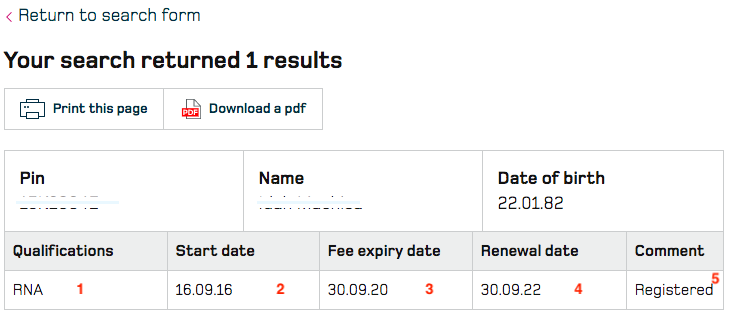
The second part of the JSON object refers to the system grabbing/getting data on the same 'Results' page.
      {
      "action": "get_value",
 1    "selector": "#ajaxForm > div.practitioner > div.table-responsive > table > tbody > tr > td:nth-child(1)",
      "return_as": "qualifications"
      },
      {
      "action": "get_date",
 2    "selector": "#ajaxForm > div.practitioner > div.table-responsive > table > tbody > tr > td:nth-child(2)",
      "return_as": "start_date",
      "date_format": "DD.MM.YYYY"
      },
      {
      "action": "get_date",
 3    "selector": "#ajaxForm > div.practitioner > div.table-responsive > table > tbody > tr > td:nth-child(3)",
      "return_as": "fee_expiry_date",
      "date_format": "DD.MM.YYYY"
      },
      {
      "action": "get_date",
 4    "selector": "#ajaxForm > div.practitioner > div.table-responsive > table > tbody > tr > td:nth-child(4)",
      "return_as": "renewal_date",
      "date_format": "DD.MM.YYYY"
      },
      {
      "action": "get_value",
 5    "selector": "#ajaxForm > div.practitioner > div.table-responsive > table > tbody > tr > td:nth-child(5) > span:nth-child(1)",
      "return_as": "comment"
      }
For step 1 the system will 'Get' the selector '#ajaxForm > div.practitioner > div.table-responsive > table > tbody > tr > td:nth-child(1)'. This will get the 'Qualifications' value.
For step 2 the system will 'Get' the selector '#ajaxForm > div.practitioner > div.table-responsive > table > tbody > tr > td:nth-child(2)'. This will get the 'Start date' value.
For step 3 the system will 'Get' the selector '#ajaxForm > div.practitioner > div.table-responsive > table > tbody > tr > td:nth-child(3)'. This will get the 'Fee expiry date' date values.
For step 4 the system will 'Get' the selector '#ajaxForm > div.practitioner > div.table-responsive > table > tbody > tr > td:nth-child(4)'. This will get the 'Renewal date' value.
For step 5 the system will 'Get' the selector '#ajaxForm > div.practitioner > div.table-responsive > table > tbody > tr > td:nth-child(5) > span:nth-child(1)'. This will get the 'Comment' date values.
Step 3 mapping
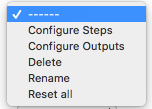
To be able to retrieve values/dates from a website as shown above in regards to Qualifications, Start date, Fee expiry date, Renewal date, Comment, the user will need to map the target fields in the system with the values that are to be returned. This is done by selecting on the 'Action' drop-down menu on the Webcheck list, the option 'Configure Outputs'.
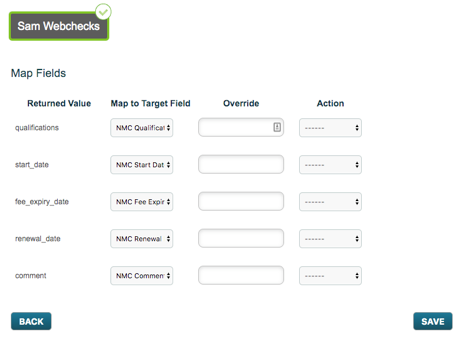
The user will then be presented with the below page where they will need to select the target group for the targets who will have the Webcheck run against. Once done, they will then be asked to map target fields with the 'Returned Value column'. The options in the Returned Value column are defined in the JSON code - see below in orange where we define this.
      {
      "action": "get_value",
      "selector": "#ajaxForm > div.practitioner > div.table-responsive > table > tbody > tr > td:nth-child(1)",
      "return_as": "qualifications"
      },
      {
      "action": "get_date",
      "selector": "#ajaxForm > div.practitioner > div.table-responsive > table > tbody > tr > td:nth-child(2)",
      "return_as": "start_date",
      "date_format": "DD.MM.YYYY"
      },
      {
      "action": "get_date",
      "selector": "#ajaxForm > div.practitioner > div.table-responsive > table > tbody > tr > td:nth-child(3)",
      "return_as": "fee_expiry_date",
      "date_format": "DD.MM.YYYY"
      },
      {
      "action": "get_date",
      "selector": "#ajaxForm > div.practitioner > div.table-responsive > table > tbody > tr > td:nth-child(4)",
      "return_as": "renewal_date",
      "date_format": "DD.MM.YYYY"
      },
      {
      "action": "get_value",
      "selector": "#ajaxForm > div.practitioner > div.table-responsive > table > tbody > tr > td:nth-child(5) > span:nth-child(1)",
      "return_as": "comment"
      }
Comments
0 comments
Please sign in to leave a comment.