
This article will outline how to setup a Driving Licence Webcheck by explaining what JSON object is required and what each section within the JSON object will specifically do.
The first steps are to name the custom webcheck and provide the URL.
The URL to be provided, is the following https://www.viewdrivingrecord.service.gov.uk/driving-record/licence-number - this URL is the page where a user of the page is required to input their Driving Licence Number, National Insurance Number and Postcode.
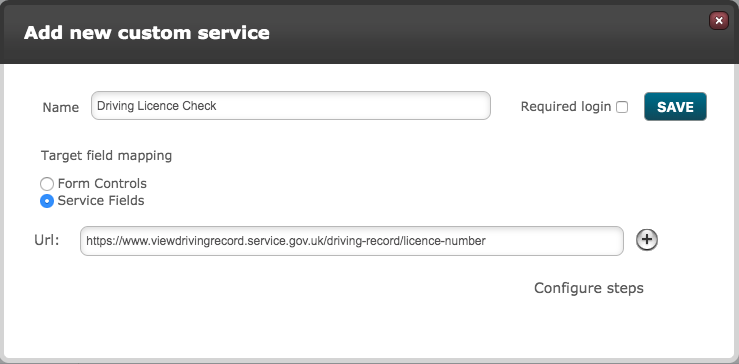
Next the user needs to click on 'Configure steps' for the URL that has been provided. Paste the following JSON object below into the Steps configuration.
[
     {
     "action": "set_field_value",
     "selector": "#dln",
     "value": "<<target.field_driving_licence_number>>"
     },
     {
     "action": "set_field_value",
     "selector": "#nino",
     "value": "<<target.field_national_insurance_number>>"
     },
     {
     "action": "set_field_value",
     "selector": "#postcode",
     "value": "<<target.field_postcode>>"
     },
     {
     "action": "click",
     "selector": "#dwpPermission"
     },
     {
     "action": "click",
     "selector": "#submitDln"
     },
     {
     "action": "screenshot"
     },
     {
     "action": "click",
     "selector": "a[href=\"#vehicles\"]"
     },
     {
     "action": "click_all",
     "selector": "#vehicles .more"
     },
     {
     "action": "screenshot"
     },
     {
     "action": "click",
     "selector": "a[href=\"#points\"]"
     },
     {
     "action": "click_all",
     "selector": "#points .more"
     },
     {
     "action": "screenshot"
     }
]
Step 1 breakdown
The first part of the JSON object as shown below is required to input the values to then see if the candidate has points etc or not. The separate sections have been broken down to show what each section corresponds to on the Driving Licence Check website.
In the JSON object configuration, the merge fields highlighted in orange will need to be changed based on what the fields are called in the build that requires this Driving Licence Check.
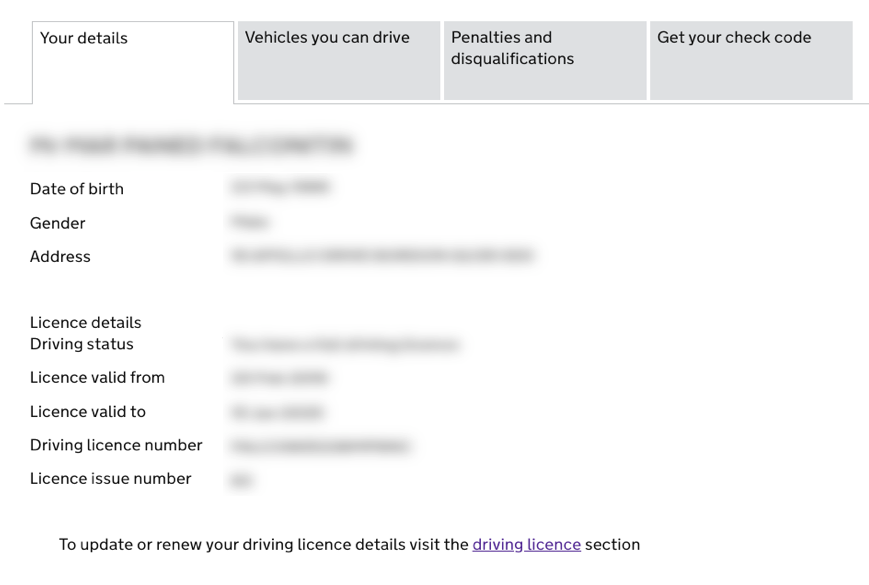
In this step 1 breakdown, at the bottom the first screenshot action will return a screenshot of the 'Your details' tab for the candidate.
     {
     "action": "set_field_value",
1    "selector": "#dln",
     "value": "<<target.field_driving_licence_number>>"
     },
     {
     "action": "set_field_value",
2    "selector": "#nino",
     "value": "<<target.field_national_insurance_number>>"
     },
     {
     "action": "set_field_value",
3    "selector": "#postcode",
     "value": "<<target.field_postcode>>"
     },
     {
     "action": "click",
4    "selector": "#dwpPermission"
     },
     {
     "action": "click",
5    "selector": "#submitDln"
     },
     {
     "action": "screenshot"
     },
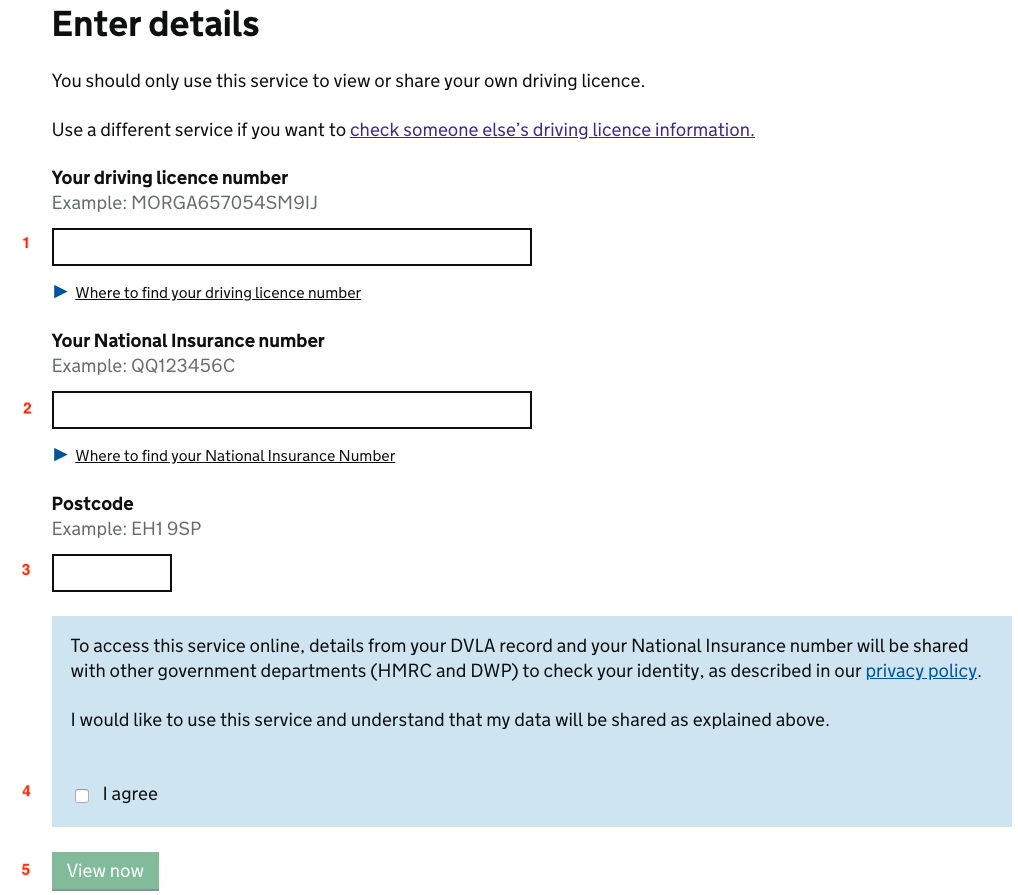
For step 1 the system will set the selector '#dln' (this is the field 'Driving Licence Number' field) with a merge field value
For step 2 the system will set the selector '#nino' (this is the field 'National Insurance Number' field) with a merge field value
For step 3 the system will set the selector '#postcode' with a merge field value
For step 4 the system will 'Click' on the field '#dwpPermission' (this is the boolean checkbox stating that the user is happy to use the service and that the data will be shared)
For step 5 the system will 'Click' on the button '#submitDln' (this is the 'View now' green button)
Step 2 breakdown
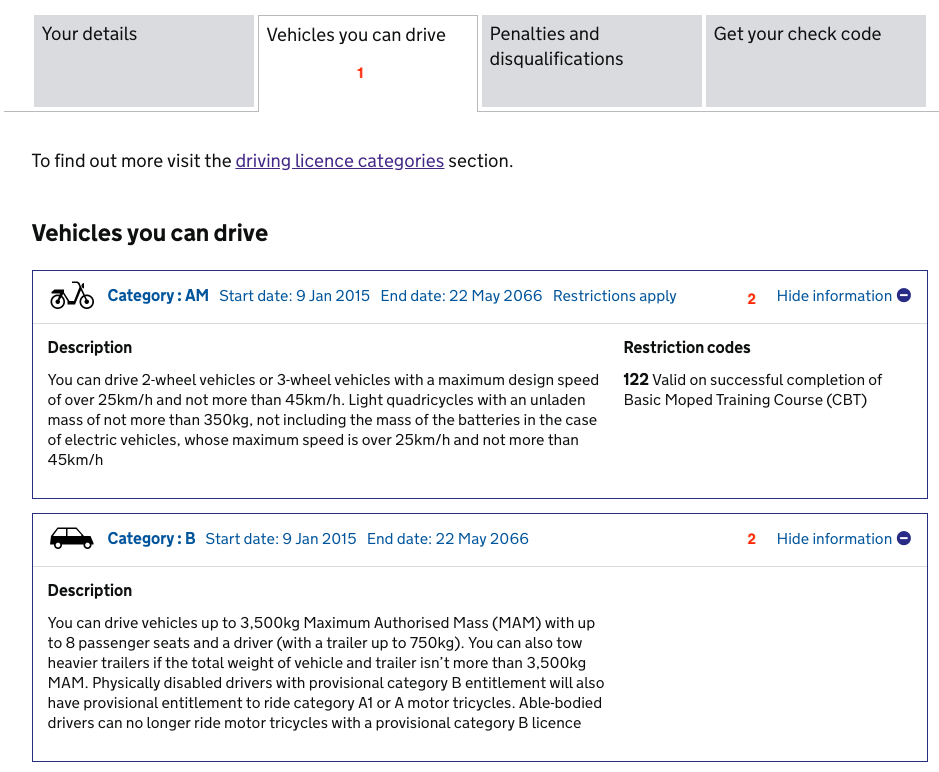
The second part of the JSON object refers to the system clicking on the tab 'Vehicles you can drive' then taking a screenshot of this page.
     {
     "action": "click",
 1   "selector": "a[href=\"#vehicles\"]"
     },
     {
     "action": "click_all",
 2   "selector": "#vehicles .more"
     },
     {
     "action": "screenshot"
     },
For step 1 the system will 'Click' on the 'Vehicles you can drive' button/tab
For step 2 the system will 'Click all' of the Vehicles that have been listed - this will click on all the 'Show information' buttons to display further information around the vehicles the candidate can drive.
Step 3 breakdown
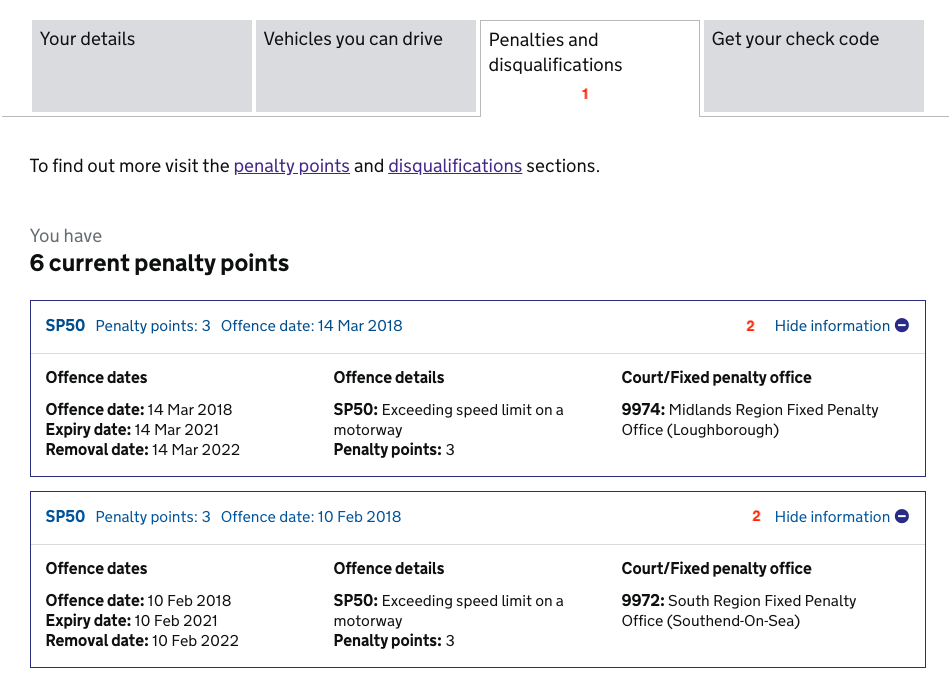
The third part of the JSON object refers to the system clicking on the tab 'Penalties and disqualifications' then taking a screenshot of this page.
     {
     "action": "click",
 1   "selector": "a[href=\"#points\"]"
     },
     {
     "action": "click_all",
 2   "selector": "#points .more"
     },
     {
     "action": "screenshot"
     }
For step 1 the system will 'Click' on the 'Penalties and disqualifications' button/tab
For step 2 the system will 'Click all' of the Penalties and disqualifications that have been listed - this will click on all the 'Show information' buttons to display further information around the Points and disqualifications the candidate has received.
Comments
0 comments
Please sign in to leave a comment.