
Admin > System Users and Permissions > Add a New System User Account
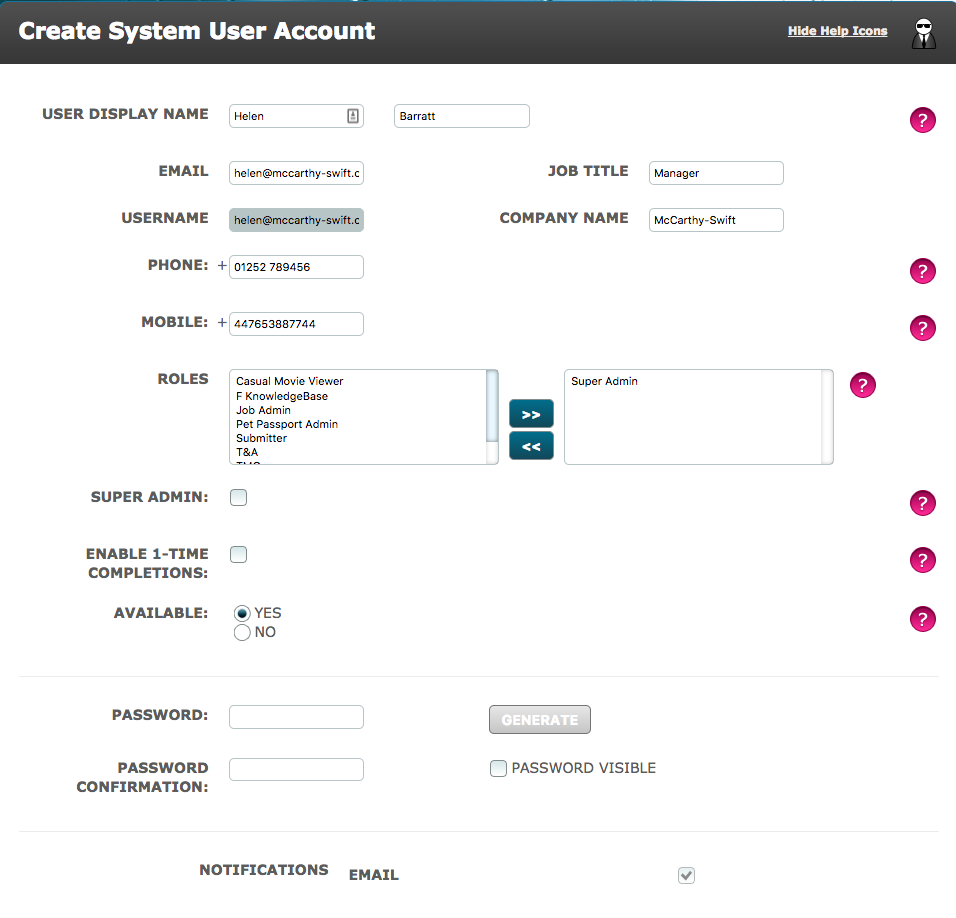
- Enter the User's First Name, Last Name, Email address, Phone & Mobile numbers, Job Title and Company Name in the fields provided. The mobile number should start with the country code e.g. 44 for the UK followed by the mobile number without the initial 0 and with no spaces. This is to allow the use of SMS for notifications, if enabled in Global Settings.
- The Username field will be auto-populated with the email address when you enter this into the Email field.
- Assign the Role(s) by clicking on it in the left hand menu and using the forward arrow to enter it in the right hand field. Alternatively, you can select and double click.
- Super Admin - only tick the box if the User is to have super admin rights. This will give them full permissions including the ability to delete across the system. Use this feature sparingly.
- Enable 1-Time Completions - only tick the box if the User does not require an account to log into but instead will be given items to complete via links in email notifications. Never enable this feature for Users who will mostly be working on the Dashboard as they must have a full user account.
- Available - Select No to set a period when the User is NOT available. If Yes is selected, the User will be available all the time.
- Leave the Password and Password Confirmation fields blank.
- Notifications - tick the box to select the method by which this user will be sent notifications from Autologyx. These include messages about new actions, outstanding actions, expiries, etc. The choice will be determined by what has been enabled in Global Settings/ Reminders & Notifications.
- Document Signature - system users can define the name to be used for their signature for online signing. For instance, if in their user account their first and last names are Robert Smith the system would expect them to sign documents as "Robert Smith". However, entering a different value in this field will allow them to sign, for example, as Bob Smith or B M Smith. If you are not sure of their preference when setting up the account, leave this field blank.
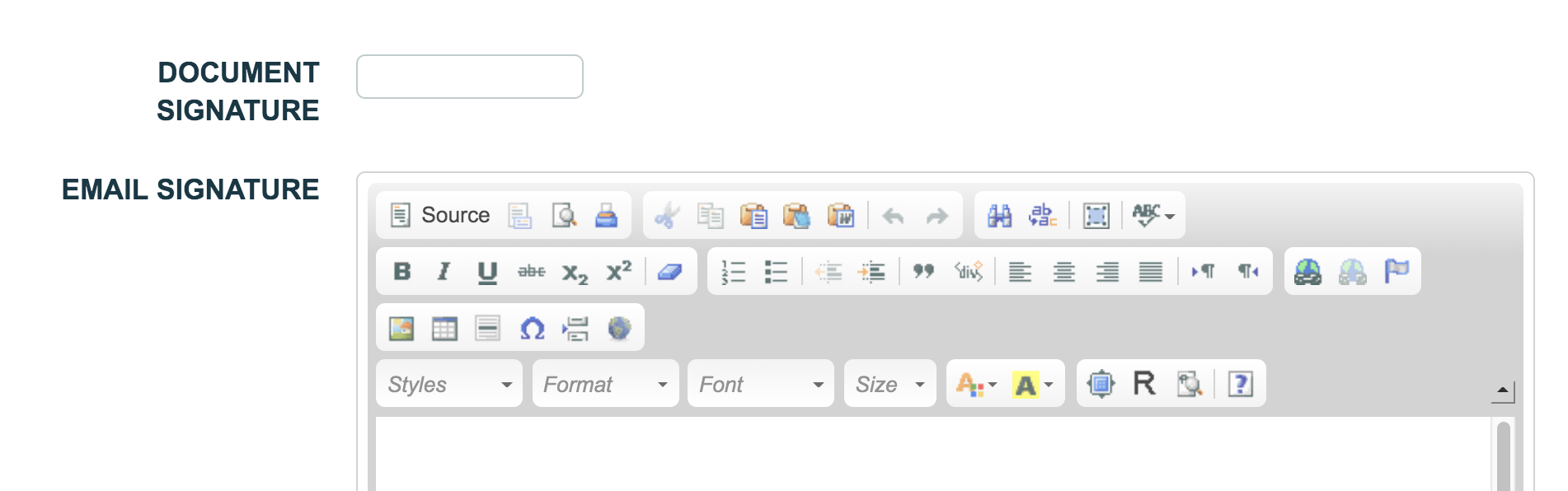
- Enter the User's contact information in the Signature field. This is an editor into which images and text may be added.
- Log Activity and Log Login - these are defaulted to Yes and in most cases should be left this way. This means that the User's activity and Login information will be recorded in History.
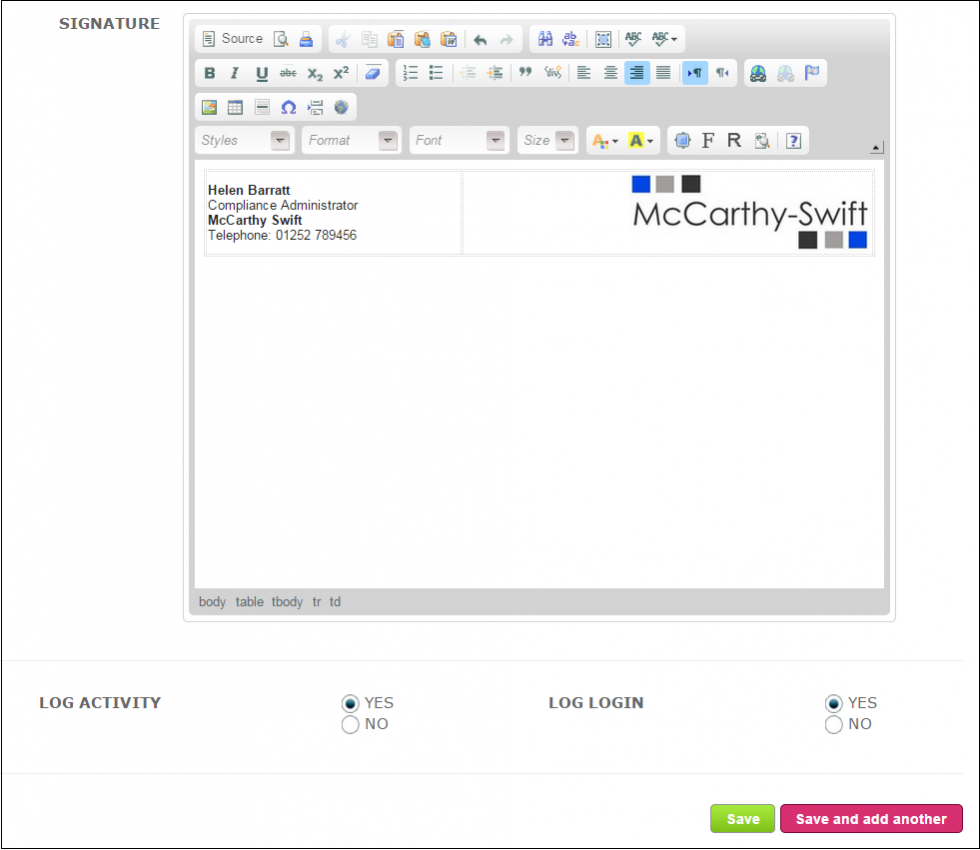
- Click Save to complete the form.
- The new user will receive an email notification outlining their login details.
Comments
0 comments
Please sign in to leave a comment.