
When a target (or system user) has completed a criteria with the wrong answer you want to re-assign it so that they can provide the correct response. This can be easily achieved by doing the following:
- Find your target and the criteria on the dashboard
- In the menu on the right hand side of the criteria select "View Response"

- A modal window will be displayed
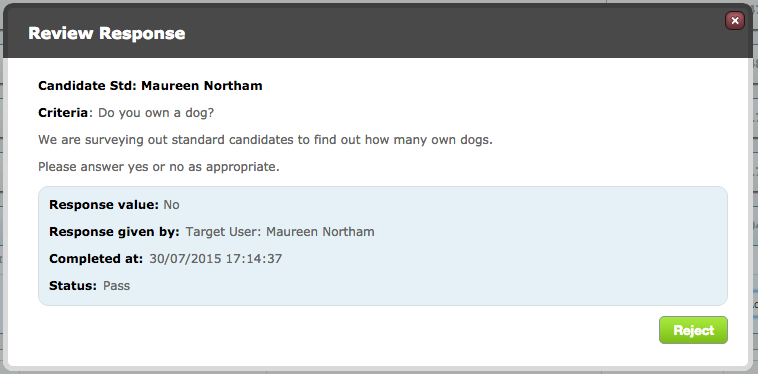
- Click the green Reject button and a further modal window will be displayed
- In this window enter the "Reason for rejection". This section is for internal use only so your target will not see this note but it will appear in the history entry for the Response Rejected
- Tick the "Prompt to complete again" box. You can reject the response without ticking this box but if you leave it unticked the criteria will not be made availabe to be answered again
- Enter the "Notes to display to person responsible for completing this criteria". This will be shown at the top of the criteria page when they are ready to provide their new response. You can include specific instructions to ensure they do not make further mistakes or simply confirm what you have already discussed
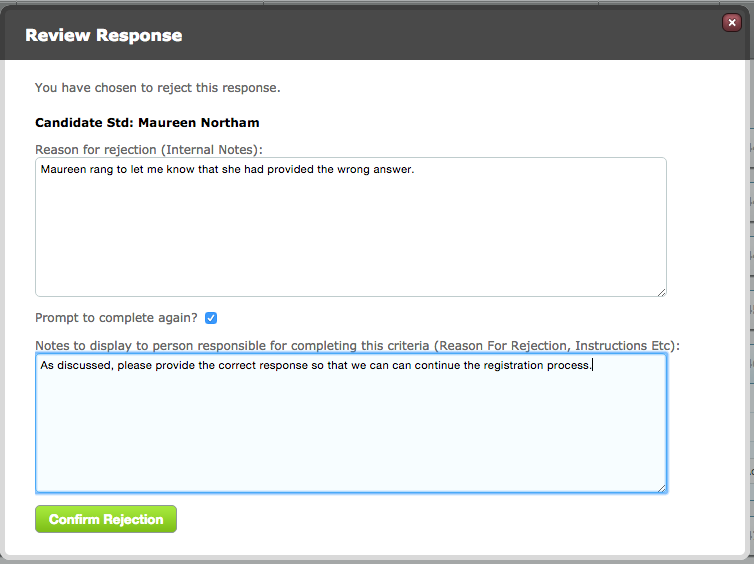
- Click Confirm Rejection
- You will be taken back to the dashboard. If you refresh the level you will see that the criteria has turned orange and has a status of not answered. Refreshing the target will make the level turn orange if like this one there is only one criteria in the level

- The target will have the criteria to complete again. When they enter the criteria response page they will see the notes entered under "The reason your response was rejected"
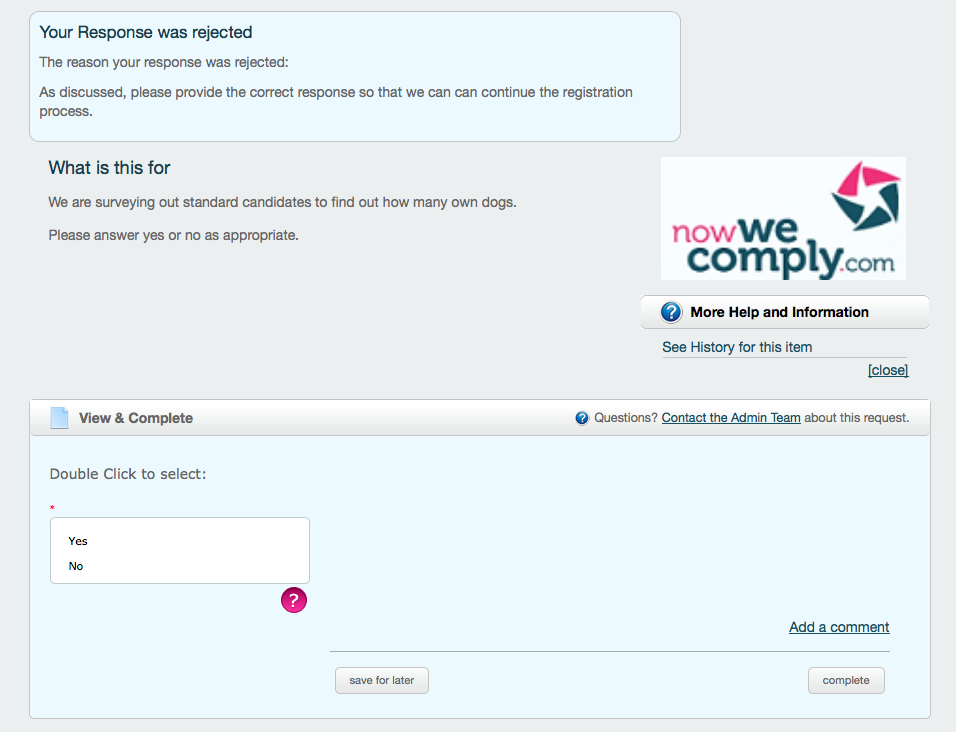
- The target can now answer the criteria again with the correct response
Comments
0 comments
Please sign in to leave a comment.