
Summary:
This article is to help explain how an outgoing message that has not been received, can be debugged in autologyx in the first instance. A message may not be received based on details set up in the autologyx platform, in your mail server or in the targets account settings.
Overview:
Against each message, a status will indicate where in the process a particular message is at.
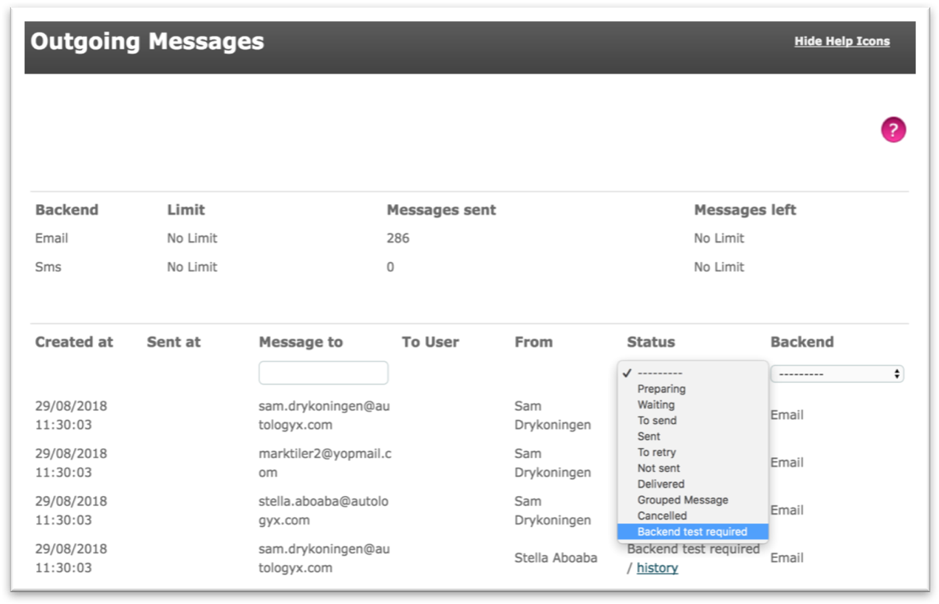
Sent:
Description
A status is set to Send when the message has successfully been sent from the ALX system.
When does this occur?
This occurs when an email has successfully been checked and validated in the ALX system; the email is then pushed to the mail server specified in the notification email backend settings.
Debug
If the message hasn’t been received, the target should check their junk/spam folder. If the message is not there, then it is could be one of the following reasons; the email address or domain has been blacklisted, or the message has been sent to the junk/spam folder in the mail server.
Not sent:
Description
A status is set to Not sent when the message could not be sent from the ALX system.
When does this occur?
An example of this, is that the message could not pick up who the recipient of the message is intended for in the ‘Message to’ column. For instance, an email address may have been invalid/missing or an invalid mobile number was inputted if the message is for an SMS.
Debug
Update the target to whom the message is intended for, with a valid email address or mobile number depending on what type of message this is, in the ALX system. Once updated, re-send the message manually to test if the message can be sent from the system.
Waiting:
Description
A status is set to Waiting when the message has been generated by the system and is now waiting to be able to send.
When does this occur?
When a message has been generated by the ALX system such as a System message or a message actor etc.
Debug
This status will appear if an Outgoing message has had a status of Backend test required, where the global settings for the backend settings have changed to be tested successful. Once the changes are made, the message will go from Backend test required to Waiting where the message is waiting to see if it can send or not.
If a message persists with this status for a long delay, then this message has got stuck in trying to be sent out, if this is the case then please raise a ticket in Kayako.
To send:
Description
A status is set To send when the message is queued up with other messages, ready to leave the ALX system.
When does this occur?
When the message is checked and validated and is now ready to send where it is put in a queue to leave the ALX system.
Debug
Messages can get stuck at this status when the backend has failed. If a message maintains this status after a long delay, a user can re-send this message. This is done at the bottom of the page by selecting ‘Send outgoing messages’, this will attempt to re-send all messages that have got stuck, rather than a particular message. If after selecting this the message persists with this status, then please raise a ticket in Kayako.
Backend test required:
Description
A status is set to Backend test required when a message has not been sent due to wrong ‘Notification e-mail backend settings’ in Global Settings.
When does this occur?
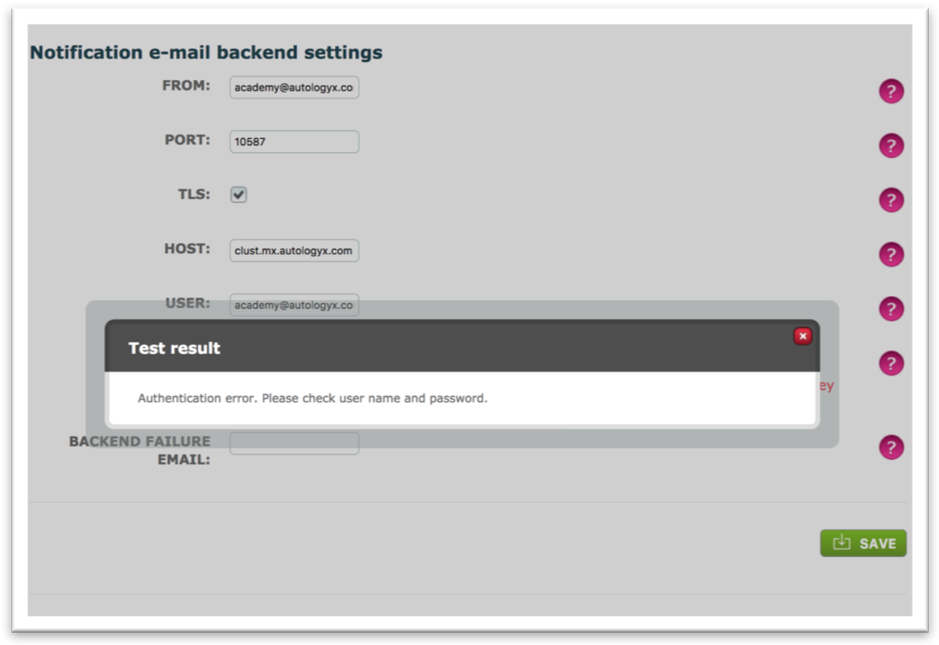
This occurs when these settings have not been set up, or the details inputted are wrong such as an incorrect password.
If the test result comes back as an authentication error, this means that the mail account or password are incorrect.
Debug
A valid email mail box account which can receive and send messages, needs to be used. If you are unsure what details to use, please contact your IT department.
A user can enter their own email address in the ‘Backend Failure Email’ field. This will then send a message to the email address provided, when a message has not sent because the notification e-mail backend settings are incorrect.
If the status is ‘backend test required’ for an outgoing message, but the test was successful, and the other details are correct, then please report this on Kayako.
If the backend settings test came back as unsuccessful, once the settings have been changed and the test is then successful, you will then can resend the message(s) that had the status backend test required, on the Outgoing messages page.
Comments
0 comments
Please sign in to leave a comment.