
Using DRAA2
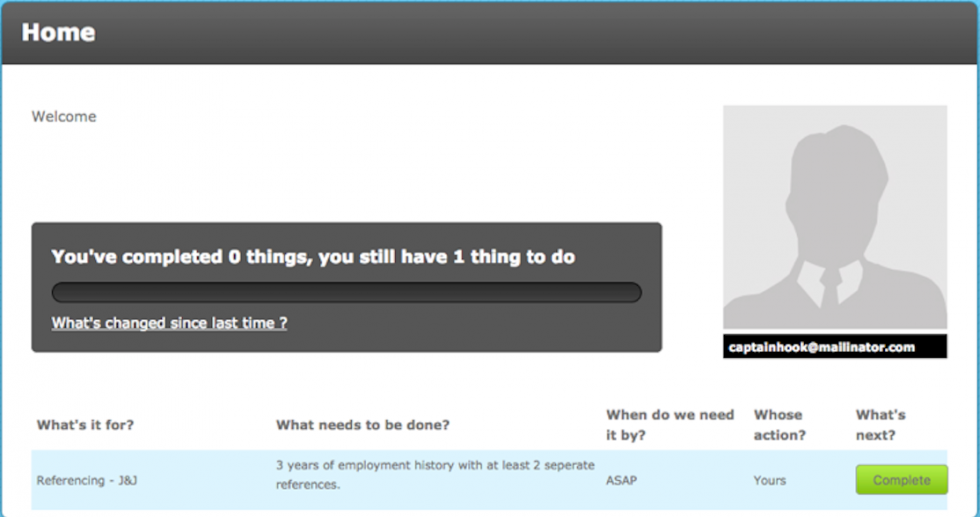
When a target has a DRAA2 criteria assigned, they will need to complete it in their portal using the Complete button
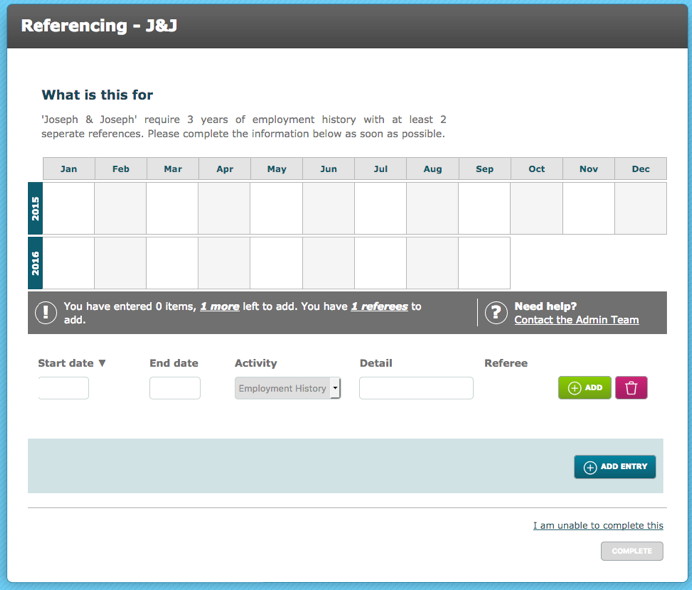
A modal will pop up with a title, an explanation of What is this for and a running status of how many items have been entered and how many more are required to be added.
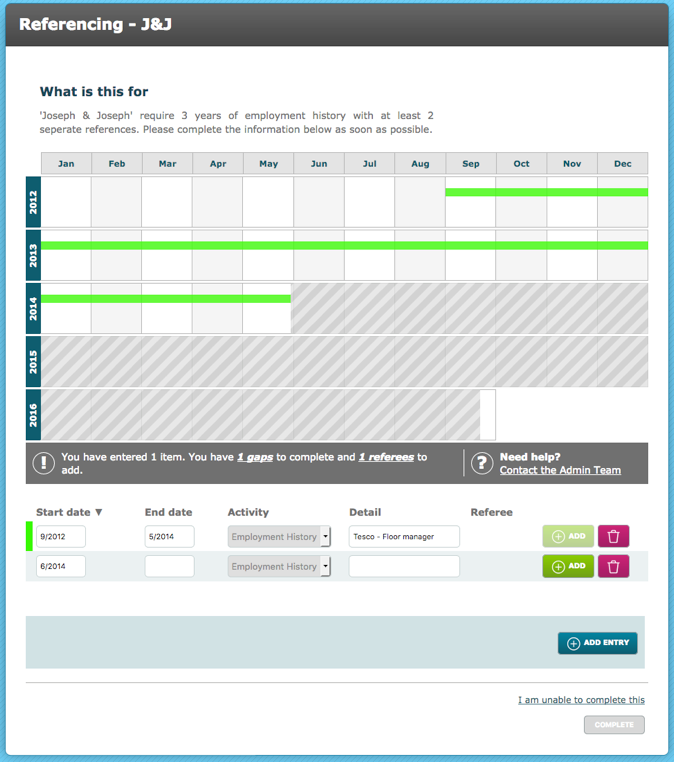
When the start and end dates have been entered, the Activity displays across the date pane, colour co-ordinating with the Activity row.
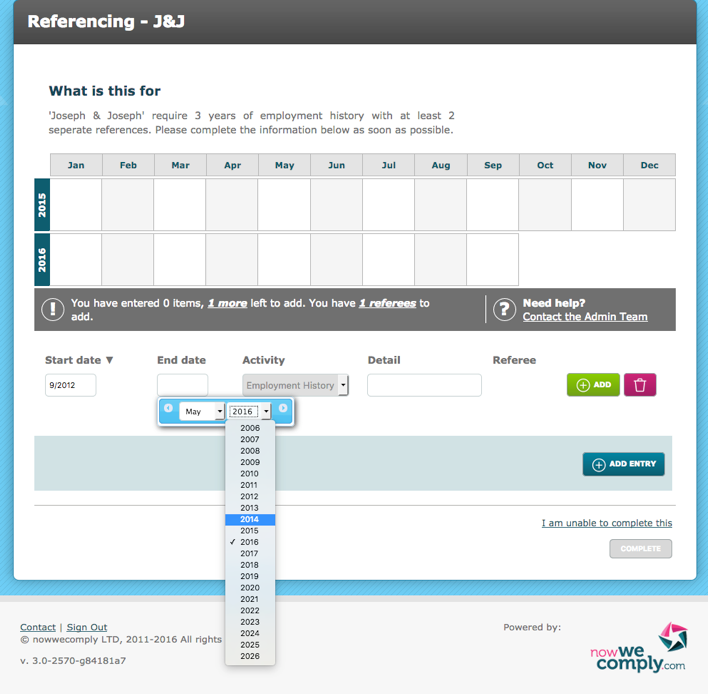
The target must enter the start and end dates of their Activity, the Activity type, detail is mandatory. When they click Add, they will be able to add the Referee details if required.
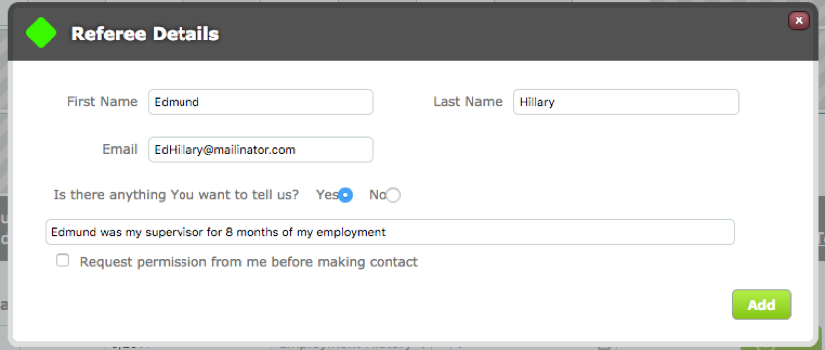
Enter the required fields of the Referee as set up in the Store.
There is an option for the Target to add a note and check whether permission to make contact is required from the Target before the Referee can be contacted. The contact rules are driven by the Permission to Contact options setout in the Criteria Response configuration.
Different colours are used to represent different Activities. These colours are not related to a status and should not be confused with colours on the Dashboard, that the Target has no visibility of.
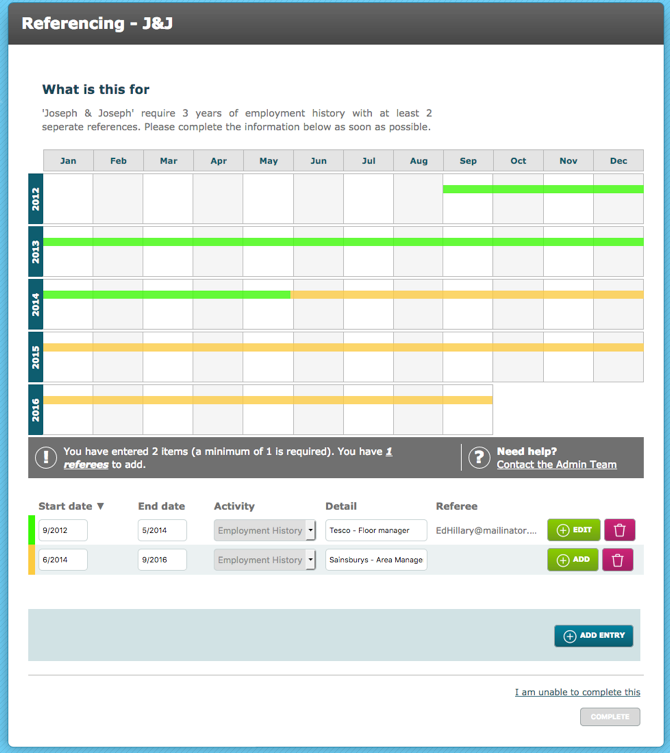
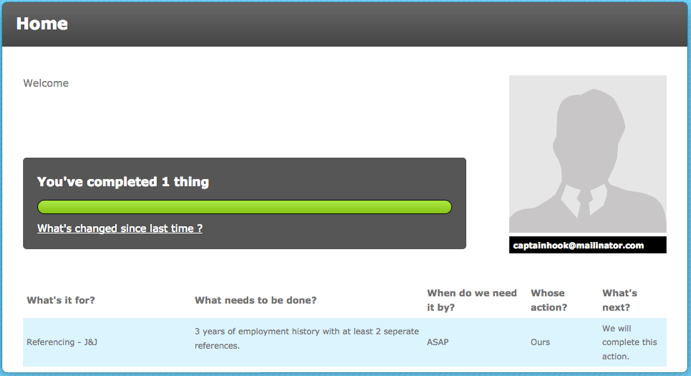
When the Target has met the minimum number of Activities and requirements, covering the requested timeframe, they can click Complete. This criteria is now complete from the Targets’ perspective. The system user will see that the Activities have been provided
Comments
0 comments
Please sign in to leave a comment.