
Criteria Response Type setup
For each set of referencing rules, a new criteria should be created. For example, if your business has multiple clients with differing regulations regarding an activity then a single DRAA2 criteria will not handle those sets of rules. Therefore a criteria should be created for each of the different set of rules e.g. a minimum of 2 references to be provided covering a 3 year period.
To create a new Criteria go to Admin > Criteria > Add a New Criteria
In the Response Type section of the Create Criteria screen select Date Range & Activity v2.
If you can’t see Date Range & Activity v2 then it hasn’t been installed!
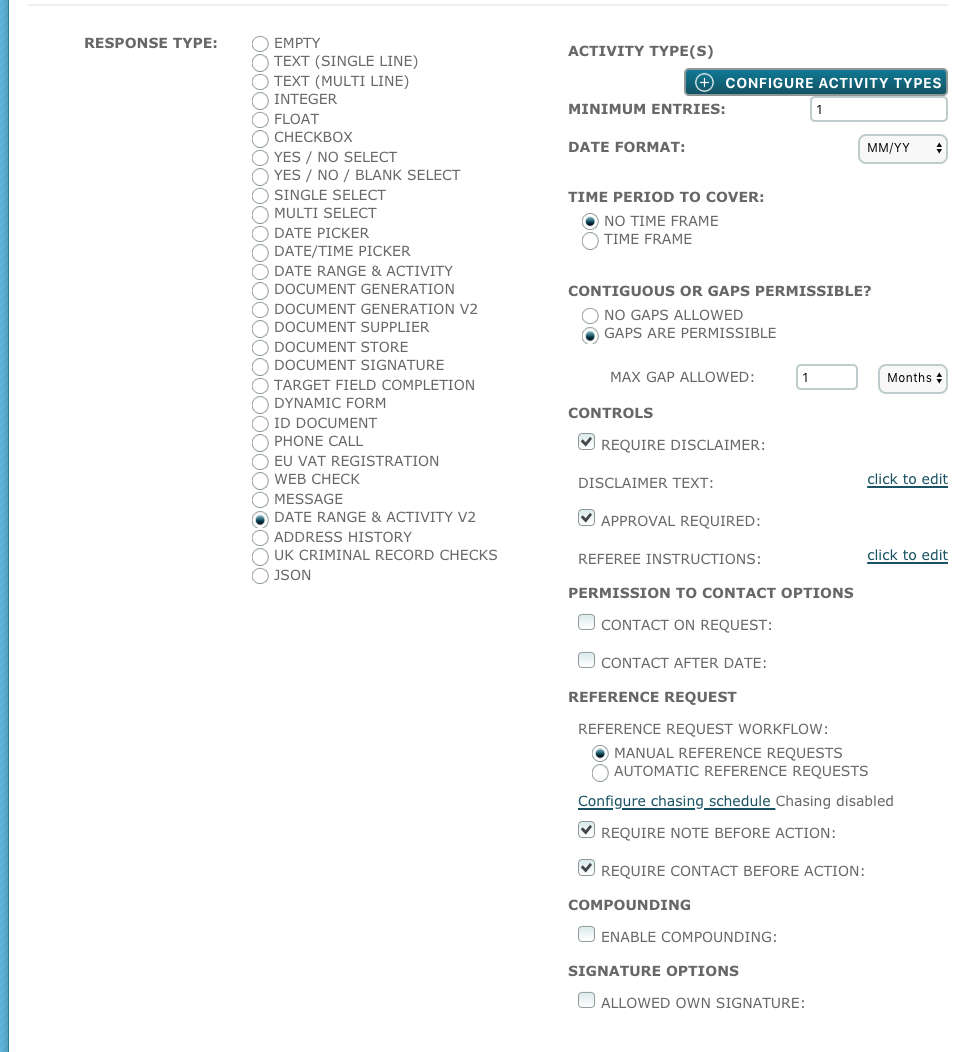
Activity Type(s) - Click Configure Activity Type(s) and click Add Activity in the modal.

This creates a new Activity Type entry, click Add Activity, choose the Activity type from the list set up in the Store. If multiple types of Activity are required, then additional activities must be added. This should be considered for Gaps in the activity history, such as unemployment, education, sabbatical etc.
Referees: Do you require a 3rd party (a referee) to confirm the target’s activity? Choose Required, Not Required or Optional. If Required or Optional is selected, then the Target Group drop down will appear.
Target Group: Select the target group of the Referees. It is important to use a separate group for the referees.
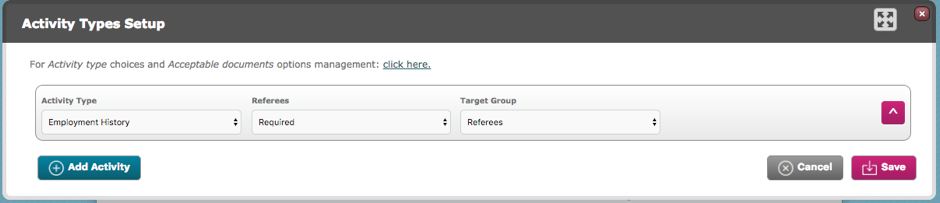
Click the expand icon to see more options. 7 further options will appear.
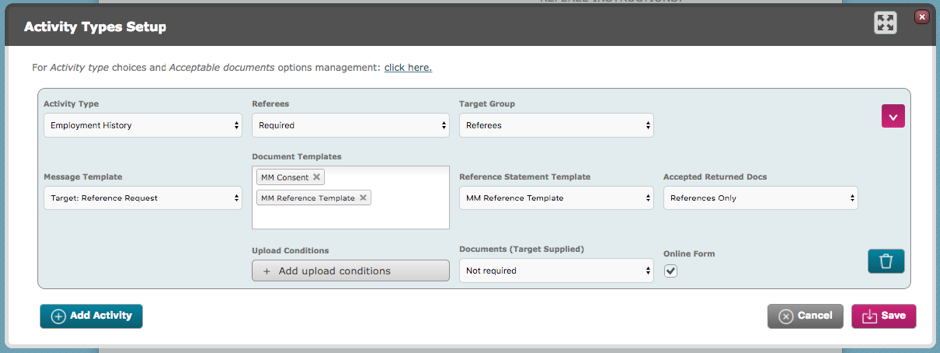
Message Template: Choose the default message template for this activity, the first message communication the referee will receive. If an online form is being used, choose Target: Reference Request
Document Templates: Multiple documents can be selected, these documents will be available to select as attachments in message correspondence with the referees. These documents can be viewed, printed and downloaded.
Reference Statement Template: When references have been provided for the activities, this is the document that is produced as a result (contains target and referee filled data). This is only used for an Online Form
Accepted Returned Docs: If a target cannot fulfil the requirements set out, will any alternative documents be deemed acceptable instead? The options are References Only (if none are required), Alternatives Accepted or None. If None is selected, the reference will be automatically completed (unless other conditions are required to be met).
If References Only is selected, it defaults to Mandatory, to make it optional, change Accepted Returned Docs to Alternative Accepted and then use the Is Optional toggle next to the Returned Reference option.
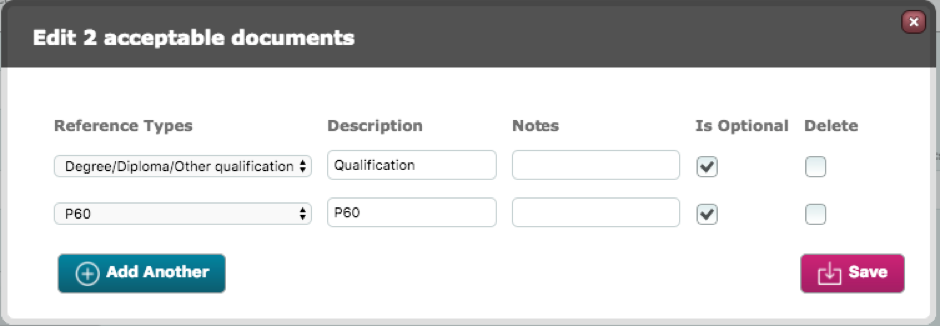
If Alternatives are accepted then another field will display: Acceptable Documents...
Acceptable Documents: Enter the type of reference or other type of document that can be accepted (these options are derived from the Acceptable Documents tab in the Store for DRAA2). Be sure to Save any changes.
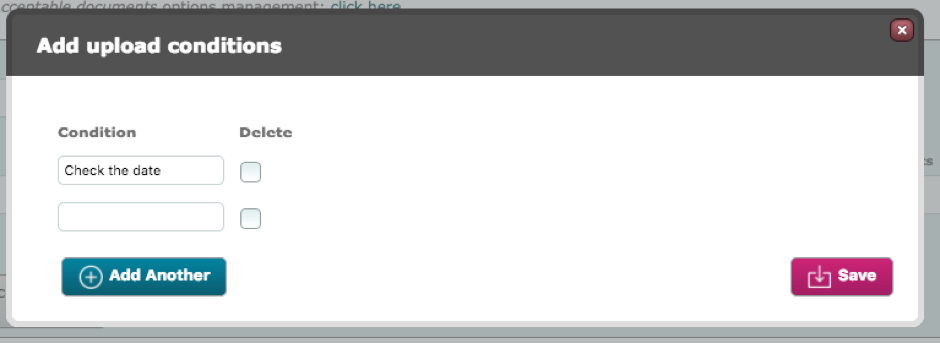
Upload Conditions: These conditions are displayed to the system user when checking a returned reference/alternate document in the criteria. Upload conditions can be used to confirm the system user has checked a date, confirmed the signature is correct or any other quick checklist item has been completed. System Users will not be able to complete a reference without these conditions being checked. Conditions apply to all documents i.e. the conditions can be met by multiple documents.
Save
Documents (Target Supplied): Not Required, For every entry or Optional. This option determines if a target can upload documents.
For every entry means that a document must be supplied for every Activity. Optional means that the target has the ability to upload, but does not have to. Not Required will remove the upload button completely. The document that the Target Group provides can be used as a returned reference via the upload screen.
Online Form: Check this box if an online form can be used for the referee to respond to the criteria. The form is populated by the contents of the Message Template.
If the targets upload a document, SU can use it against a reference (via a different modal)**AT
Save
Minimum Entries: How many different activities must the target provide?
Date Format: DD/MM/YY or MM/YY, important to use DD/MM/YY if a chase cycle uses units of days.
Time Period to Cover: What total amount of time will the target need to provide activity details for?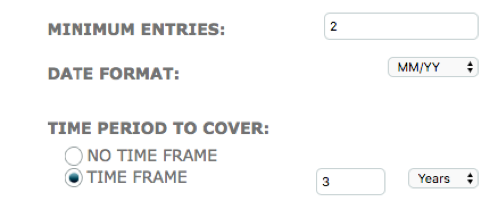
Contiguous or Gaps permissible?
Is it acceptable to allow gaps between the target’s given activities? If there are gaps between the end of one activity and the beginning of the next activity, how long is considered acceptable?
If you cannot select Days then see Date Format
Controls
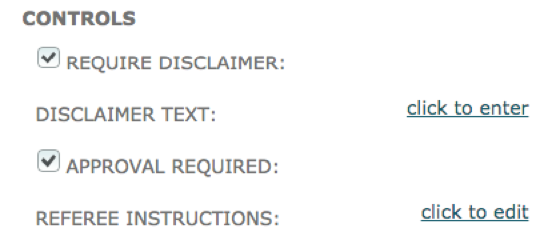
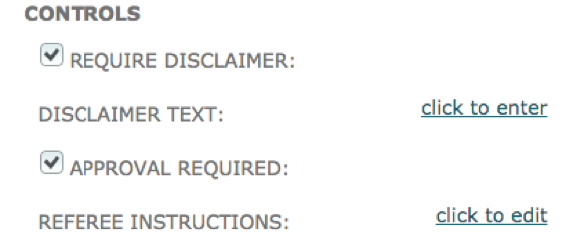
Require Disclaimer
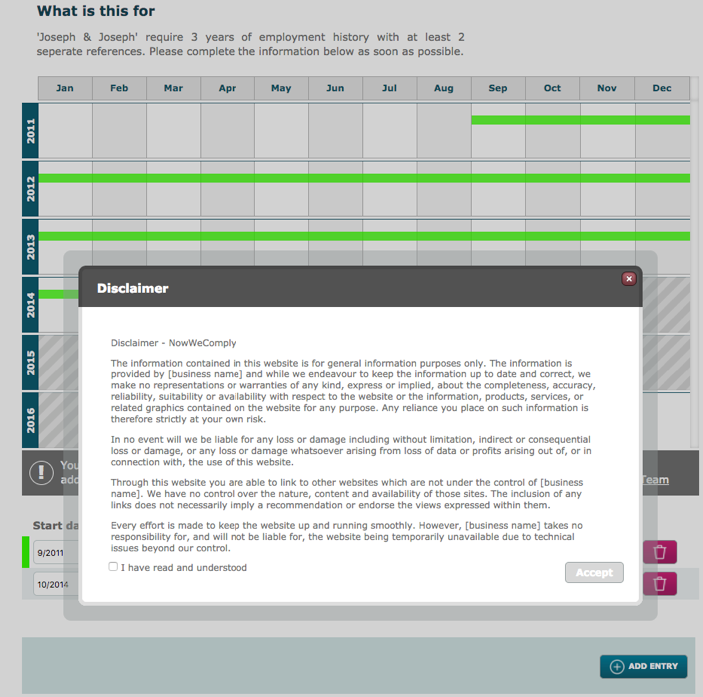
Should a disclaimer be presented to the Target when they submit a new Activity? If so check the box and enter the disclaimer text. It will only appear once per Criteria. It will need to be marked as read by the target before they can continue.
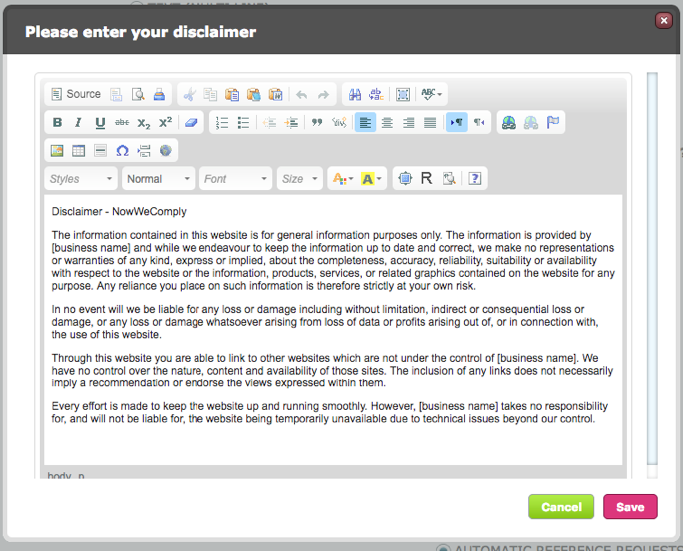
The Disclaimer could be used for relaying terms and conditions or confirmation of correspondence, ownership of data etc. This is how it looks to the target.
Approval Required
If an approval/rejection by the system user is required to ultimately complete the criteria then check this box. This approval behaves like any other approval in a criteria response
Referee Instructions
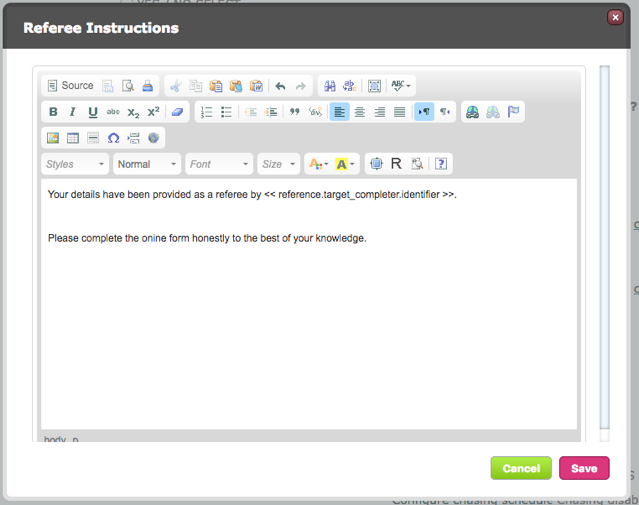
Click click to edit to set what text will be displayed to the referee in the criteria. This will only appear to the Referee when an online form is being used.
Merge fields can be used in the instructions, see Merge Fields for more information.
Permission to contact options
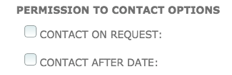
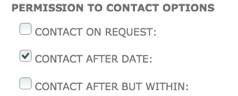
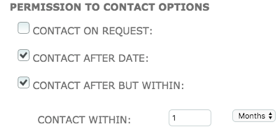
Set whether the referee will be contacted upon request of the Target or if they can be contacted after a certain date. If the referee is to be contacted after a certain date then an option to set the maximum amount of time that can pass before they should no longer be considered contactable is available. If no options are selected then contact messages will be sent automatically.
Reference Request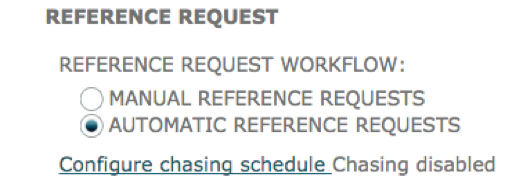
Reference Request Workflow:
Manual Reference Requests
After the target provides the activity details, if there are referees to be contacted, the system user will initiate the contact with them, through the Dashboard. Notification will be sent to the Patron, to alert them that contact is required.
Automatic Reference Requests
After the target provides the activity details, if there are referees to be contacted, the email to the referee will be sent automatically with no intervention from a system user (unless other conditions block it). The email that will be sent is the email selected in the Message Template field.
Configure chasing schedule
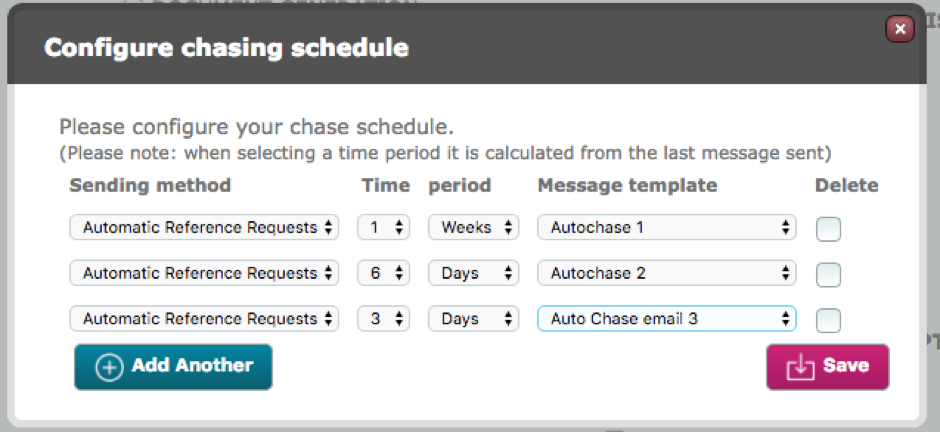
Automated chasing message rules can be setup here. The first chase message will only be sent X amount of days after the original request was sent.
There are 2 sending methods
Automatic Reference Requests: Select the length of time that will pass without a response from a referee before a chase message is automatically sent out to them. Then choose the period of time before the next message, and the next. There is no limit to the number of chase messages that are sent. Choose the corresponding message template to fit.
Manual Reference Requests: Select the length of time that will pass without a response from a referee before a chase message will be sent to the System User (Patron) to remind them to chase the referee. Then choose the period of time before the next message, and the next. There is no limit to the number of chase messages that are sent. Choose the corresponding message template to fit.
Require Note before Action
Before the system user confirms a Referee response, they must leave a note in the note field in the Referee Details screen. They will be unable to confirm until the note is added.
Require Contact before Action
Before the system user confirms a Referee response they must confirm they have contacted the Referee first. A check box must be ticked before the system user can continue.
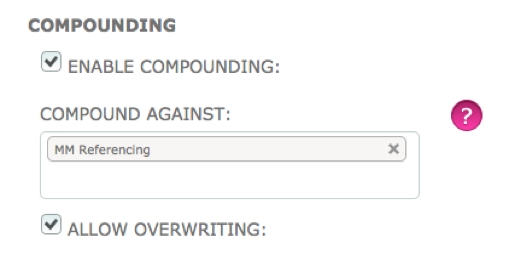
Compounding
Compounding is the ability to populate multiple DRAA2 criteria from a single point of data entry. Requirements from 2 DRAA2 criteria may be similar enough that the given activities could be relevent for both, compounding can populate multiple criteria including any referencing.
To use compounding, Create or edit a DRAA2 criteria that will be populated by another criteria when it is answered. Tick Enable Compounding
In Compound Against, select the criteria that can be used to populate this criteria.
Allow Overwriting specifies whether existing data in the criteria be overwritten by new data that is entered into a criteria being compounded against.
Note: Criteria can compound against each other, creating bidirectional data entry between criteria!
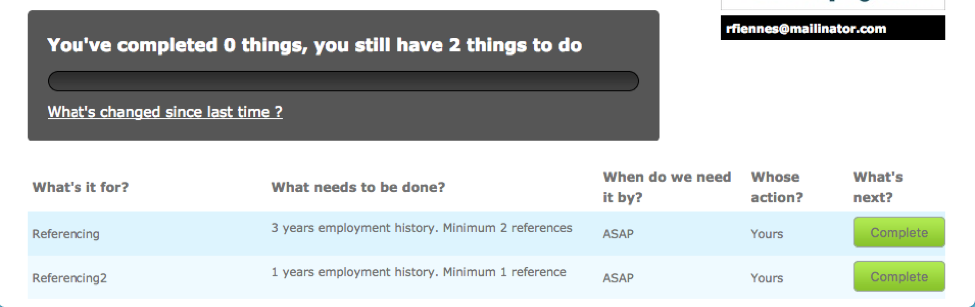
In this example the Target has 2 Criteria to complete, both are DRAA2 criteria.
‘Referencing’ requires 3 years of Employment history with at least 2 references.
‘Referencing2’ requires 1 year of referencing with at least 1 reference.
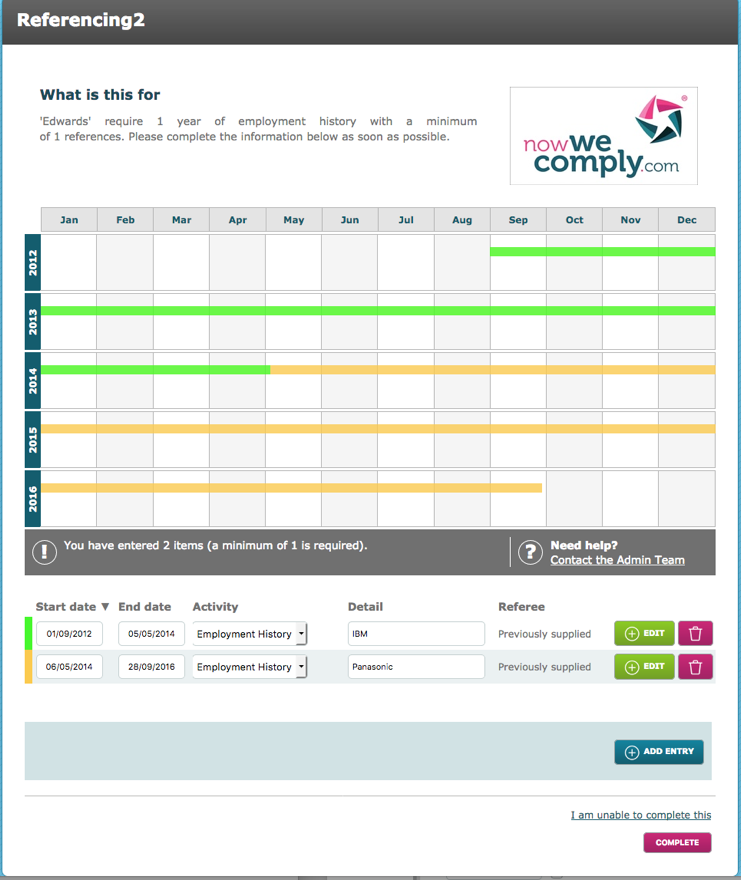
The target completes the ‘Referencing’ criteria, given 3 years of employment history and 2 references.
Once completed, the data populates the compounded criteria, in this case Referencing2. In this example, the target must complete the criteria, but this is configurable.
Signature Options
When the tick box 'allowed own Signature' is ticked, the referee will be able to provide their own signature as opposed to the standard system generated one which asks the referee to type in their first and last name as written in the system.
This option work only when the activity type is using the 'online form'.

Comments
0 comments
Please sign in to leave a comment.