
System User
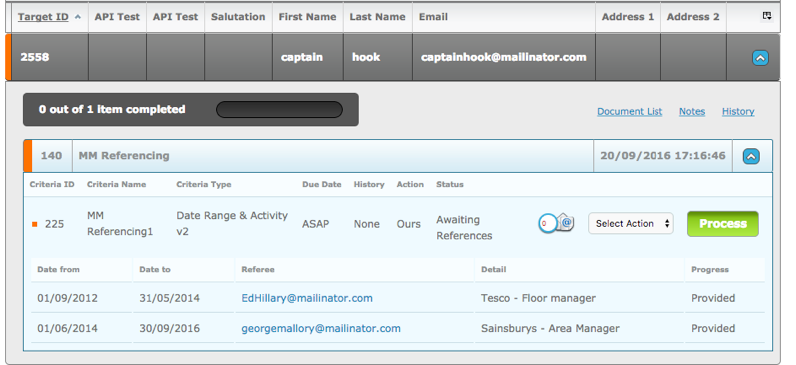
When a DRAA2 criteria has been completed by a Target, it will display on the System User’s Dashboard with a Process button. The Progress column will display Provided to indicate that an Activity has been provided by the Target. The status of the Criteria displays Awaiting References as the Referee’s have not yet responded to the Reference Request from the Target.
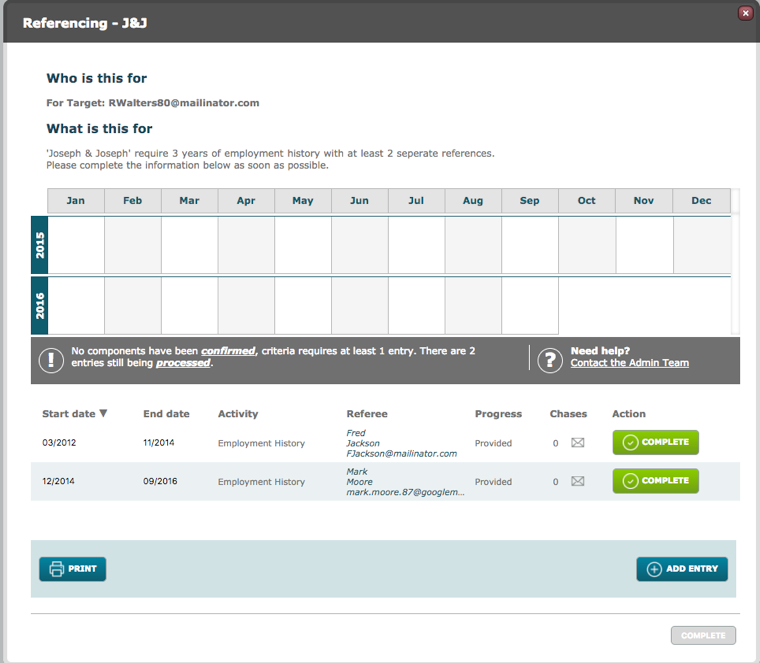
The system user can click Process to open the below Referencing screen and view the entries by the Target, as the Activities have not yet been confirmed (they still require a reference response and a confirmation of that response) they are not displaying in the date pane. The system user can click Complete to view the Referee in more detail.
Chases indicates how many times the referee has been chased. This number reflects the amount of messages sent to the referee.
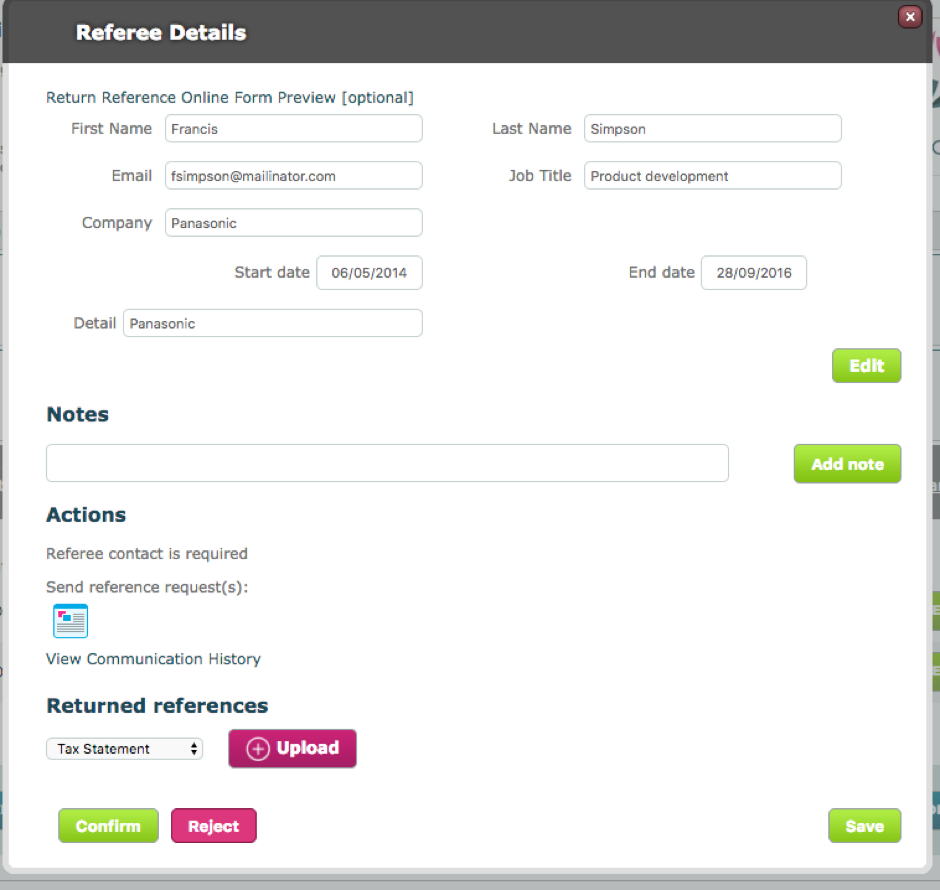
Using the Edit button a System User can edit the details of the Referee if required.
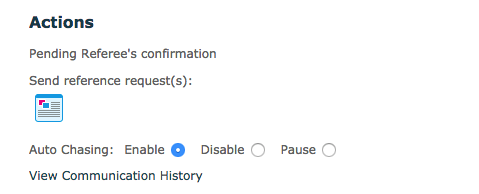
If Auto chasing is setup and the Referee has previously been sent a message, an additional option will display in the Actions section. The System User has the option to change the state of the chase cycle by using either Disable or Pause.
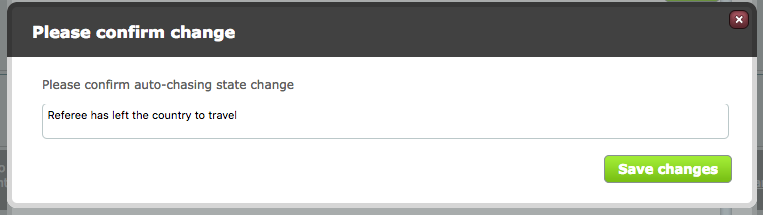
If the state of the chase cycle is changed a confirmation modal will pop up as seen below. Any change will need to be Saved.
Back to the main referencing screen, the system user can view the provided information by the Target, edit that information and provide notes against the Reference, providing Require Contact or Require Note before Action are not configured.
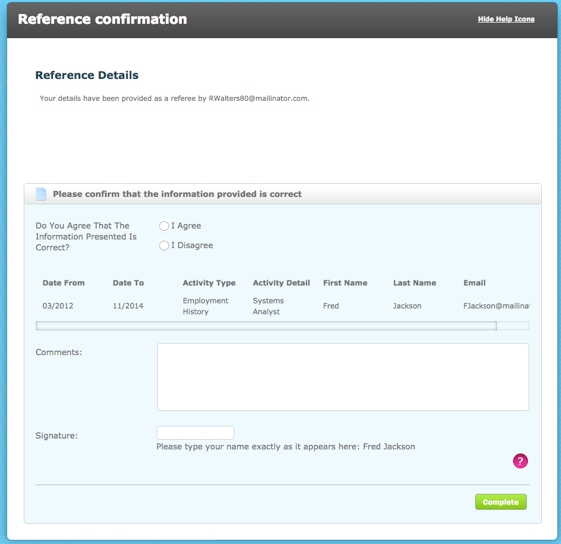
If Online Form was checked in the Criteria configuration, an option to preview the online form is available at the top. This will display as if the Referee is looking at the online form like the screenshot below:
In the Referee Detail screen: This icon opens a Send a Message modal.
 This icon opens a document that was listed in the Document Templates option of the Criteria Response configuration. Users can download, print and view the document.
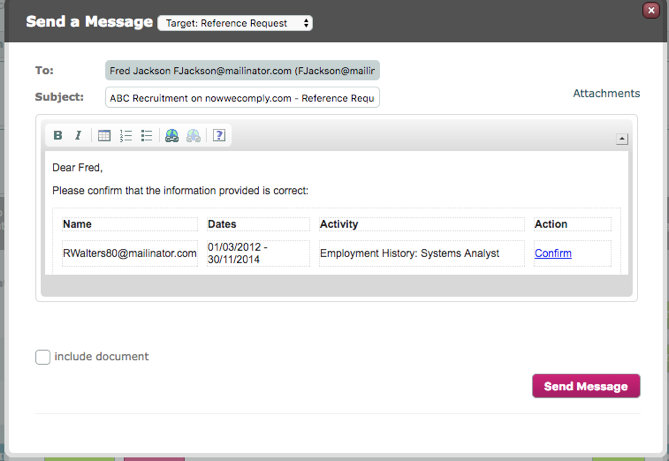
Send a Message
The template can be changed along with the content, this screen is the same as any Send Message screen in the system. If in the Criteria Response Configuration the Reference Request Workflow was set to Manual Reference Requests then this message may be the first contact to the Referee regarding the Target’s Activity.
When a reference has been returned and checked(all documents uploaded manually or via an online form), the system user can confirm the response (when all conditions are met), using the Confirm button (in the Referee Details screen showing the date pane). This will then display in colour on the date pane with a Progress entry of Confirmed.
When all Activities are confirmed the Complete button at the foot of the screen becomes enabled.
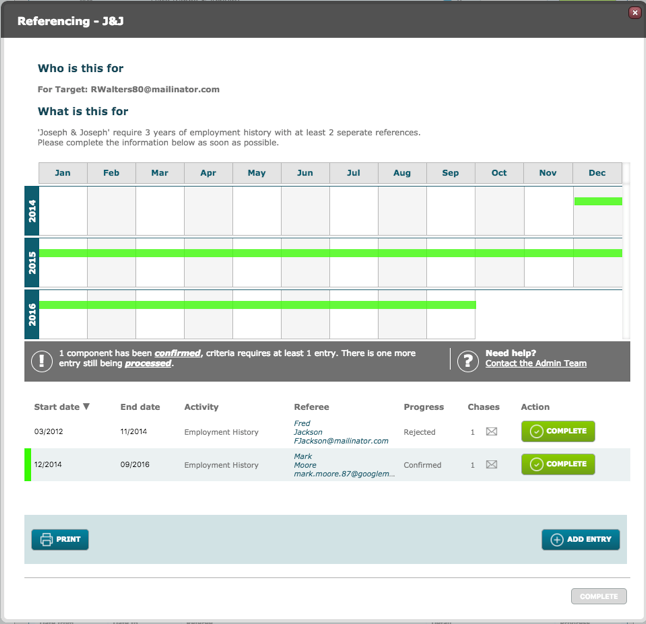
1 Activity confirmed
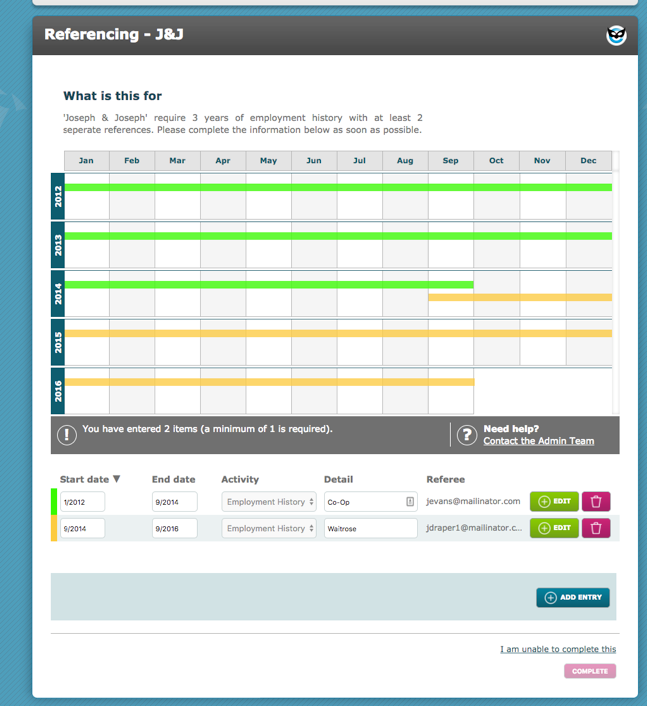
2 Activities confirmed
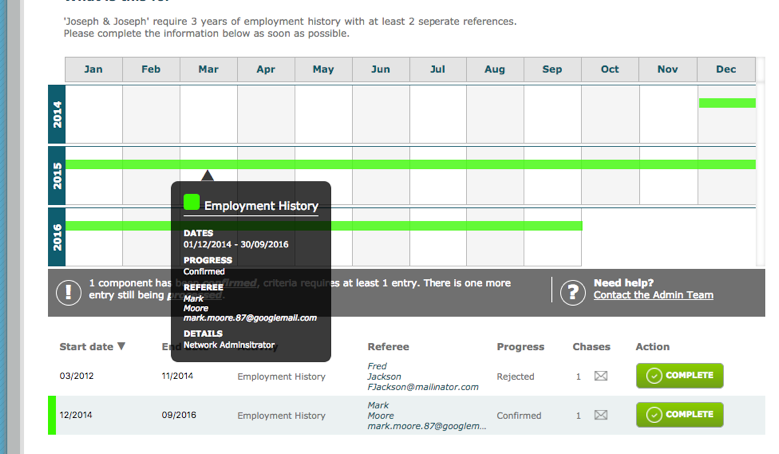
Hovering the mouse over a confirmed returned reference will display details of the reference in a tooltip style popup.
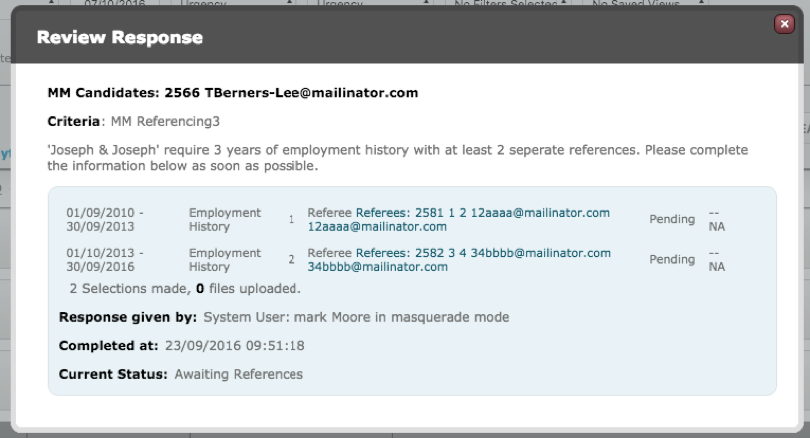
From the Dashboard, the system user can click on Review Response from the Action menu to quickly see the progress of the criteria
If DRAA2 is installed, there will be additional filters on the Dashboard, see Dashboard Filters
Comments
0 comments
Please sign in to leave a comment.