
In autologyx, we have the ability to merge fields in to the system, through the use of Date Range & Activity 2 (DRAA2), in addition to using the default way of using Merge fields.
Merge Fields, as explained and demonstrated through the previous manual, can be used through the use of ‘Message Templates’ and ‘Document Templates’
To use either of these template options, go to Admin > Under System Setup > Select the appropriate template.
For this process manual, ‘Document Template’ shall be used to explain the use of Merge fields using DRAA2.
As explained through the previous manual of ‘Merge Fields’, right click within the ‘Document Context’ box, then select ‘Insert Merge Fields’
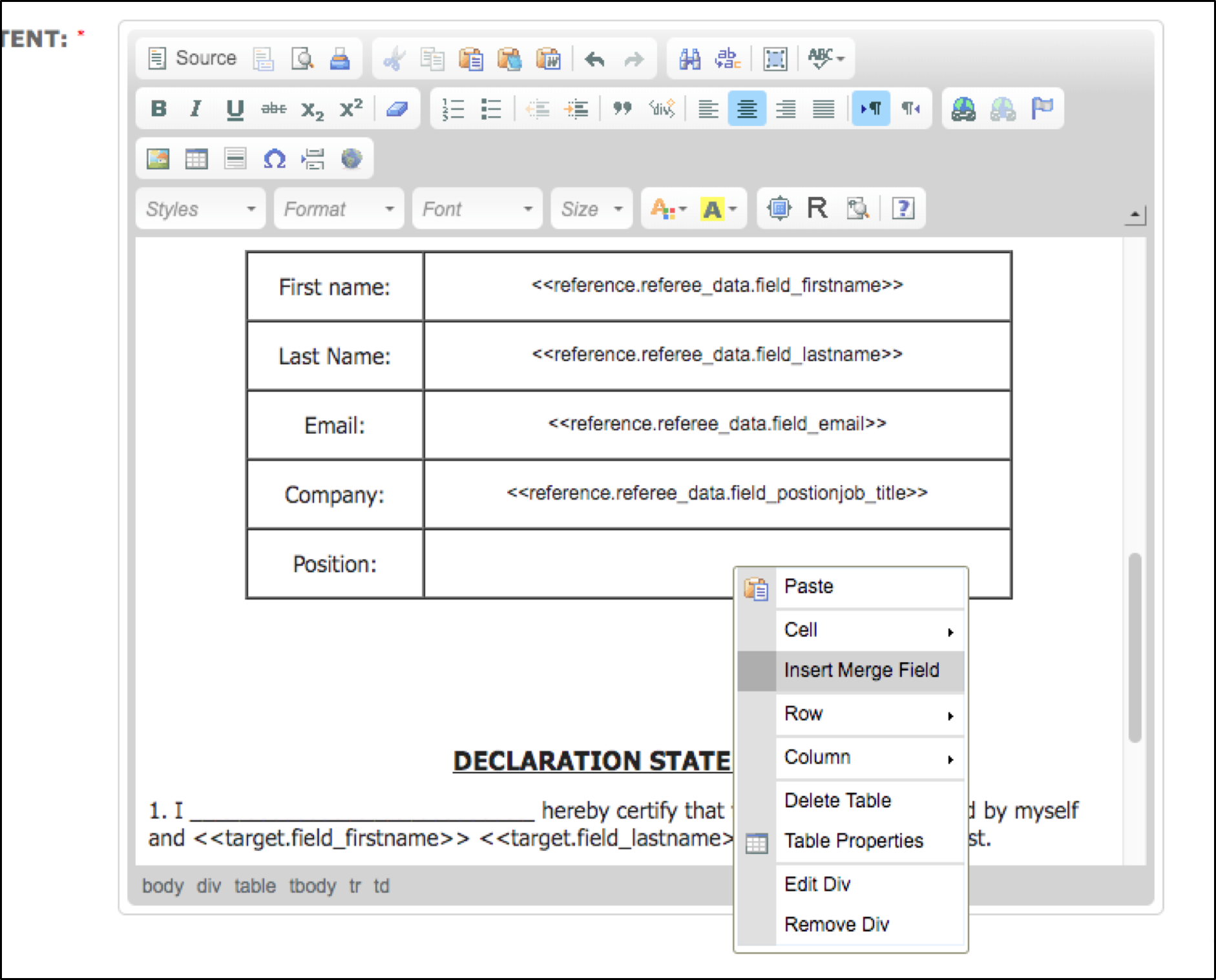
Once ‘Insert Merge Fields’ has been selected, a choice of four options are now available to select. Choose the ‘Targets’ option, from this, a selection of further options are now available to choose from.
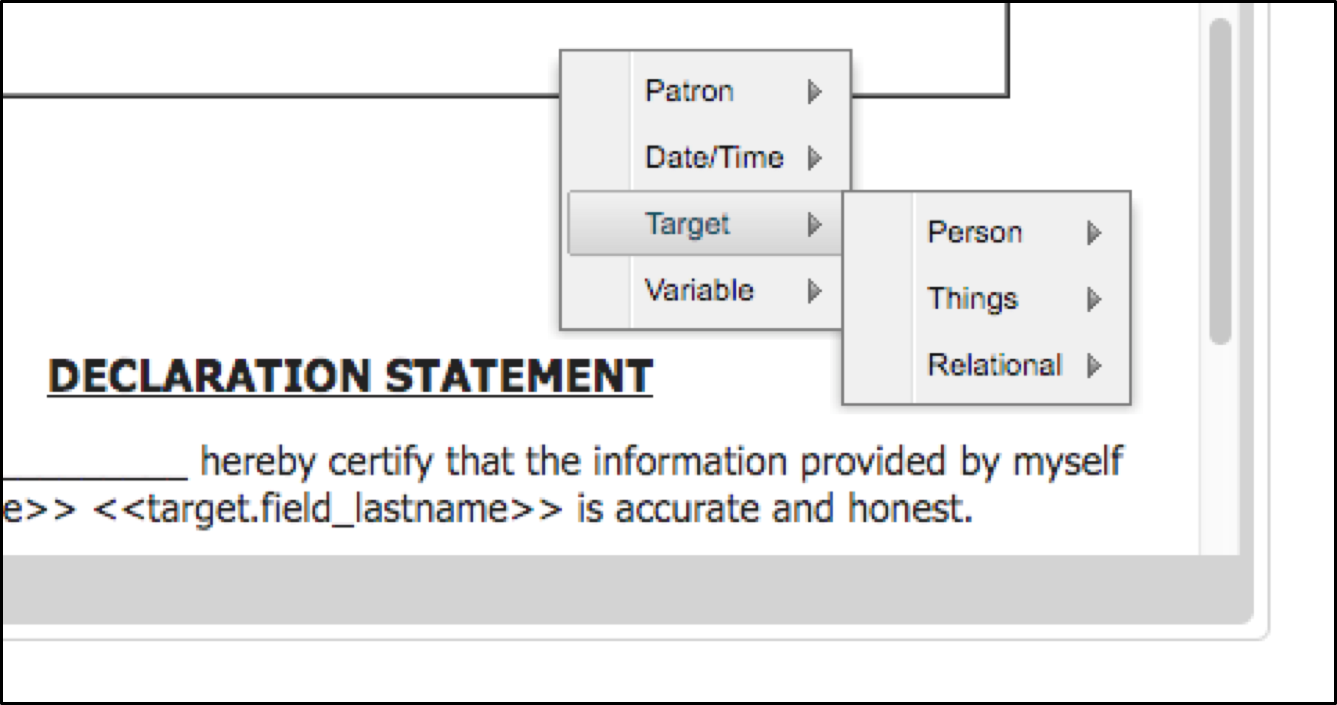
A choice of three options, the Target Types, ‘Person’, ‘Things’ and ‘Relational, are now displayed. Choose the ‘Person’ Target Type, from this a list of all the Target Groups that now have the ‘Person’ Target Type, will be displayed.
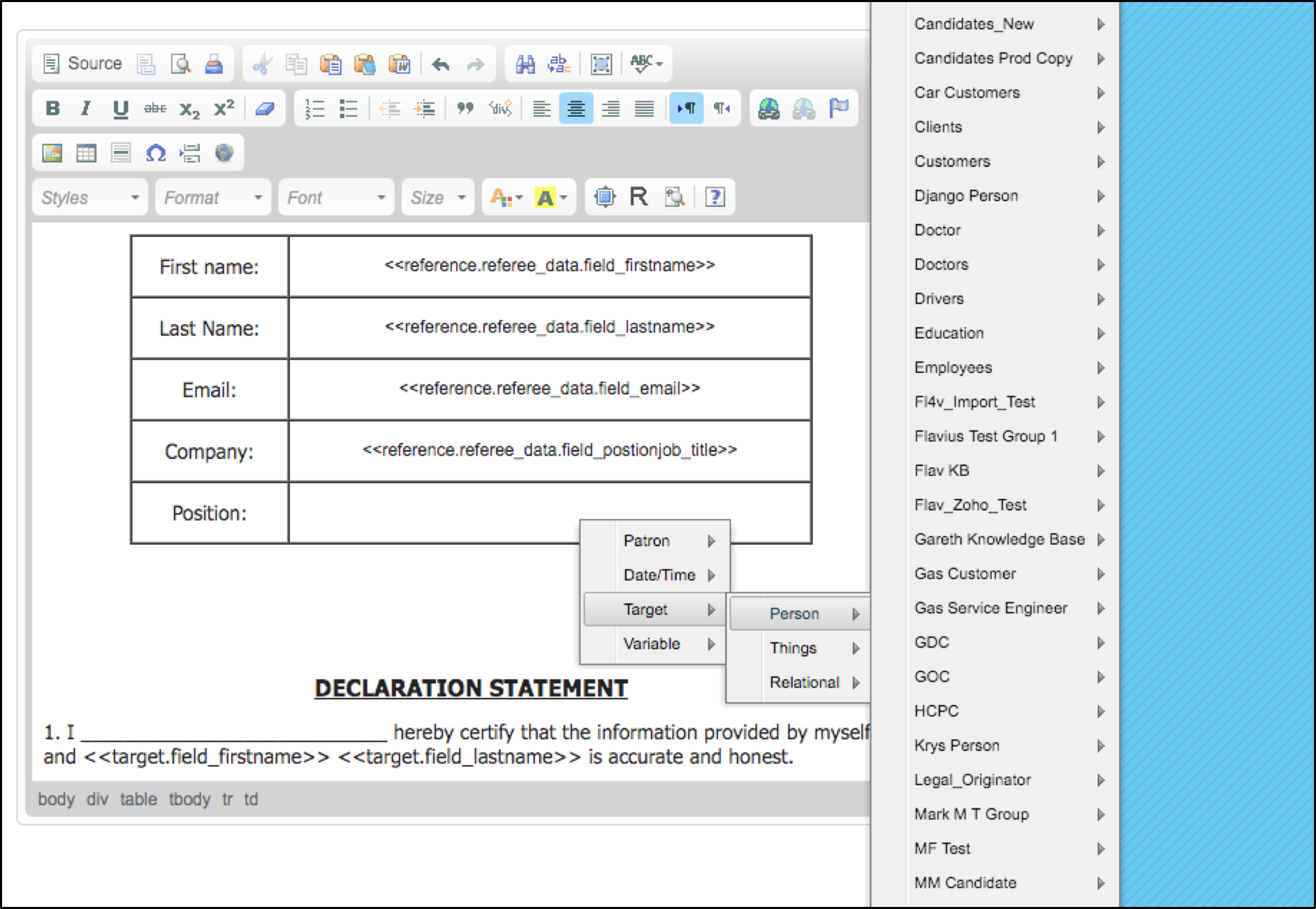
Select the appropriate Target Group you wish to gather the information from, for this example, the Target Group ‘Candidates_YWRG’ will be used to complete the process.
Having selected ‘Candidates_YWRG’, a choice of five compliances are now displayed, select the ‘Criteria’ option.
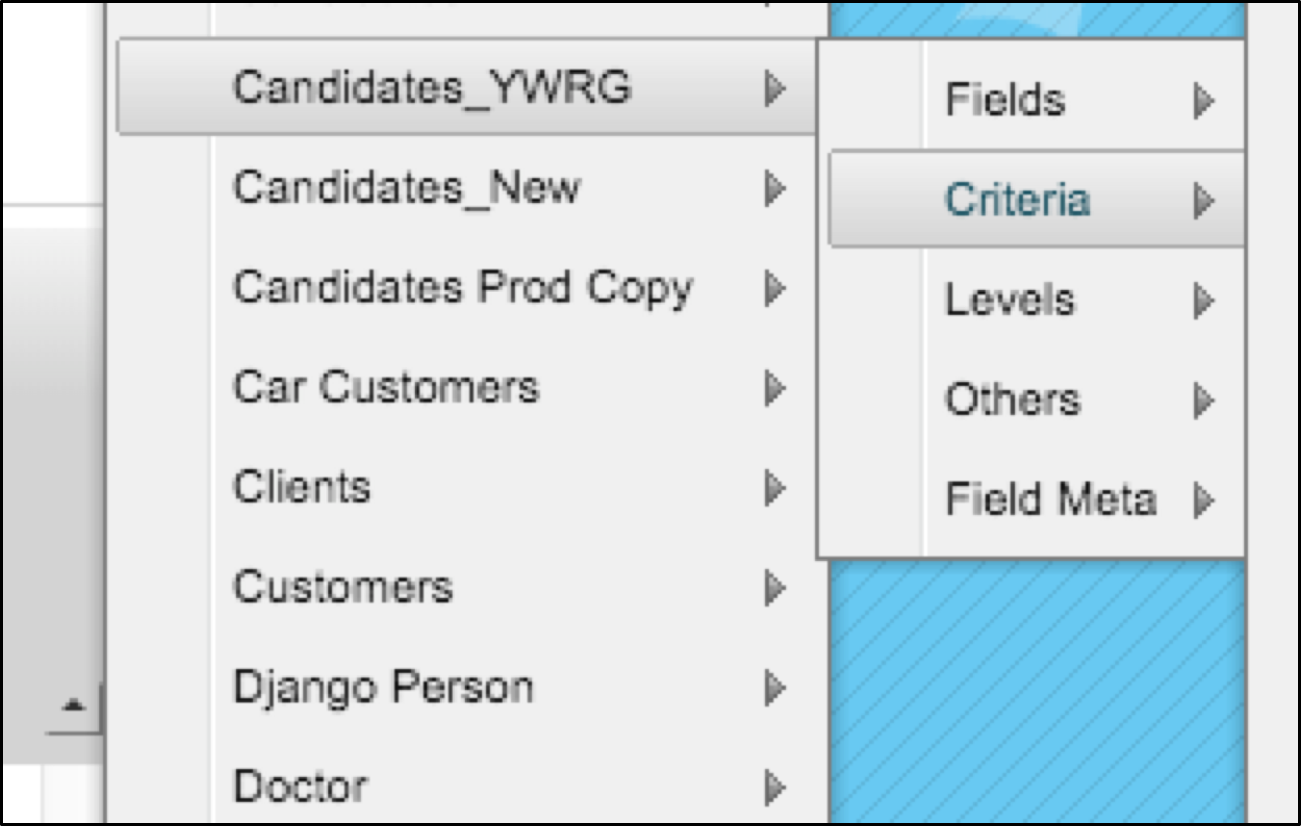 A list of all the criteria associated with ‘Candidates_YWRG’ are displayed, select the appropriate criteria that has the correct response type, which would be the use of ‘Date Range & Activity V2’. For this example, the criteria that is used is ‘Employment References’.
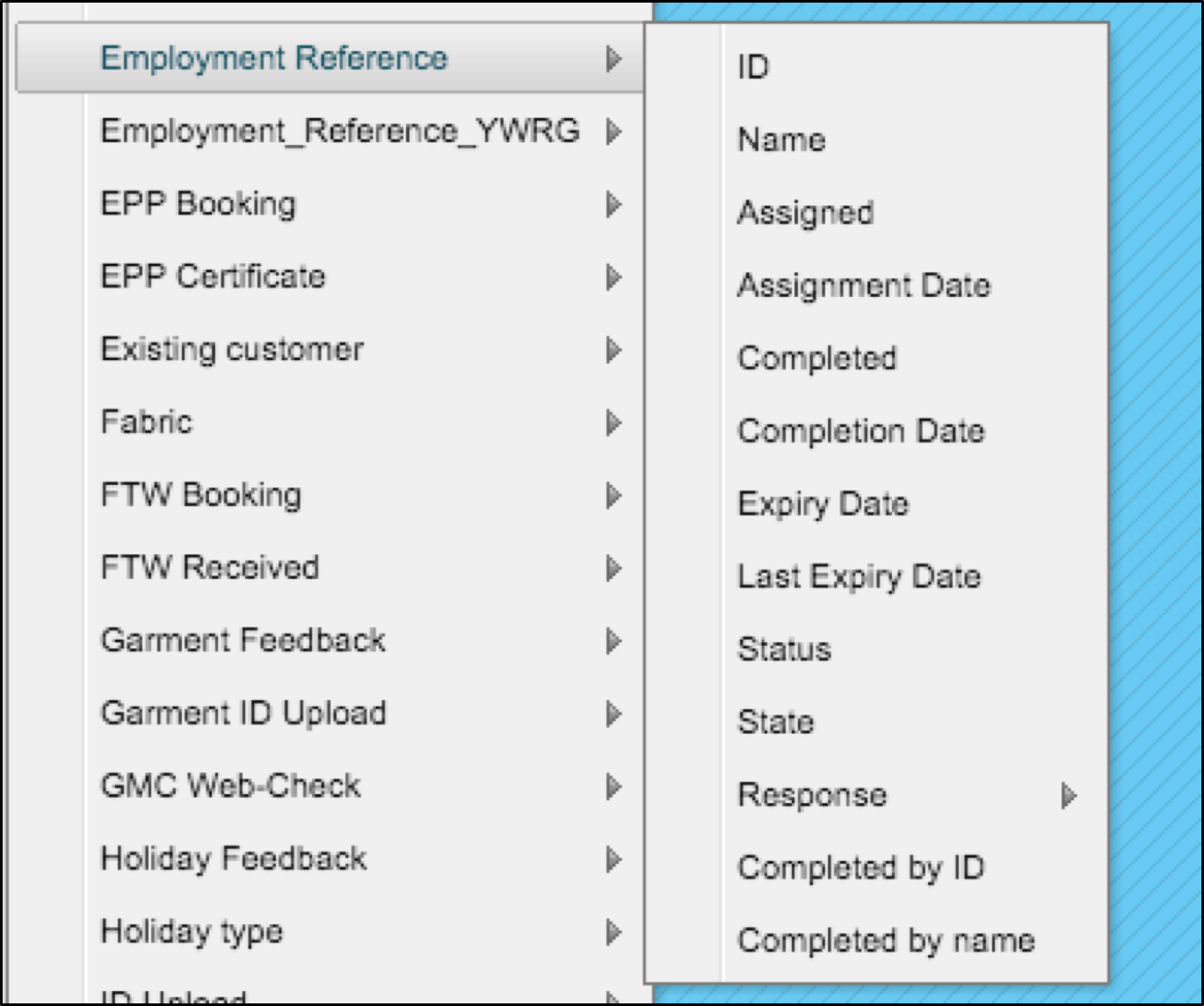
Once selected, another list of options are now displayed. Select the ‘Response’ option. Then select ‘Most Recent’ from the list of five available.
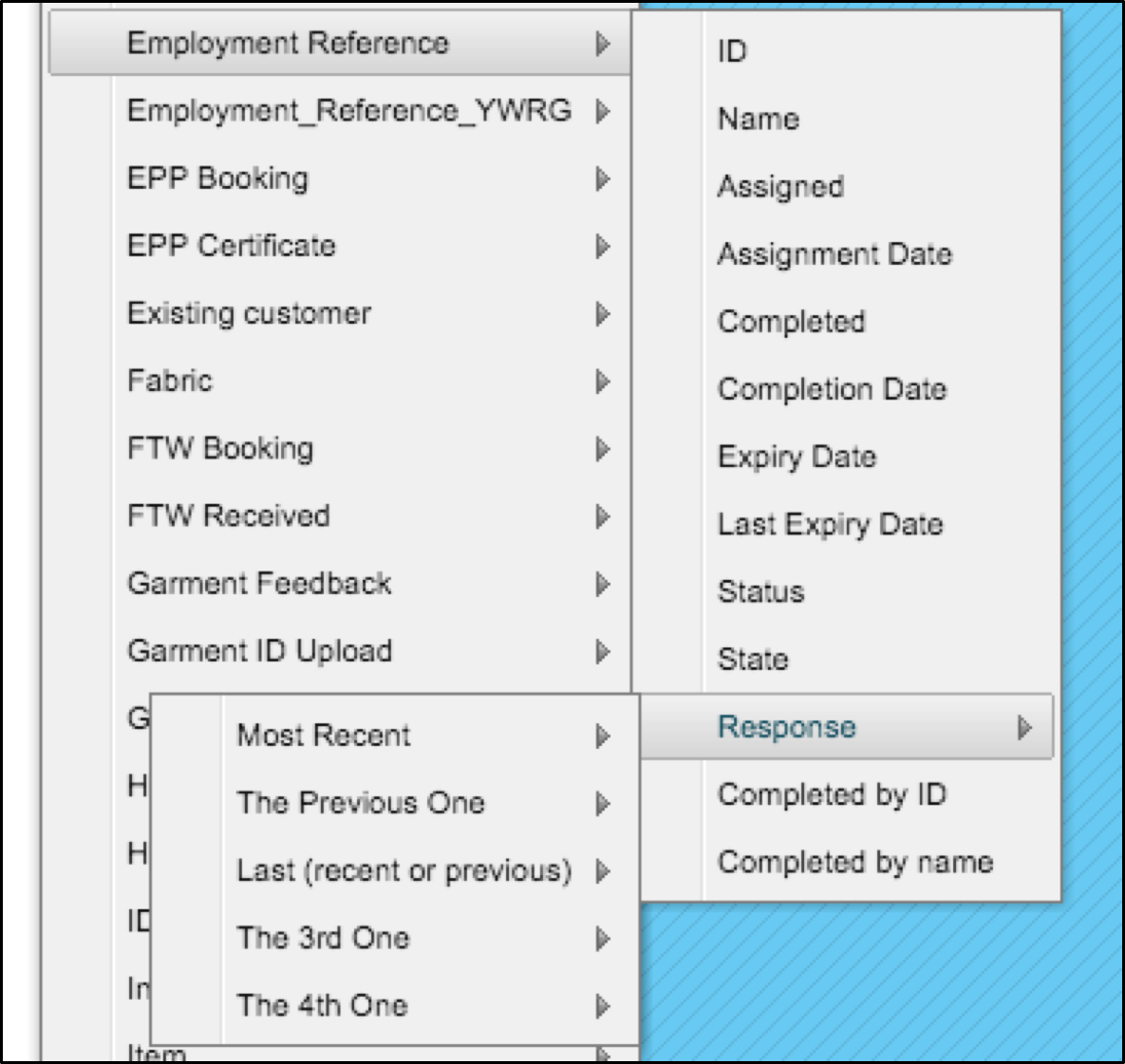
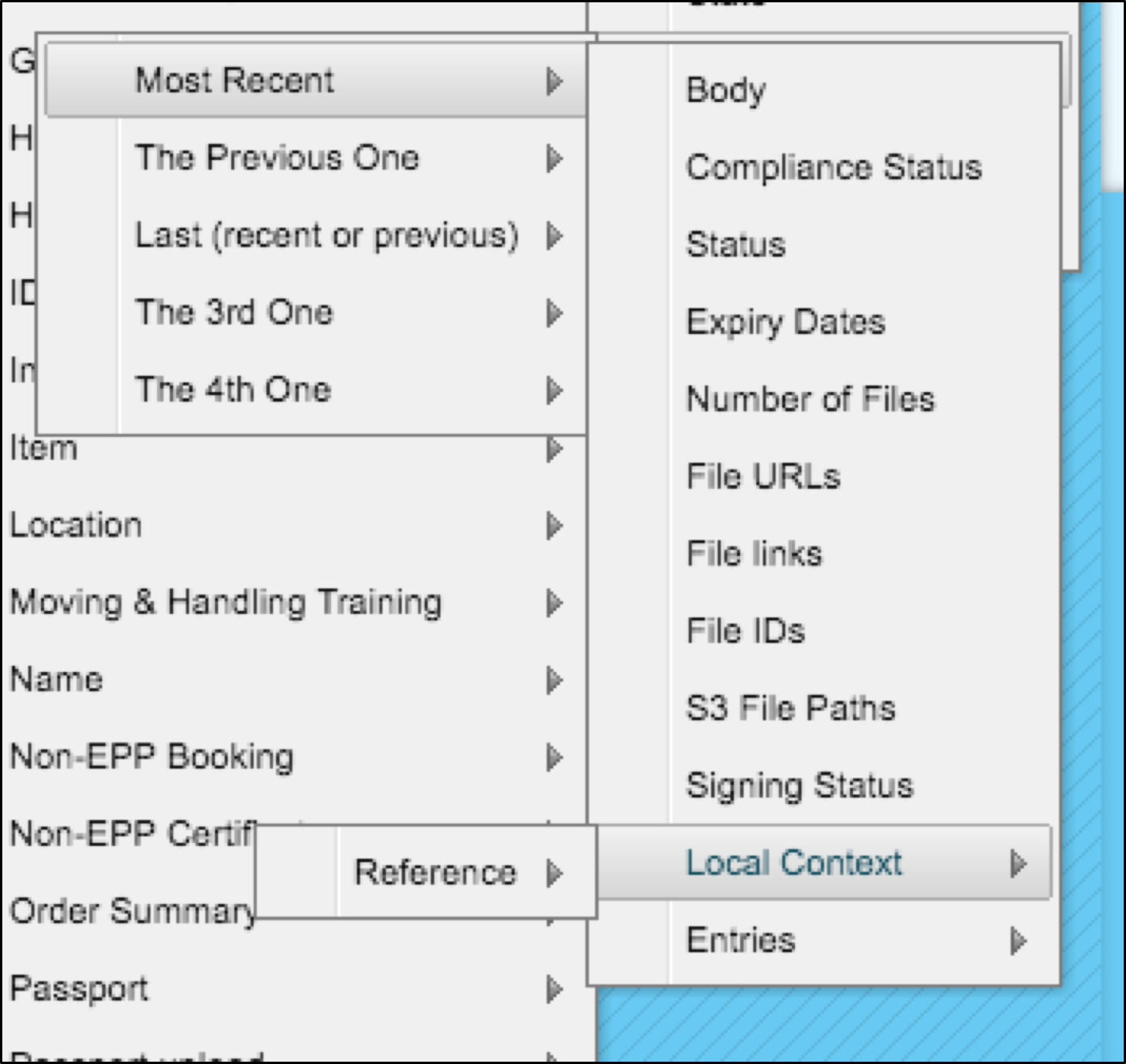
Next, select ‘Local Context’ from the list.
Then select ‘Reference’, from this a list of further options are available.
Finally, select the ‘Referee Data’. Here, the options available are the ‘Target Fields’ that were made available in the Target Groups.
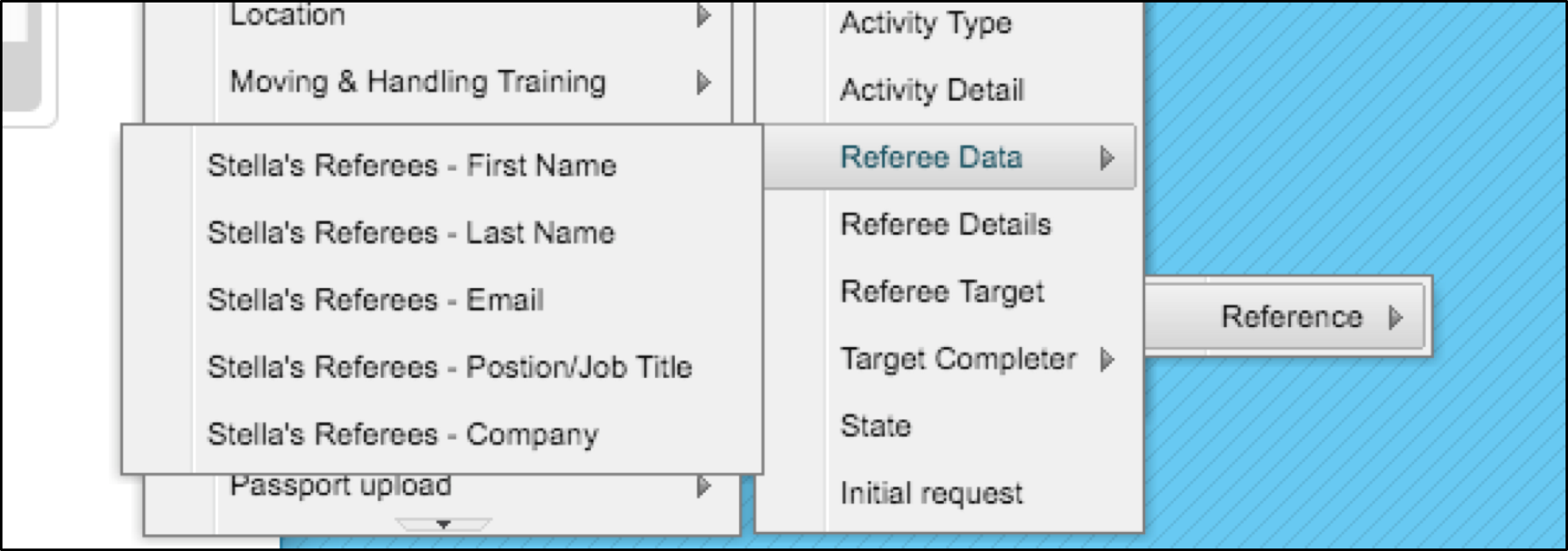
Once the target completes the form stating the referee’s details, these target fields will be displayed on the document automatically.
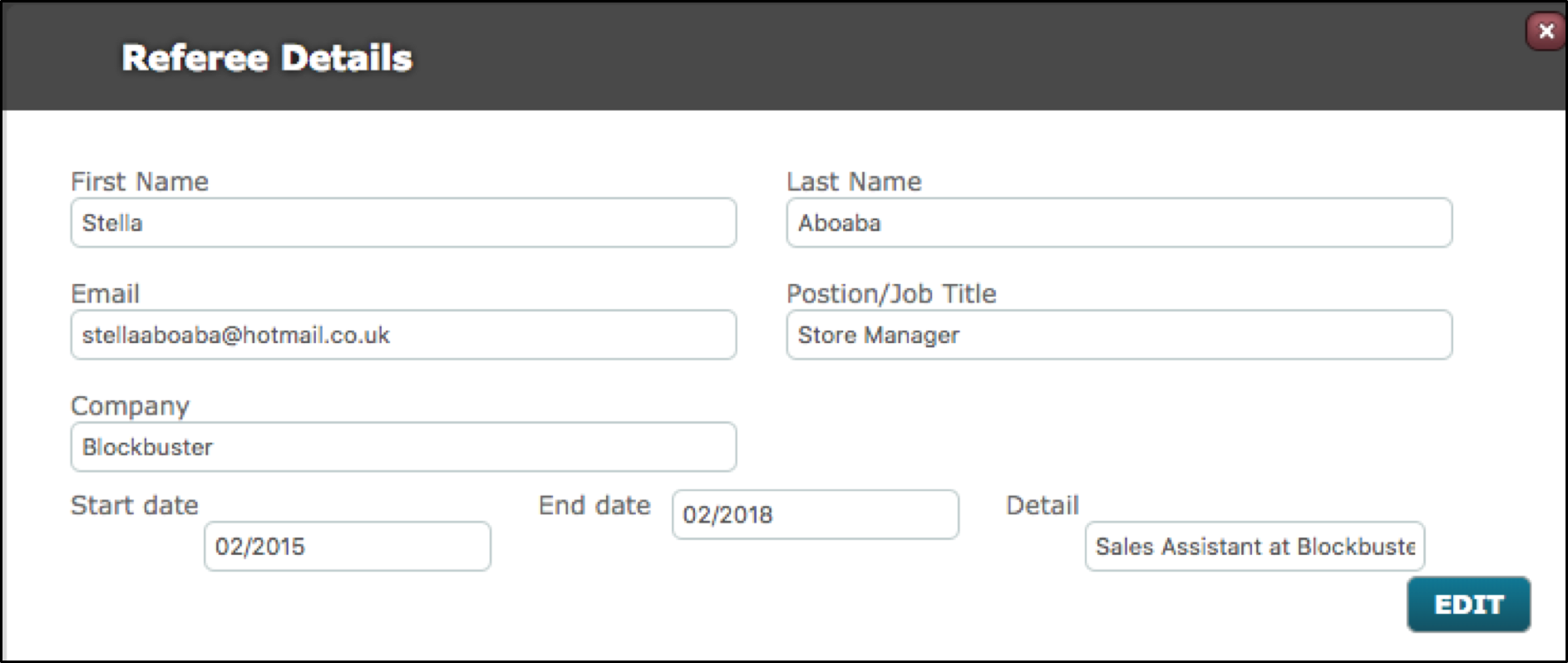
Below, is an example of a referee’s details being created for the first time.
This image below, is a document template for ordering bespoke garments. As you can see the targets and referee’s details have been merged within the document. The first table has used standard merge fields for the target. The second table has used DRAA2 merge fields for the target’s referee details.
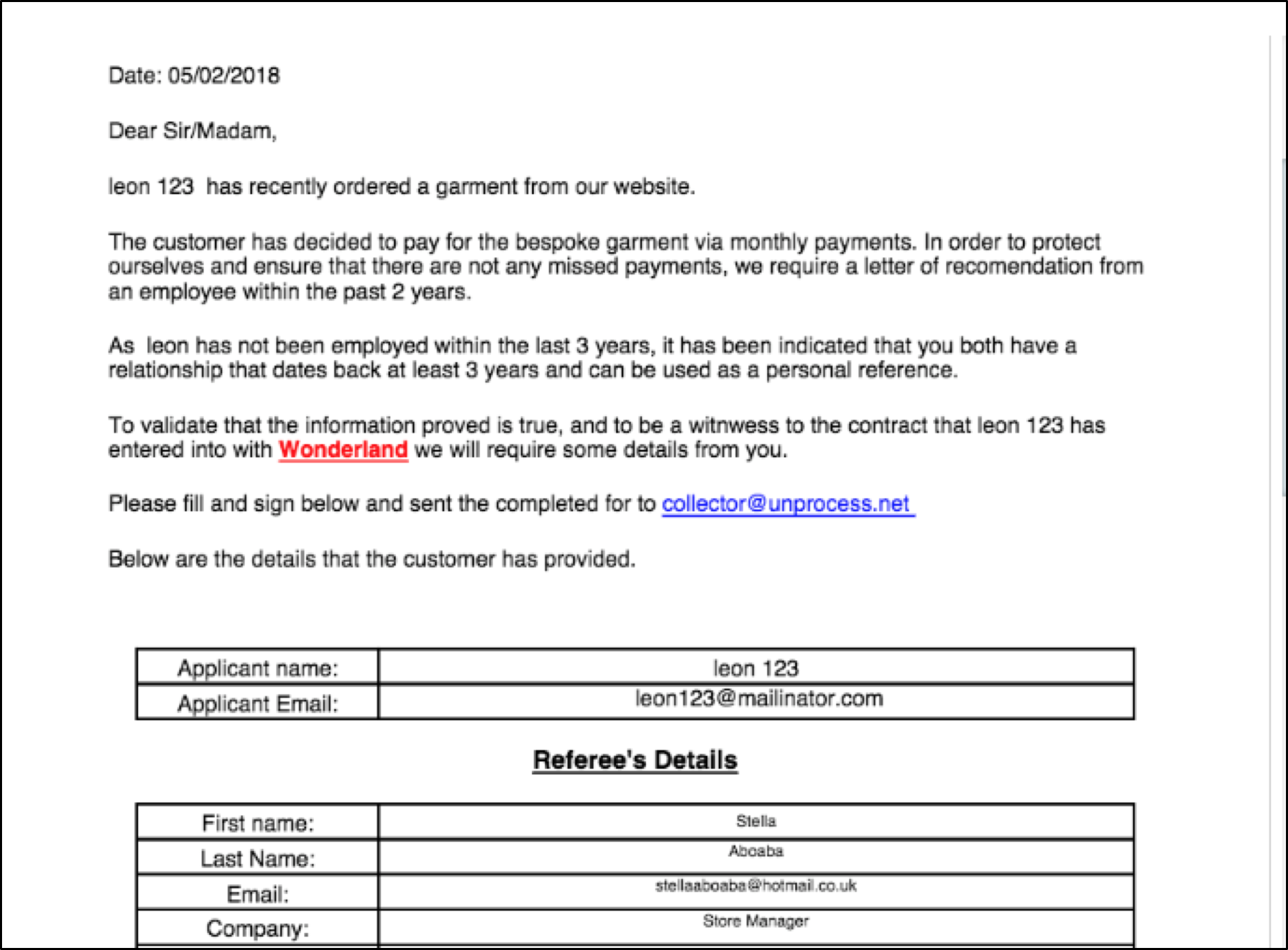
We are able to implement two different sets of data unto one document through using DRAA2 merge fields.
Comments
0 comments
Please sign in to leave a comment.