
Gaps
If a Target is completing their DRAA2 criteria and entering their Activity history, there may be gaps in their Activities that need to be accounted for, such as a Sabbatical or a Gap Year.
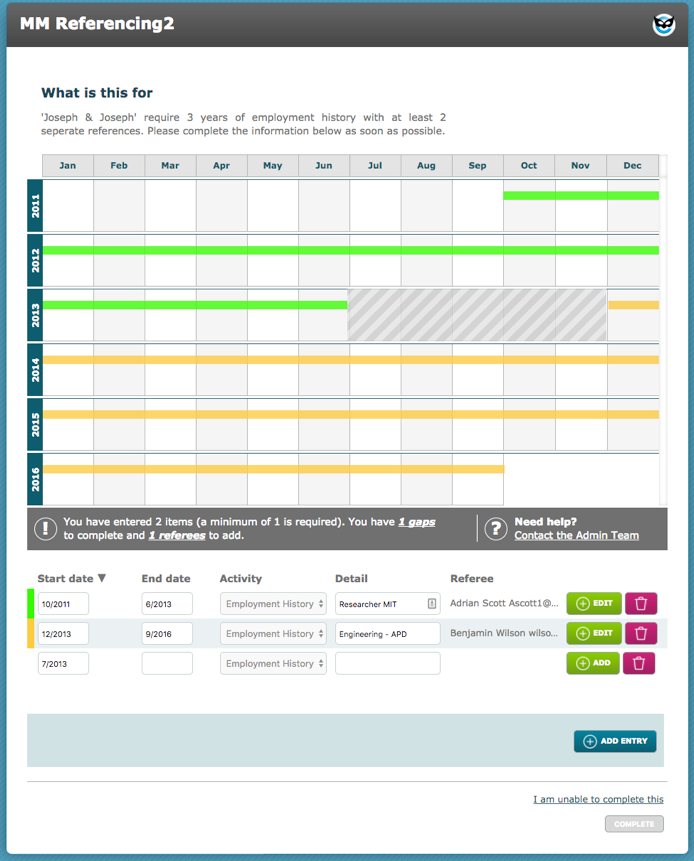
The target is alerted to those gaps in the progress bar and also by the grey mark on the date pane.

In the below example, the criteria was configured to not allow gaps, therefore the Target must account for those dates in order to be able to continue. This criteria also has only one type of Activity to choose from, so the candidate cannot complete the criteria! It is important that if gaps are allowed, there are acceptable types of gaps setup and/or the target is able to use the option I am unable to complete this. The freeform Activity type can be used for this type of scenario.
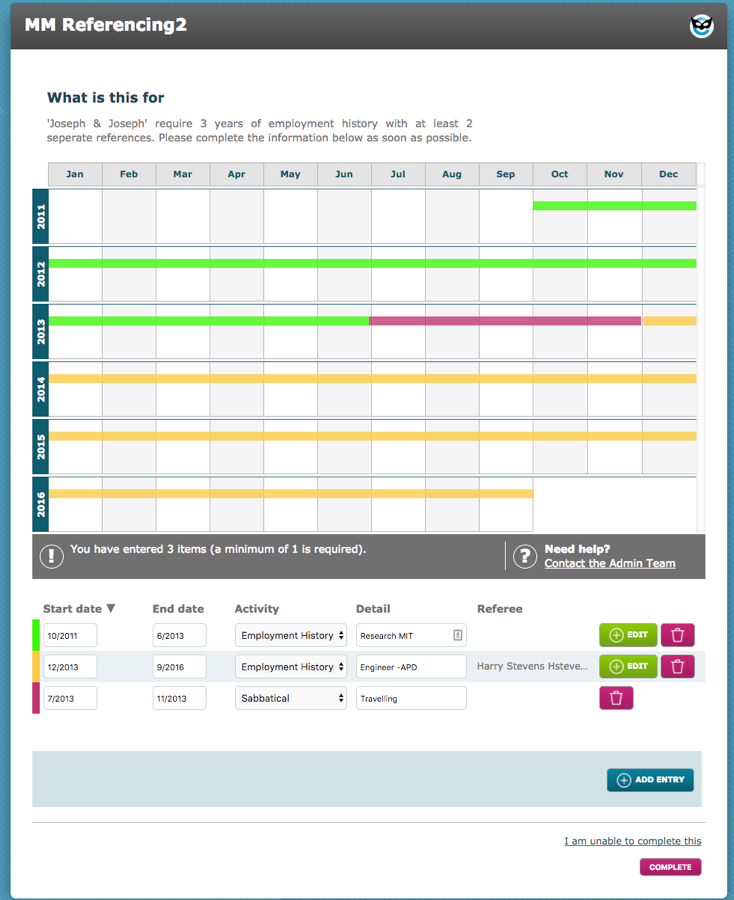
In this example, gaps are permitted and there are alternative Activity types to choose from.
This target took a Sabbatical in 2013, the Sabbatical Activity type does not require a referee to confirm it.
Referees can create gaps if they need to amend the Activity dates. If this happens, then a new row will be automatically populated in the date pane screen. The gaps must be accounted for before proceeding.
Status will change to combined
Rejections
A referee can disagree with a reference; they have the ability to amend the dates or other activity details. In which case the reference is still a valid reference. If any changes are made then the System User must authorise them (which will be recorded in history).
Any changed fields/data will appear in yellow
They also have the ability to completely disagree, the reference will still be returned. A reference may be given that does not give enough detail to be deemed acceptable, for example.
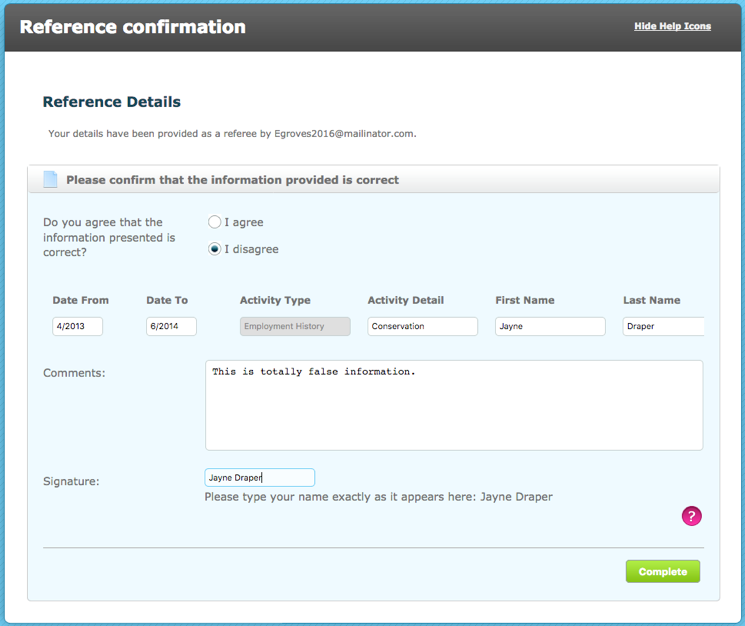
A system user can view the response and see that this reference is not acceptable. They will therefore reject the Reference.
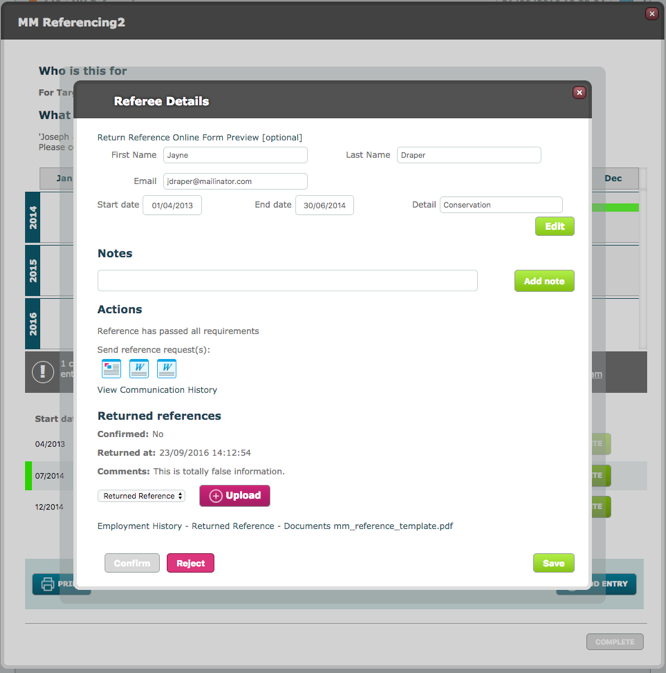
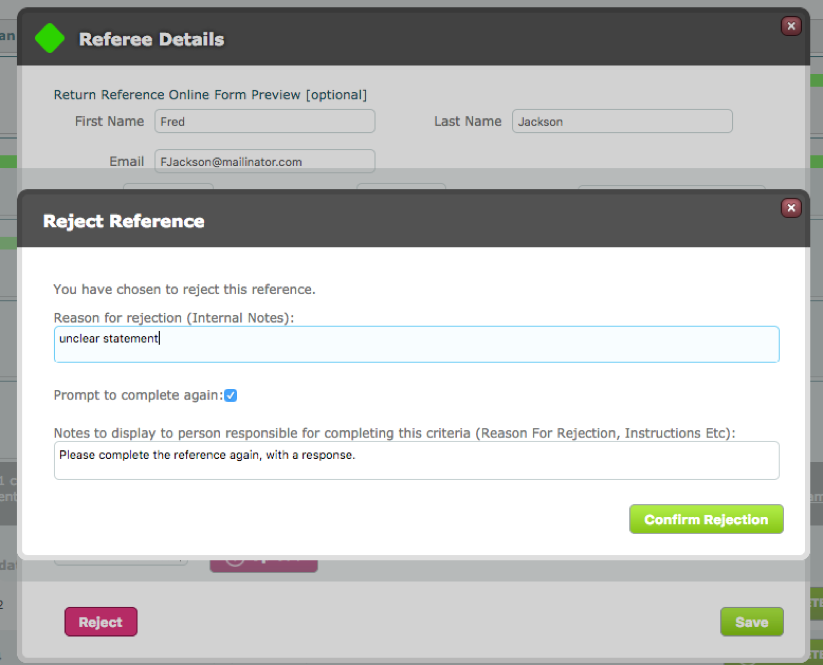
After clicking Reject, the Reject Reference modal will pop up. There is an option to prompt to complete again, in which case a brief note must be provided to the Target.
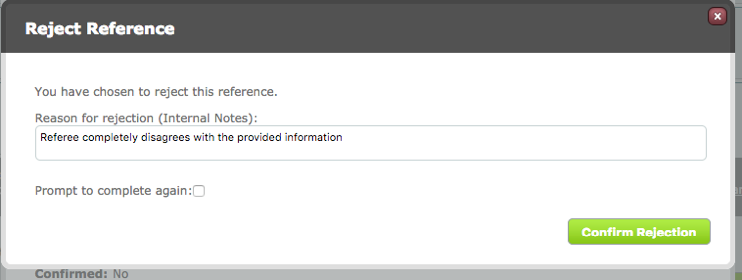
The Target can be asked to complete the reference again, at this point.
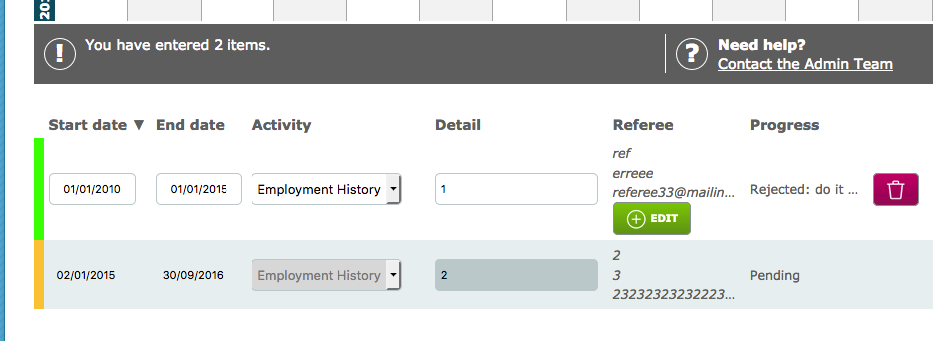
The target will see that the reference was rejected by the system user. The Trash icon will remove that line completely, ready for a new entry to be submitted.
Declined References and gaps
Cannot confirm a returned reference
If a system user if trying to confirm a returned reference, make sure that any returned documents have been checked, a red text message will alert the system user as to what is missing.
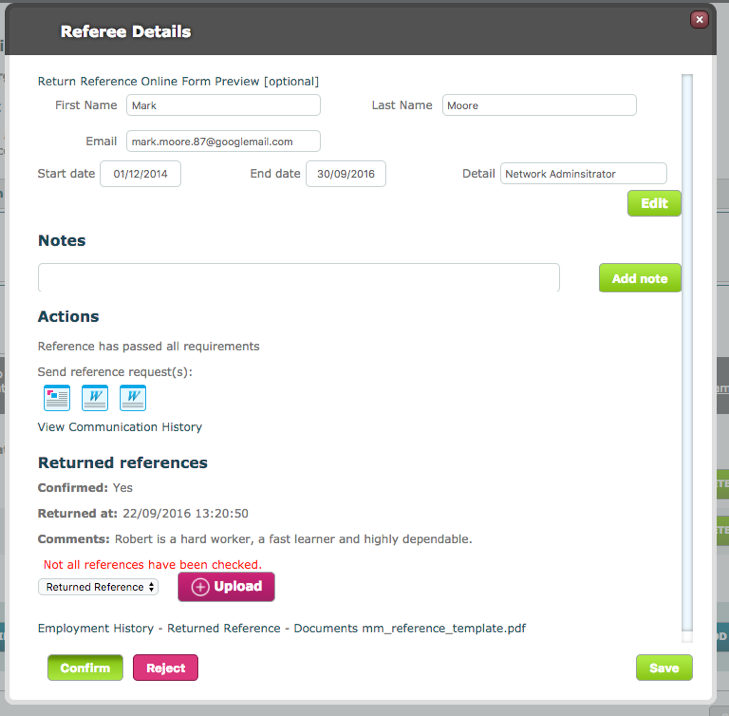
Click on the document name; in this example the PDF listed at the bottom of the modal.
The document will open in a new Modal. Click Save once finished viewing.
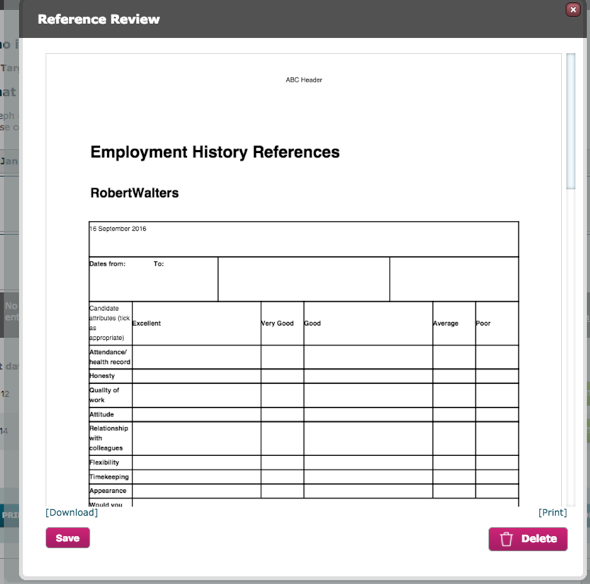
The Confirm button should now be usable.
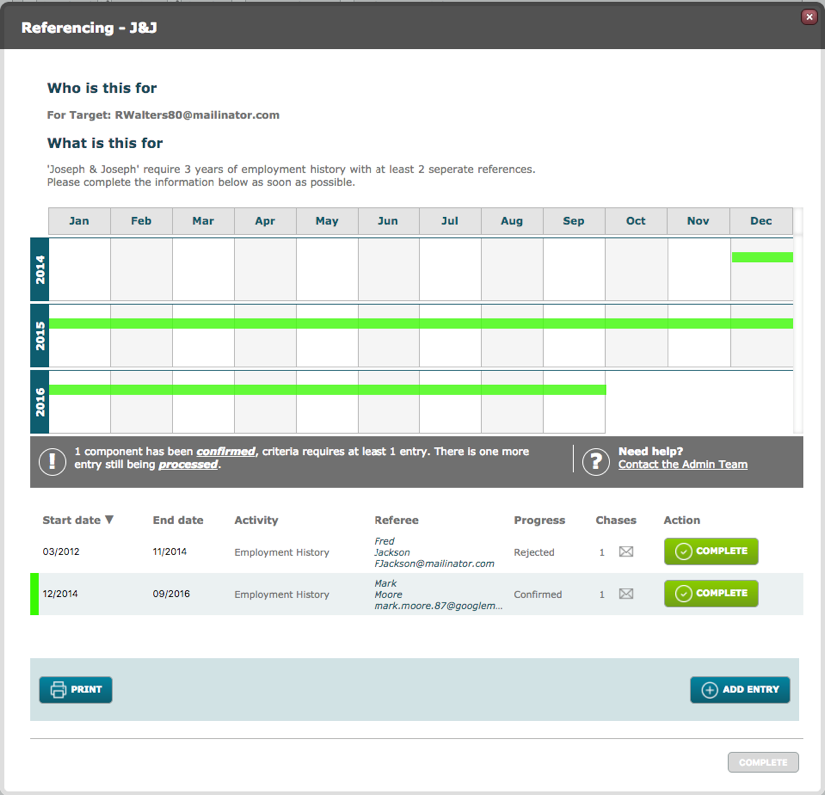
A confirmed, returned reference will display on the date pane like any other confirmed Activity.
Comments
0 comments
Please sign in to leave a comment.