
Admin > Sequence > Create a New Sequence
You will be prompted to name your sequence, you should choose a name which defines your process, then click Save.
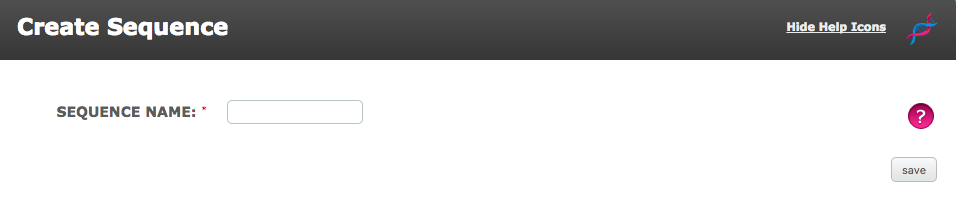
An empty Sequence will be displayed now. On the left hand side of the screen, there are headers titled 'Actors', 'Truth Tables', 'Sequences', 'Target Groups' and 'Levels'.
The first step towards creating a Sequence, is to select a Target Group from the left hand side to build your process around. This is done by dragging the Target Group from the left and dropping it into the Event section.
When a Target Group is selected, the list of 'Levels' on the left hand side, will only display Levels that have been assigned to the Target Group selected. Drag your Level(s) from the left and drop them into the Stage section.
Click and hold the centre of your Target Group in the Event box, now move your cursor down to the name of your Level in Stage. The two objects will be connected with a green arrow. Once a connection is made, a ‘Trigger Configuration’ action will automatically load which the user can configure.
Once the trigger configuration is completed, save. This turns the trigger green. If a user does not save their trigger configuration, then the trigger will not be green but it will be grey. If the trigger is grey, then this step in the sequence would not take place and they sequence will not save. 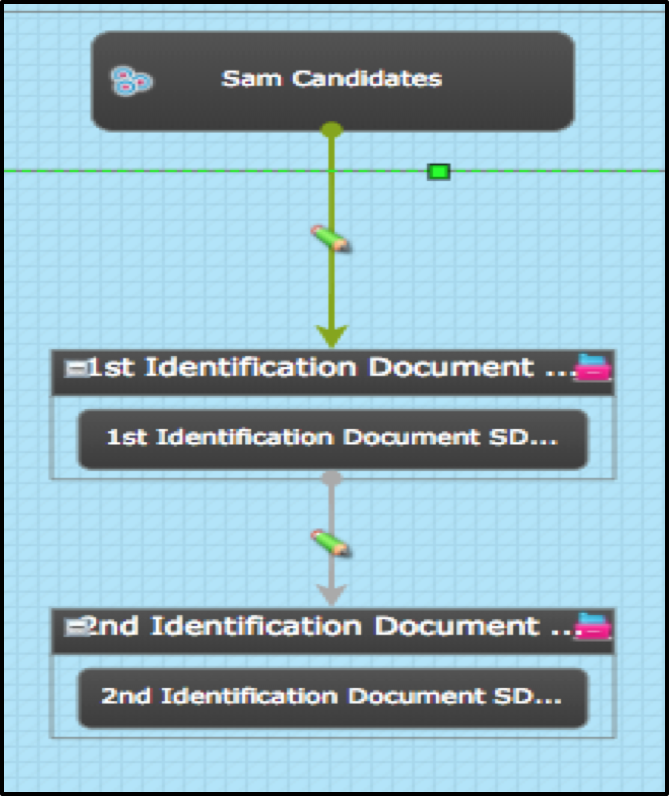
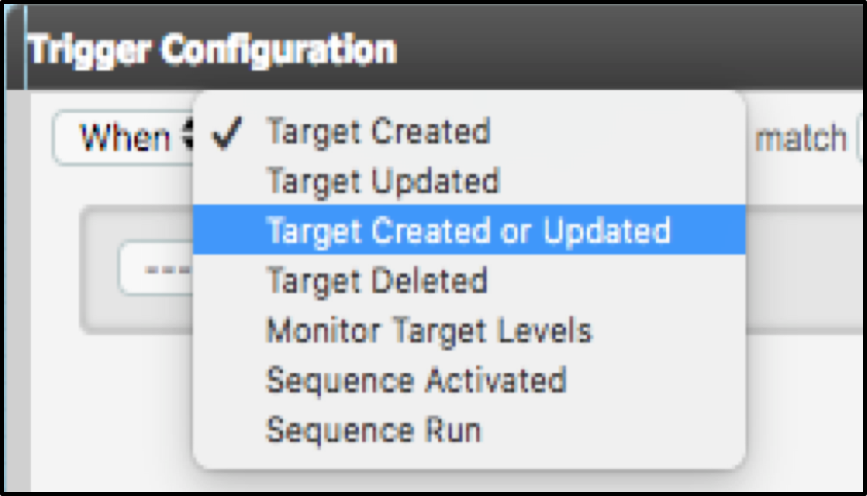
Right click on the middle of the connector (the arrow) between the Target Group and the next action (level, actor etc.) and click Trigger. In the drop-down menu adjacent to WHEN, select how you want the action to be activated, the options will be different depending on where the trigger is connecting to and from.
- Target Created – the sequence will start when a target is added to the target group
- Target Updated – the sequence will start when a target record is amended.
- Target Created or Updated – the sequence will start when a target is added to the target group OR when a target record is amended
- Target Archived/Erased - the sequence will start when a target has been archived or erased.
- Monitor Target Levels - this allows you to monitor levels which have already been assigned to a target via another sequence or manually.
- Sequence Activated – the sequence will start when it is activated in another sequence
- Sequence Run – the sequence will run when it is manually run
You need to save your Sequence. You will find the save button in the menu bar at the top of the page. When you hit Save, a pop up text box will appear to confirm the sequence is saved successfully.
If you want to check your Sequence or edit it at a later date then simply go back into Admin then Sequences. Now click on View/Edit Sequences and select Edit from the action menu adjacent to the required Sequence.
Autologyx can run very simple or very complex Sequences for any number of Targets, and will continue running processes in this way when further Targets are added to the system, or when existing Targets are updated.
Comments
0 comments
Please sign in to leave a comment.