
When a User right clicks on a Connector/Trigger, a list of options are available. Some options will not be displayed/restricted depending on where the connector is going to.
Trigger - Will open up the trigger configurations
Copy Trigger - Will allow you to copy the trigger configuration from the connector. Once a connector is copied, you are able to paste the trigger configuration to another trigger when the new trigger has no configuration and is grey instead of green.
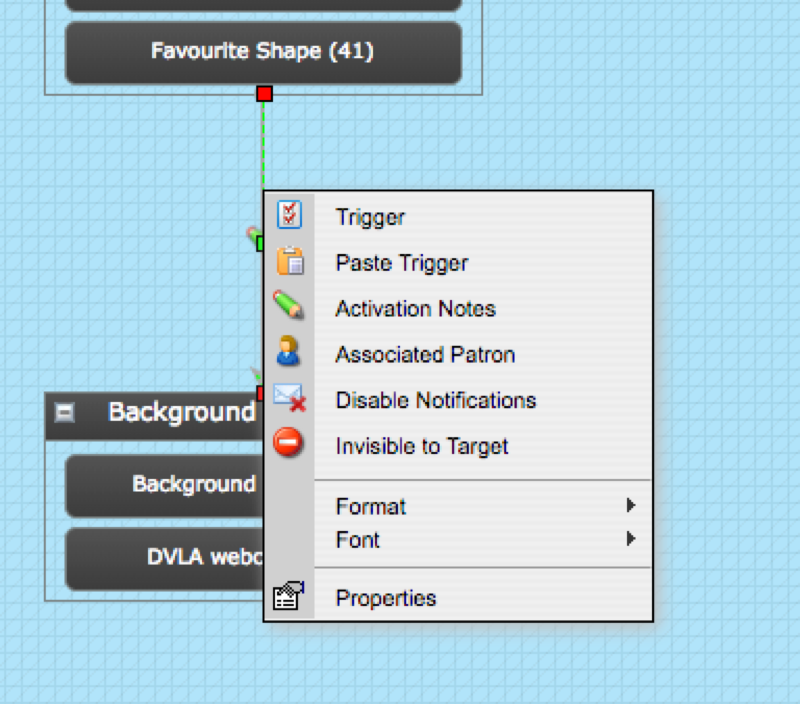
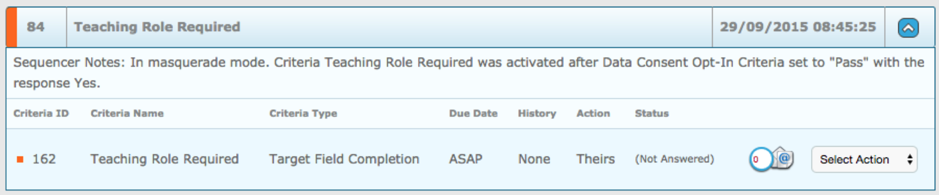
Activation Notes - Shows the default Sequencer Notes which appear on the dashboard (if enabled in the system user’s role) – see screenshot below. You can edit these notes to make them more user-friendly!
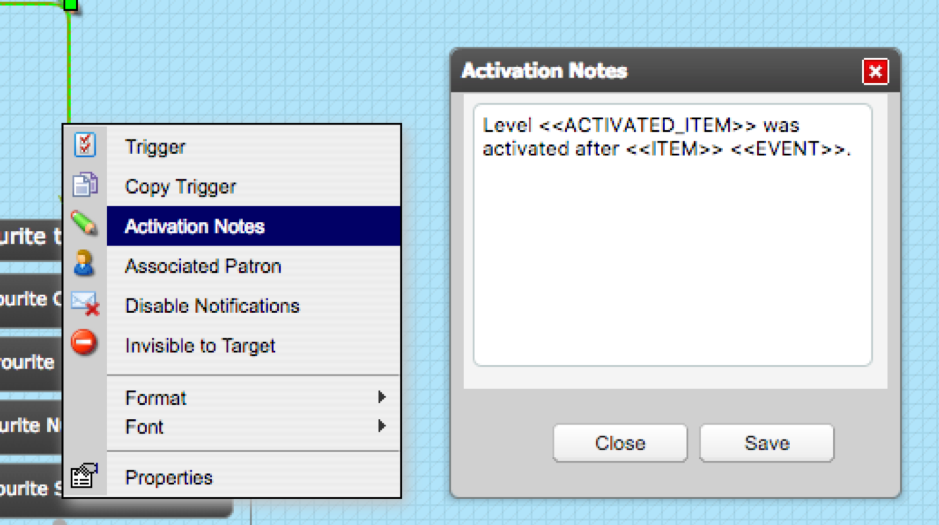

Associated Patron - Allows you to assign responsibility for a criteria/level, to a System User who is not the patron for a target currently.
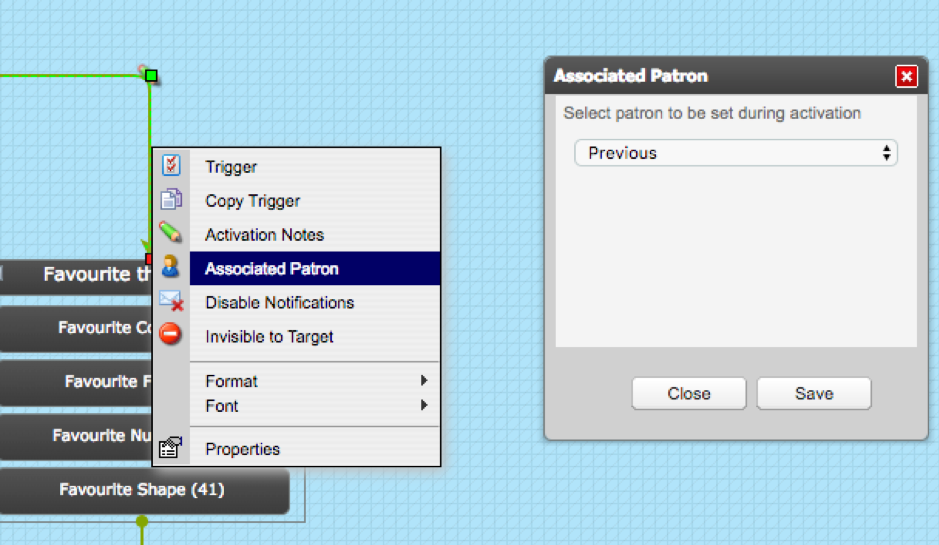
On the dashboard responsibility is shown as below. In this example, Mark Smith has received a message about criminal convictions declared by a candidate target.

Please Note: you must have the Associated Patron filter ticked on the dashboard in order to see associated patron tasks:

Disable Notifications - Allows you to disable notifications for the criteria or level being connected to.
It is particularly useful where you have a Criteria which is a Theirs action but appears in a level where the system user masquerades for the target because of the target’s chosen route through a process.
Once Disable Notifications is selected for the trigger, you will then be able to select Enable Notifications for the existing trigger.
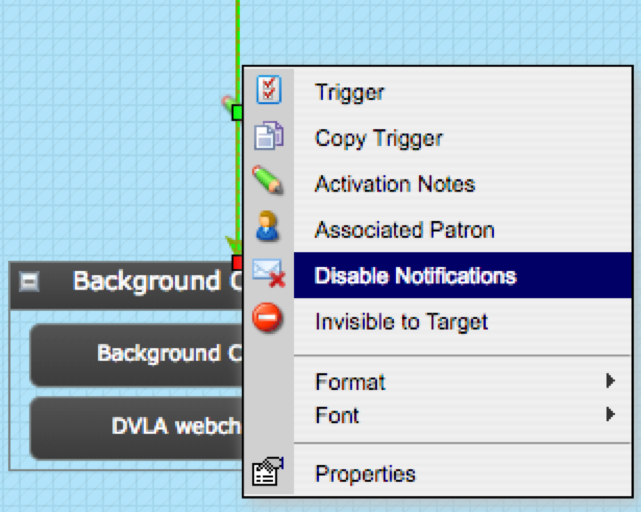
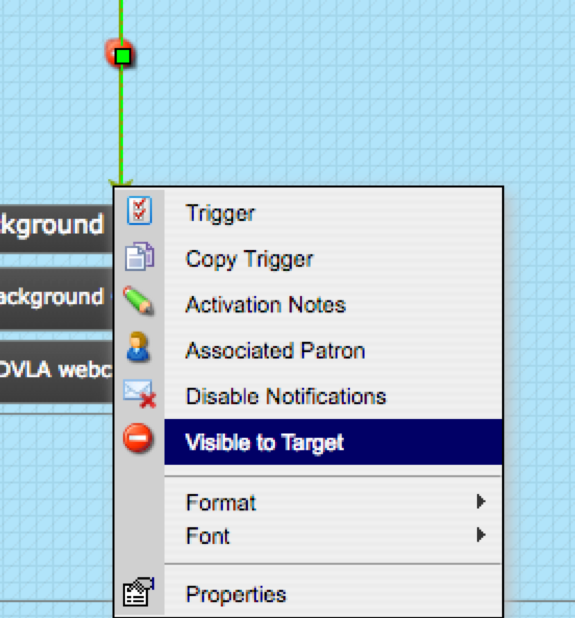
Invisible to Target - Allows you to hide the criteria or level being connected to from the target, irrespective of the criteria/level visibility settings used.
When selected, the red symbol will be displayed on the trigger. If you right click this trigger again, you will now be able to select visible to target.
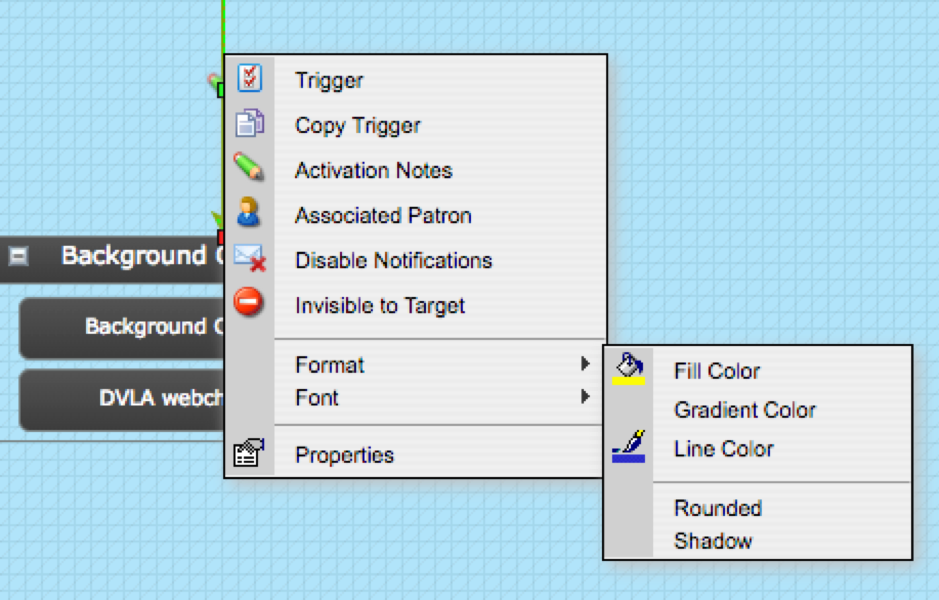
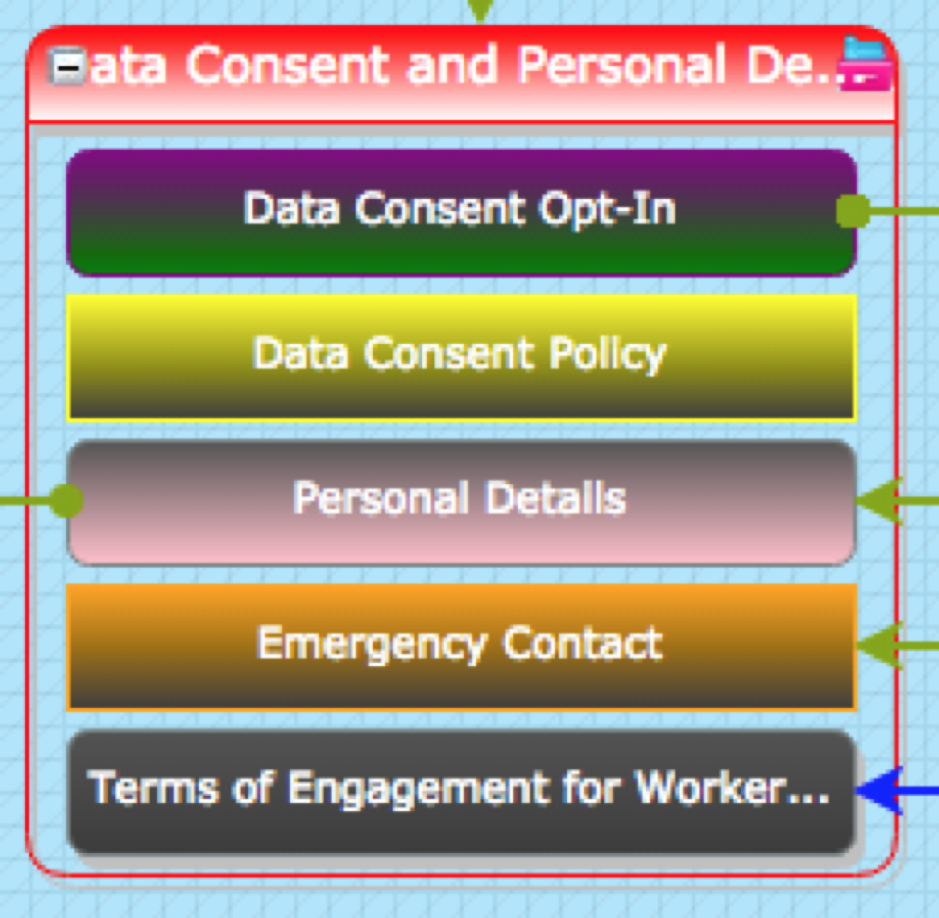
Format - Allows you to change the colour of the trigger or block (criteria, level, set target etc). You are able to apply shadow to the connector, and you can make a block either have sharp corners or rounded.
It is particularly useful for colour coding sub-processes or subject related criteria/levels on the sequence or for defining certain routes through the process.
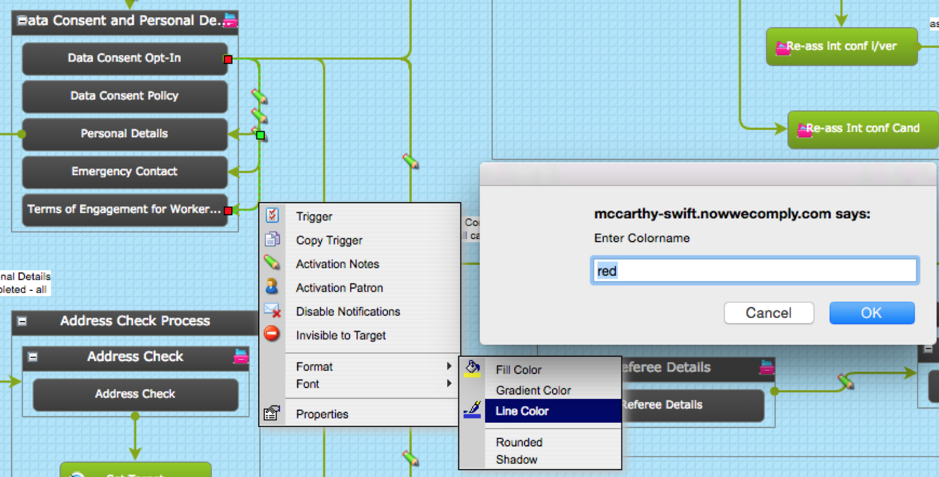
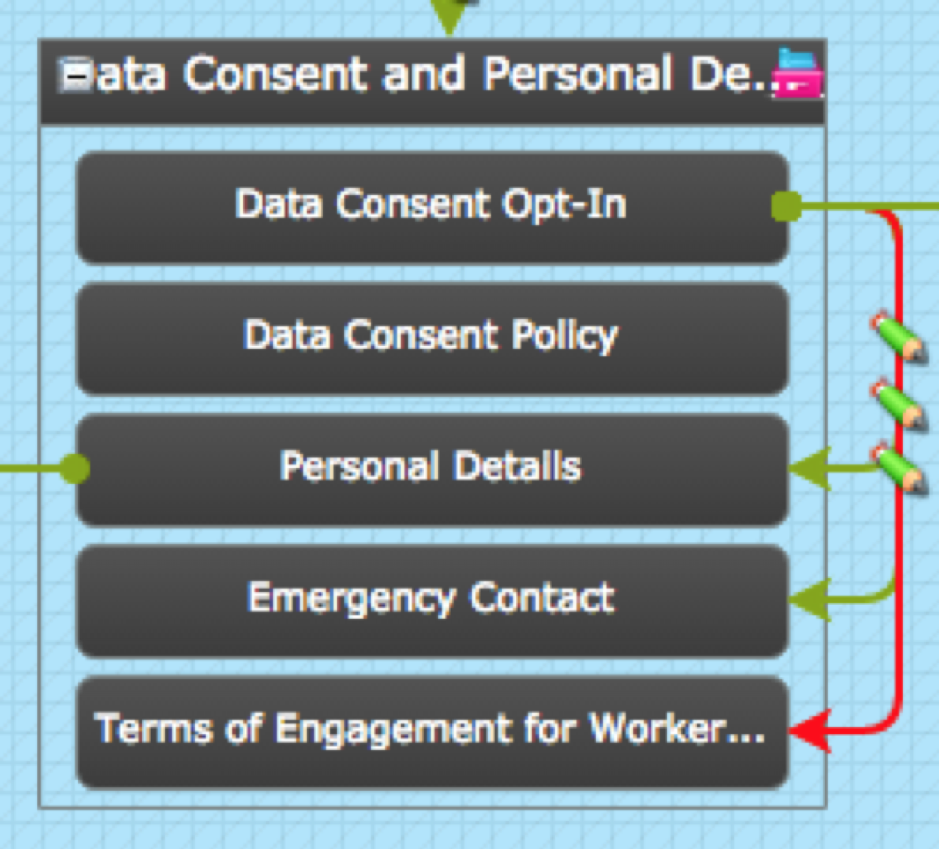
The format feature is also available when you right click on a criteria or level. It allows you to apply:
- Fill and gradient colours to a Criteria, Level or some actors
- Rounded or square outlines to a Criteria or Level
- Shadow to a Criteria or Level
Font - Allows you to set the font type, size and colour, and apply bold/italic to any notes added to the trigger via the “Properties” option.
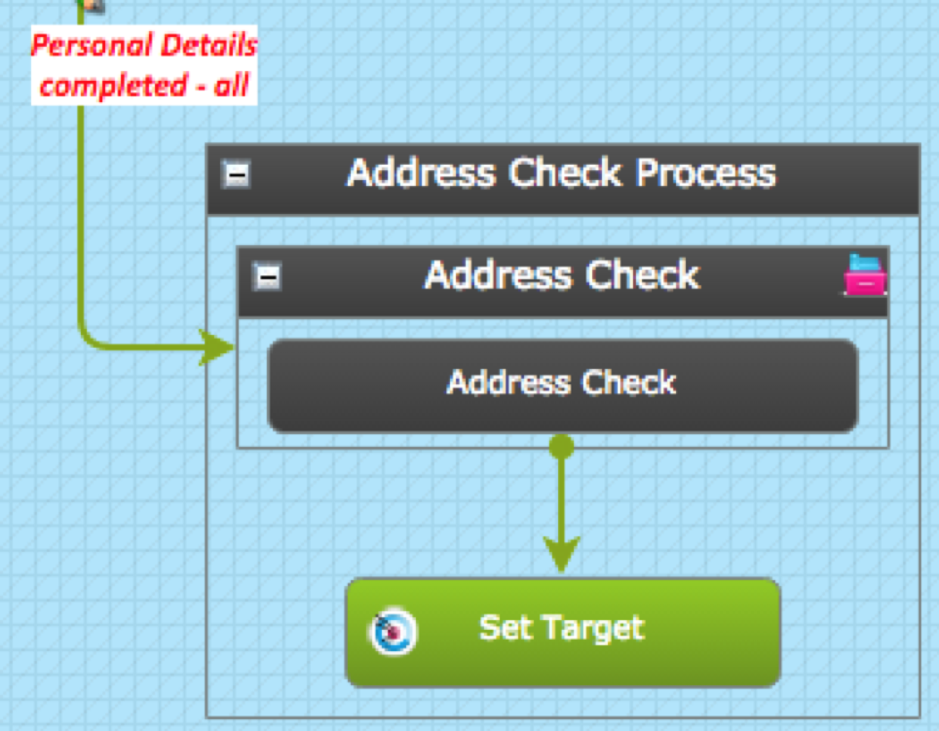
These labels are useful to help show/explain what is happening in a particular area in a sequence.
Comments
0 comments
Please sign in to leave a comment.