
Admin > Sequences > Add a New Sequence
In order to activate or start a sequence you need to make a connection from the Target Group object to your first level or criteria and add any required conditions.
Target Group to Level or Criteria
Right click on the connector
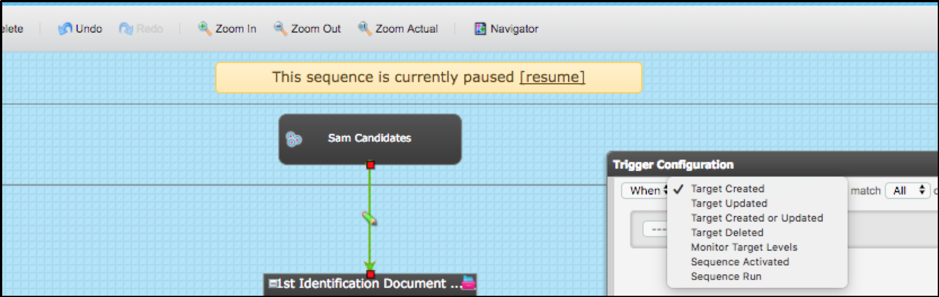
The default condition is shown, "When Target Created match ALL". Select the drop-down menu where it says, “Target Created”.
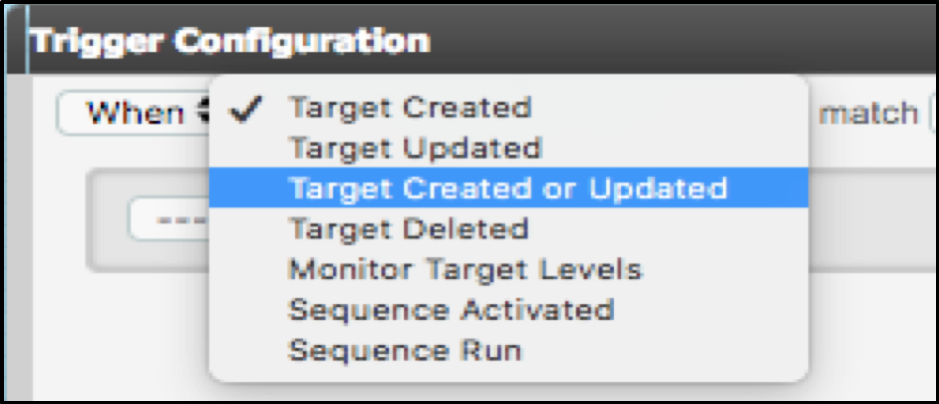
- Target Created – the sequence will start when a target is added to the target group
- Target Updated – the sequence will start when a target record is amended.
- Target Created or Updated – the sequence will start when a target is added to the target group OR when a target record is amended
- Target Archived/Erased - the sequence will start when a target has been archived or erased.
- Monitor Target Levels - this allows you to monitor levels which have already been assigned to a target via another sequence or manually.
- Sequence Activated – the sequence will start when it is activated in another sequence
- Sequence Run – the sequence will run when it is manually run
It is useful when you want to add additional workflow but your original sequence is complicated or already very detailed.
If all of the levels in your sequence have been assigned via another sequence and this one is simply used to monitor target levels, you can place the levels on the workspace and it is not necessary to connect them from the target group.
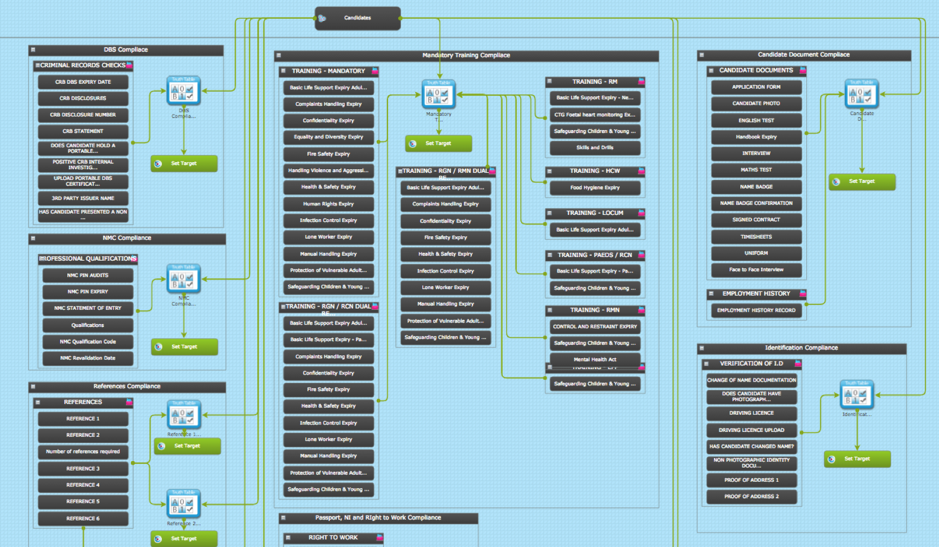
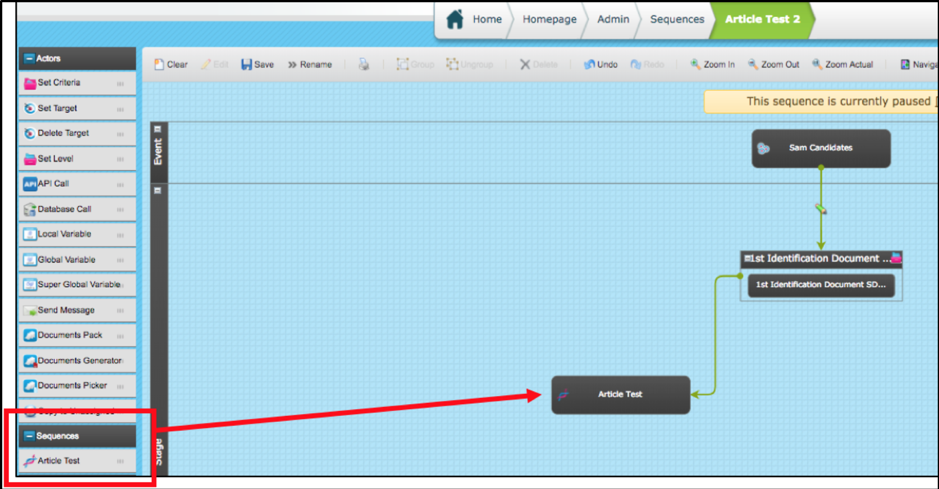
- Sequence Activated - this activates the current sequence (Sequence 1) when it is dragged into another sequence (Sequence 2) as long as both sequences are based on the same Target Group.
When the trigger is set to Sequence Activated in Sequence 1, then in Sequence 2 , on the left-hand side under the ‘Sequences’ section, Sequence 1 will appear and can be dragged in and appointed to start and a particular point within the sequence.
An example below, shows how Sequence Article Test can be dragged and activated through Sequence Article Test 2.
- Sequence Run -this allows you to create a sequence and keep it paused until you want to manually run it.
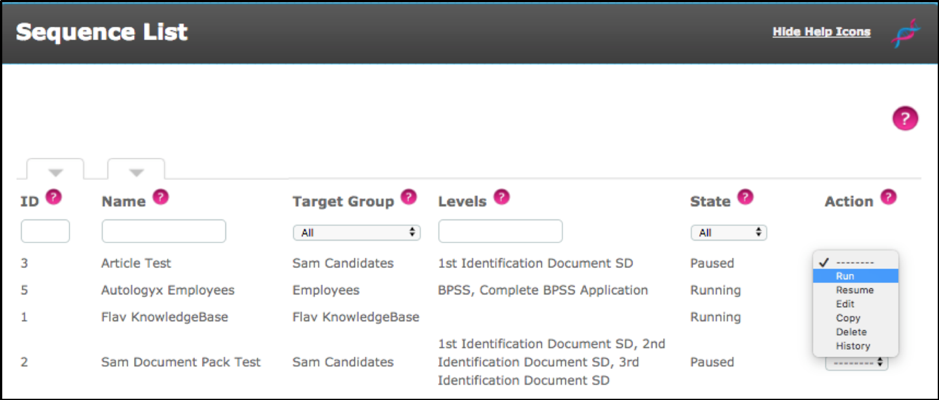
When a trigger is set to ‘Sequence Run' and saved. The option to 'Run' the sequence is present under the action menu, next to your sequence.
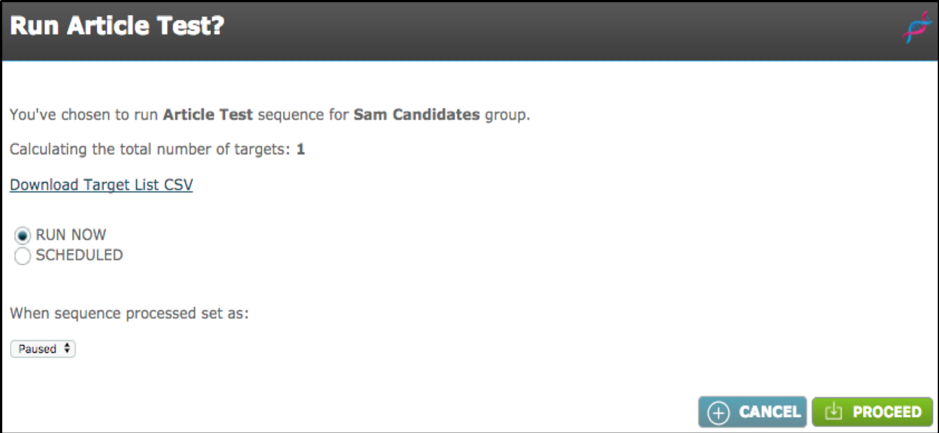
autologyx will calculate the number of targets to be processed and give you the opportunity to proceed or cancel. You are also prompted to set the sequence to Running or Paused once the manual run has completed.
Within the trigger configuration from the target group to either a level, criteria or actor, further conditions can be set too. A list of 6 are available.
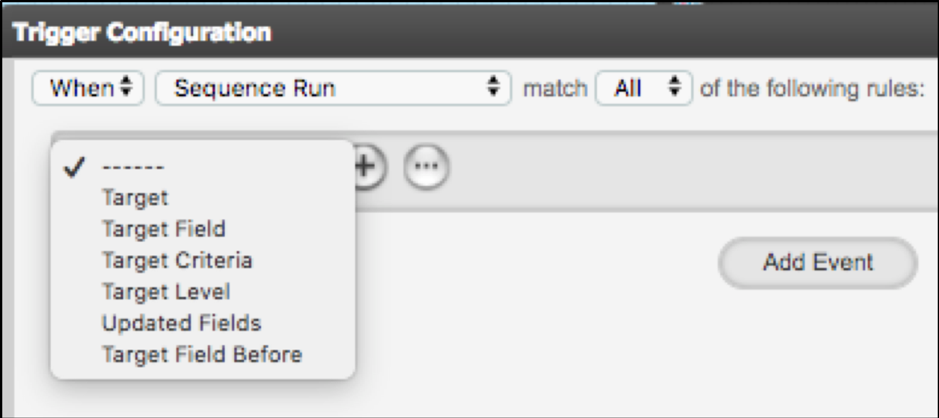
- Target – allows you to filter by a targets account set-up
- Target Field– allows you to reference any field in the target group
- Target Criteria– allows you to filter by criteria
- Target Level – allows you to filter by level
Refining conditions for activating a sequence when a target is updated. - Updated Fields – allows you to specify which field being updated should activate the sequence
- Target Field Before – allows you to set the value of the field before it was updated.
If the trigger configuration from the target group is anything except ‘Sequence Activated or Sequence Run’, a user can activate a sequence on the sequencer as well as with the action drop down menu in the list of sequences. A sequence is defaulted to be paused when created, a yellow bar towards the top of the sequencer is available, where the user can activate the sequence by clicking on the ‘Resume’ button. Ensure all work has been saved, then click this to then make the sequence active.
Comments
0 comments
Please sign in to leave a comment.