
Admin > Targets > View/Edit Target Levels
This feature allows you to assign one or more levels to one or more targets without creating a sequence.
There are a number of reasons for using this feature, rather than having the Sequencer automatically assign a level for you:
- When you start using autologyx, you might want to maintain strict control on which Targets (those of the Person type) are requested to complete certain processes
- You may want only a small number of Targets within a particular Target Group to be provided with certain information or to be asked to do something, and there may not be an obvious trigger to sequence this
- If a target was initially created with missing data this feature allows you to assign levels which may not have been assigned, as a result of that missing data (you can of course do this automatically via a sequence running on a target being updated with certain field data)
The process for manual assignment of levels is as follows:
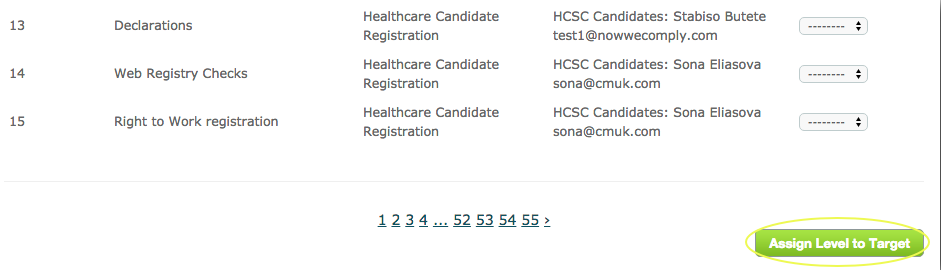
- Scroll to the bottom of the View/Edit Target Levels page and click the Assign Level to Target button
- Select the appropriate Target Type from the menu
- Select the required Target Group
- Type in either the Targets ID or name in the box, then select the relevant target. Multiple targets can be selected here, but you will need to know either the name of the target or their ID.
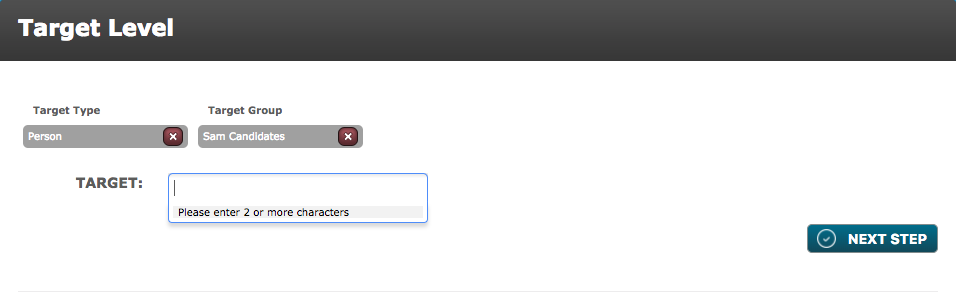
- Click Next Step
- The Levels menu will populate with the Levels associated with the chosen Target Group. If a target already has a level assigned to them, then this level will not be an option in the list to be manually assigned.
- Select the Level(s) you wish to assign to the Target(s)
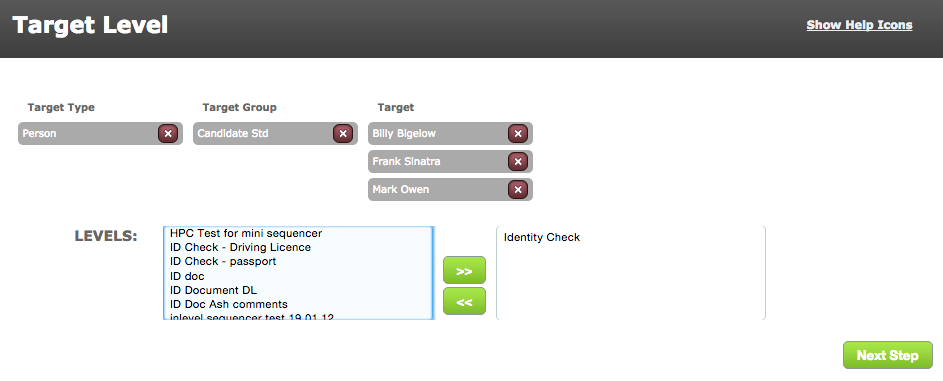
- Click Next Step
- The next Target Level screen will show your selected targets and levels
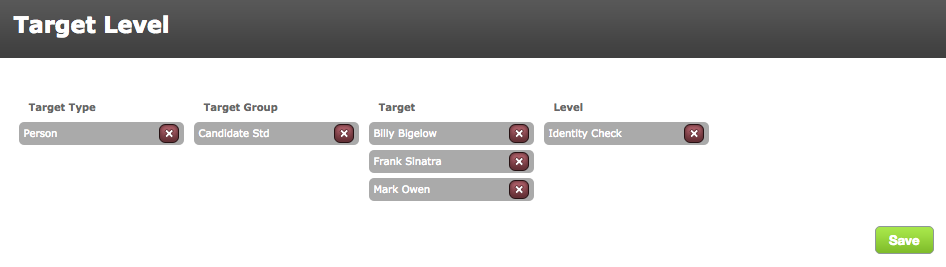
- Click Save. The final screen will confirm "successfully saved". Click Done
- Dependent on who's action the criteria is/are, autologyx will send the Target or System User an email to let them know that they have a new action to complete
Comments
0 comments
Please sign in to leave a comment.