
Sometimes you will have the need to assign a task to a target on an infrequent basis. They might only ever have one task to complete. These targets can be set up with 1-time completion accounts.
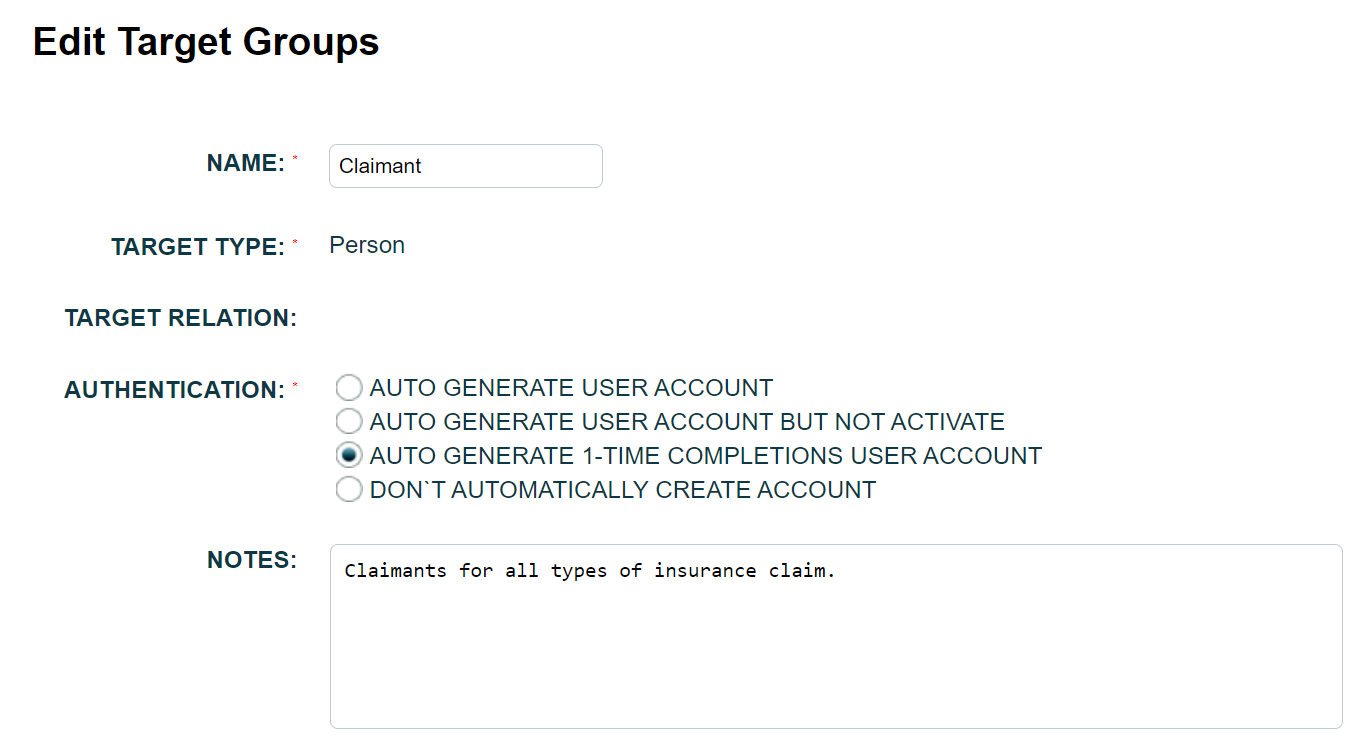
This is done in the target group with the Authentication set to "Auto Generate 1-time completions user account". This means that the targets will not be required to log in to the system but instead they will receive an email containing a link to the task requiring their input. Effectively, they do not have access to a standard target portal.
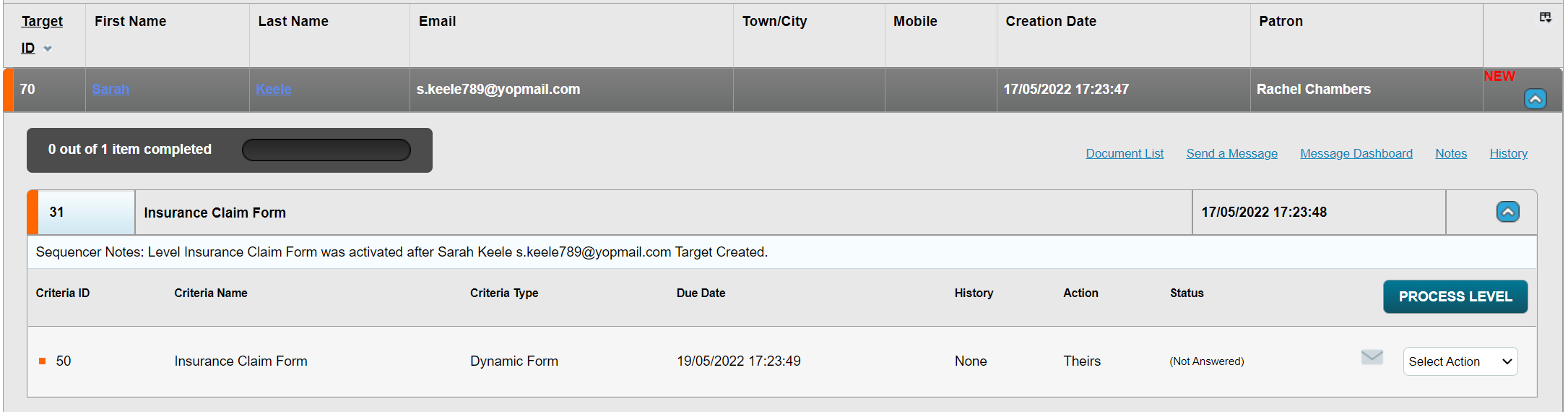
When targets with 1-time completion accounts have a criteria assigned, they will appear on the dashboard in the same way as targets who are set up with full accounts.
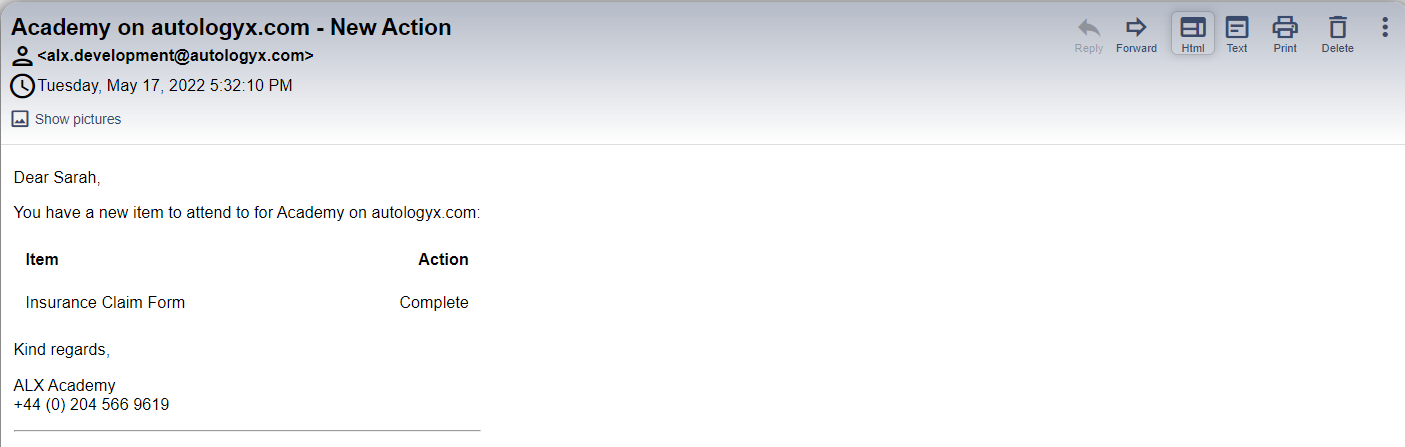
When a criteria is assigned to a target with a 1-time completion account, they will receive a standard new action email as below.
This will include a "Complete" link under the heading "Action".
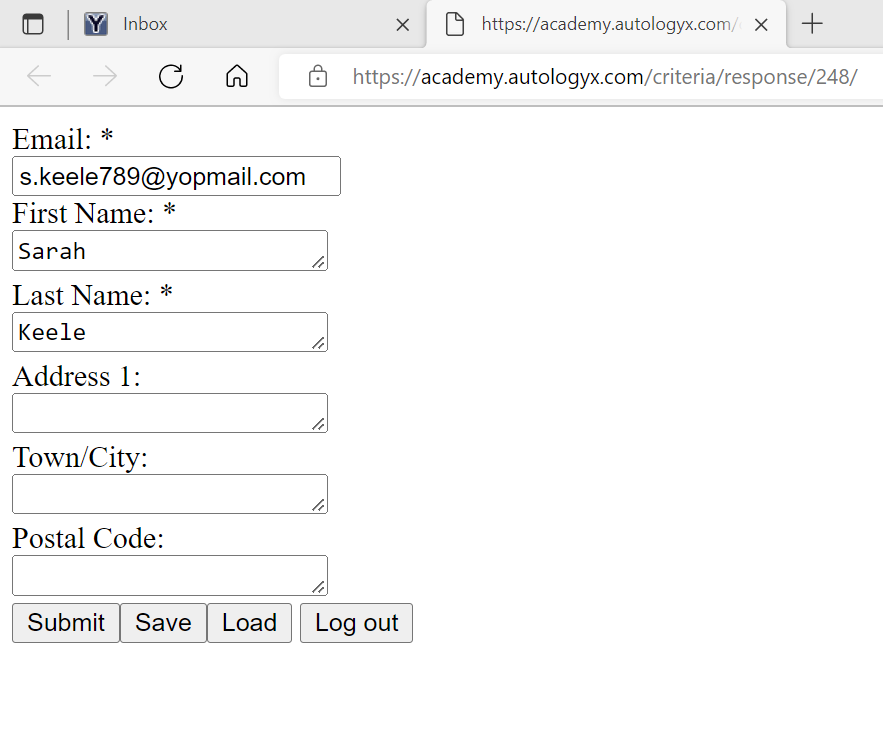
When the target clicks the Complete link a response page is shown.
The screenshot below shows a dynamic form criteria. Please forgive the fact that this form has no styling or formating.
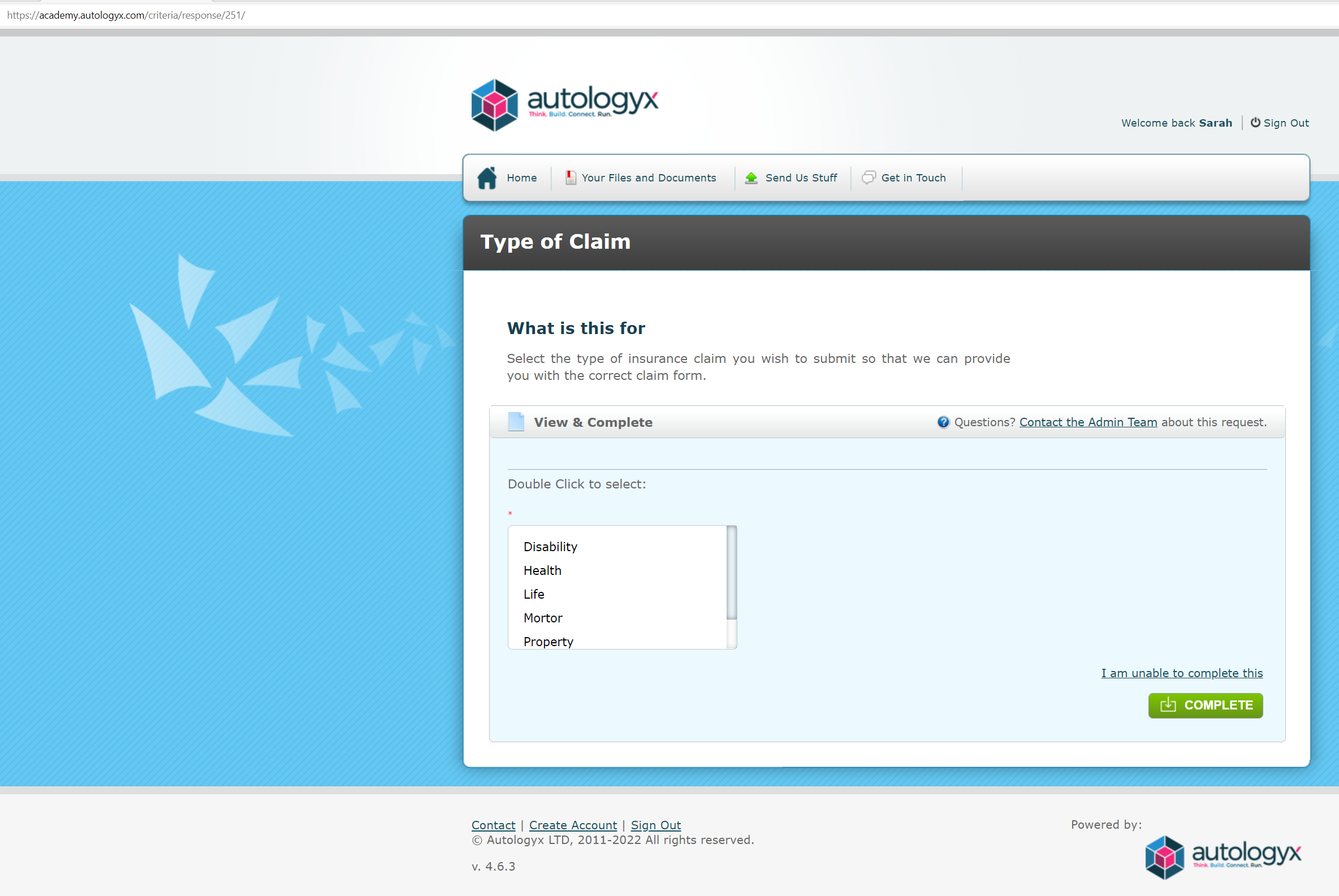
The below response page shows a more traditional single select criteria which has been assigned to the same target.
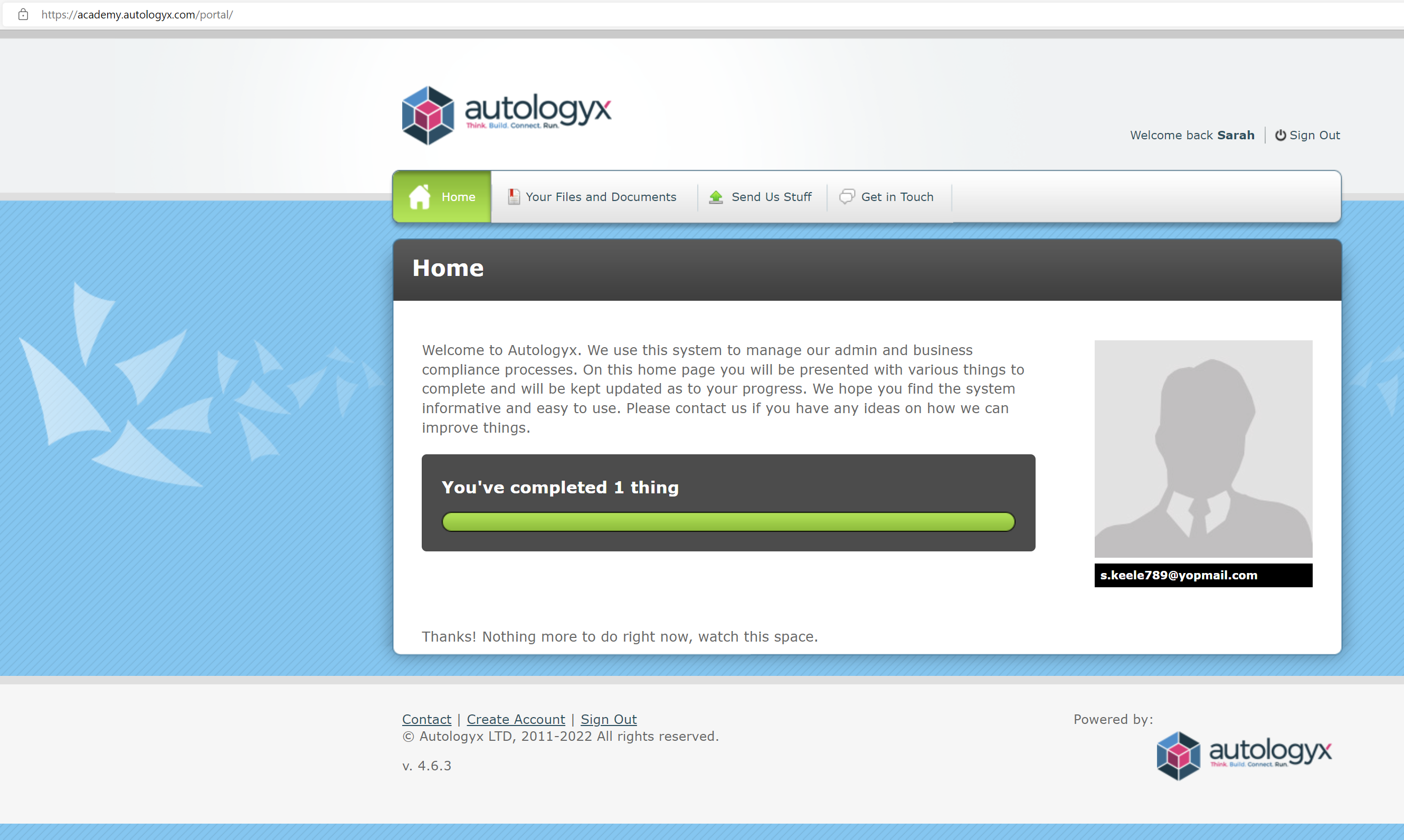
When the criteria is completed the target is taken to a Home page.
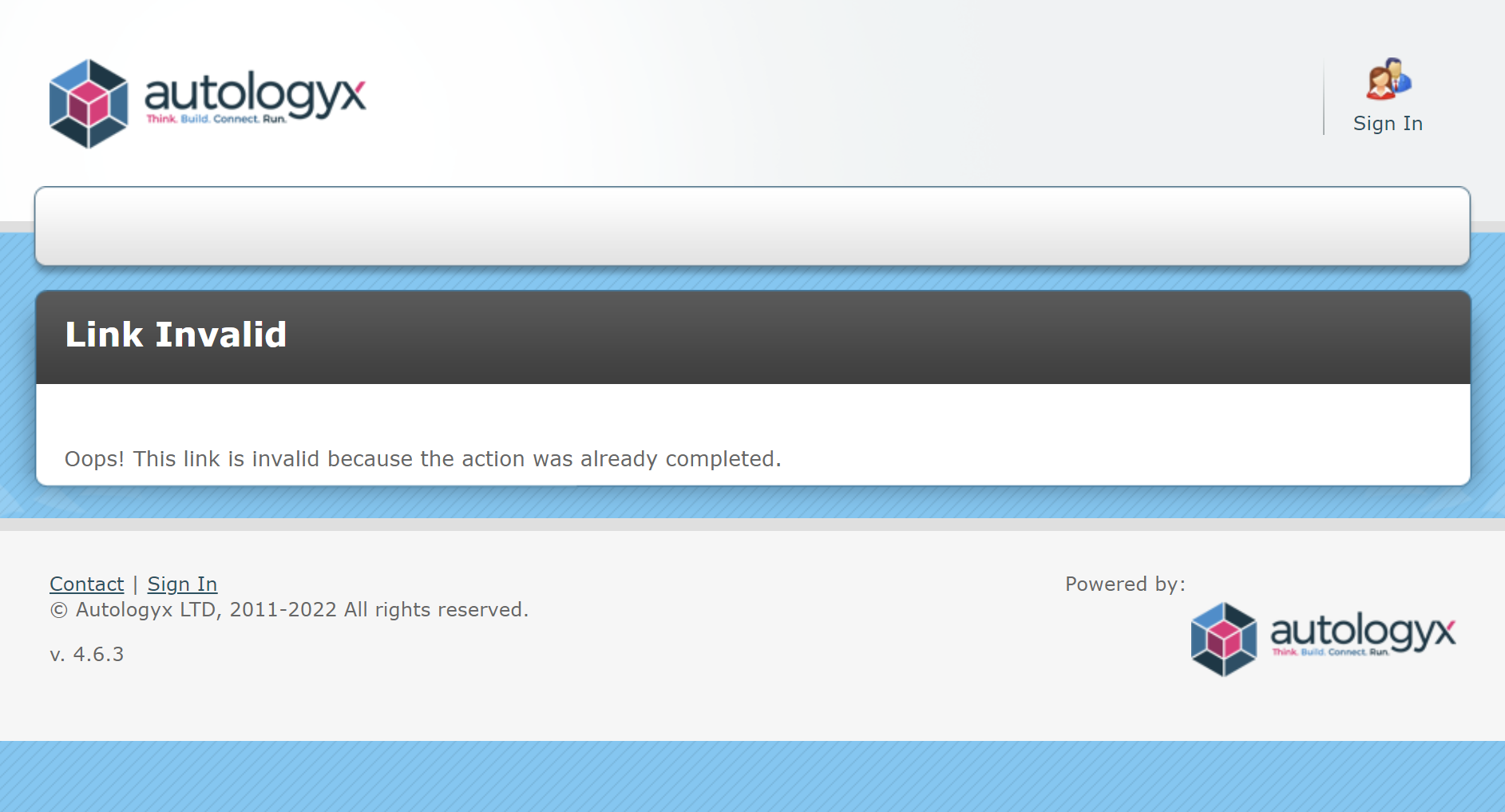
If the target were to click the Complete link in the new action email again they will see that the link has become inactive because the criteria has been completed.
The main difference between this type of target and one who has a full account, which allows them to log in to the target portal, is that they have no access to history and no "My Account" tab.
They can still use the get in touch function.
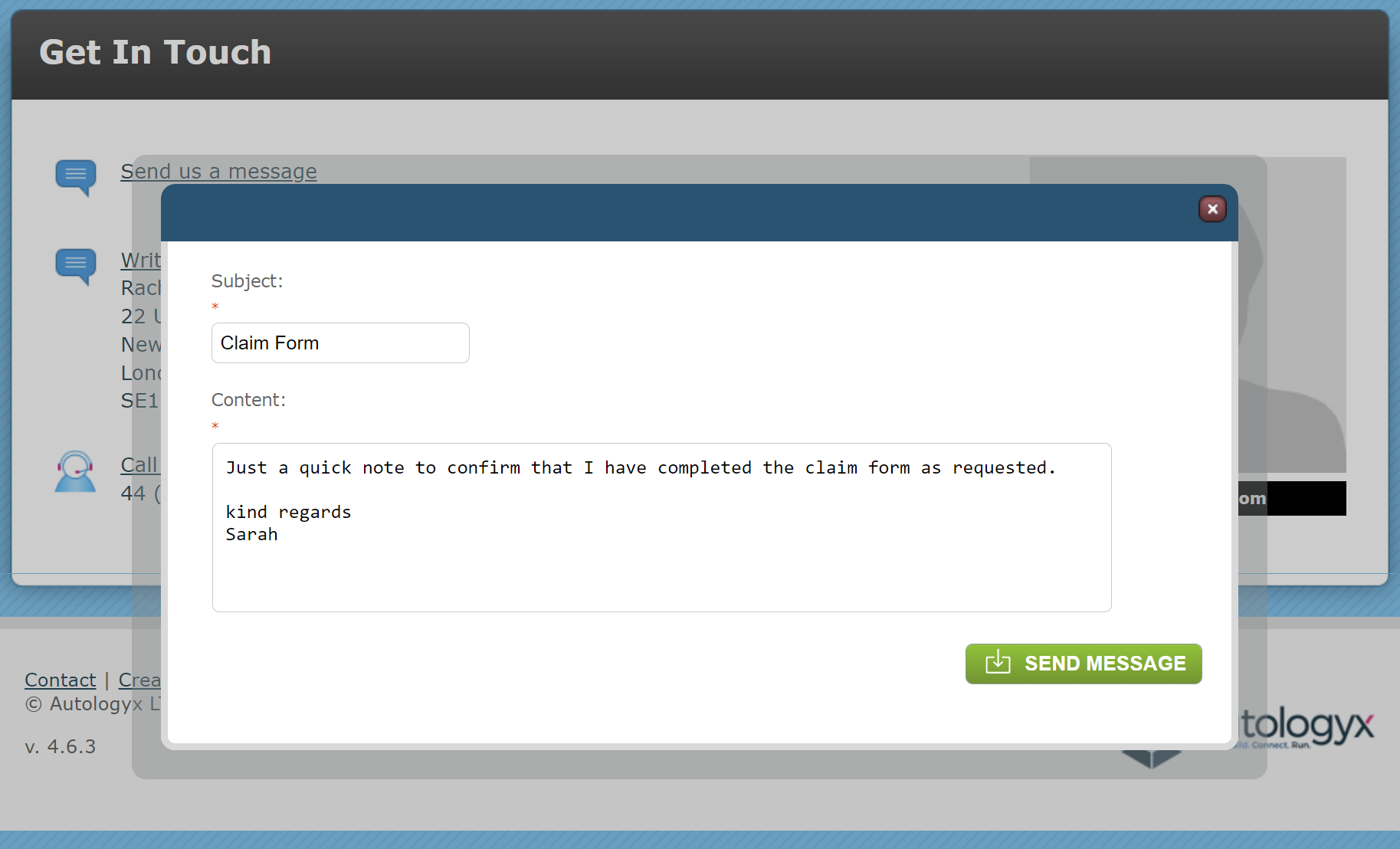
Their message will be sent to the email address in Global Settings. It will include the target's identifier fields which are set in the target group.
Unless hidden by a stylesheet, they will have access to "Send us Stuff" which will allow them to upload documents which will be attached to the Unassigned tab of their Documents List on their target record.
They will have access to the "Your Files and Documents" tab where they can see any documents they have uploaded or signed as part of a criteria completed by themself.
However, when they close this page they will no longer be able to access these areas until they are assigned their next task.
Comments
0 comments
Please sign in to leave a comment.