
Actions
Select Action Menu

The Select Action drop down is in a criteria, content of the drop down varies depending on the state of the criteria at hand. To clarify: Unassign options will not be displayed for completed criteria; Unassign This Level will not be displayed for criteria in a level where one or more criteria are completed; View Response and Response History will not be displayed for criteria with a status of (Not Answered) although they will where the status is Saved (Not Answered).
These are the possible options:
• Unassign this Criteria - this will unassign the criteria from all levels in which it exists for the target.
• Unassign Criteria from this Level only - this will unassign the criteria from the level in which you take this action. E.g. in the above screenshot criteria ID 182 will be removed from level ID 101 but not from any other level in which it exists.
• Unassign this Level - unassigns the level in which the criteria exists where the action is taken.
• Unassign Everything - this will unassign all criteria which are not completed other than those which have been answered and are awaiting approval.
• Masquerade as Target See Masquerade as a Target
• View Response - review the work that has already been completed for this criteria. You will see who took the action, who approved the action, if applicable, what the response was and the time/date stamp it was completed.
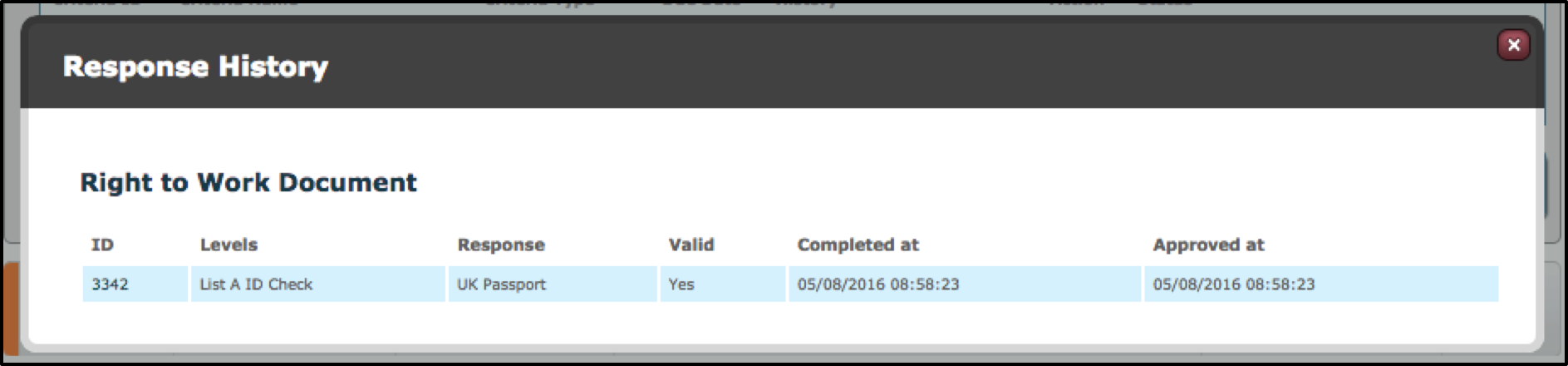
• Response History - for the given criteria, view the history of response events
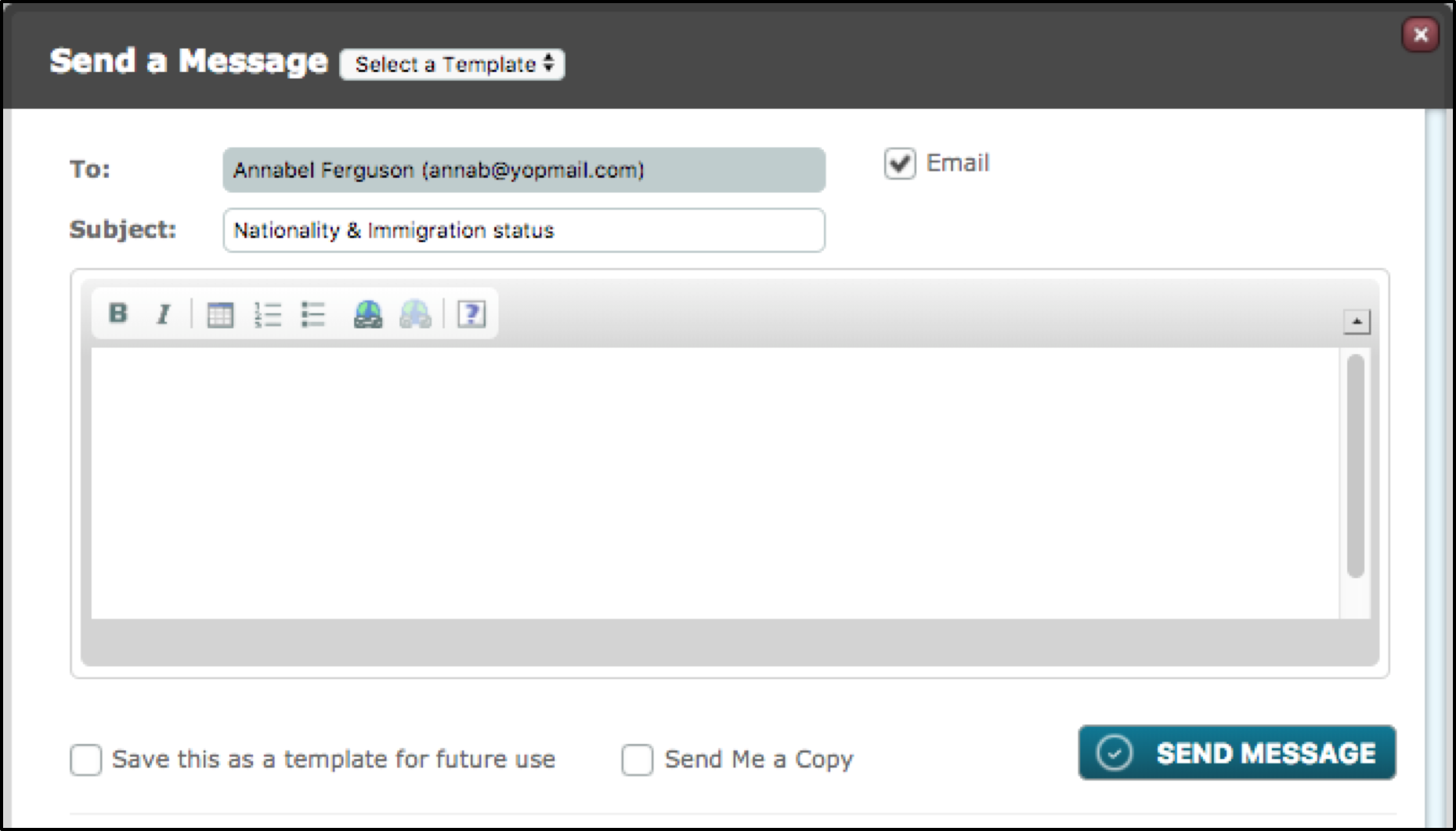
• Send Message - From the drop down Select Action, Send a Message facilitates a message to be sent directly to the target
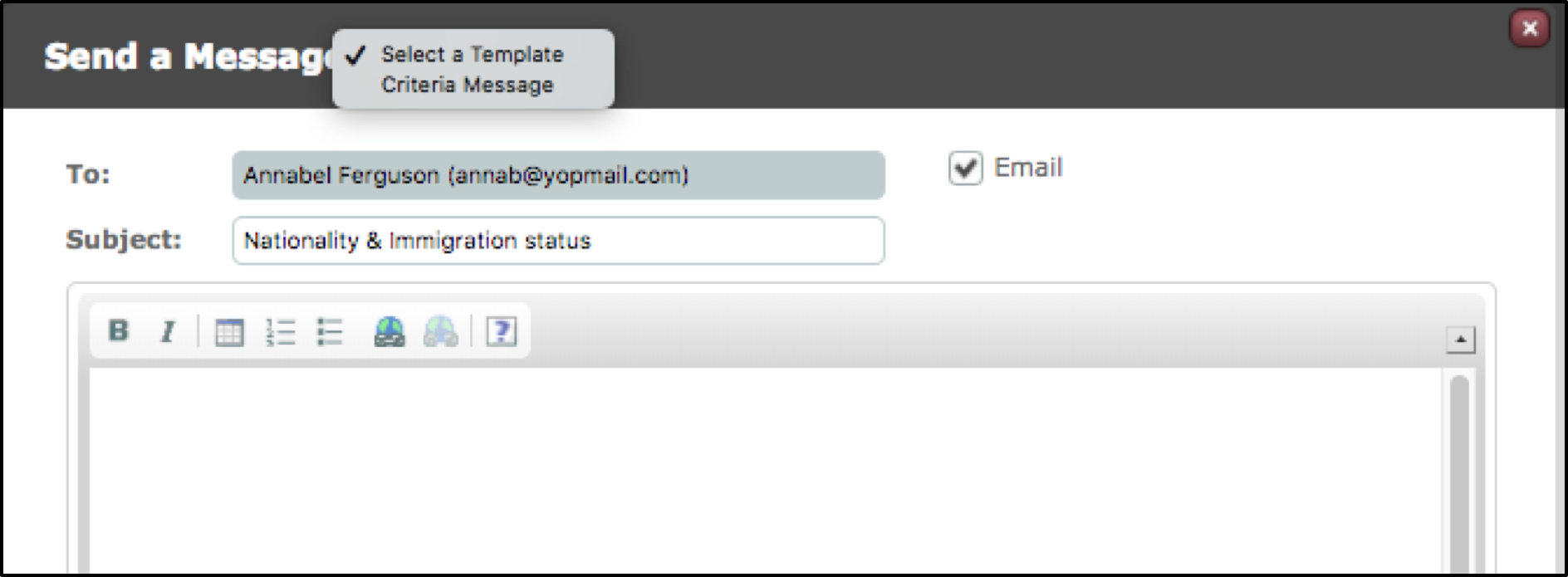
A template message can be selected from the top most drop down to quickly fill the text field.
The message is sent by email as a default but could also be sent as an SMS. By using the Save this as a template for future use checkbox it will save the message as a template.
In a Criteria there is a row of further options in blue underlined text. This row contains Document List, Send a Message, Notes & History
Document List – this option links to a new page: Document List
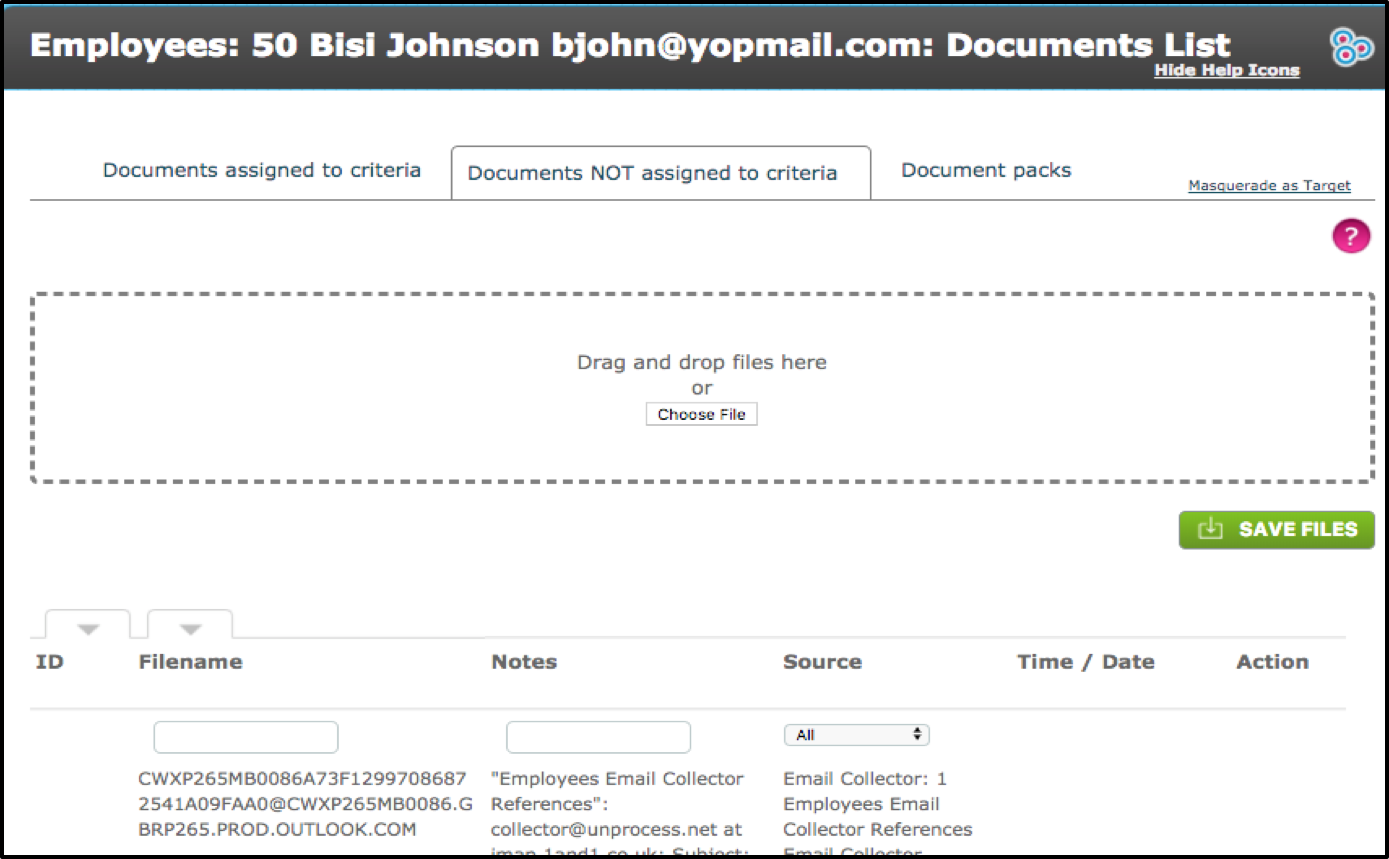
The screen is divided into 3 tabs
Documents assigned to criteria: Assigned and outstanding documents that have been uploaded against the Target.
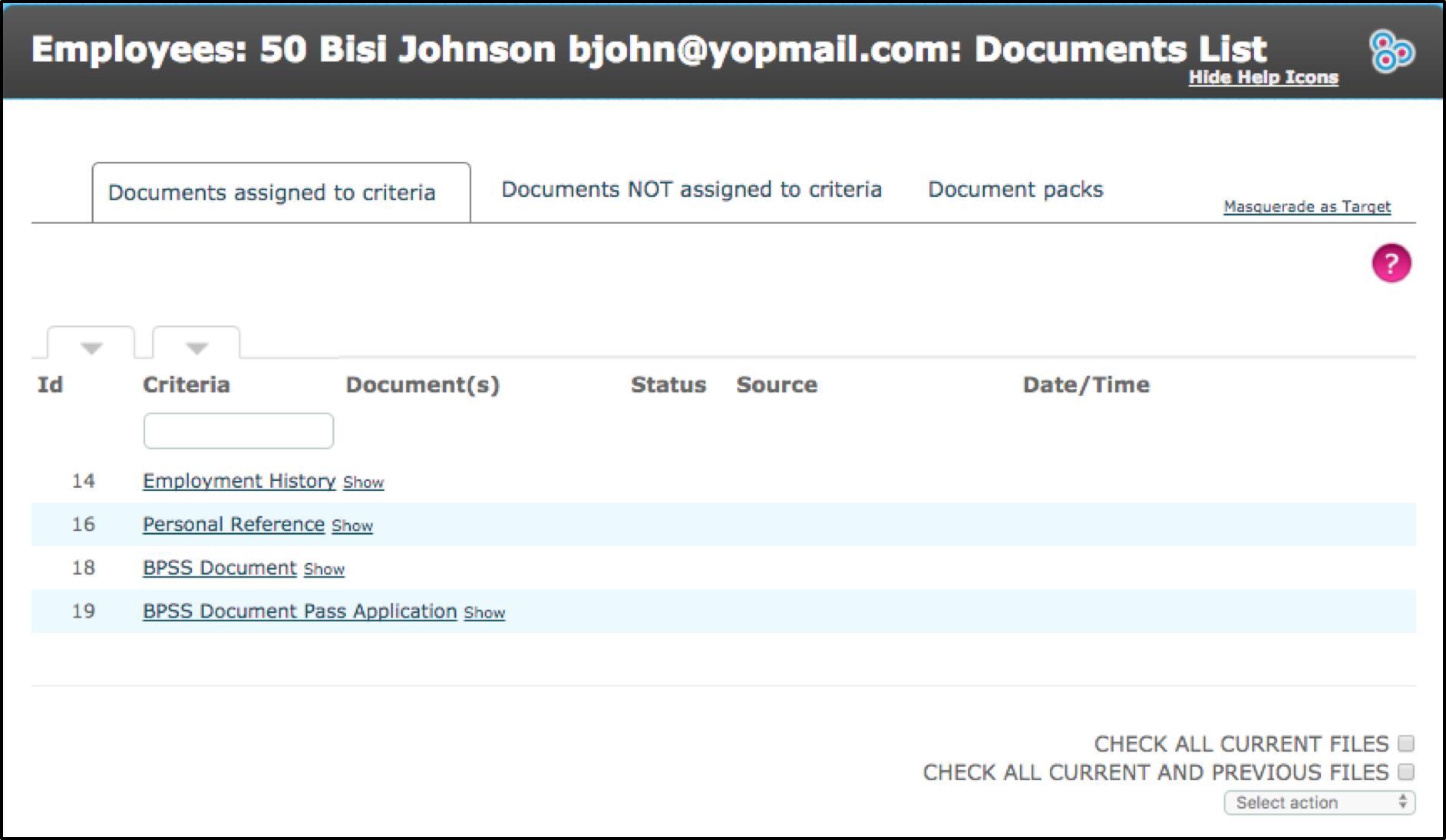
Documents NOT assigned to criteria: Any documents that have not yet been assigned are displayed here, this screen also allows the user to drag & drop documents into the system. Those documents that are uploaded must then be Saved using the green Save button.
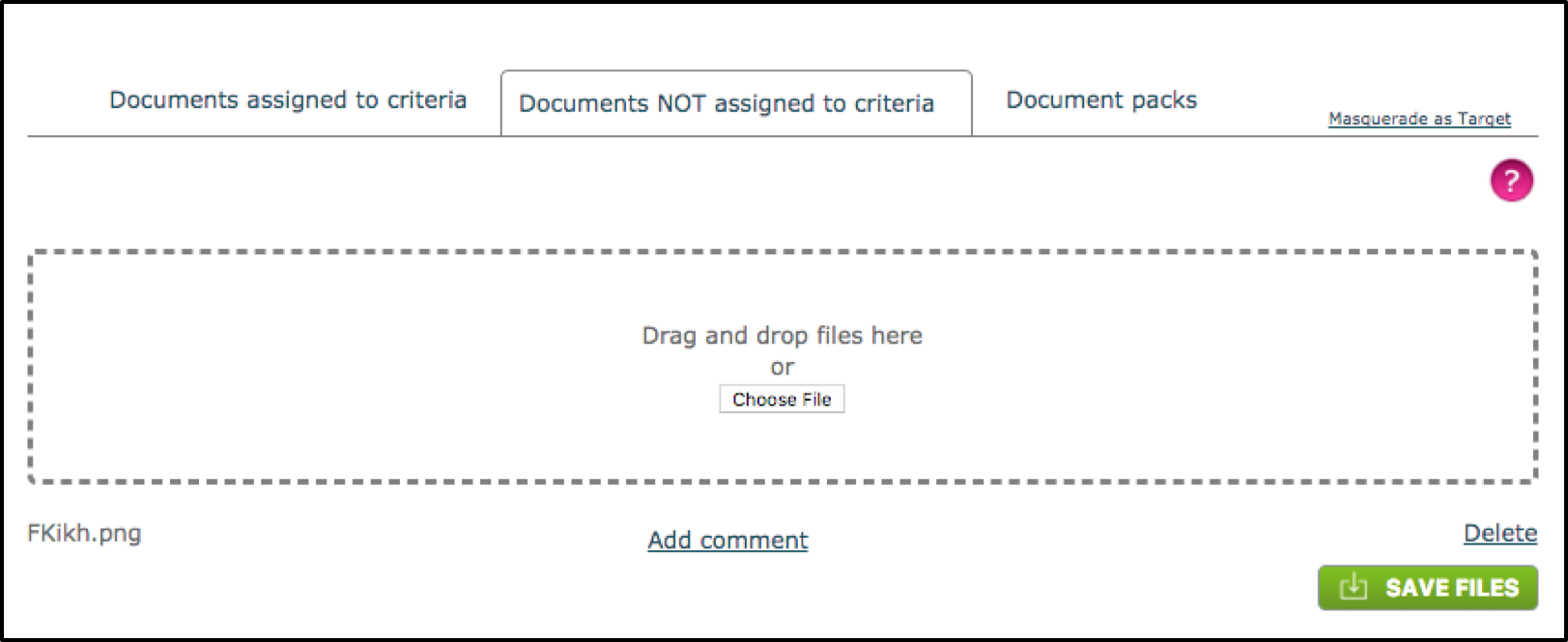
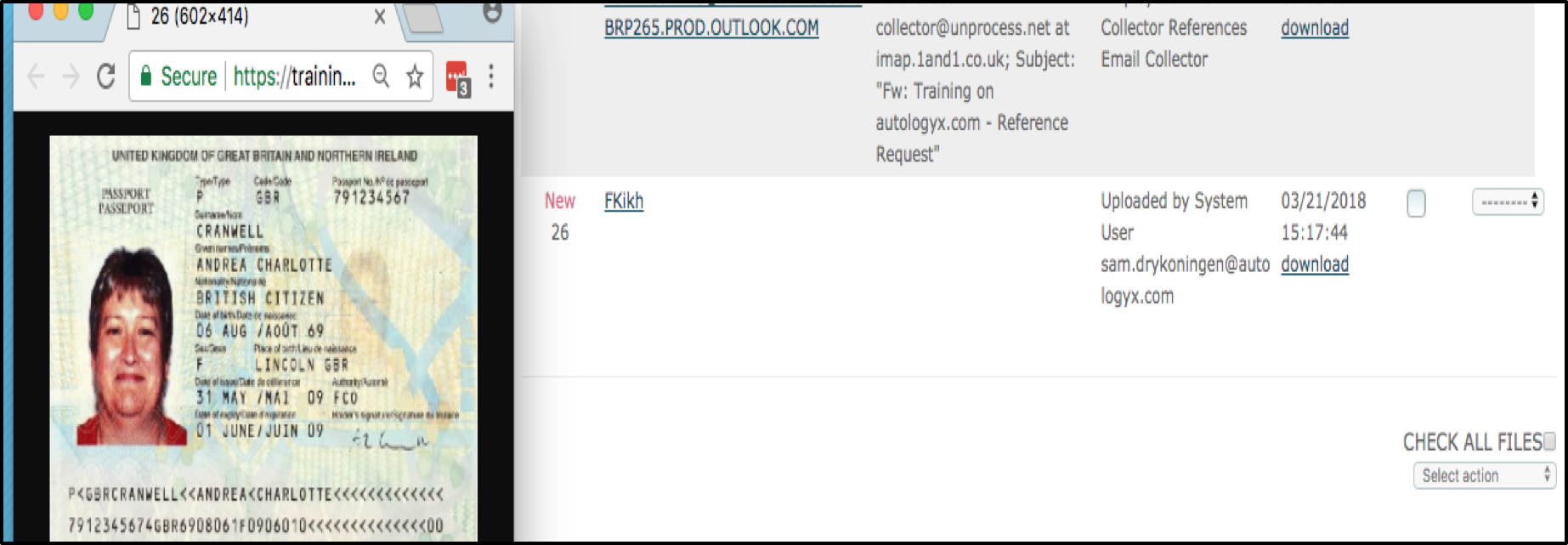
Uploaded documents can be viewed by clicking on the name of the document, renamed or deleted (using the drop down).
Document Packs
Document packs for this target are displayed here
Comments
0 comments
Please sign in to leave a comment.