
Notes
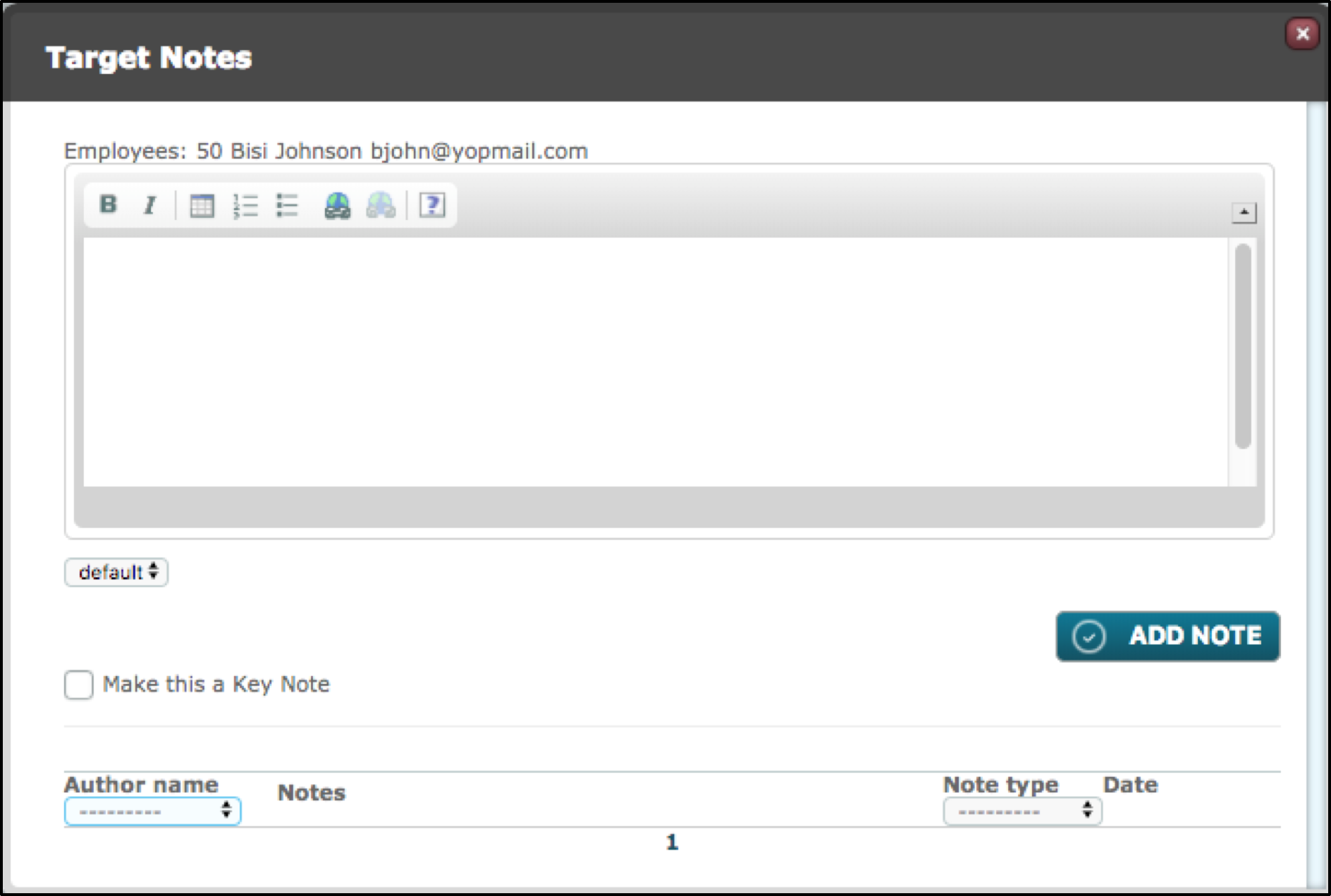
Against each Target displayed on the Dashboard the System Administrator has the ability to create notes.
Click Notes and the Notes Modal Window will open. Here you can make a note of telephone conversations or other communication which you specifically want to record alongside the Target.
Within, you can also add Categories to your notes for ease of identifying the type of note made.
Selecting 'Make this a Key Note', will mean the note created will be displayed each time the Target is selected to view the Level/Criteria.
Click Add Note to keep the note.
History
Clicking History will pop up the Activity and History modal which contains an audit trail of events with details surrounding what happened, when it happened and who initiated it.
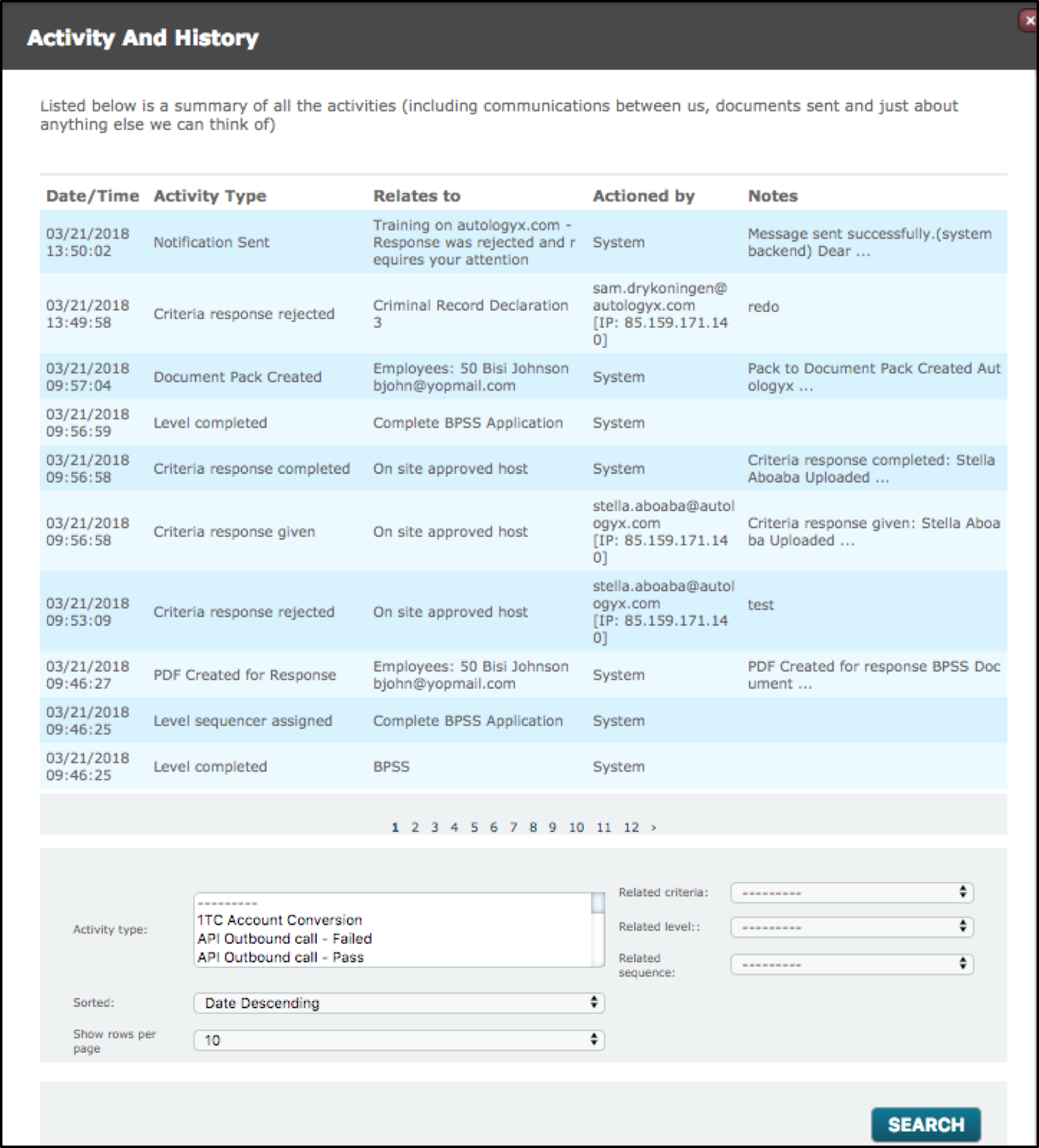
Date / Time – shows the date and time that the activity happened
Activity Type - states what happened to the item.
Relates To - states which user the item relates to, or what caused the action to take place
Actioned By – states who caused the activity to take place
Notes - details of the status of the action that has taken place
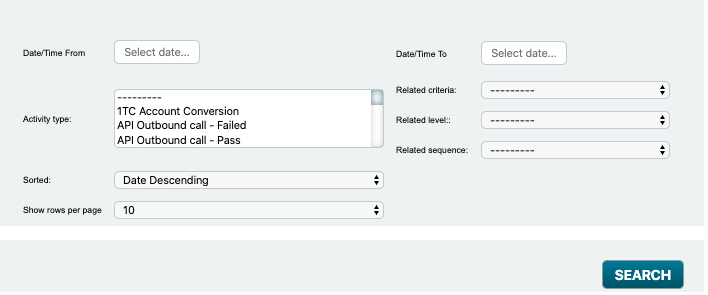
Users can filter the result by:
Activity type: Users can search according to the activity type.
Sorted – Can sort the data via date
Show Rows Per Page – Increasing/decreasing the rows that appear on the page
Date - Users can select a time period or define their own using to/from dates
Related Criteria - Filter activity by the criteria
Related Level – Filter activity by the level
Related Sequence – Filter activity by sequence
Click search, after the filters contain what you desire.
Comments
0 comments
Please sign in to leave a comment.