
Home > Dashboard
Approving Criteria
When a Criteria has been created with Approval Required enabled, it will appear on the Dashboard with the Action as Ours when the Target has provided a response to that Criteria.
An 'Approve' button will appear for the Criteria with the approval enabled on. This criteria will not be completed until a User has approved the targets response to the criteria.
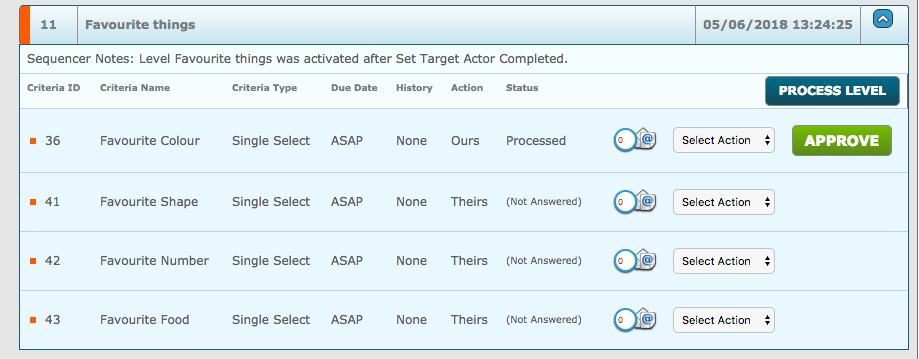
Once clicked, a pop up modal will appear. Here, the User can either approve the criteria or reject it.
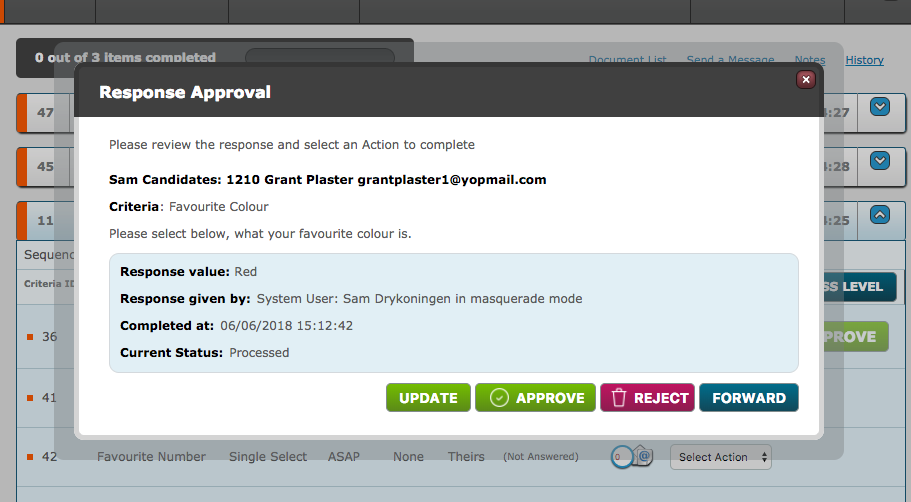
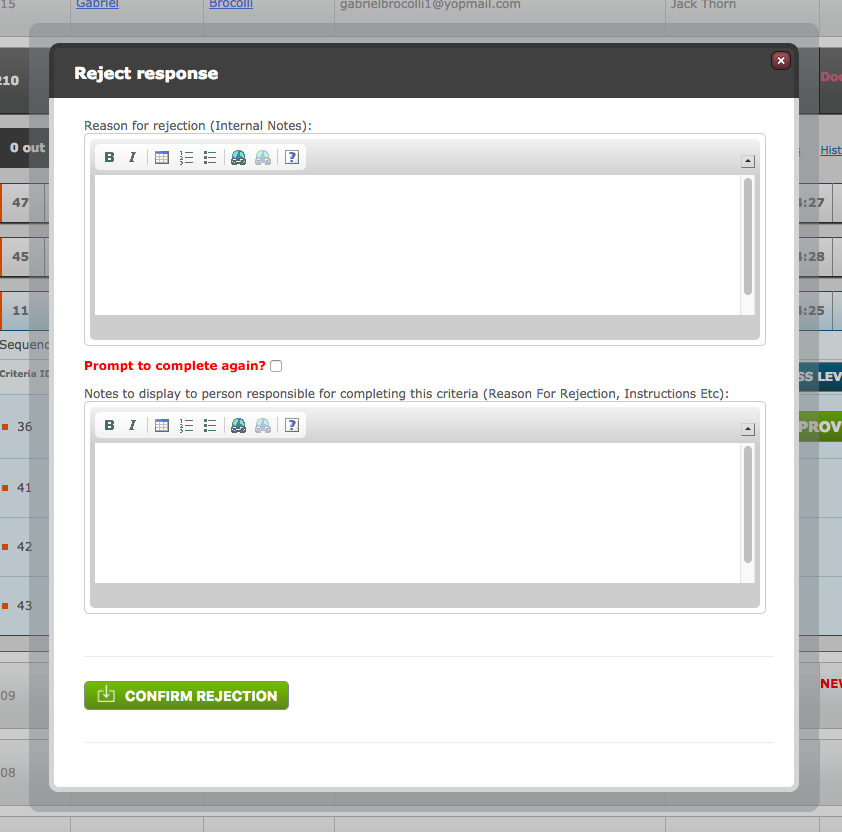
If the Criteria contains a document which the Target has signed you will be able to click and view the document. If a criteria is deemed acceptable, then simply click Confirm to approve the Criteria. If the criteria is not deemed as acceptable, then selecting reject will open up a new pop up modal where the User can provide notes internally and to the target explaining the reason for rejection. The User can enable the ability for the target to complete the task again, this is through the 'Prompt to complete again?' checkbox.
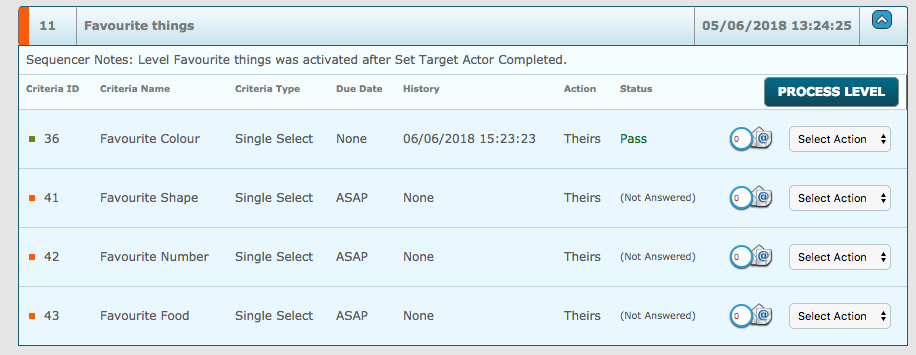
If the Criteria is approved, the criteria will now have a status as Pass and the approve button is no longer displayed.
Reviewing Criteria
When a target selects the option 'I am unable to complete this' in a criteria, the target will provide a note as to why they can't complete the criteria.
In the dashboard, a 'Review' button will be displayed. The User can also view the note that was left by the Target by selecting the notes to the right of the select action drop-down.
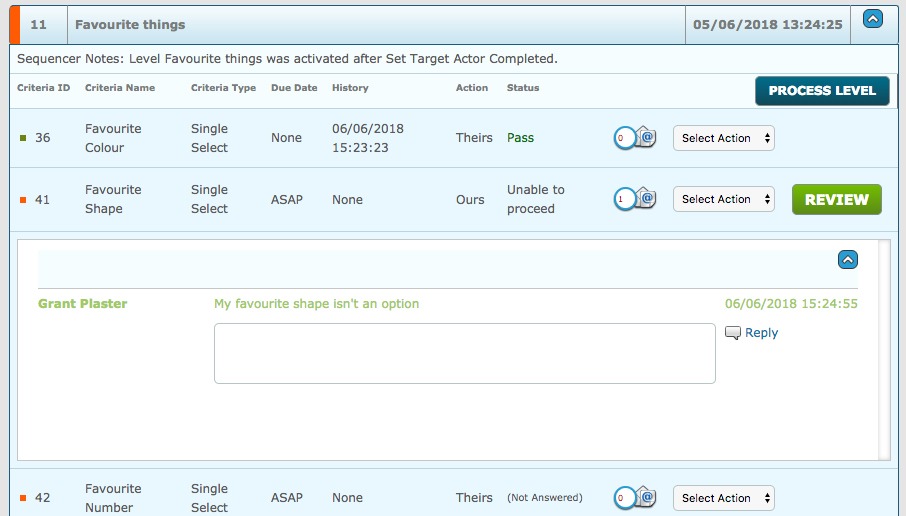
When the User selects the 'Review' button, a pop up modal is displayed on the page. The User will then select an action based on the note left. Once the relevant action is selected, the status of the criteria will be updated according, to what action was selected.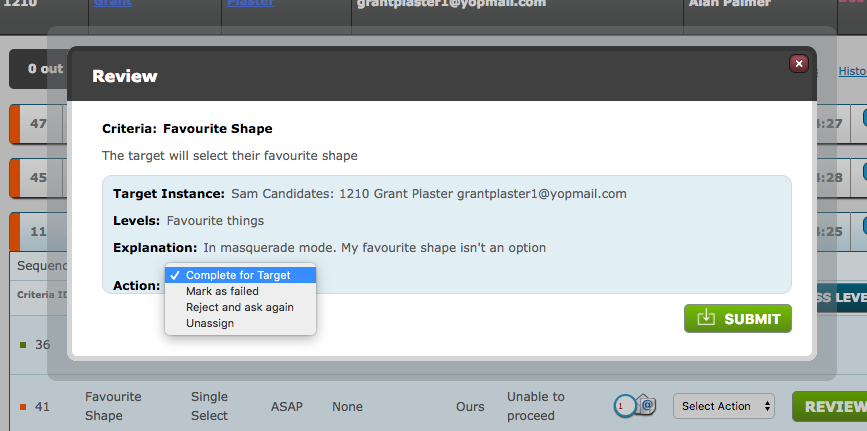
- Complete for Target - will take the system user into masquerade mode where the criteria can be completed on behalf of them
- Mark as failed - will complete the criteria but leave it with a Status of "Fail", as shown below. Please note: you will have to provide a reason for taking this action
- Reject and ask again - will allow the system user to reject the reason for being unable to complete and present the criteria to the target with instructions as to how they should now proceed. In the example shown the target could be asked to wait until they are able to provide a document with their new current address on it
- Unassign - will remove this criteria
Comments
0 comments
Please sign in to leave a comment.